
On this page
- Before you start
- Open the message composer
- Write a Manager Broadcast
- Choose the department audience
- Set acknowledgment and signature requirements
- Choose whether to queue a mobile notification
- Send and check the result
- Find the saved announcement
- Review acknowledgments and pending staff
- If publication or notification reports a problem
- Keep the record and tracker together
Before you start
Step 1 of 8
Open the message composer
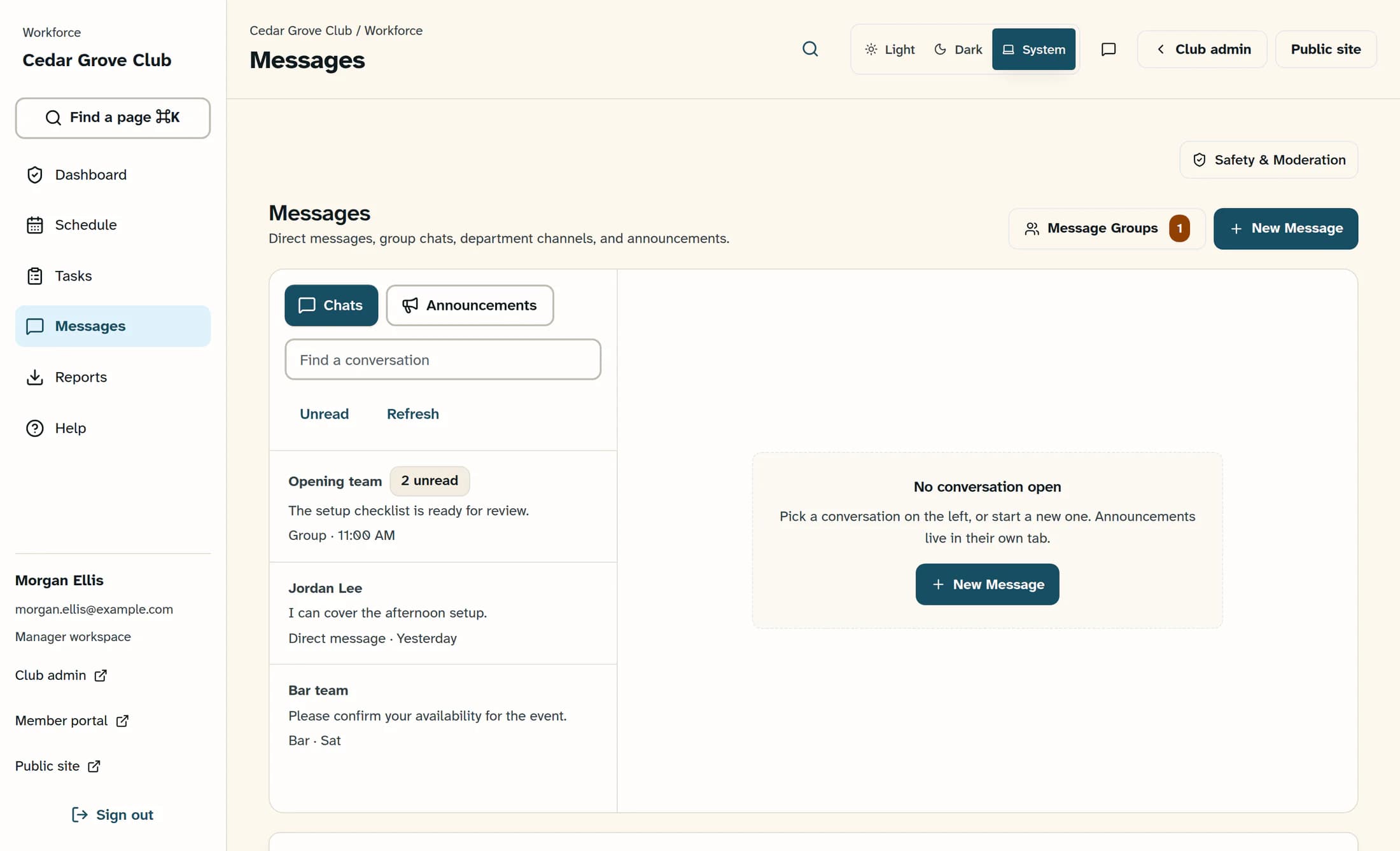
In Workforce, open Messages and choose New Message.
Step 2 of 8
Write a Manager Broadcast
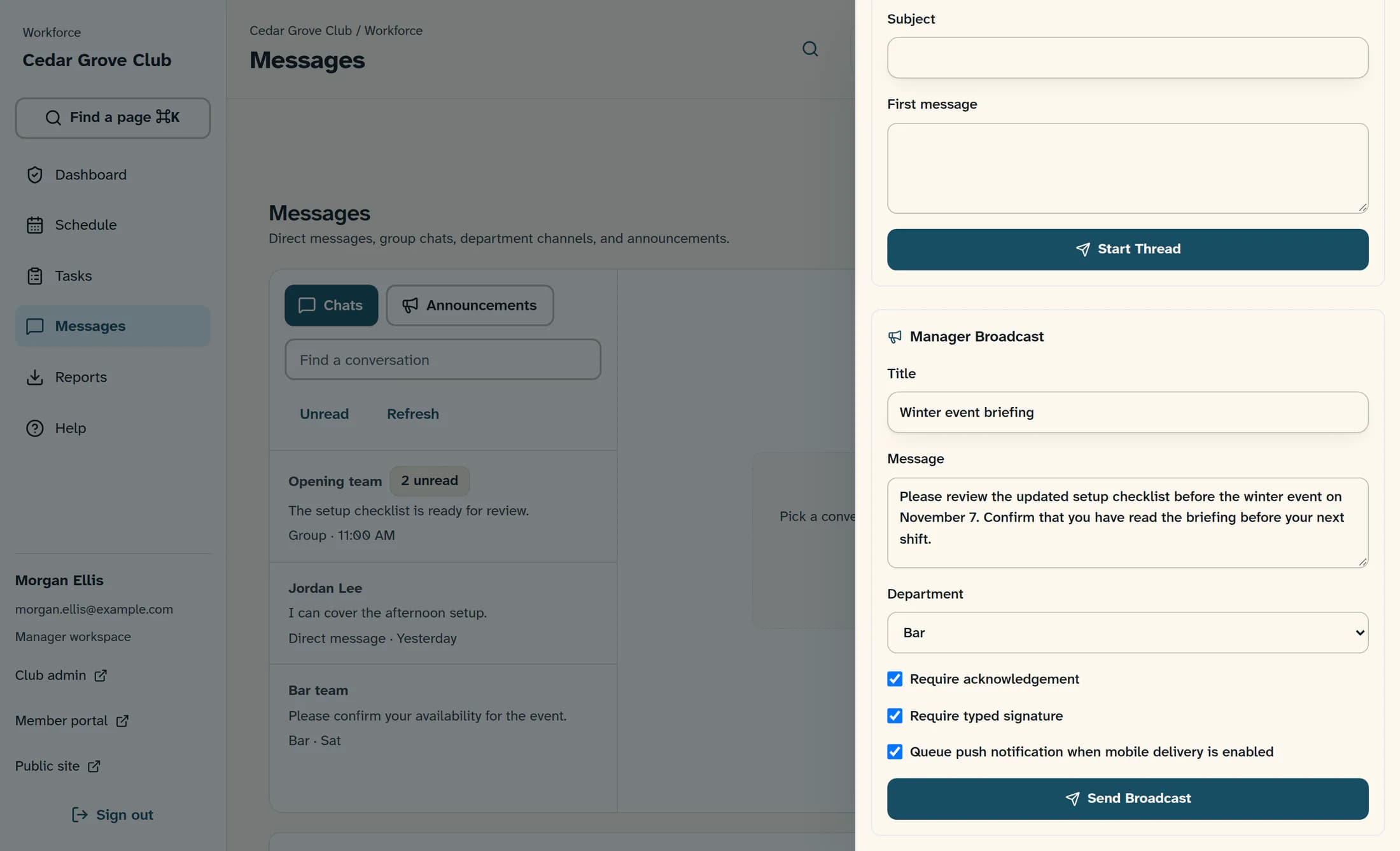
In New Message, scroll past Start Conversation to Manager Broadcast. Enter a clear Title and the announcement in Message. Use Send Broadcast for this announcement; Start Thread belongs to the separate conversation form above.
Step 3 of 8
Choose the department audience
In the broadcast form, leave Department set to All departments, or choose a department. The acknowledgment targets are active and onboarding staff whose department category matches your selection. Confirm that the selected department maps to the intended staff before sending; its display name alone does not guarantee a separate audience.
Step 4 of 8
Set acknowledgment and signature requirements
In Manager Broadcast, select Require acknowledgement to track completion. If you also need a signature, select Require typed signature. Selecting the signature option also turns on acknowledgment. Clearing Require acknowledgement clears the signature requirement too.
Step 5 of 8
Choose whether to queue a mobile notification
Choose whether to leave Queue push notification when mobile delivery is enabled selected in the broadcast form. Clear it if you do not want a mobile notification. When selected, Workforce asks the enabled mobile-delivery service to queue a notification. A queued notification or notification success message does not prove that a device received it or that an employee read the announcement.
Step 6 of 8
Send and check the result
Review the title, message, department and requirements, then choose Send Broadcast at the bottom of Manager Broadcast. The composer closes immediately, before publication finishes, so dismissal is not confirmation. Read the publication or notification notice and any error, then verify the actual announcement in Messages before trying again.
Step 7 of 8
Find the saved announcement
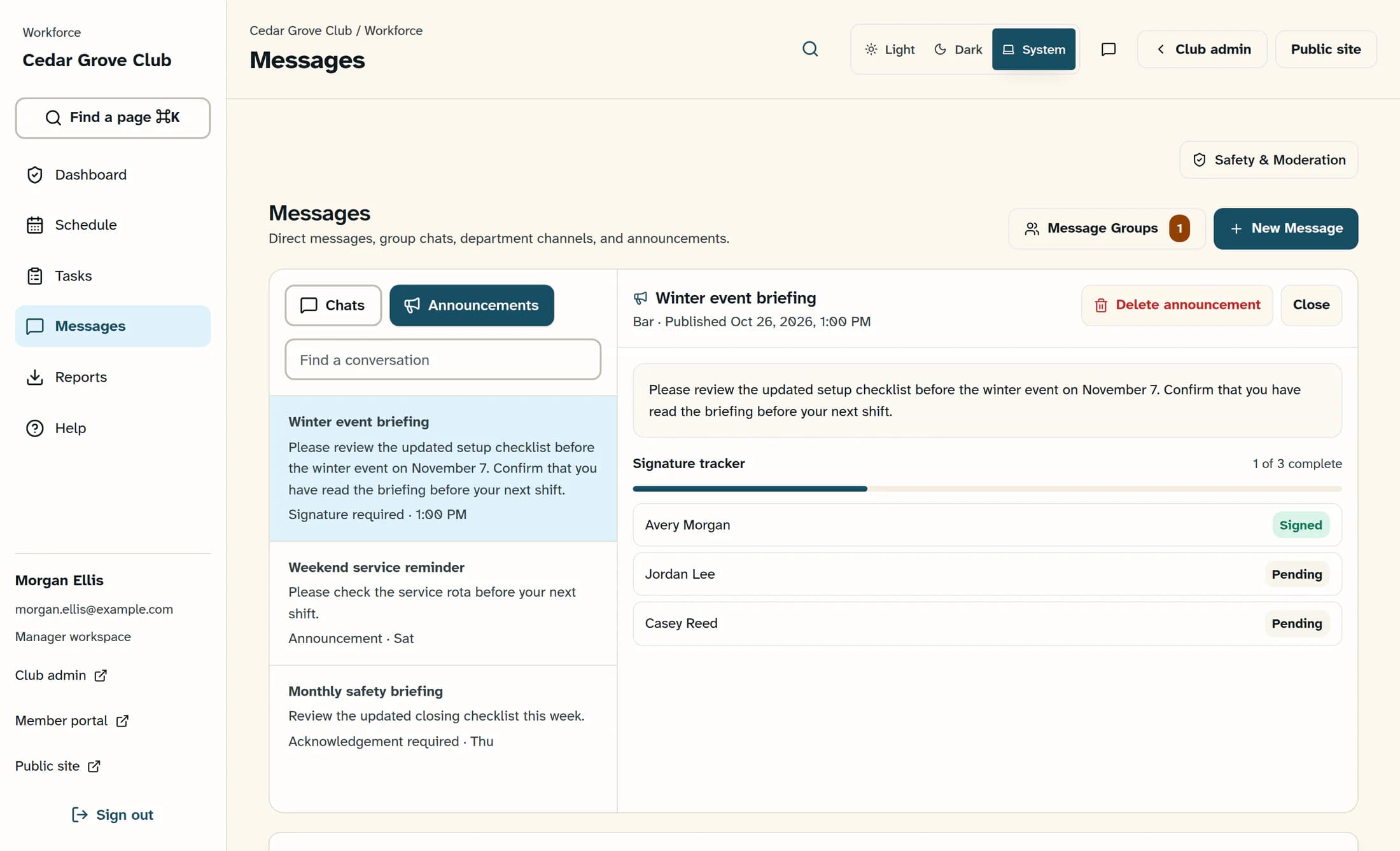
In Messages, choose Announcements. Use the search field below the tabs, shown as Find a conversation in this design, to search the title or message, then select the announcement in the list. Check its title, message, department and published date to confirm that the expected record exists.
Step 8 of 8
Review acknowledgments and pending staff
In the announcement detail, read Acknowledgement tracker, or Signature tracker when a signature is required. The completion count is based on the tracker rows present for this announcement. Each listed employee shows Acknowledged or Signed when complete, or Pending when still outstanding. Use the pending names to follow up. An empty tracker does not establish that there were no eligible employees; check the intended audience and ask your Workforce administrator to investigate missing staff.
If publication or notification reports a problem
Keep the record and tracker together
Your saved announcement is the publication record, and its tracker shows the acknowledgment or signature status of the employees listed. Announcements are one-way: replies are not collected.
About this guide
This guide was checked on October 26, 2026, for Workforce in a desktop browser using the Clubhouse design. The illustrations were reconstructed from the checked application source with fictional club, staff and announcement data. They do not show a live broadcast, confirm mobile delivery, or verify the native phone app. Your available controls depend on your club settings and permissions.
The screens in this guide show example clubs and people. Your club's name, colours and some labels may look different.
