
On this page
Before you start
Step 1 of 5
Open My Availability
In the Workforce sidebar, find the Schedule group and select My Availability. On a phone browser, the full menu is under More, and the search icon in the header opens Find a Workforce page.
Step 2 of 5
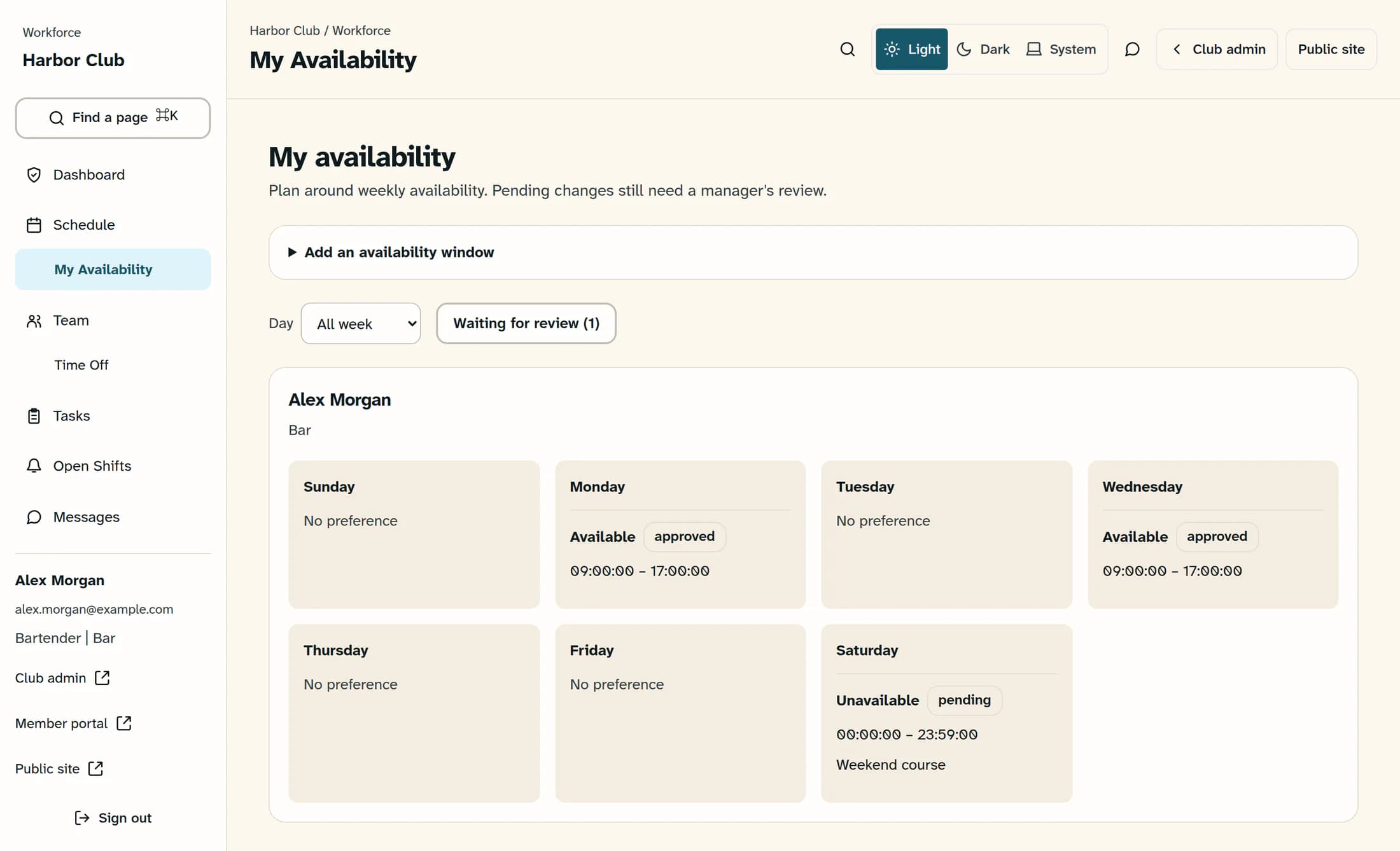
Check your existing windows
Review your existing windows before adding another. Use the Day filter to focus on a weekday, or All week to see the week; Waiting for review narrows the view to pending submissions. With pending filtering off, No preference means there is no recorded window for that day.
Step 3 of 5
Enter a weekly window
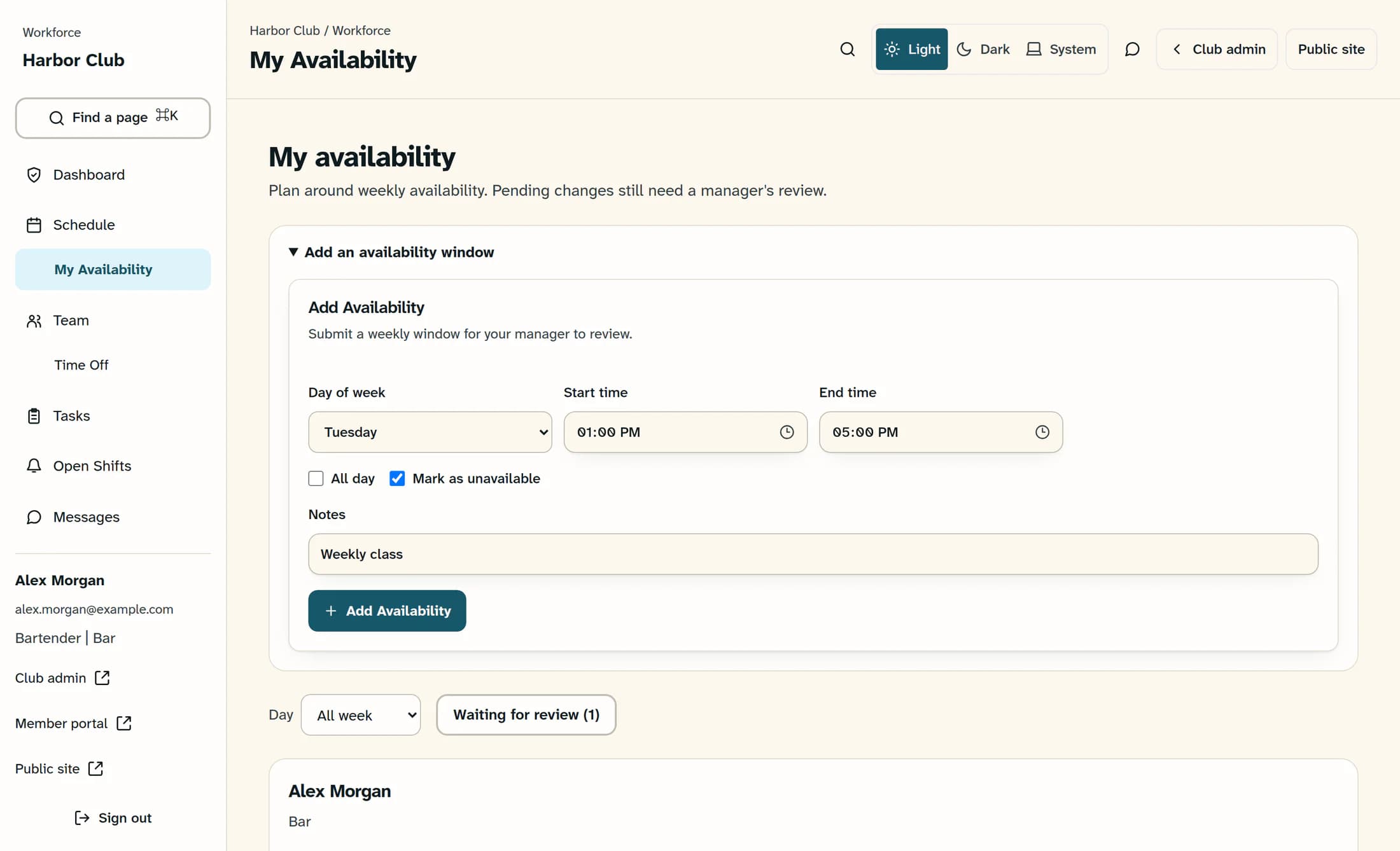
Open Add an availability window and choose Day of week. Enter Start time and End time, with the end later than the start on that same day. For the whole day, select All day instead; the time fields become unavailable.
Step 4 of 5
Say whether you can work
Leave Mark as unavailable unchecked for a window when you can work, or check it for a window when you cannot. Add optional Notes to explain the pattern, such as a recurring class.
Step 5 of 5
Submit the window
Check the weekday, times and availability choice, then select Add Availability once. After a successful employee submission, you’ll see Availability submitted for manager review. and the new window will have a pending status.
Tips
Outcome
Your weekly window is recorded for your manager to review. You can find pending entries with Waiting for review; the status on each window shows whether it is still pending, approved or denied.
Troubleshooting
- Cannot submit availability: your account may need a linked employee record. Ask your manager to check the link and your Workforce access.
- End-time error: the end must be later than the start on the same day. For availability that runs past midnight, ask your manager how to record it.
- A window seems missing: check Day and Waiting for review. These filters can hide existing windows; No changes waiting for review in this view. does not mean you have no availability recorded.
- Need to correct or remove a window: ask your manager, including the weekday and times. This employee screen does not provide edit or delete controls.
- A save failed or the confirmation is unclear: check your windows before trying again so you do not create a duplicate. If it still fails, share the displayed error with your manager.
