
On this page
Before you start
Step 1 of 5
Open your team roster
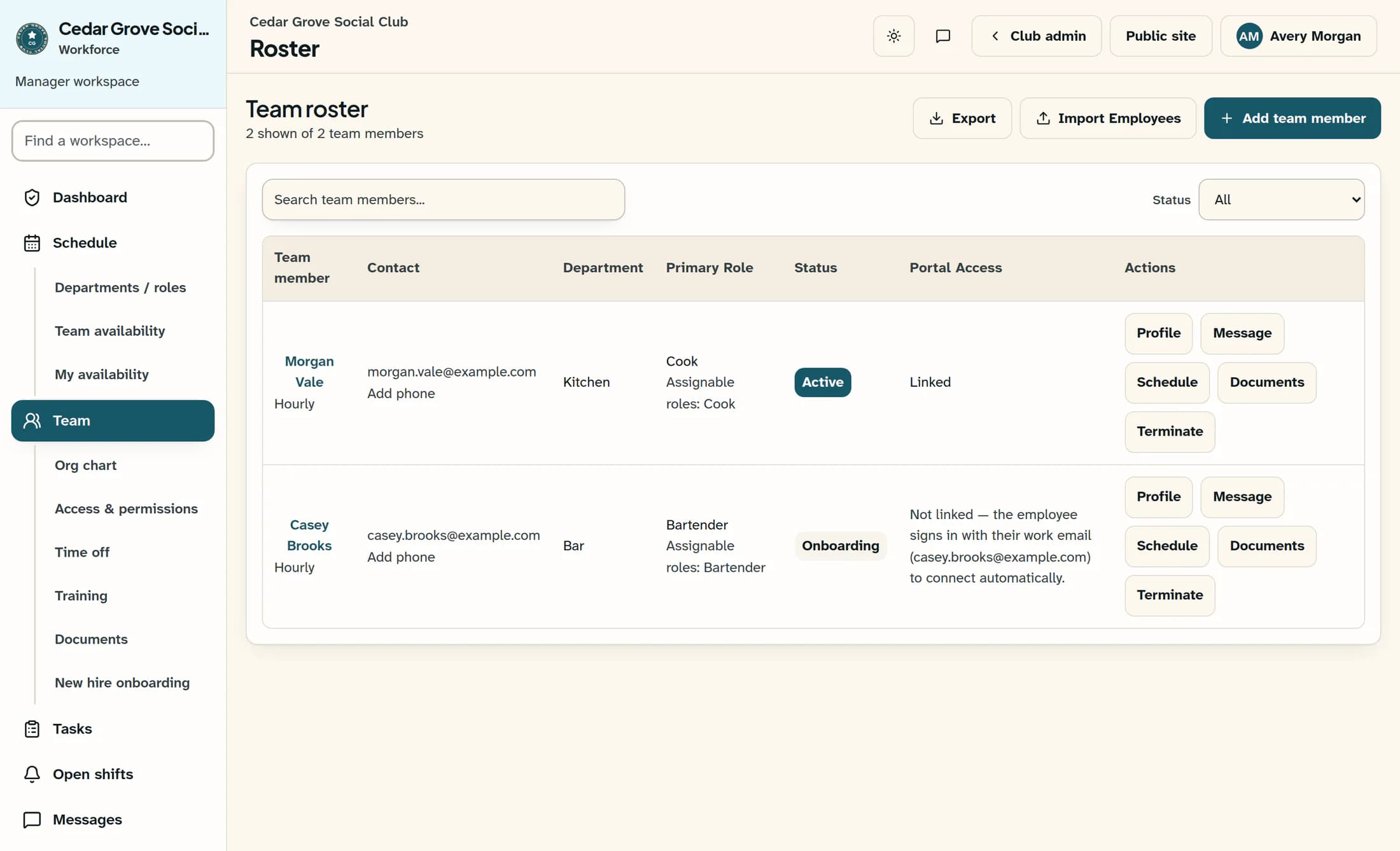
In Workforce, open Team and choose Add team member. The Add Team Member form opens over your roster.
Step 2 of 5
Enter their name, email and access role
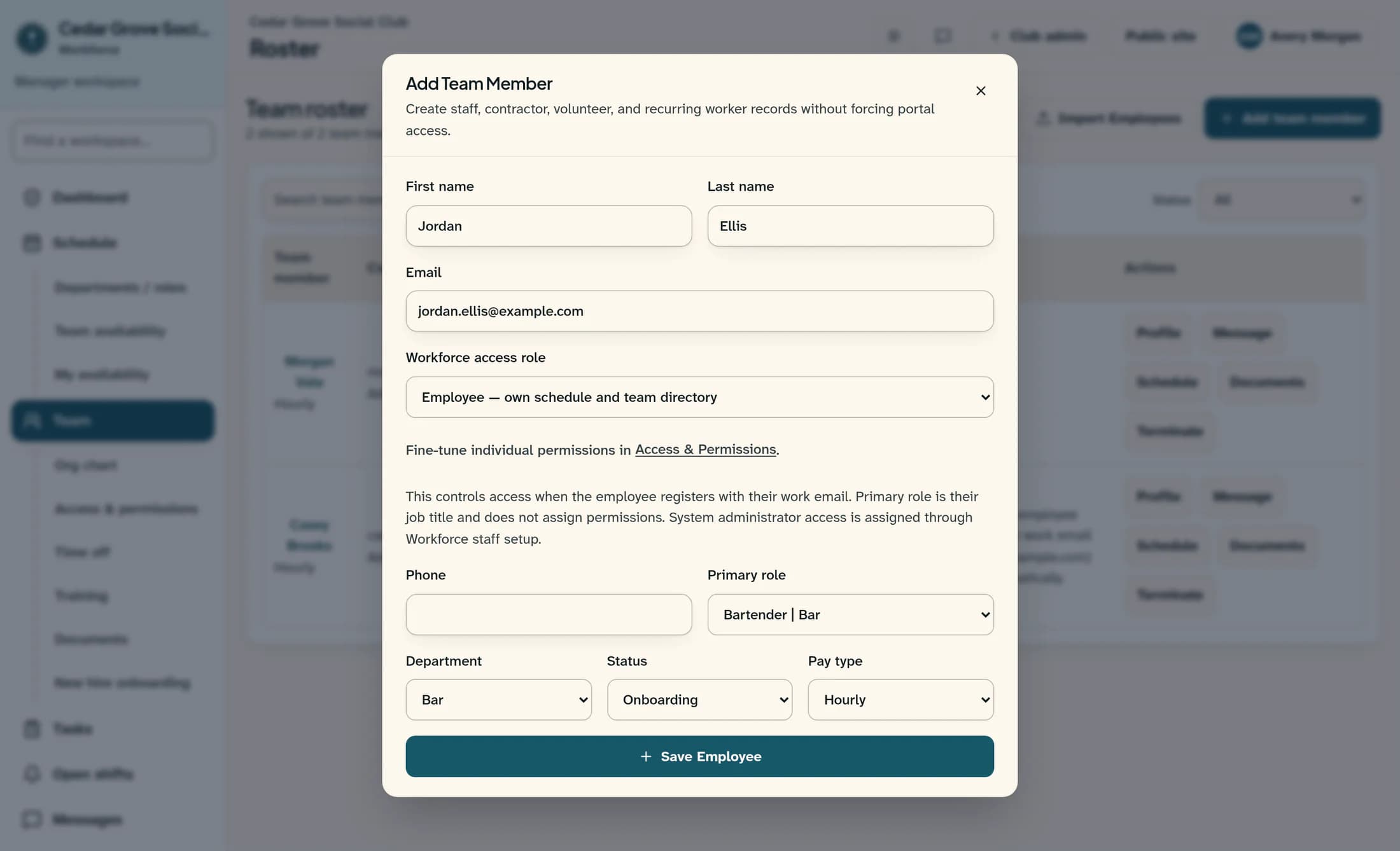
Enter First name, Last name and Email, using the work email the employee will use to sign in. Choose a required Workforce access role: Employee — own schedule and team directory or Manager — employee records, HR and schedules. This role controls Workforce access; Primary role is their job title and does not grant permissions.
Step 3 of 5
Finish the work details and save
Complete Phone, Primary role, Department, Status and Pay type as needed. Use Active or Onboarding for an employee who needs to connect their sign-in, then choose Save Employee. Saving creates the roster record with the selected access role.
Step 4 of 5
Have the employee sign in with their work email
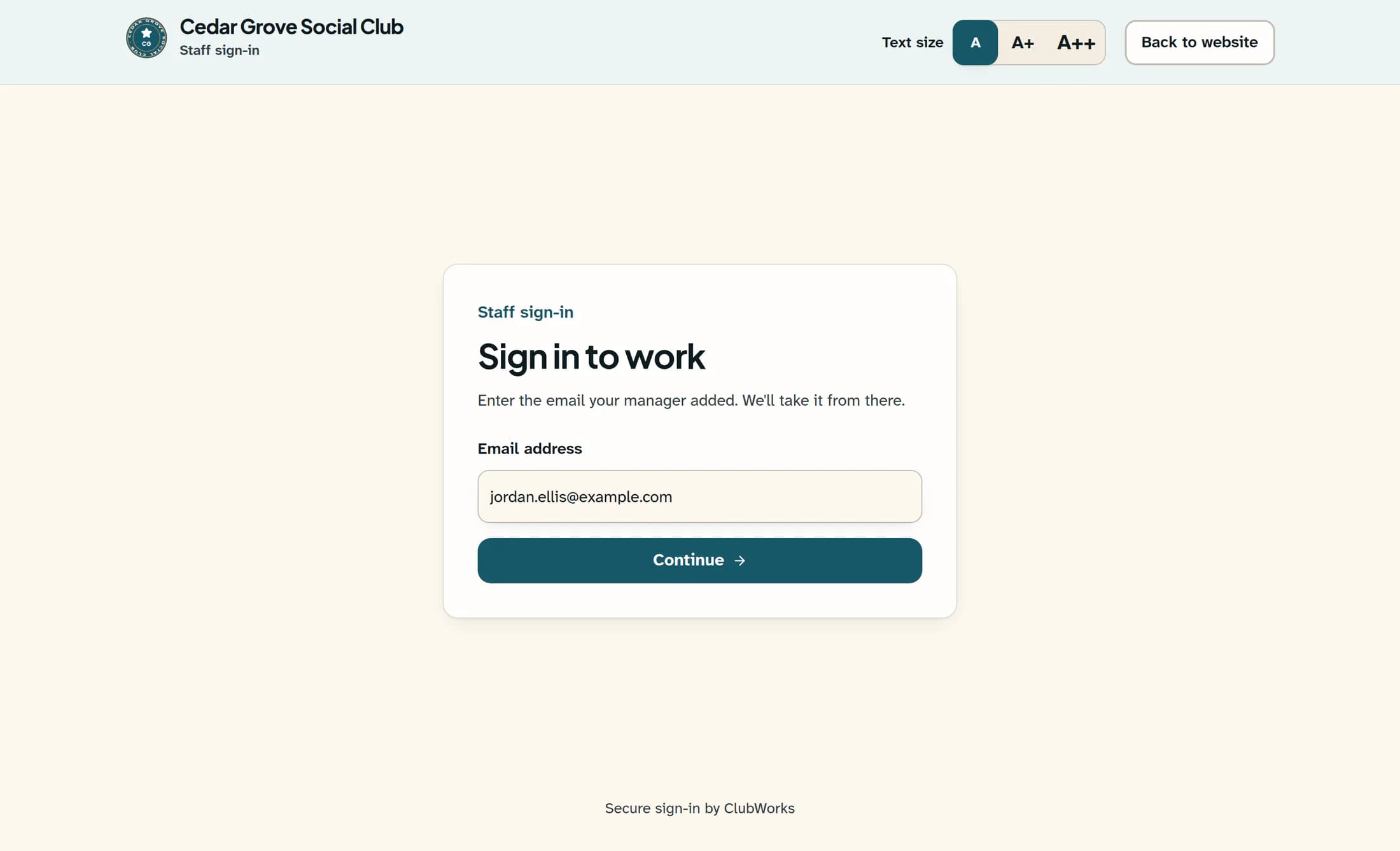
Ask the employee to open Workforce for your club and sign in with their own matching work email: enter it in Email address and choose Continue. Have them complete the password or email verification steps offered next; a verified sign-in can connect an eligible active or onboarding roster record automatically. ClubWorks reuses an eligible account in the same club or creates a staff sign-in profile, and never moves a link that belongs to someone else.
Step 5 of 5
Check the roster connection
Reload the roster after the employee finishes signing in and check their record. Linked means the roster has an account connection; Not linked means the connection has not been made. If it stays unlinked, check the club, roster email and employee status, then ask a Workforce or club administrator to review the account connection.
Contact email and sign-in email are different
Changing an employee’s roster email updates their contact record; it does not change the email on an already connected sign-in account. Have an administrator review an existing connection before correcting the account’s sign-in details.
If saving or linking needs attention
Summary
Your employee is on the roster with the Workforce access role you selected. Confirm the portal connection after their verified work-email sign-in before treating their access as ready.
