
On this page
Before you start
Step 1 of 8
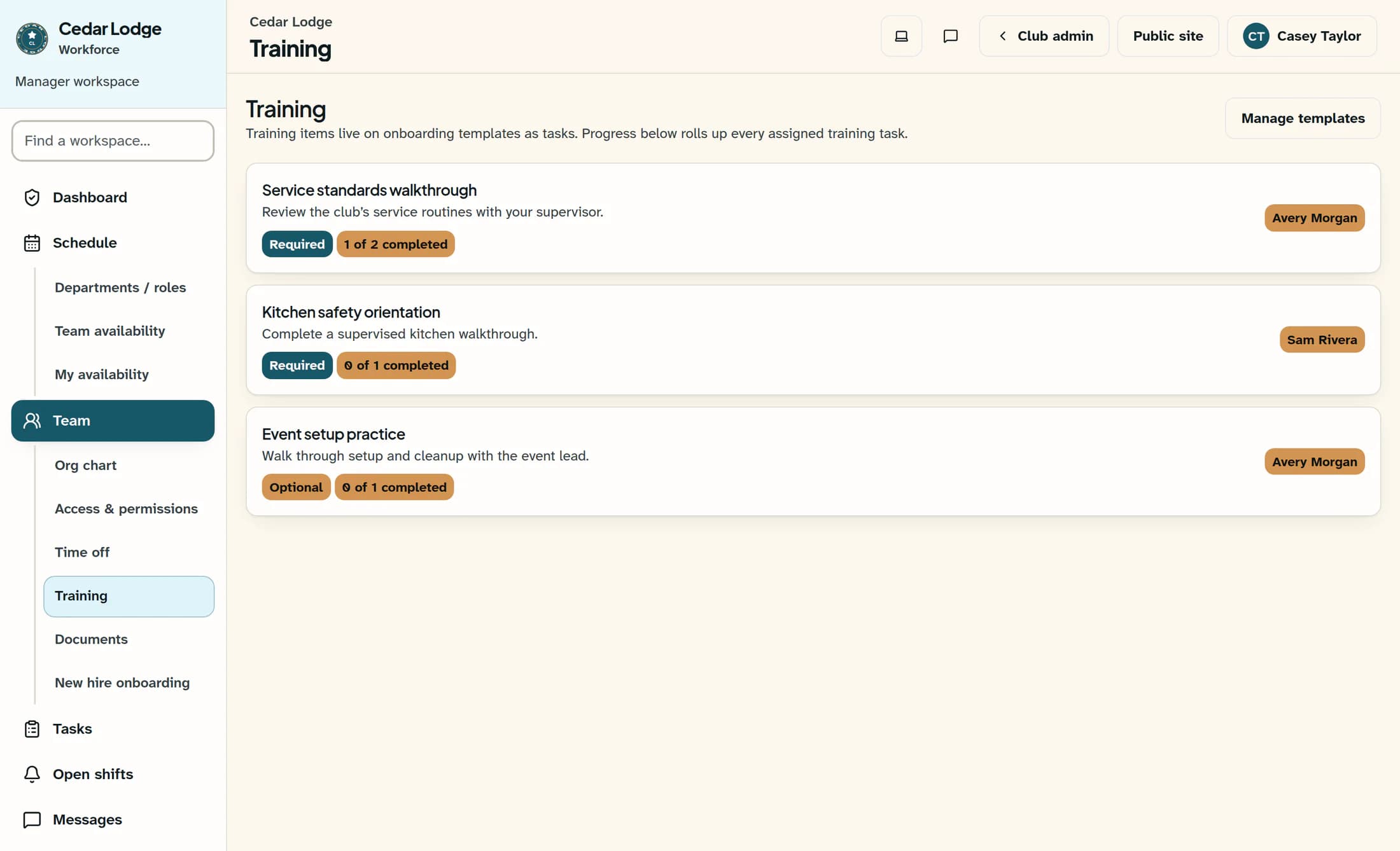
Open Training
In the Workforce web app, open Training under Team. Select Manage templates to open New Hire Onboarding.
Step 2 of 8
Start a task
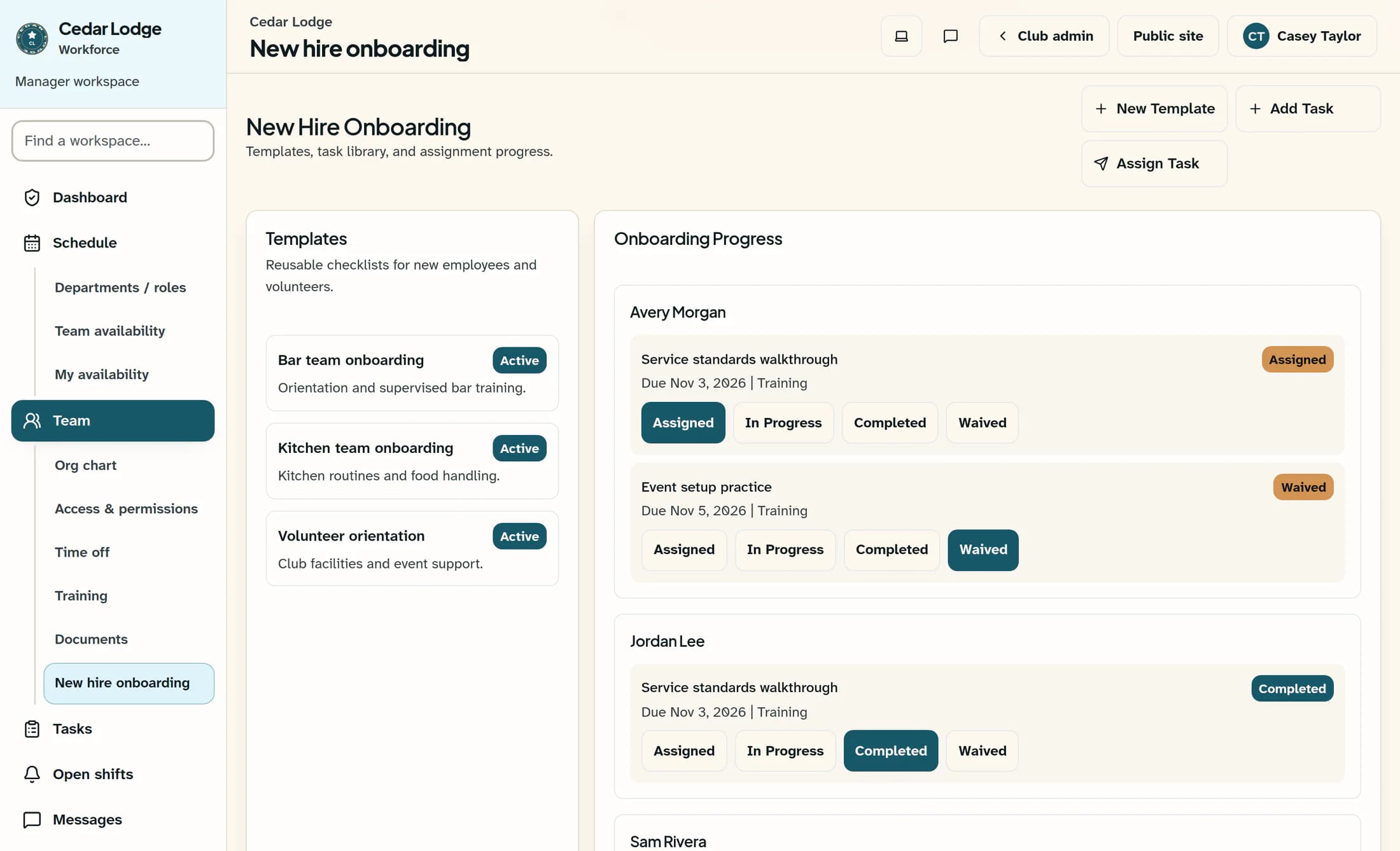
Under New Hire Onboarding, select Add Task. This opens Add Onboarding Task for one checklist item in a template.
Step 3 of 8
Describe the training task
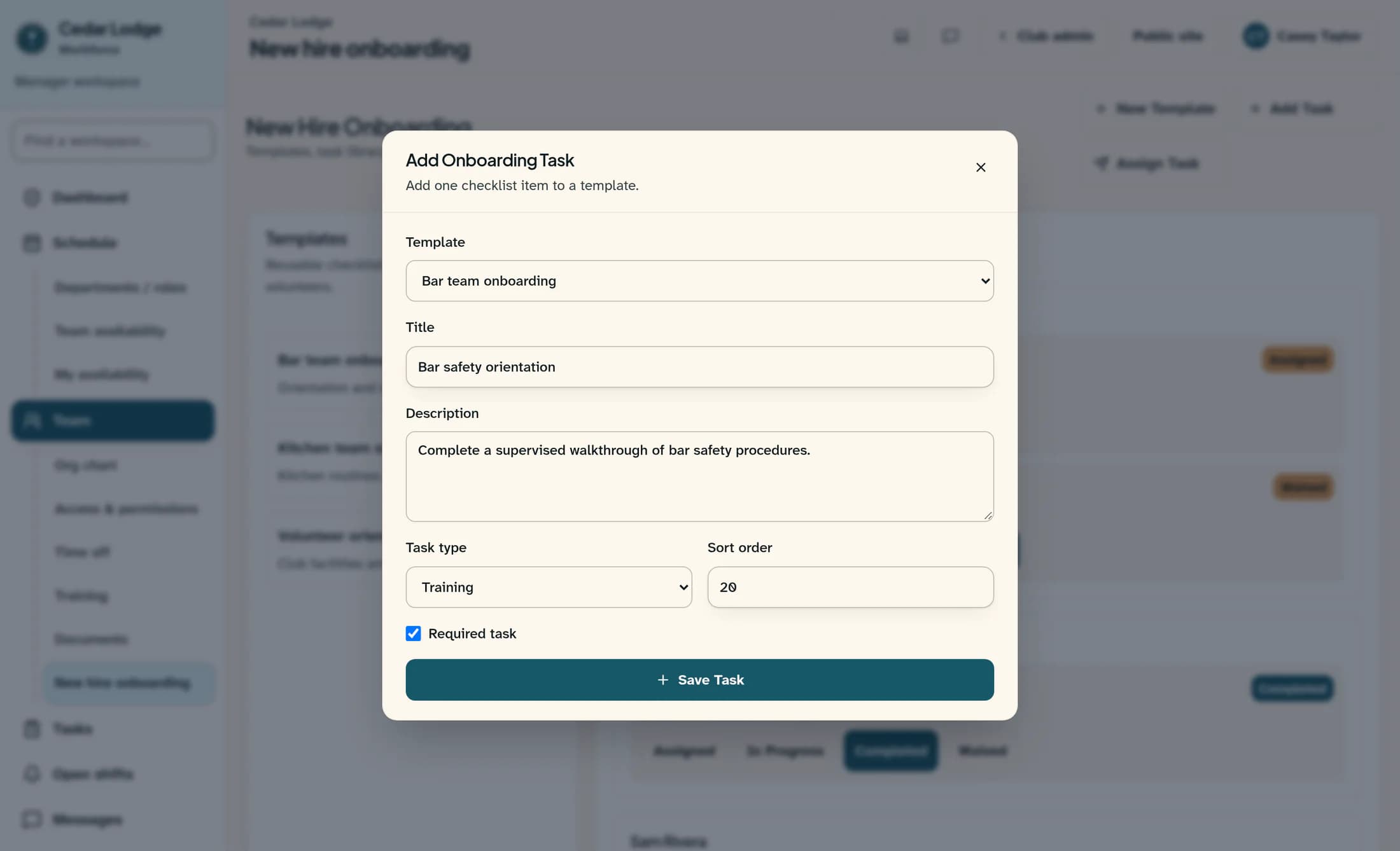
Choose the existing checklist in Template, then enter the task’s Title. Add instructions in Description, and choose Training in Task type.
Step 4 of 8
Set the task requirements
Set Sort order to control the task’s position, and leave Required task checked if the employee must complete it. Select Save Task.
Step 5 of 8
Assign the task
Back under New Hire Onboarding, select Assign Task in the action buttons. The Assign Onboarding Task form assigns one existing task to one employee.
Step 6 of 8
Choose the employee and due date
In the assignment form, choose Employee and the training item in Task. Set Due date if you need a deadline, then select Assign Task to save the assignment.
Step 7 of 8
Check the employee’s remaining work
In Onboarding Progress, find the employee and review each assigned task’s status, due date, and task type. Tasks still assigned or in progress show work that has not been recorded as completed; waived tasks have their own status.
Step 8 of 8
Review training across the team
Open Training under Team again. Each training task shows whether it is required or optional, how many assignments are completed, and up to six employees with a status other than completed; any additional names are counted as more pending.
Keep the counts in context
Summary
The task is part of your onboarding template, and the employee has an individual assignment with its due date. Use the employee’s task statuses and the Training totals to follow up on remaining work.
