
On this page
Before you start
Step 1 of 4
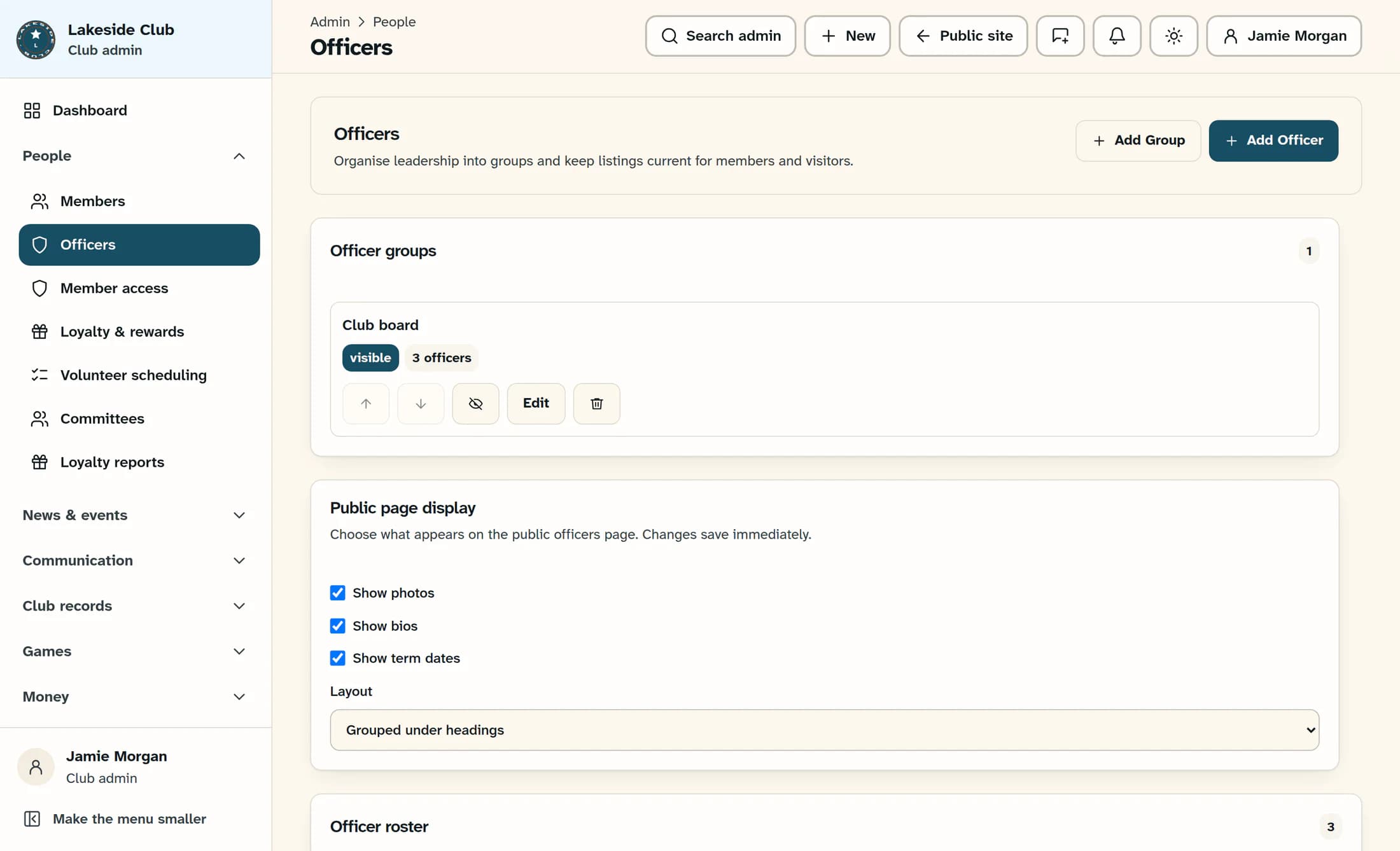
Open the officer form
In the admin menu, open People, then Officers. Select Add Officer above the roster.
Step 2 of 4
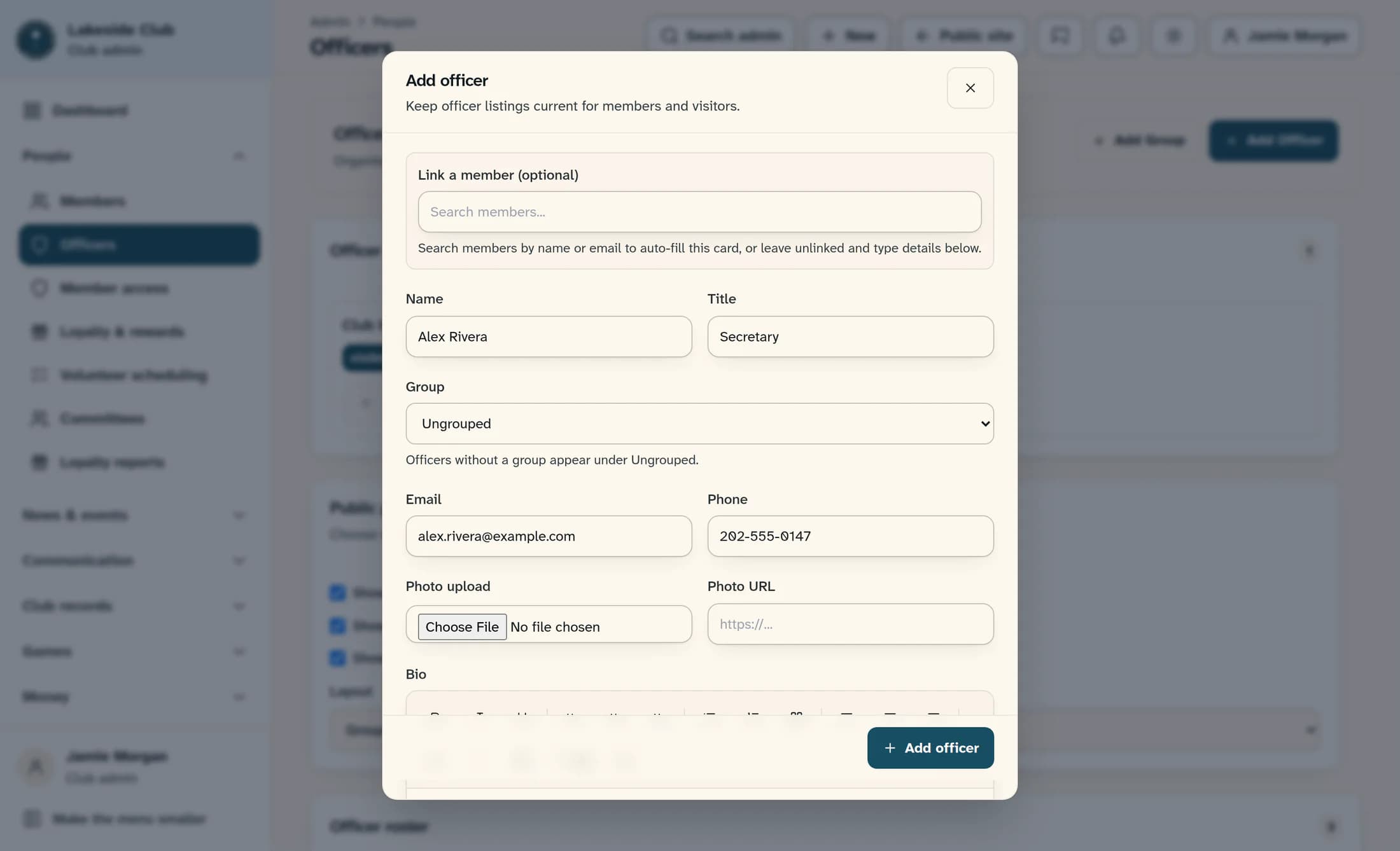
Enter the officer’s details
Enter the officer’s Name and Title in the Add officer form. Leave Link a member (optional) empty for this manual entry. If you want to include contact details, enter Email and Phone; the sharing choices come later.
Step 3 of 4
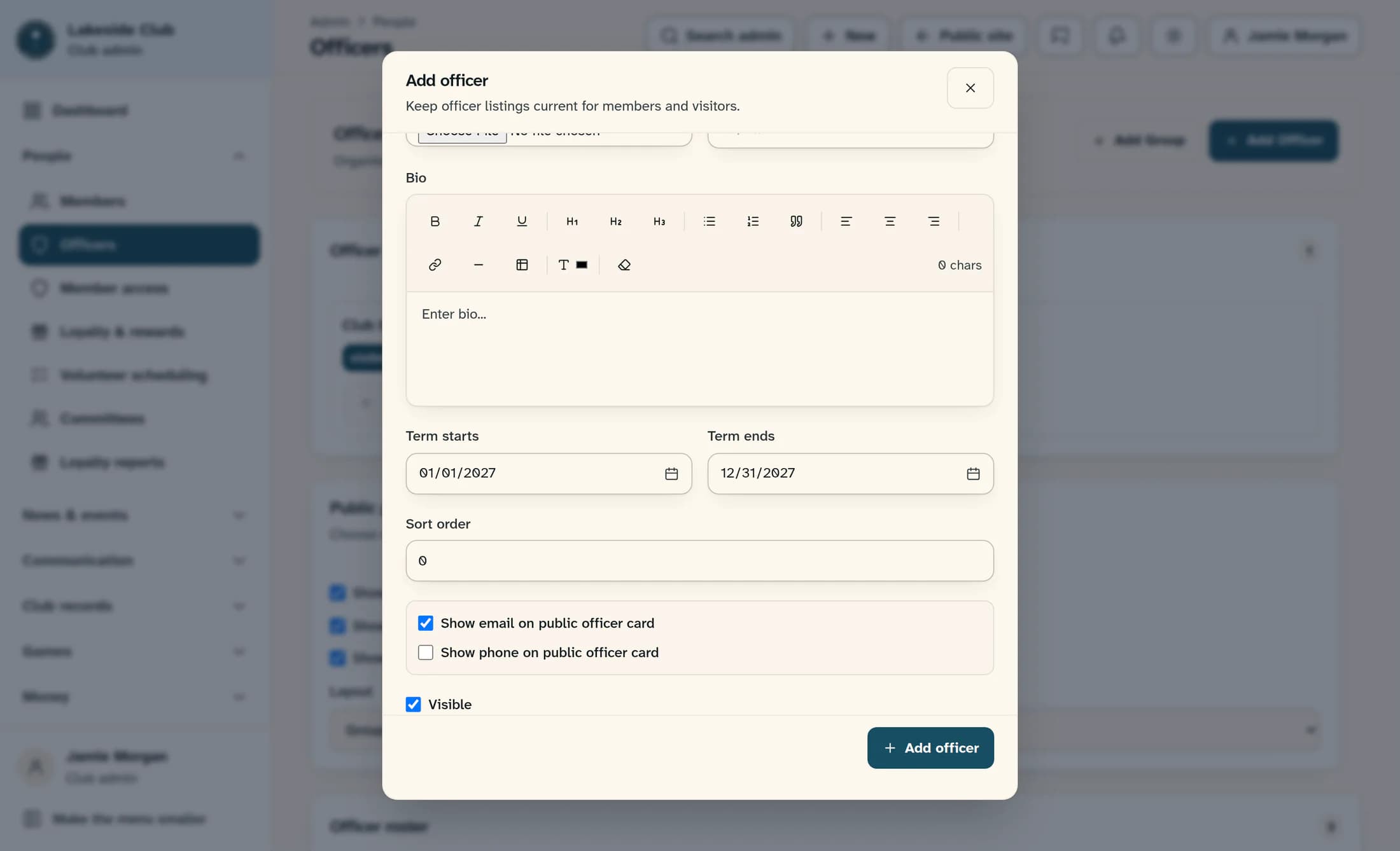
Assign the term dates
Scroll down in the form and enter the first day of the term in Term starts and the last day in Term ends. For example, a calendar-year term could run from January 1, 2027 to December 31, 2027.
Step 4 of 4
Choose visibility and save
Set Show email on public officer card and Show phone on public officer card to match what the officer has agreed to share. Keep Visible checked for a public listing, or clear it to keep the officer hidden. Select Add officer at the bottom of the form.
Tips
Result
After a successful save, the form closes and “Officer saved.” appears. The new listing is added to the officer roster with its name, title and visibility badge.
Troubleshooting
- A blank name or title prevents saving. Both fields are required.
- An end date before the start date prevents saving. The end can be the same day as the start or later.
- A saved officer may still be absent from the public page if the listing or its group is hidden.
- Public term dates also depend on the page’s Show term dates setting. A term date alone does not make an officer visible.
- If saving fails, the form stays open and the roster may not include the new officer. An administrator can help with access or connection problems.
About this guide
These illustrations are source-based reconstructions of ClubWorks, using fictional club and officer details. They show the default officer form inside the Clubhouse admin layout; your club’s branding or a preview layout may look different.
The screens in this guide show example clubs and people. Your club's name, colours and some labels may look different.
