
On this page
Before you start
Step 1 of 6
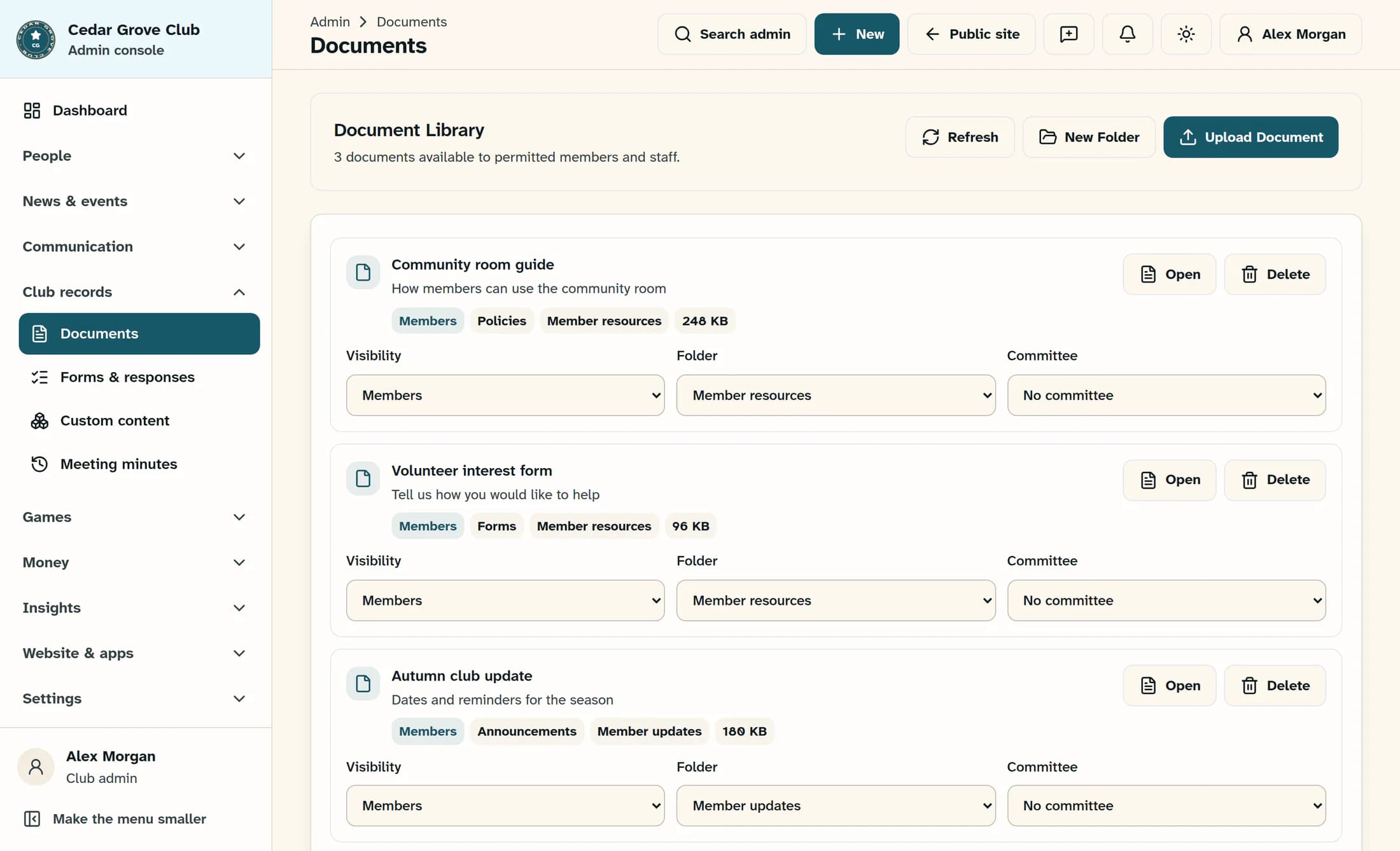
Open the document library
In the admin menu, expand Club records if needed and select Documents. The Document Library lists the files available to your account; select New Folder to organize the example file.
Step 2 of 6
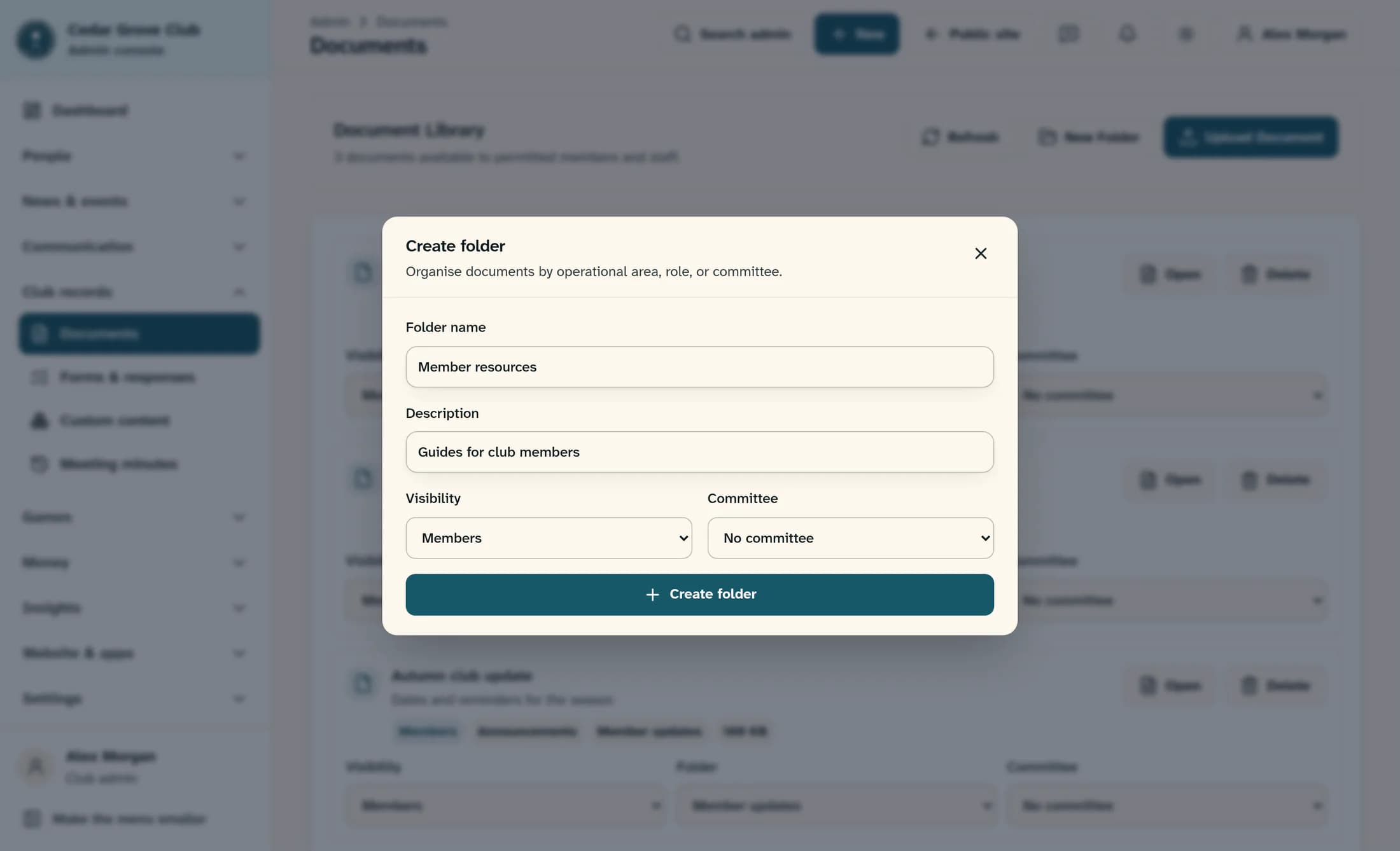
Create a member resources folder
In Create folder, enter Member resources in Folder name and, optionally, add a Description such as Guides for club members. Set Visibility to Members and leave Committee at No committee for this example; for a committee-only folder, choose Committee in Visibility and select the intended group in Committee. Select Create folder; the form closes after a successful save.
Step 3 of 6
Start the upload and describe the file
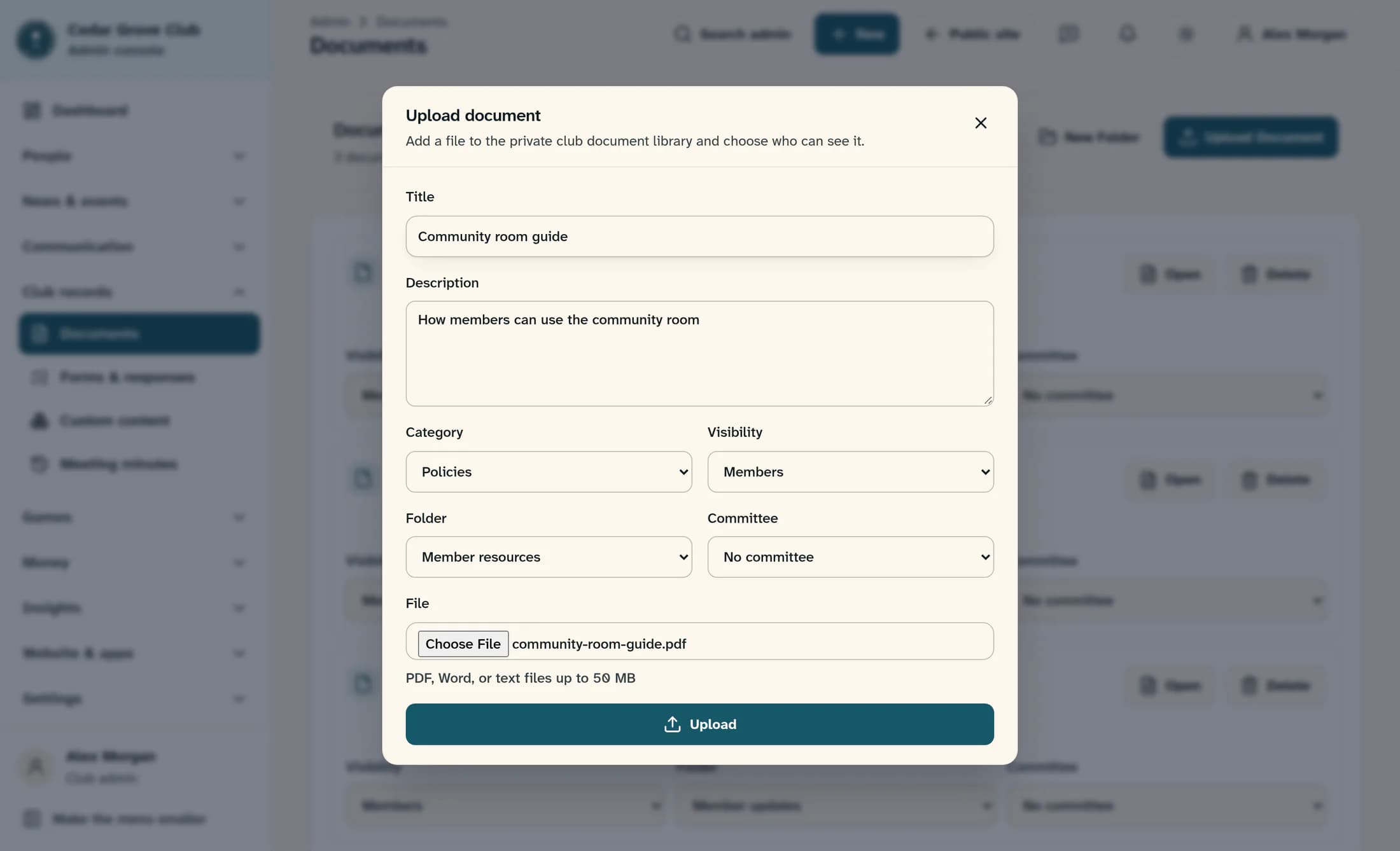
Select Upload Document above the library to open Upload document. Enter Community room guide in the required Title, then add an optional Description such as How members can use the community room. Set Category to Policies for this example.
Step 4 of 6
Choose the document audience and folder
Set the document’s Visibility to Members and choose Member resources in Folder. Leave Committee at No committee for this example; for a committee audience, choose Committee in Visibility and select the intended group in Committee before uploading. The folder organizes the file; its visibility does not replace the document’s own visibility setting.
Step 5 of 6
Choose the file and upload it
Use File to choose your finished PDF, Word, or text file from your device, such as community-room-guide.pdf. Check the selected filename and the title, category, visibility, and folder, then select Upload once. Wait for the form to close before checking the library.
Step 6 of 6
Check the uploaded document
Find Community room guide in Document Library and check its Members, Policies, and Member resources badges. Select Open on that row and confirm it is the intended file. Open requests a temporary link and opens the file in a new tab.
Tips
- Use a clear title that members will recognize; the displayed title can differ from the filename.
- Folder visibility and document visibility are separate. A restricted folder does not automatically restrict a document placed in it.
- Members includes members with portal access. Administrators, authorized document staff, and people with additional document permissions may also have access.
- Committee-only folders and documents both need a committee, as shown in steps 2 and 4. A committee selection alone does not make a Members document committee-only.
- If you have document editing access, change Folder on an existing document’s row to organize it later; the change saves immediately.
Result
Your member-visible document is stored in the club library, labeled with its category and folder. Members with portal access can read it, and you have checked the uploaded file with Open.
Troubleshooting
- A missing-title or missing-file message means the upload is incomplete. Follow step 3 for the required title and step 5 for the file and upload retry.
- A committee-only message means a committee audience has no selected group. Follow step 2 for a folder or step 4 for a document to pair the audience with the intended committee.
- If the upload result is uncertain, close the form with Close, select Refresh above the library, and look for the title before uploading again. For an existing row, follow step 6 to check the file first, so you avoid duplicates.
- If the file is rejected, check that it is a PDF, Word, or plain-text file within the 50 MB limit. A network or permission error may also prevent the upload; use the displayed message to identify the next step.
- If Documents is missing or saving is denied, ask a club administrator to check your document access. Admin visibility requires administrator access.
- If opening the file fails or its temporary link has expired, repeat step 6 to request a fresh link. If it still fails, share the error and document title with a club administrator; reopening does not upload another copy.
About these illustrations
These illustrations are source-based reconstructions of ClubWorks, using a fictional club, people, folders, and documents. They show the documented web workflow and are not screenshots of a live club or proof of a completed upload.
