
On this page
Illustrations are source-based reconstructions with fictional data. These workflows have not been verified live.
Step 1 of 8
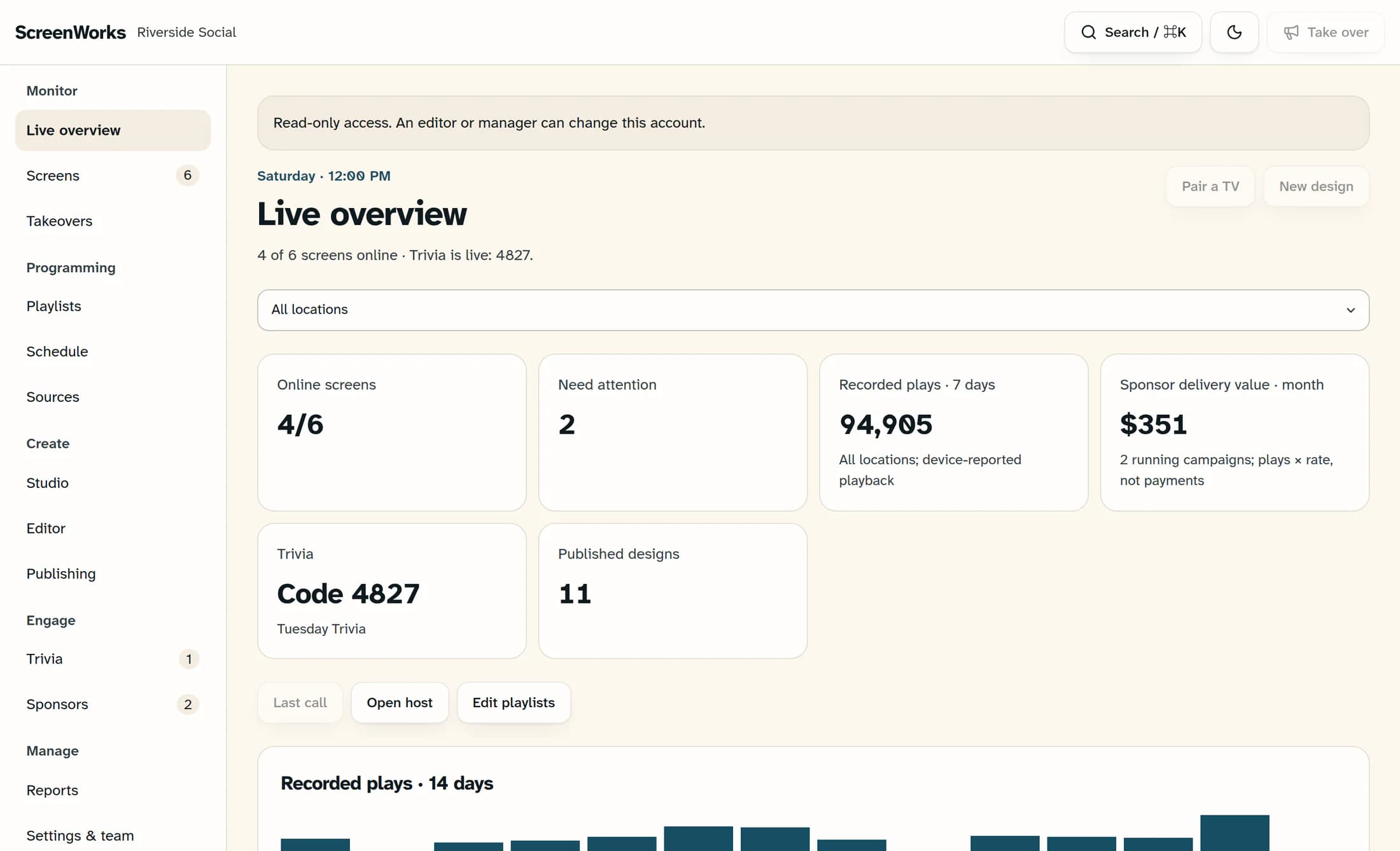
Open Live overview
In ScreenWorks, choose Live overview under Monitor; viewer access is enough. Use this same navigation choice to return to the summary after closing a screen’s details.
Step 2 of 8
Check the active screens
Read Online screens and Need attention to check the active screens. A screen is online when its paired device checked in less than five minutes ago; offline means that check-in is stale or missing, and unpaired means no current device is paired.
Step 3 of 8
Focus on a location if needed
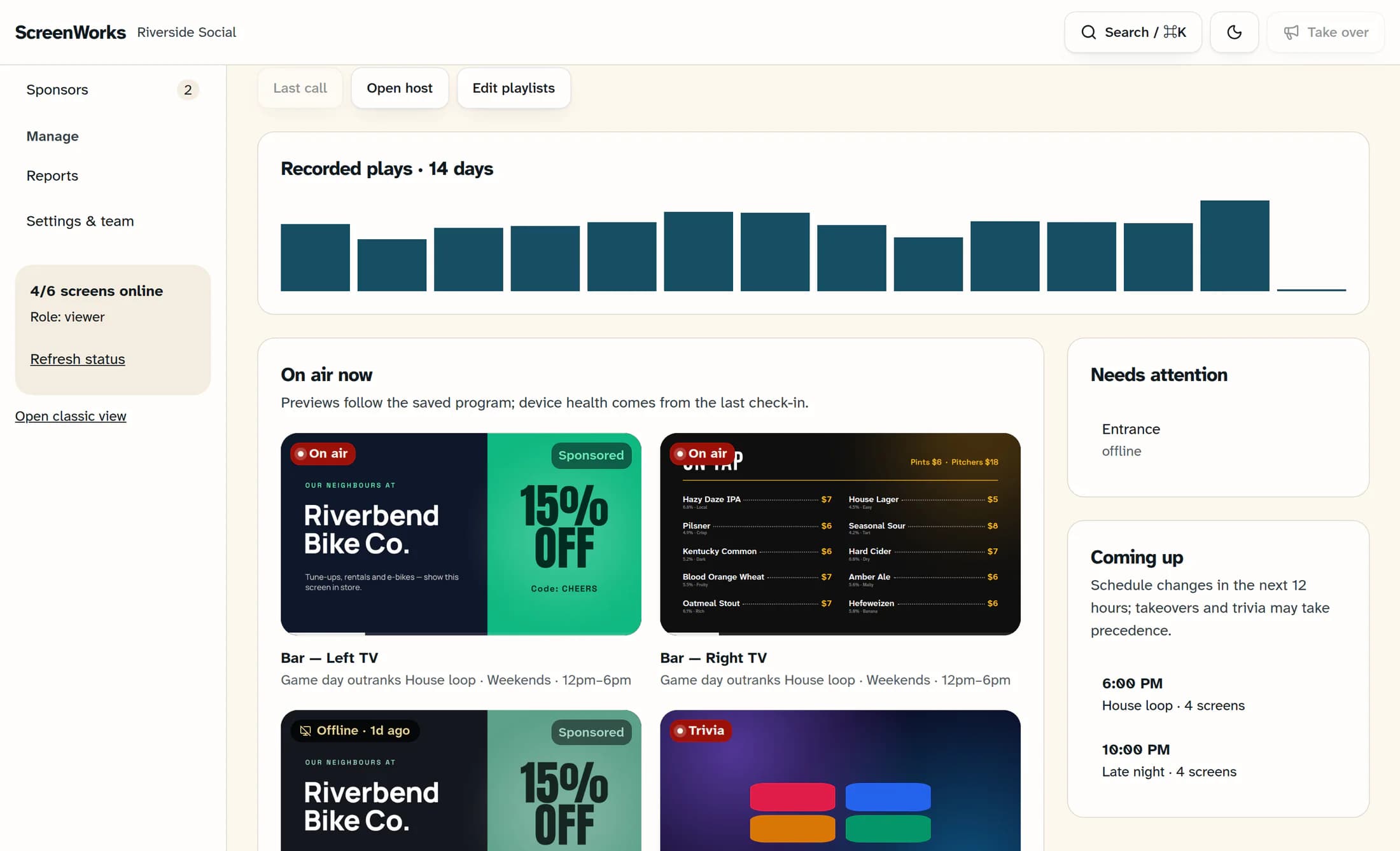
Use the location selector to choose a location, such as Main Bar, or keep All locations. It filters the screen counts, previews, screen alerts and upcoming transitions; the plays, sponsor, trivia and published-design summaries and failed-render alerts still cover the account.
Step 4 of 8
Open a screen that needs attention
Under Needs attention, choose the named screen you want to investigate—for example, Entrance, shown as offline here. Its details open with the same screen name at the top.
Step 5 of 8
Read the last check-in
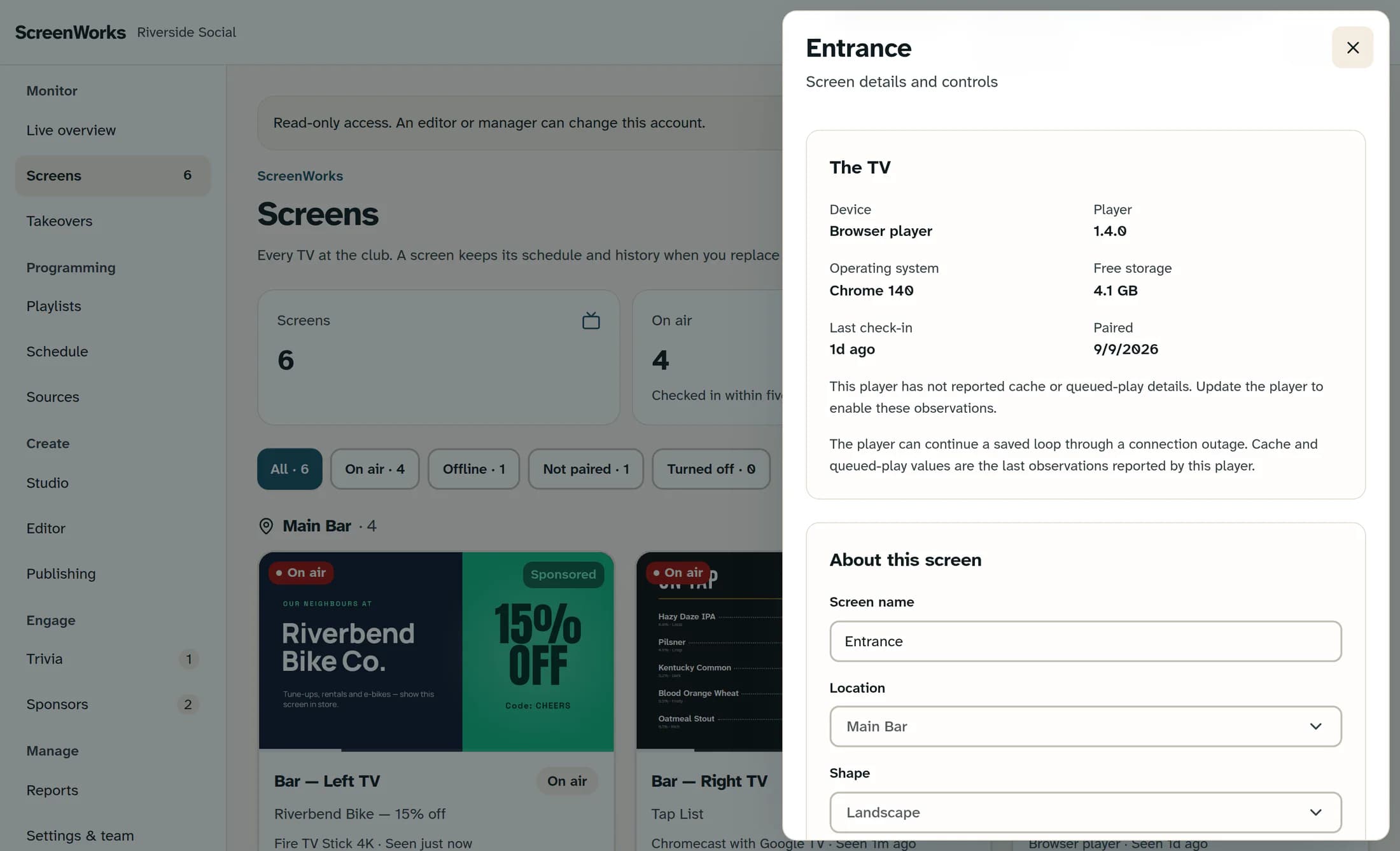
Scroll within the screen’s details to The TV and read Last check-in. This is the last reported contact, not proof that the television is powered on or showing the expected picture; a player may continue a saved loop while offline. If The TV shows No device paired, there is no paired-device check-in to review.
Step 6 of 8
Understand what the preview shows
The preview resolves saved published content and the schedule. As Why this is playing explains, it is not a screenshot from the TV, so confirm the physical display separately when needed.
Step 7 of 8
Return to the overview
Choose Close, then return to Live overview using the navigation in step 1. The details keep the selected screen’s context until you close them.
Step 8 of 8
Refresh the reported status
Choose Refresh status in the sidebar to load the latest account data. This refreshes the console; it does not send the device’s Reload command or restart the TV.
Summary
You have checked the active-screen health summary and the selected TV’s last report. Use those reports alongside a physical check when you need to confirm what a television is actually showing.
