
On this page
Before you begin
Step 1 of 5
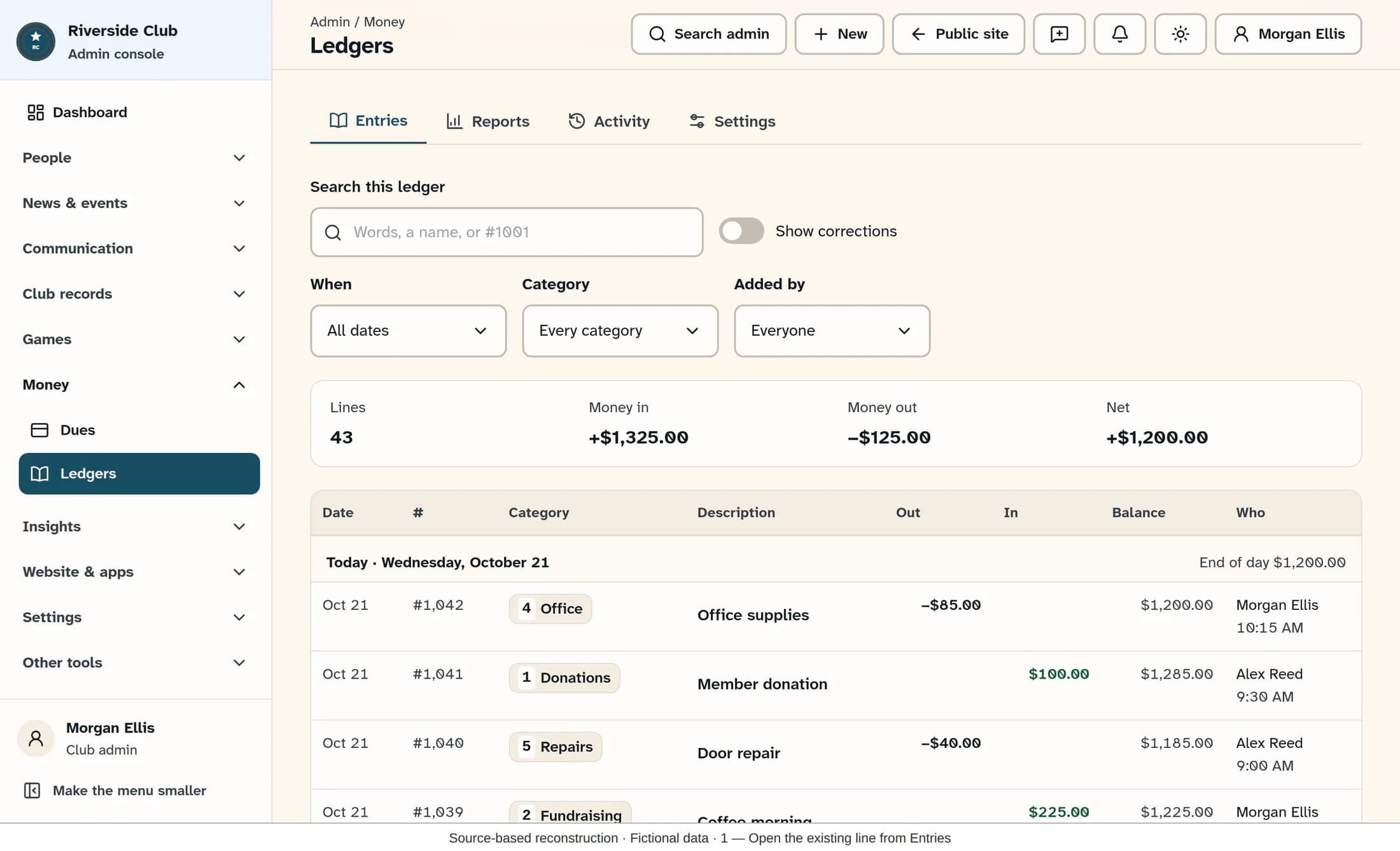
Find the original line
In the admin sidebar, open Money > Ledgers, choose your ledger, and use Entries. Find the line by its date, description and amount, then click it to open its details.
Step 2 of 5
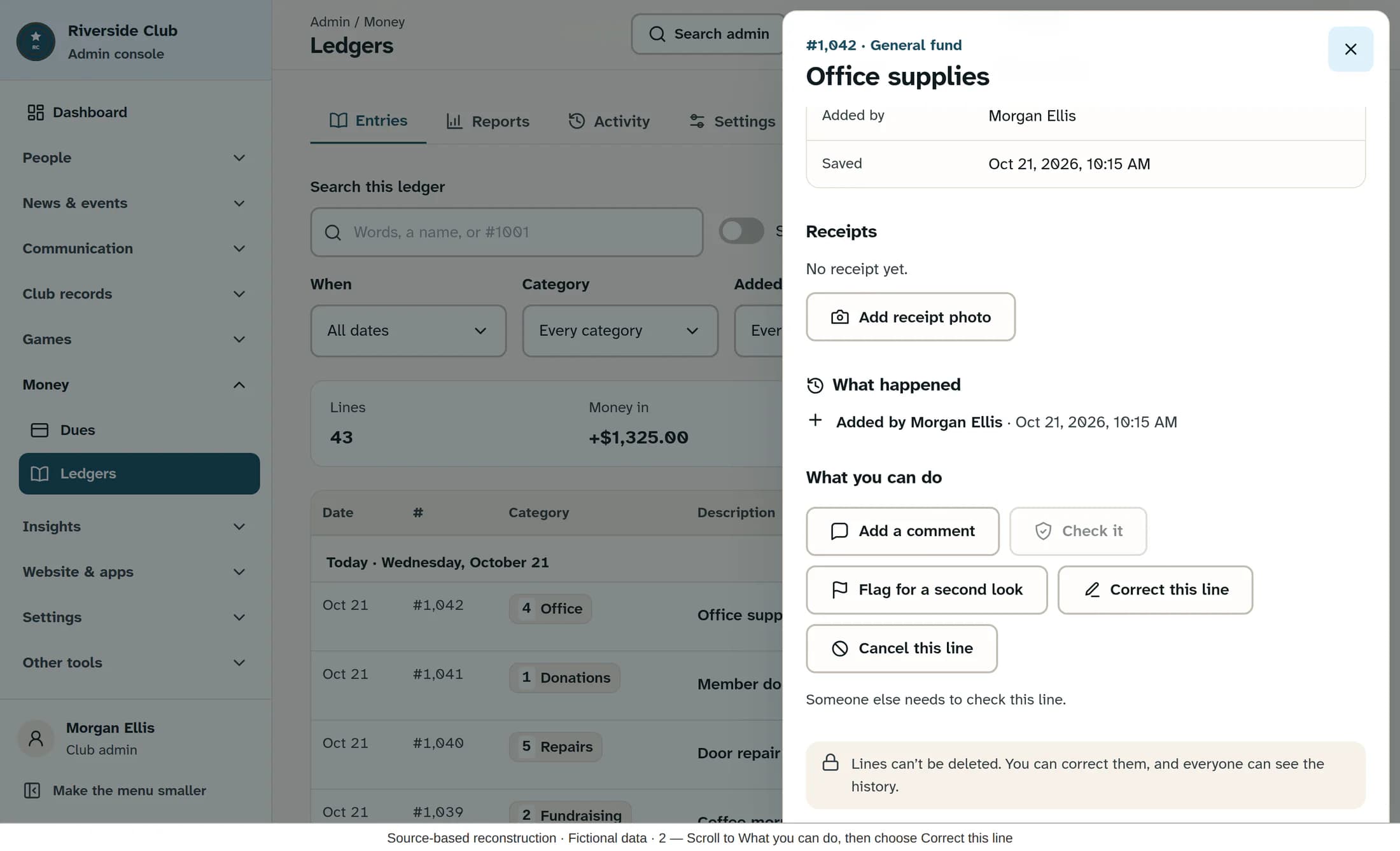
Start the correction
Check that you have the right line, then scroll to What you can do and click Correct this line. In our fictional example, an Office supplies payment was entered as $85.00 but should have been $58.00.
Step 3 of 5
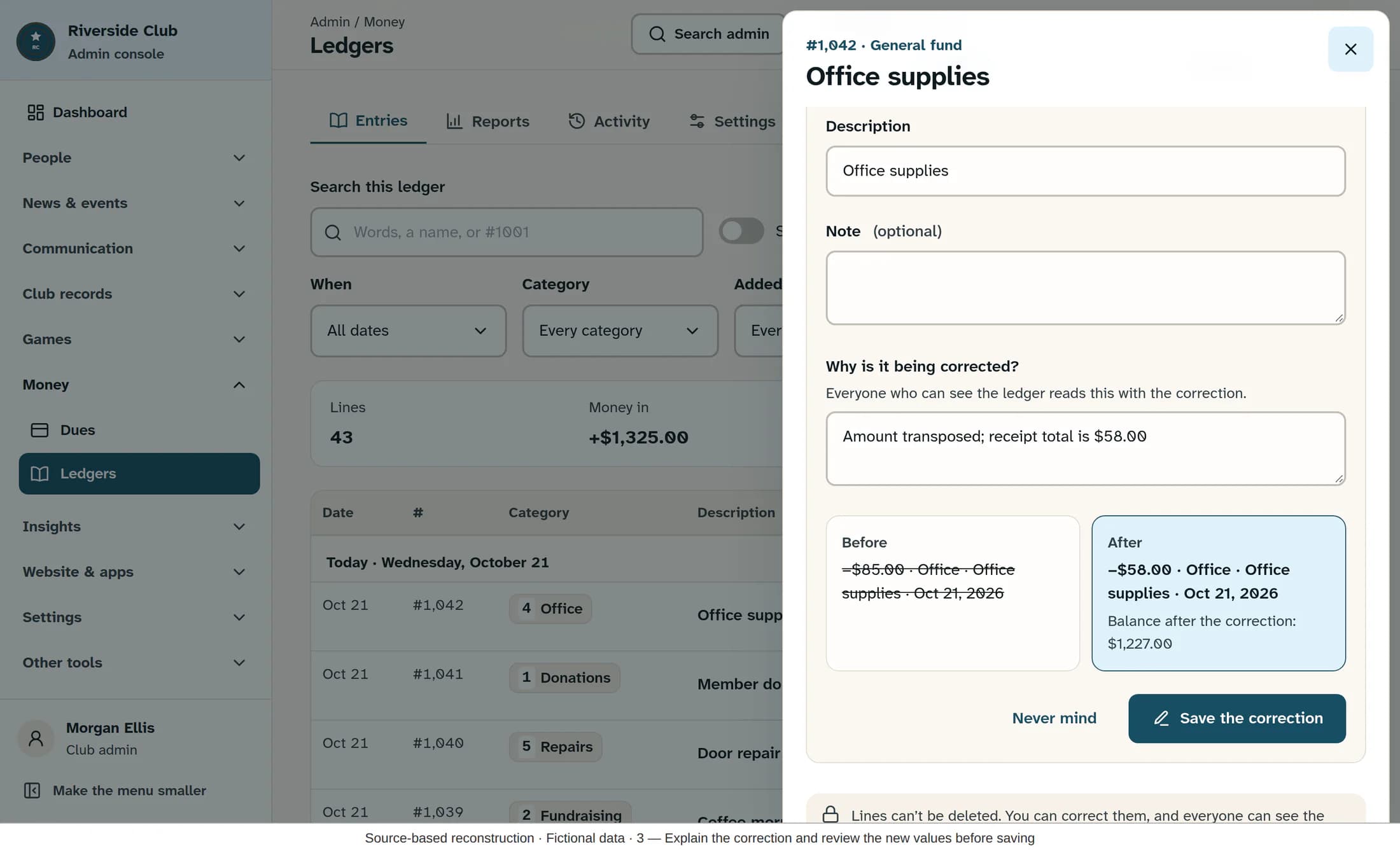
Change the values and explain why
In the correction form, change the fields that need fixing, such as Amount, Date, Category, Description or Note, and complete any required ledger fields. For this example, change Amount to 58.00 and enter “Amount transposed; receipt total is $58.00” in Why is it being corrected?. Everyone who can see the ledger can read your reason.
Step 4 of 5
Review and save
Scroll down and compare Before and After, including the balance after the correction, and read any notices about receipts or a second check. In this example, reducing money out from $85.00 to $58.00 raises the current balance by $27.00. When the values and reason are right, click Save the correction.
Step 5 of 5
Check the replacement and history
After confirmation, ClubWorks opens the replacement line; check its values and the original line it corrects. Review History of this line and What happened for the linked original, correction and reason. Back in Entries, turn on Show corrections to include the original and its reversal, which are normally hidden.
Receipts and a second check
If you cannot save
Illustrations are source-based reconstructions of the Clubhouse web admin from release 01ea76e8, with fictional ledger data. They are not live screenshots, and no live financial workflow was tested.
Your correction is recorded
Once the save is confirmed, the replacement carries the corrected values and the balance reflects the change. The original and reversal remain available as part of the ledger’s history.
