
On this page
Before you start
Step 1 of 7
Open your ledger
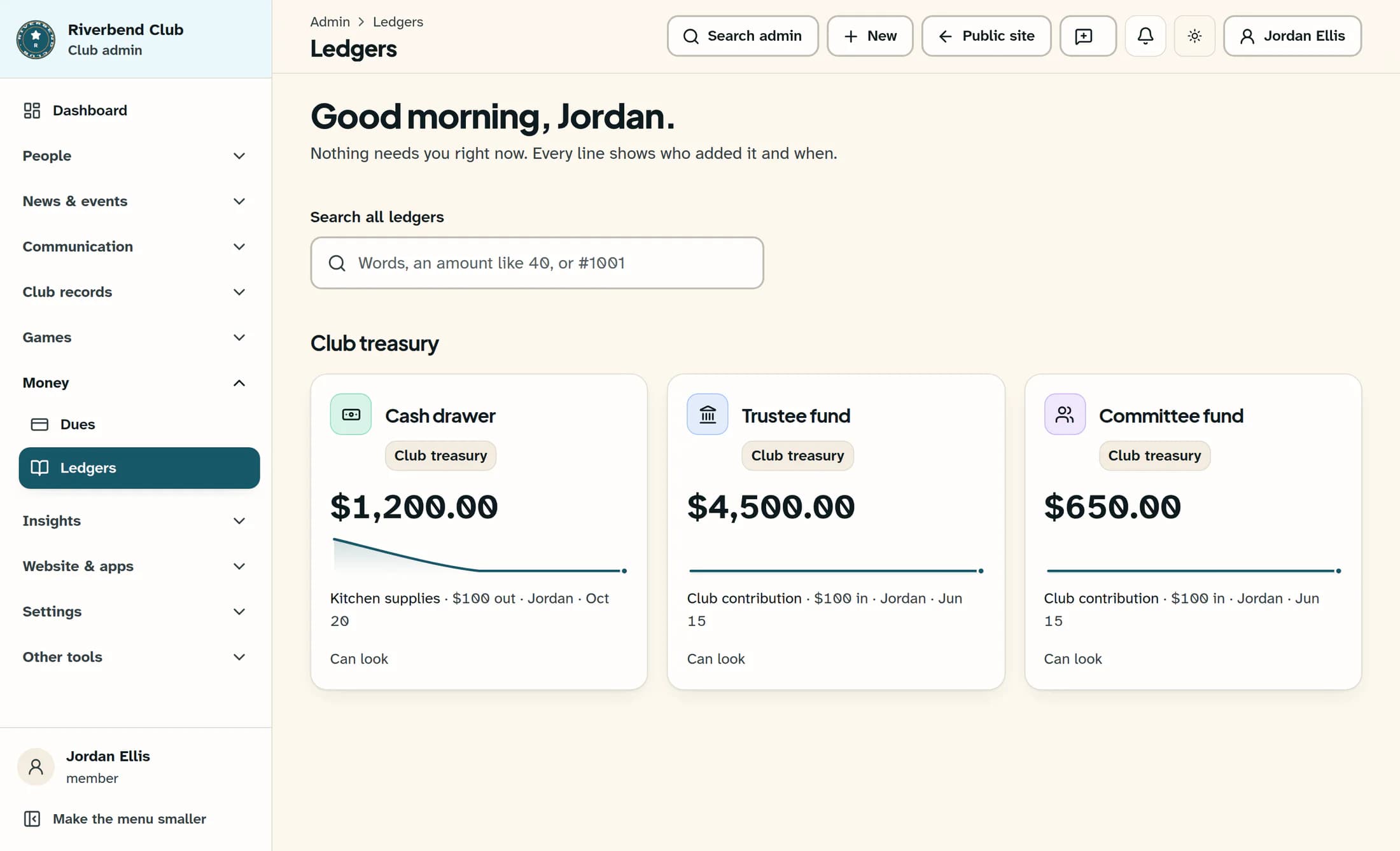
In the admin area, open Ledgers under Money, then choose the ledger you want to read. For this example, choose Cash drawer. Its card shows the current balance; the report will let you check a particular period.
Step 2 of 7
Open Reports
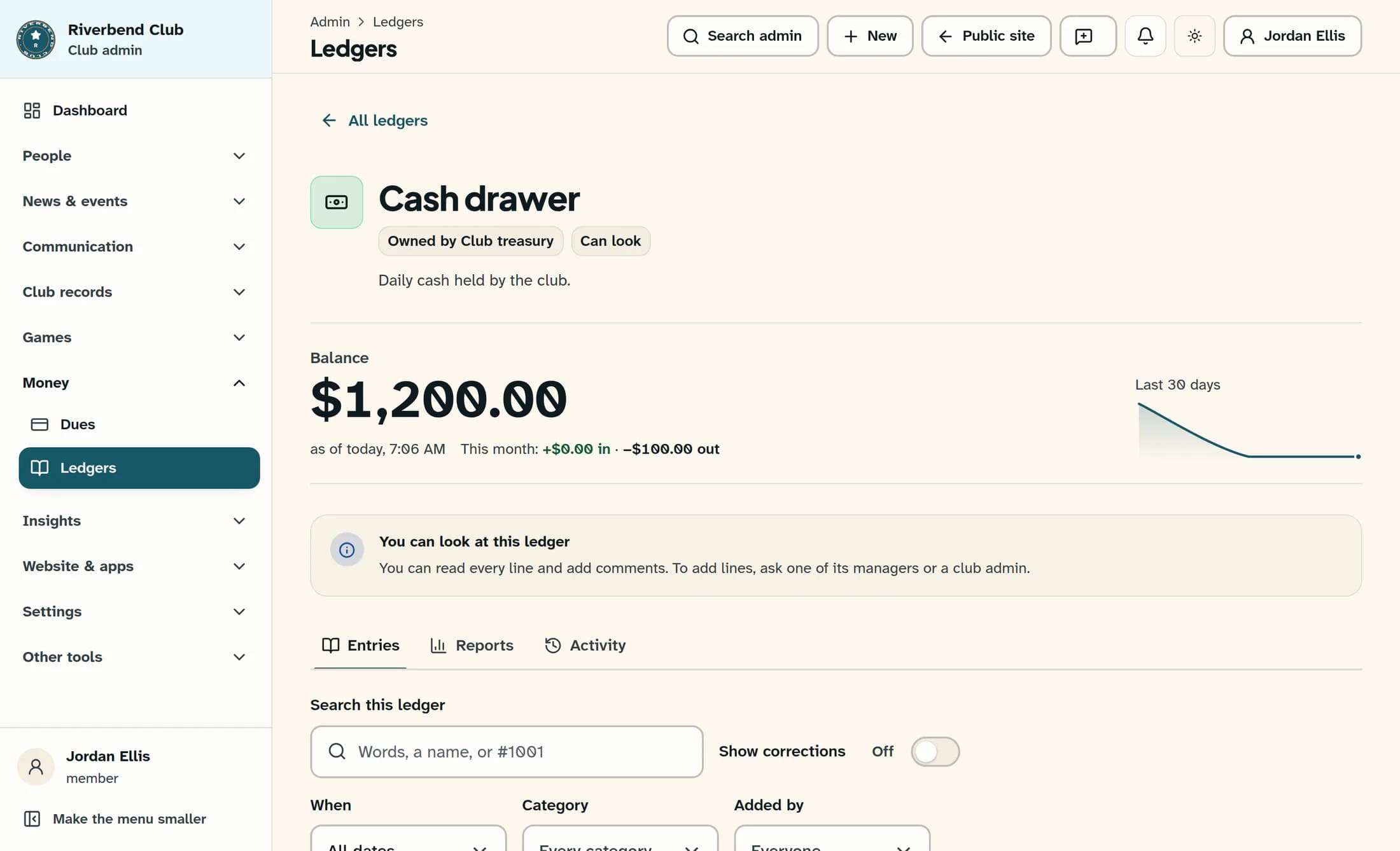
Select Reports beside Entries. The balance above the tabs is the ledger’s current balance. The figures inside Reports follow the dates shown in that report, so a past period can have a different closing balance.
Step 3 of 7
Choose the dates to review
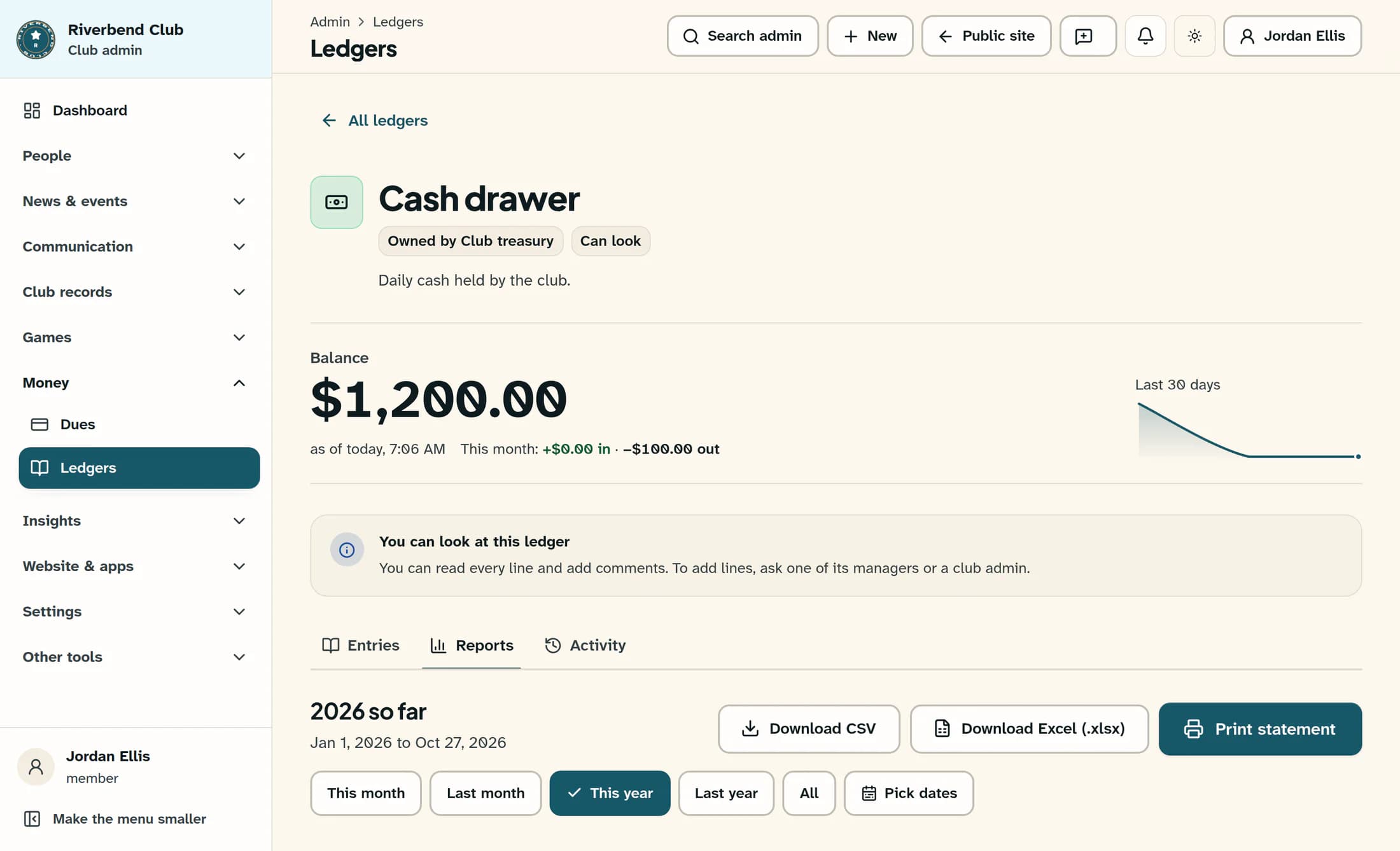
Reports starts with This year. Choose This month, Last month, This year, Last year or All to change the period. This month and This year run through today in the club’s time zone; Last month and Last year cover the complete previous month or year. All covers every line through today.
Step 4 of 7
Use exact dates when needed
For a specific interval, select Pick dates, then choose From and To and select the dates in their calendars. Both dates are included. The start must be on or before the end, and the date controls stop at today. Check the displayed report dates after the figures finish loading.
Step 5 of 7
Read the four balance figures
Opening balance is the balance before the first day of the report. Money in and Money out show the amounts counted within the chosen dates. Closing balance is the balance at the end of the last day. In the fictional example, an opening balance of $0, $1,300 in and $100 out leaves $1,200. Corrected or cancelled lines and the reversal lines that cancel them are left out of the in/out totals and line counts; any replacement line is counted. Opening and closing balances still include the underlying signed ledger amounts, where each original-and-reversal pair cancels out.
Step 6 of 7
Compare months and whole years
Scroll down to Balance over time for end-of-day balances on days with lines. Money in and out by month lists Money in, Money out, Change and Balance at the end for the selected period, including quiet months. With a long range, its chart shows the last 36 months; the table keeps every month it lists. By category breaks down the selected period. Further down, Year by year shows Year, Opening, Money in, Money out, Closing and Lines, newest year first. This table covers the whole ledger regardless of the date range above. The current year includes recorded lines so far; it is not a forecast or a separate yearly ledger.
Step 7 of 7
Check that the report is current
When you change the range, the previous report stays visible and dims while the next one loads. Its figures keep their own dates until replaced. If These numbers may be out of date appears, treat the displayed amounts as an earlier result and check again once loading succeeds. If no report can be made, use Try again. A ledger with no lines shows No lines yet; a range without lines can still have an opening and closing balance carried forward.
Summary
You can now read a period’s opening and closing balances and compare the ledger’s yearly totals. Check the report dates and any out-of-date notice before relying on the figures.
