
On this page
- Before you start
- Find your event
- Other ways to open your event
- Confirm with your email code
- Check your rental details
- Open available documents and invoices
- Message the venue
- Use the venue’s contact details if needed
- Sign out when you finish
- If you cannot open the event
- If a message or document is unavailable
- Summary
Before you start
Step 1 of 6
Find your event
Open the club’s rental event page at
/my-event. Under Find your event, enter Last name on the booking and Event date, then choose Continue.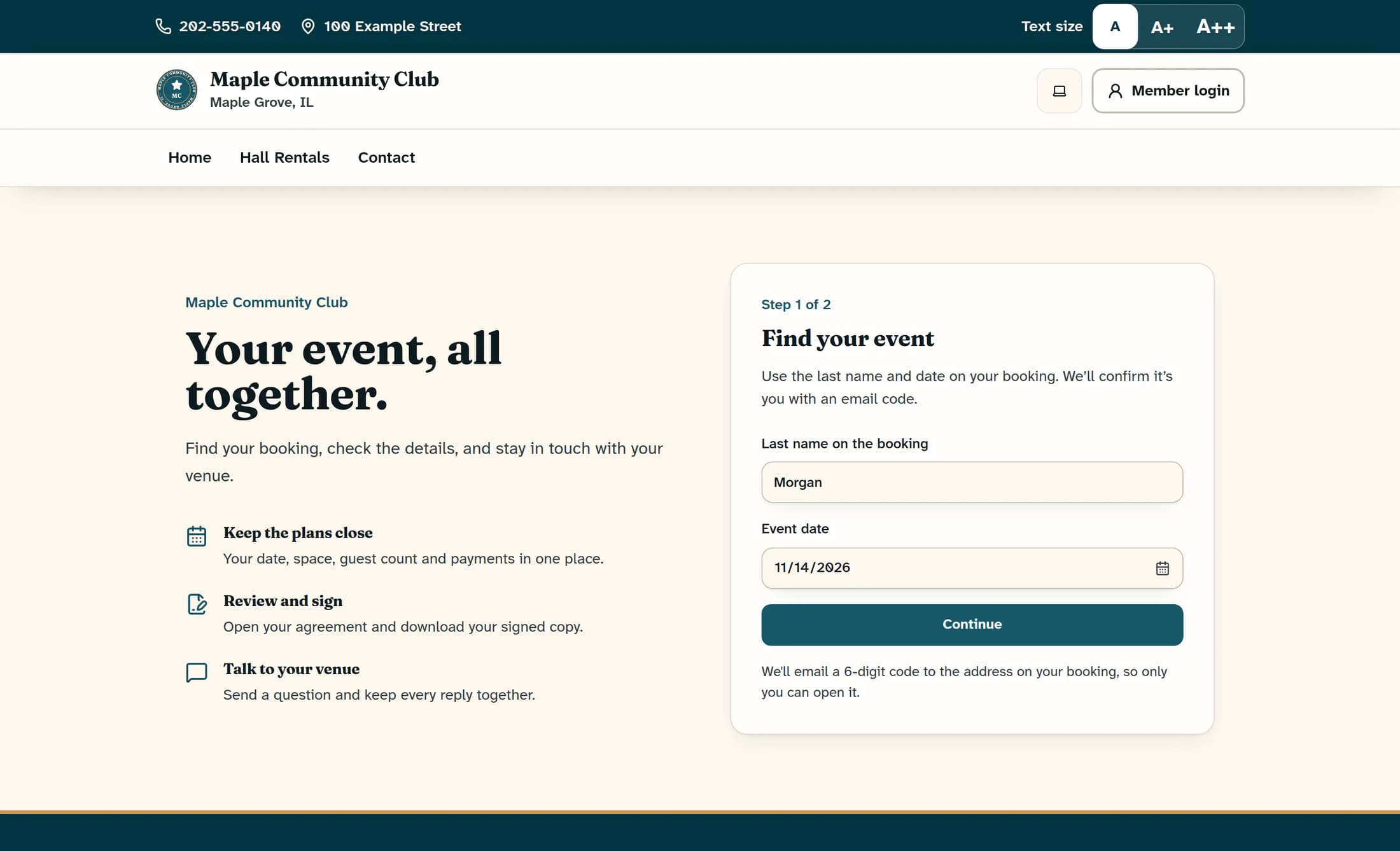
Other ways to open your event
On the club’s Hall Rentals page, you can also use Already booked? View your event →. If the venue sent a private event link, open that link; a valid link opens the booking without the name-and-code steps. The private access value disappears from the address bar after the page processes it.
Step 2 of 6
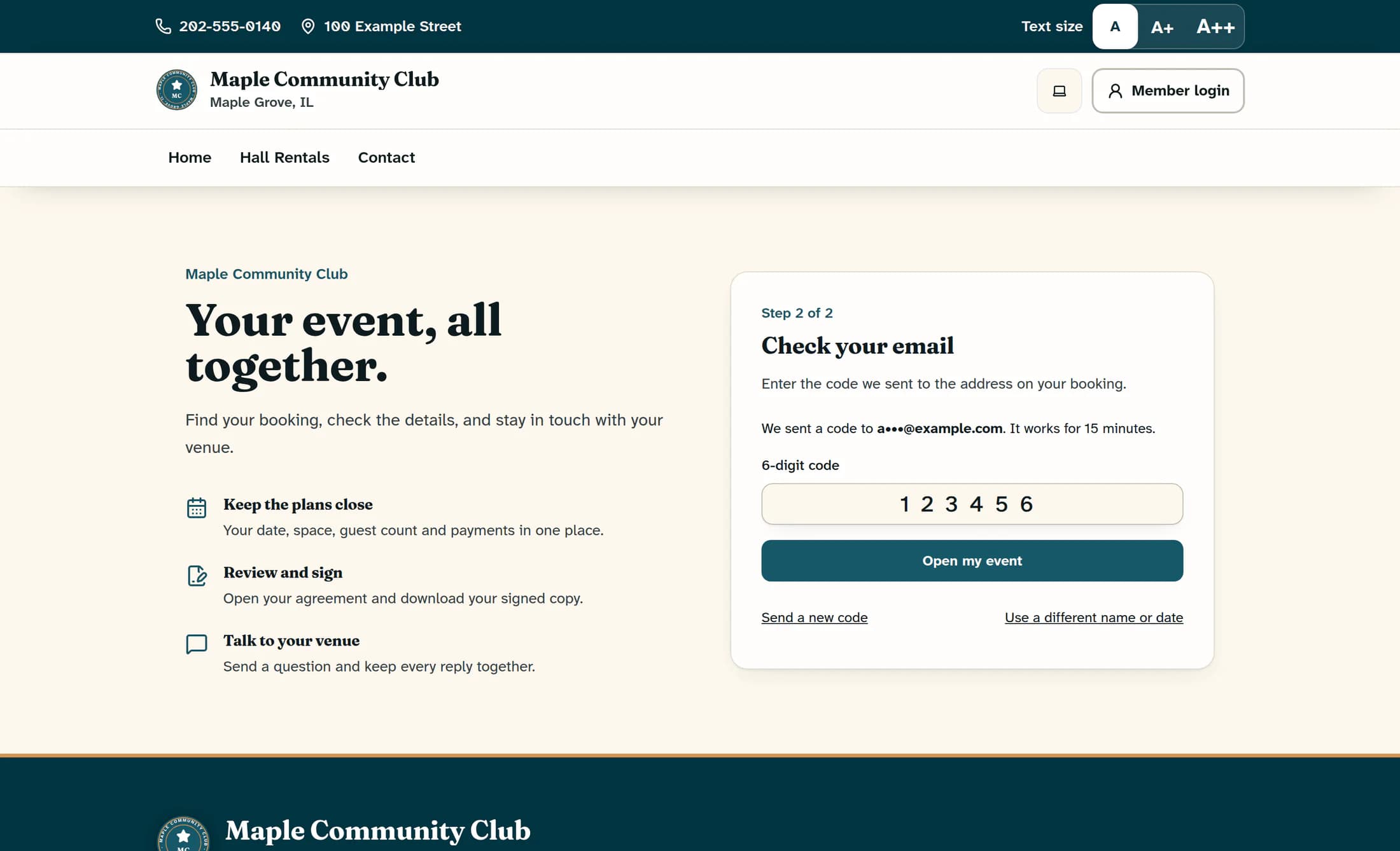
Confirm with your email code
At Check your email, check that the masked address matches the email on your booking, then find the message from the club. Enter its 6-digit code and choose Open my event; the code works for 15 minutes and can be used once.
Step 3 of 6
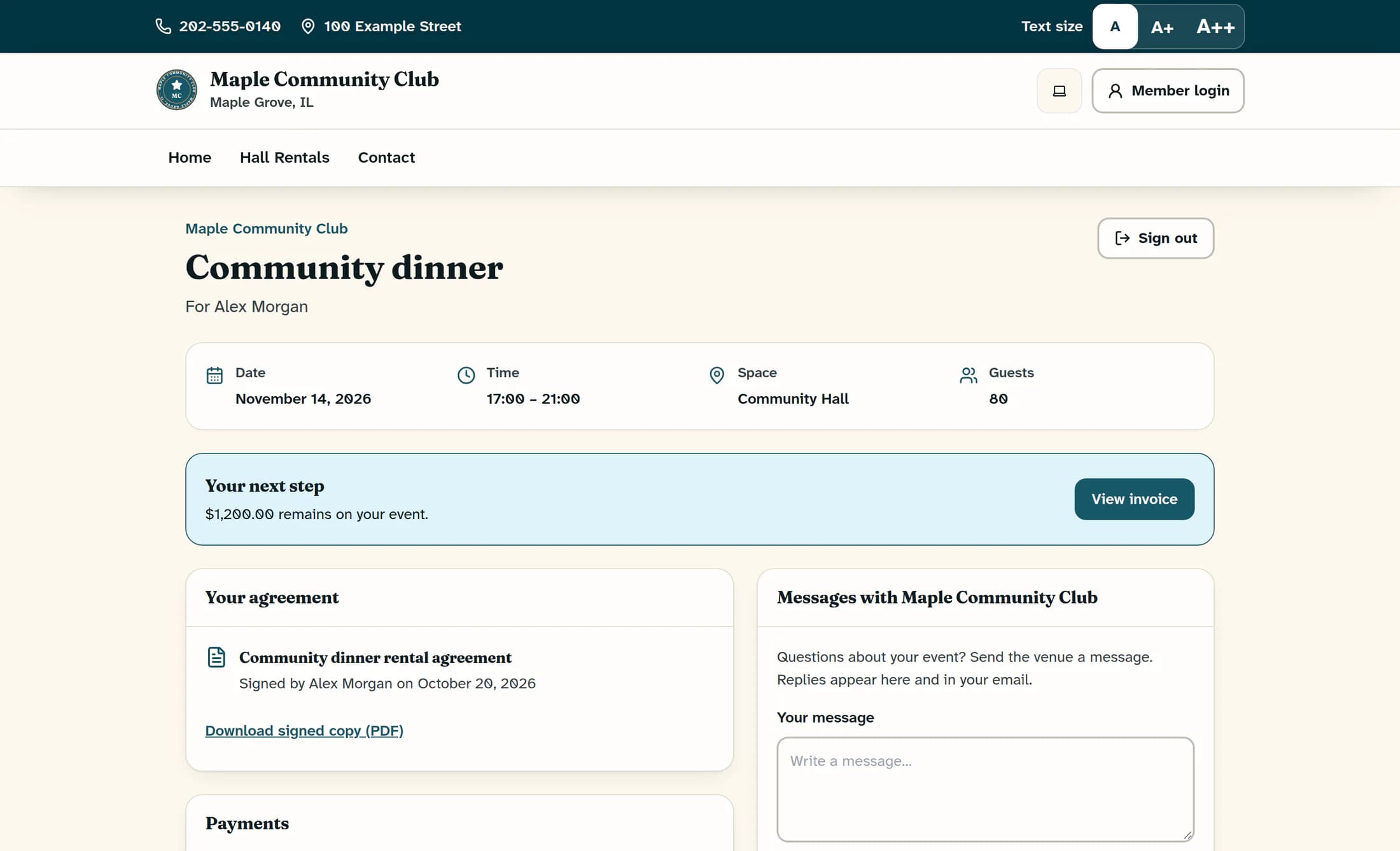
Check your rental details
Review Date, Time, Space and Guests at the top of your event. Under Your agreement and Payments, check the details the venue has made available; Your next step highlights an agreement or balance that needs attention.
Open available documents and invoices
Use Read contract under Your agreement to expand an available agreement, and Download signed copy (PDF) when a signed copy is ready. Payment history lists recorded payments or shows “No payments recorded yet.” if there are none, while Payment schedule and Invoices appear when relevant. View invoice opens an available invoice; see How to view an invoice and available payment options for that task.
Step 4 of 6
Message the venue
Under Messages with your club’s name, enter Your message and choose Send message. Keep it within 5,000 characters, then check that your message appears in the thread and the entry box clears.
Replies can appear in the thread and your email. The page does not refresh replies in real time, so refresh it when you return to check for a reply.
Step 5 of 6
Use the venue’s contact details if needed
Find Contact the venue beside the agreement and payment panels. Use the phone number or email shown, or refer to the address if supplied; these are the club’s public contacts and may not identify an assigned coordinator.
Step 6 of 6
Sign out when you finish
Choose Sign out at the top right of your event. If signing out fails, try Sign out again; keep any private venue link secure, because signing out does not prevent its owner from using it later.
If you cannot open the event
Summary
You can return to your event to check the booking details and conversation. Contact the venue about changes or information that is missing.
