
On this page
Before you begin
Step 1 of 5
Check that the invoice is yours
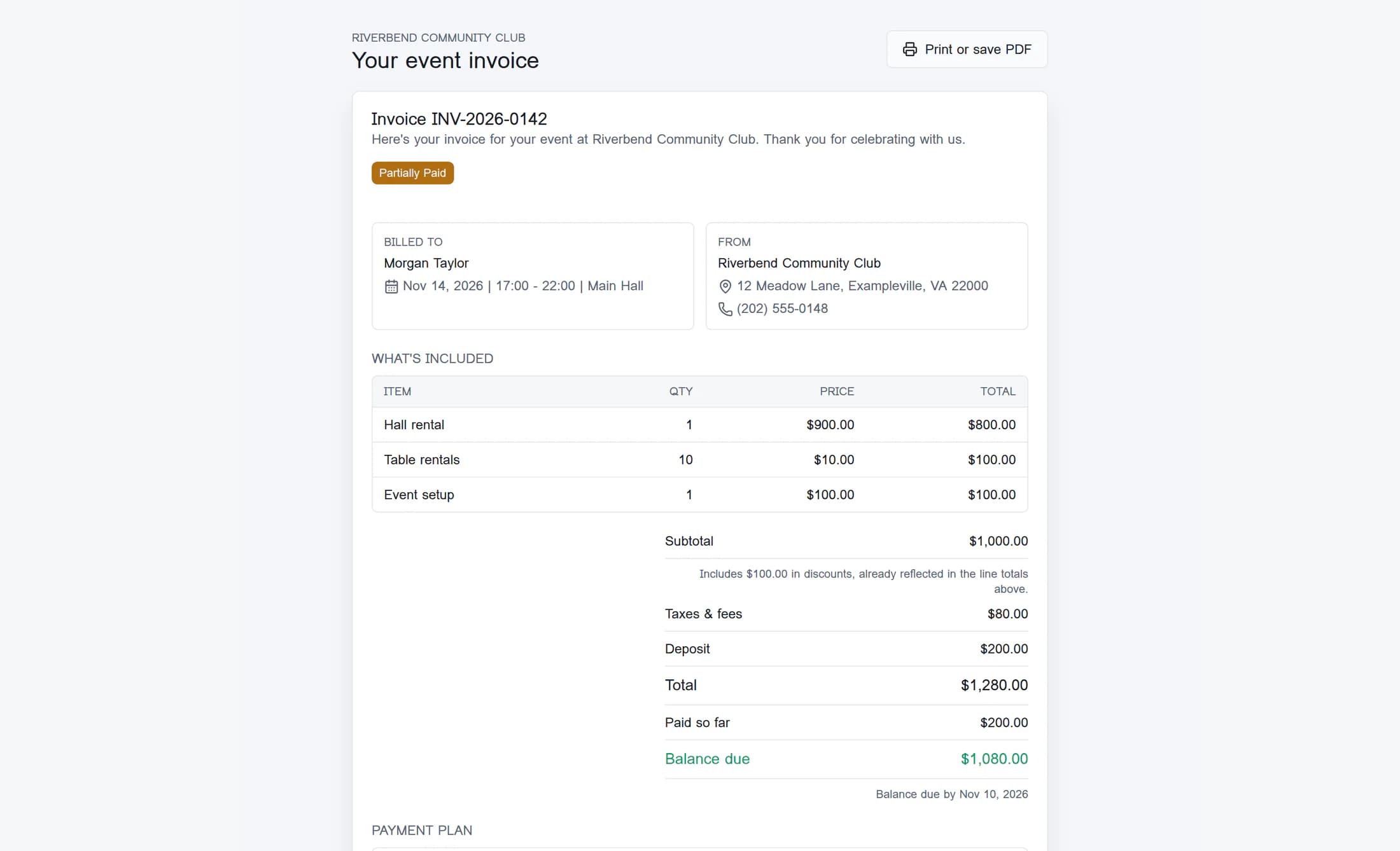
The private link from your venue takes you directly to Your event invoice. Compare the venue name, invoice number, Billed to, event date, time and space with your booking, and review the venue details under From. If anything is wrong, ask the venue to correct it before arranging payment.
Step 2 of 5
Review the charges and balance
Under What's included, review each Item, Qty, Price and line Total. Then review Subtotal, Taxes & fees, Deposit when shown, Total, Paid so far and Balance due.
When line items are listed, their net totals add up to Subtotal. Any discount note says the discount is already included, so don’t subtract it again. Paid so far is the payment amount recorded on the invoice; Balance due is the amount still recorded as owing. The balance due date appears below it.
Step 3 of 5
Review the payment schedule
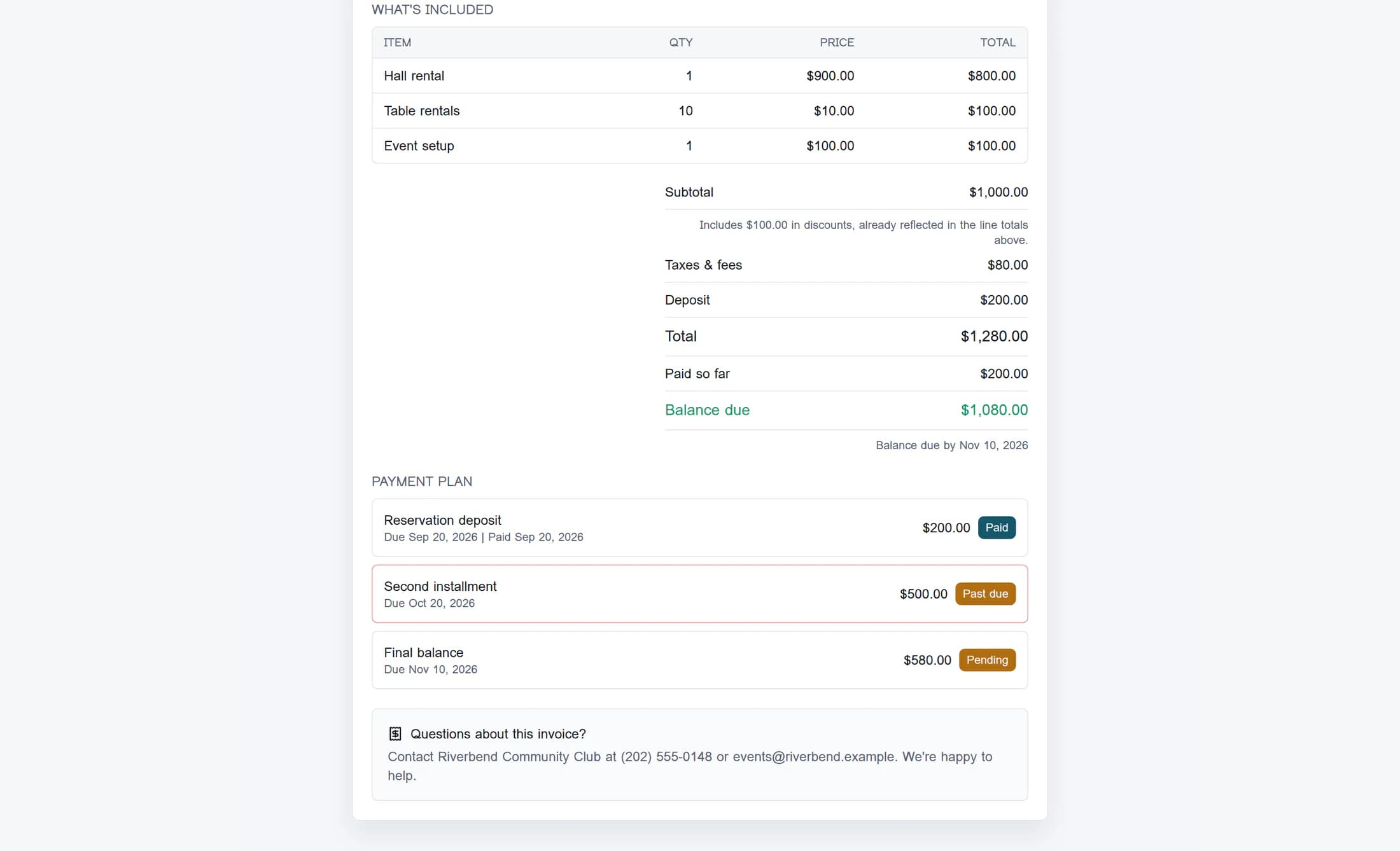
If Payment plan appears, review every milestone’s amount, due date and status. Paid means the milestone is marked paid in the venue’s records; Pending means it has not been marked paid. Past due marks a pending milestone whose due date has passed. A paid milestone may also show its recorded payment date.
The plan tells you when amounts are due. It does not select a payment method or take a payment.
Step 4 of 5
Ask the venue how to pay
Use the phone number or email address in Questions about this invoice? to contact the venue and confirm the payment methods it accepts, the amount to pay and any payment instructions. In this layout, the contact details are plain text: use your phone or email app to get in touch.
There is no checkout or payment-method picker on this invoice page. Reviewing it does not pay the invoice. If you’ve already paid but the balance or schedule looks wrong, ask the venue to check its records. A recorded paid status does not independently confirm that funds have settled.
Step 5 of 5
Print or save a copy if you need one
Return to the top of the invoice and click Print or save PDF. In your browser’s print dialog, choose your printer or a PDF destination if available, then finish the print or save process. The button opens printing; a PDF is created only after you complete the browser’s save process.
If the invoice won’t load
What happens next
Once the charges and schedule look right, arrange payment using the venue’s instructions. Keep your private invoice link and any copy you need for your records.
