
On this page
Before you begin
Step 1 of 4
Open the member’s suspension controls
Open People → Members, find the member by name or number, and select their name to open Member details. Check the member number, then find Suspension at the top of the panel. Select Suspend member.
Step 2 of 4
Choose the duration and save the suspension
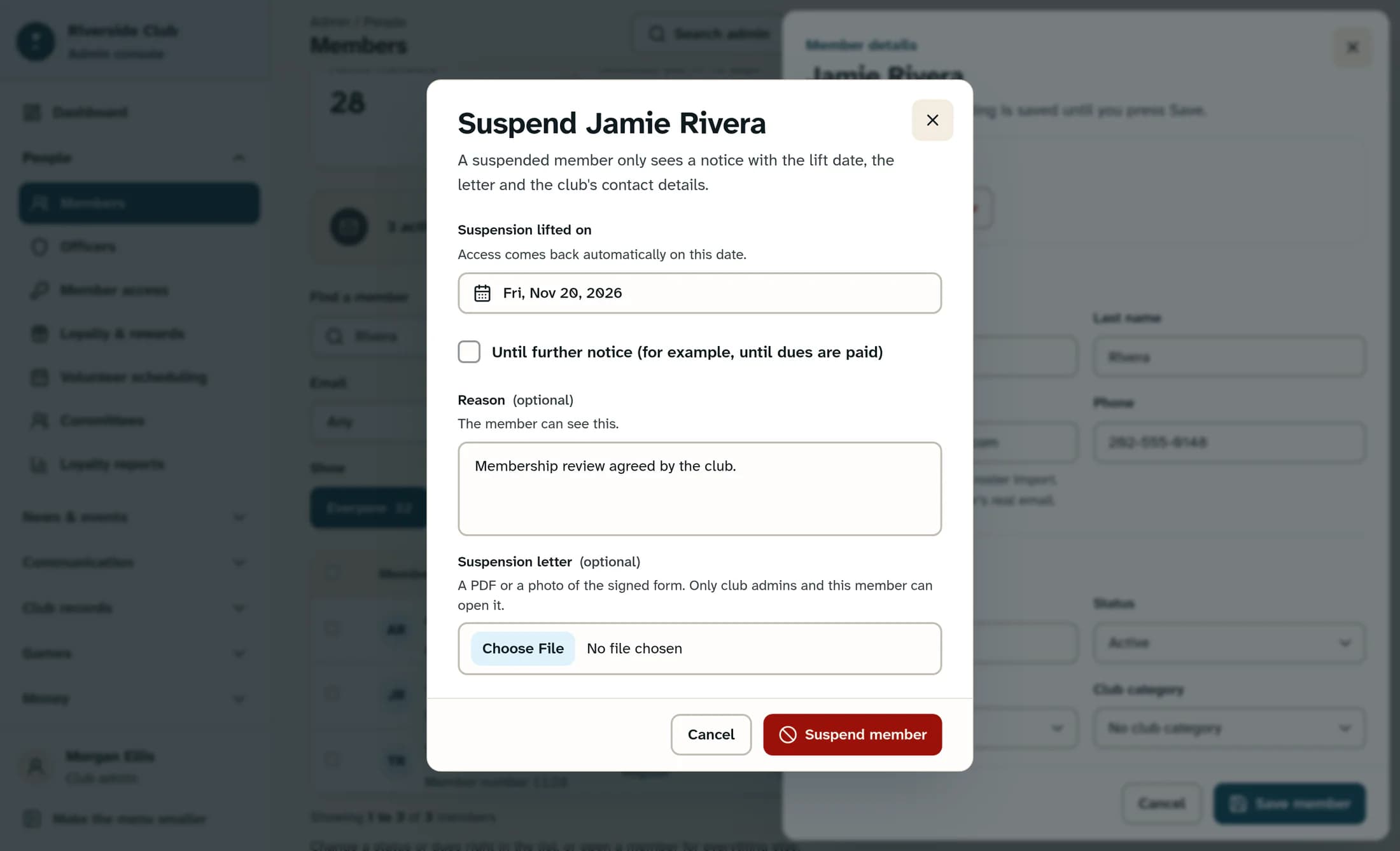
In Suspension lifted on, choose a future date. A new suspension starts with a suggested date 30 days ahead; check it against the club’s decision.
For an open-ended suspension, select Until further notice (for example, until dues are paid) instead. This disables the date field. Paying dues does not automatically lift an indefinite suspension: you must later set a lift date or lift it yourself.
You can enter a Reason of up to 2,000 characters. Treat it as member-visible information, as the form advises. You can also attach a Suspension letter: a PDF, JPG, PNG, WEBP, HEIC or HEIF file up to 10 MB. The letter is private to this member and membership staff with permission to edit members.
Check the details, then select Suspend member in the dialog. The suspension saves immediately, the member details panel closes, and the list reloads. You do not need to select Save member for the suspension.
What changes for the member
A suspended ordinary member sees an access notice with the lift date or “until further notice,” any available letter, and the club’s contact details. This guide covers ClubWorks portal and member-app access. Admins, officers and platform admins retain member access while their login profile is active. Staff access to Workforce, Rental Management and ScreenWorks is controlled separately by those tools’ permissions.
Step 3 of 4
Review or change the current suspension
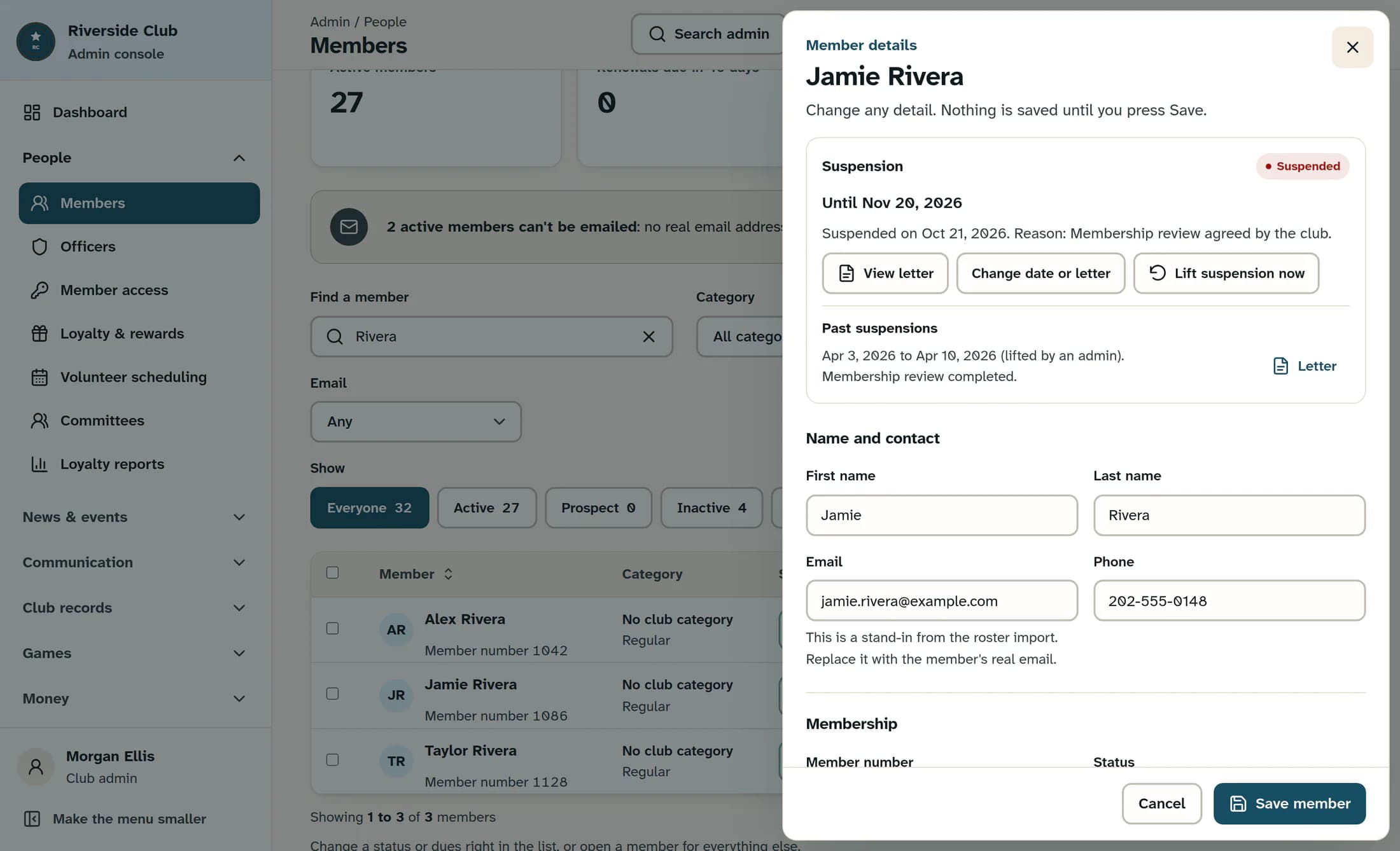
Reopen the member’s details. Suspension shows Suspended, the lift date or Until further notice, the date it started, and any reason. Select View letter to open an attached letter.
To adjust the suspension, select Change date or letter. Update the date, the Until further notice choice, or the Reason. If needed, choose a file under Suspension letter when none is attached, or Replace the suspension letter to replace an existing one. Leaving the file field empty keeps the existing letter. Select Save changes in that dialog; this saves immediately and closes the member details panel.
When there are completed suspensions, Past suspensions lists their dates, reason and how they ended. An attached historical letter has a Letter button.
Step 4 of 4
Lift the suspension now
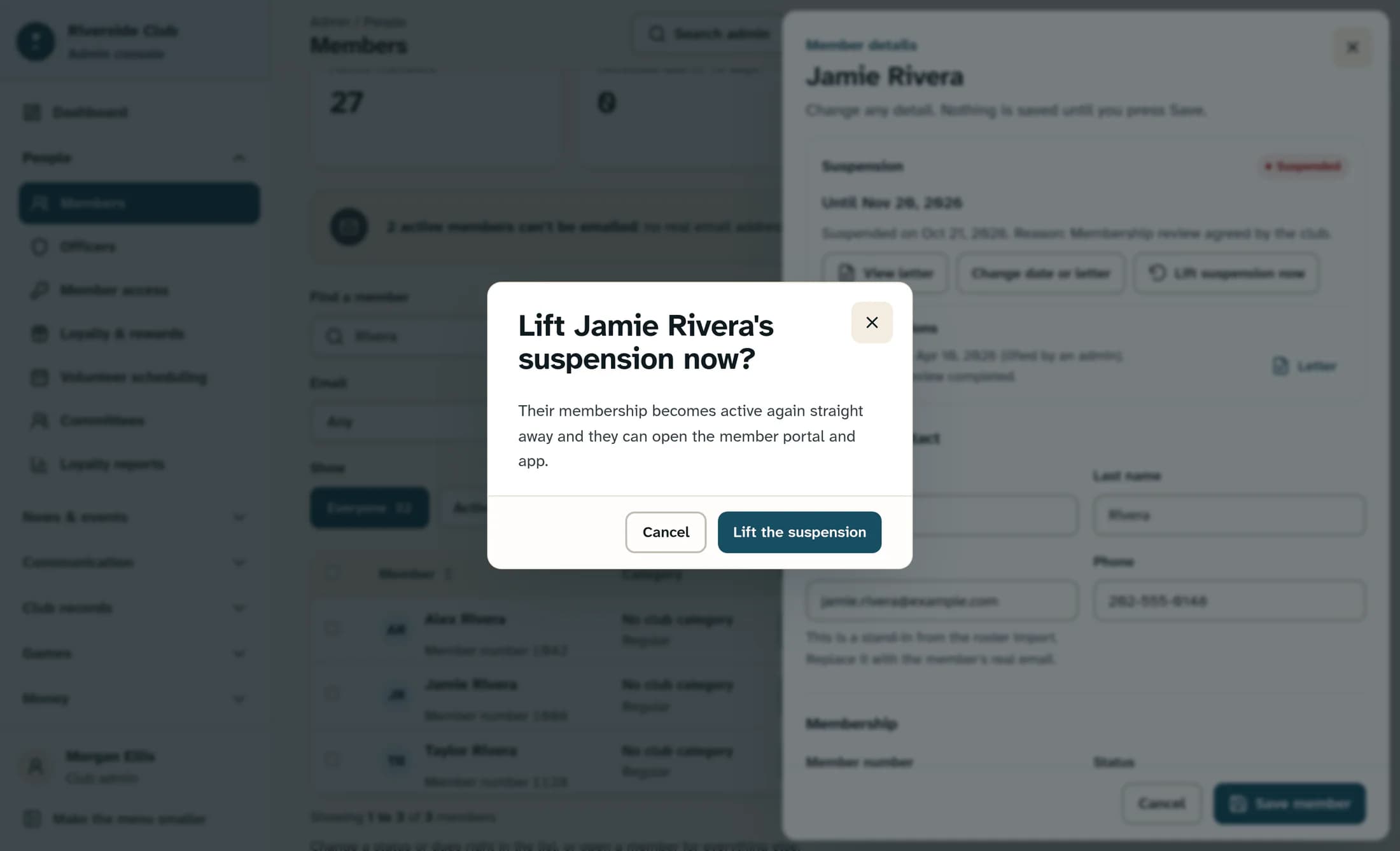
In the current Suspension section, select Lift suspension now. Check the name in the confirmation and select Lift the suspension to confirm, or Cancel to leave it in place.
After a successful lift, a membership that is still Suspended becomes Active and the suspension moves into Past suspensions. The panel closes and the list reloads. This does not turn on a disabled Active login profile or change the person’s other roles.
When a lift date arrives
The member access check recognizes the lift date using the club’s time zone, with UTC as the fallback if no valid time zone is set. The stored membership status and suspension history may catch up later during daily maintenance. Do not rely on the displayed badge changing at midnight. Access still depends on an active login profile and the member’s other access conditions.
If something needs attention
Result
The suspension’s duration, reason and letter are recorded together. A manual lift restores a still-suspended membership to Active; a dated suspension stops restricting member access when its club-local lift date arrives.
About this guide
Based on ClubWorks release 16782cba (October 21, 2026), using the Clubhouse interface. The illustrations are reconstructions from the source code with fictional member data. The live suspension and reinstatement workflow has not been tested for this guide.
The screens in this guide show example clubs and people. Your club's name, colours and some labels may look different.
