
On this page
Before you start
Step 1 of 4
Find a page in the sidebar
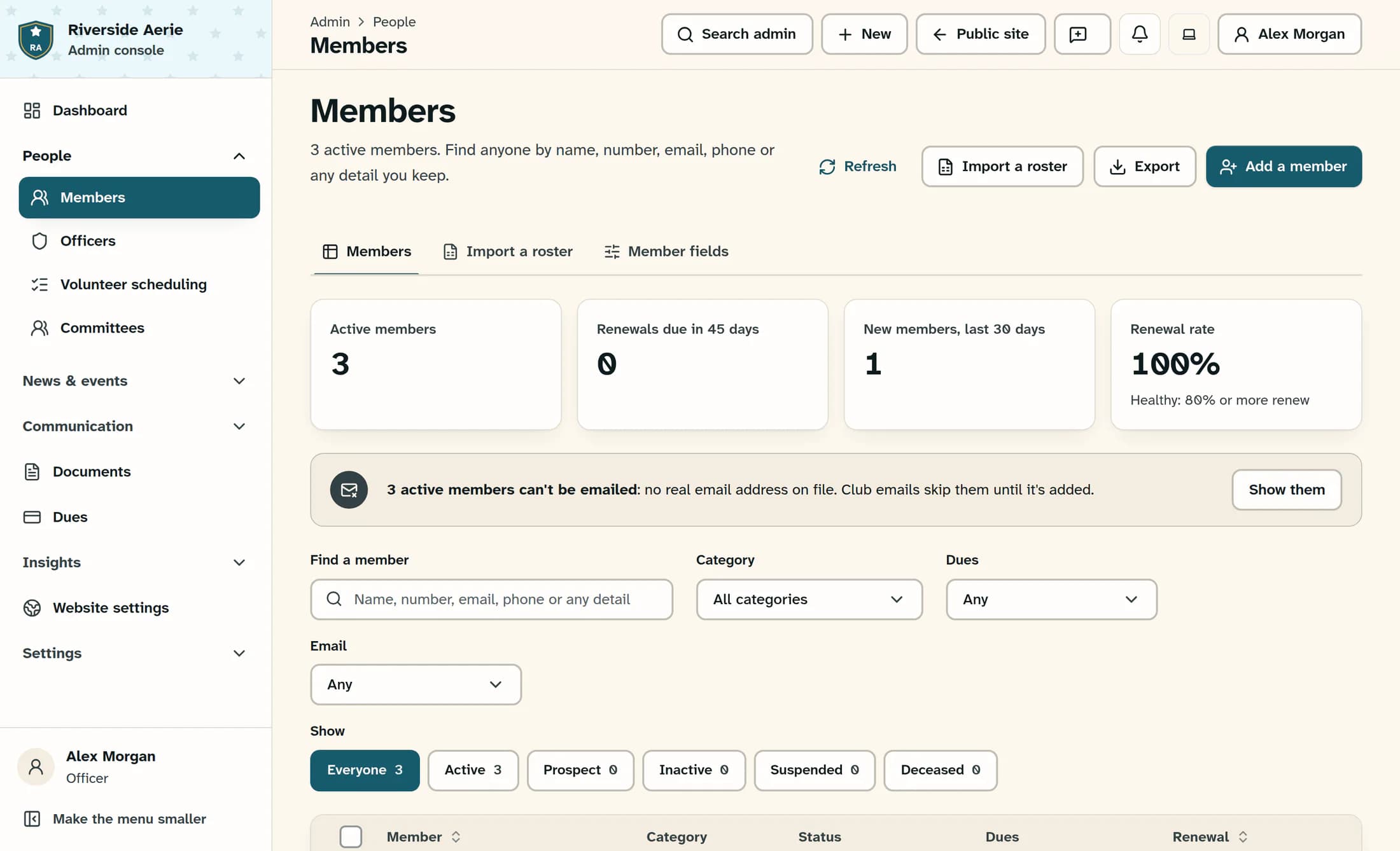
Open a sidebar group, such as People, then select Members. The selected page is highlighted, and the header helps you confirm where you are.
Step 2 of 4
Search for a page or task
Select Search admin in the header; on narrower screens, it is labelled Search. You can also press
Ctrl+Kon Windows orCmd+Kon Mac when another dialog is not open. Type a page name or an everyday term, such as “roster”, into Search members, pages, or what you want to do.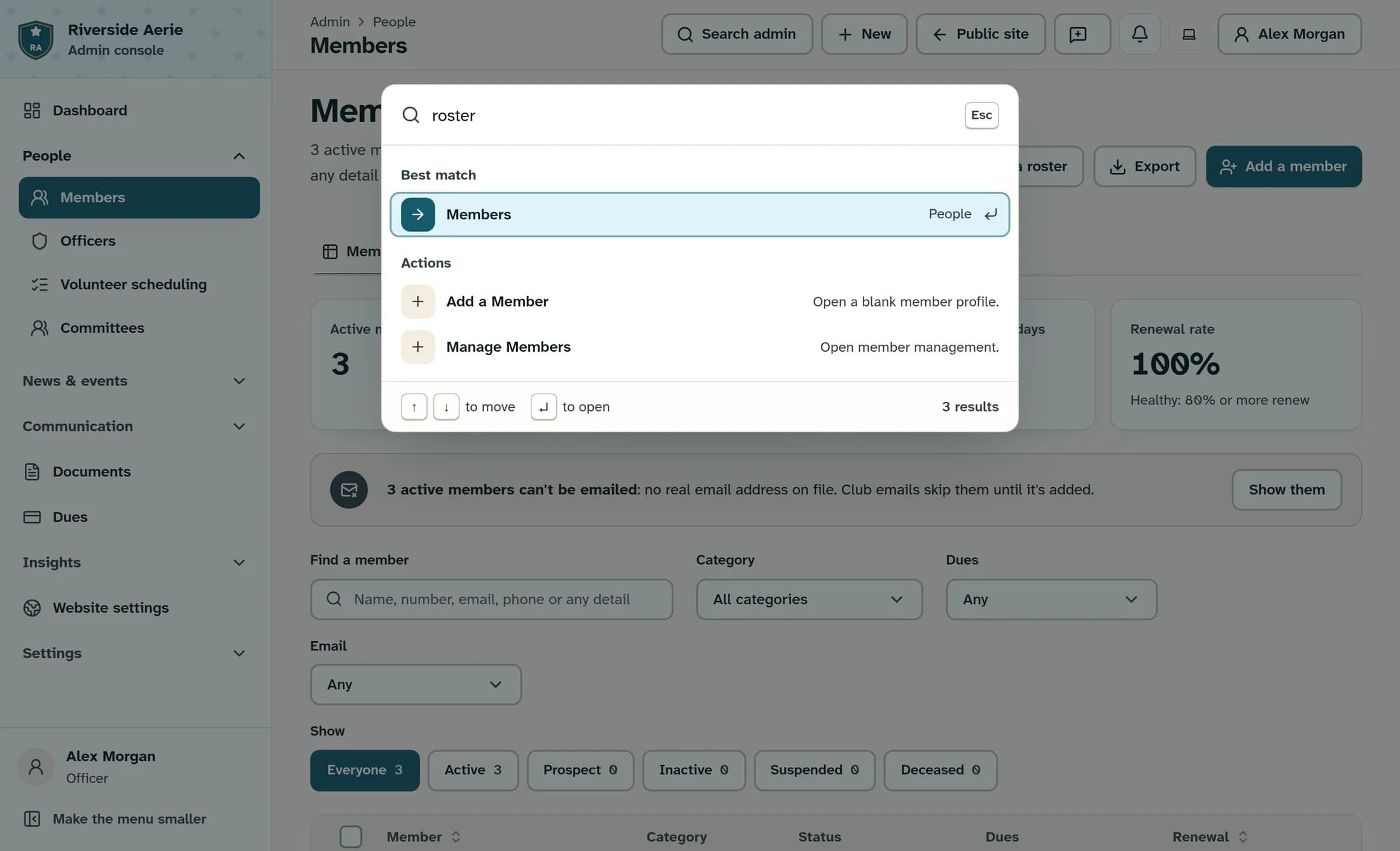
Step 3 of 4
Choose the result you need
Review Best match and any groups such as Go to or Actions. Select a result, or use the up and down arrow keys and press Enter; press Esc to close search. An action such as Add a Member opens its task or form—you still need to complete the steps there.
Step 4 of 4
Look up a member
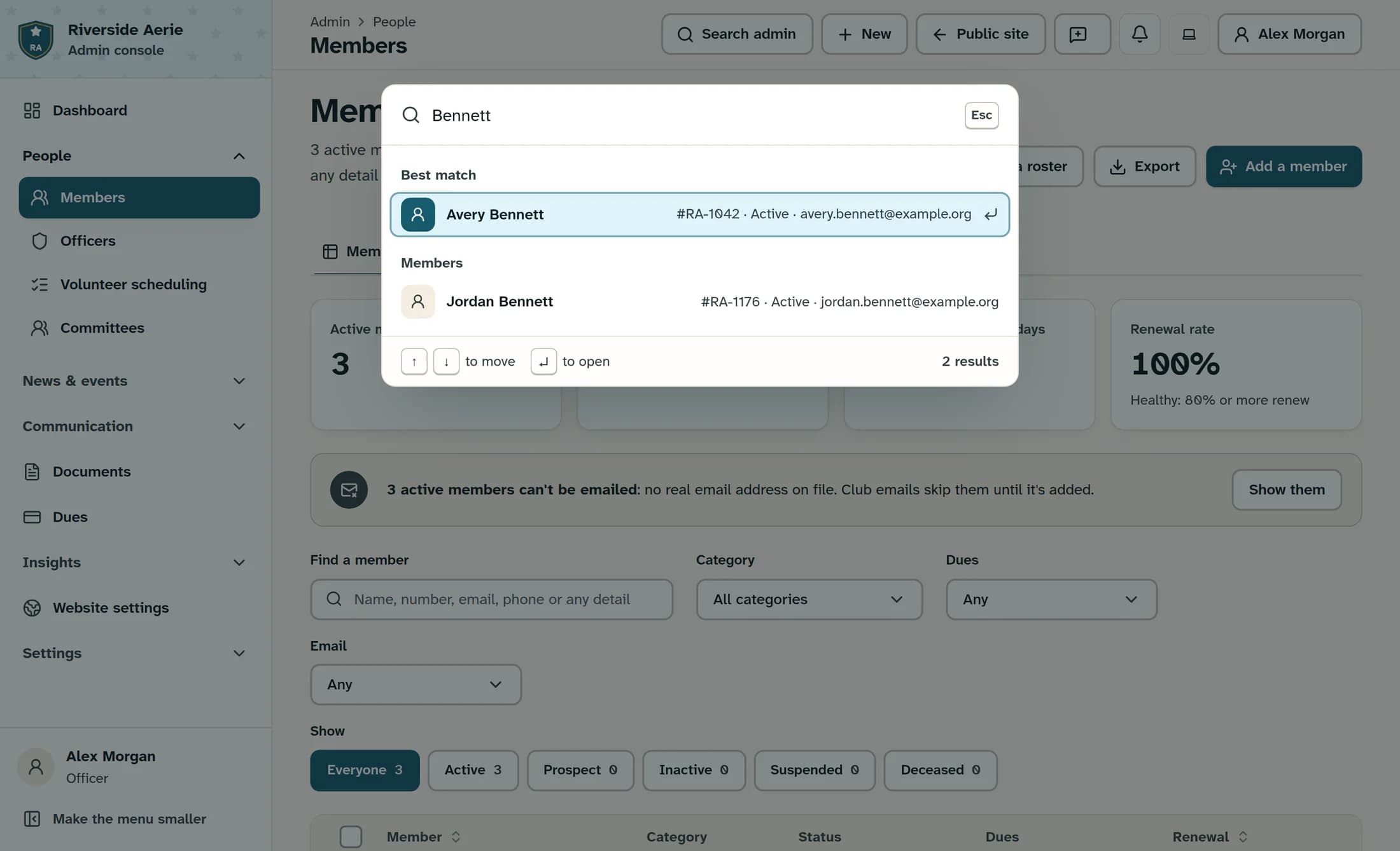
In the same search field, type at least two characters of a member’s name, member number, email or phone number, then pause briefly. Review the member matches and their details before selecting a person. Selecting a member opens their details on the member-management page.
Refine a member search
Search shows a limited set of matches, not the full roster. Add more of the name or use a member number, email or phone number to narrow the list. A missing match does not prove that the person has no record.
If you cannot find a page or person
Another way to start a task
The New button offers available actions. Their descriptions explain where they open; choosing an action does not mean the task is complete.
Check the destination before continuing
Use the sidebar for familiar pages and search for quick access to pages, tasks and member details. Confirm the page or person before making changes.
