
On this page
Before you start
Step 1 of 6
Open Forms & Responses
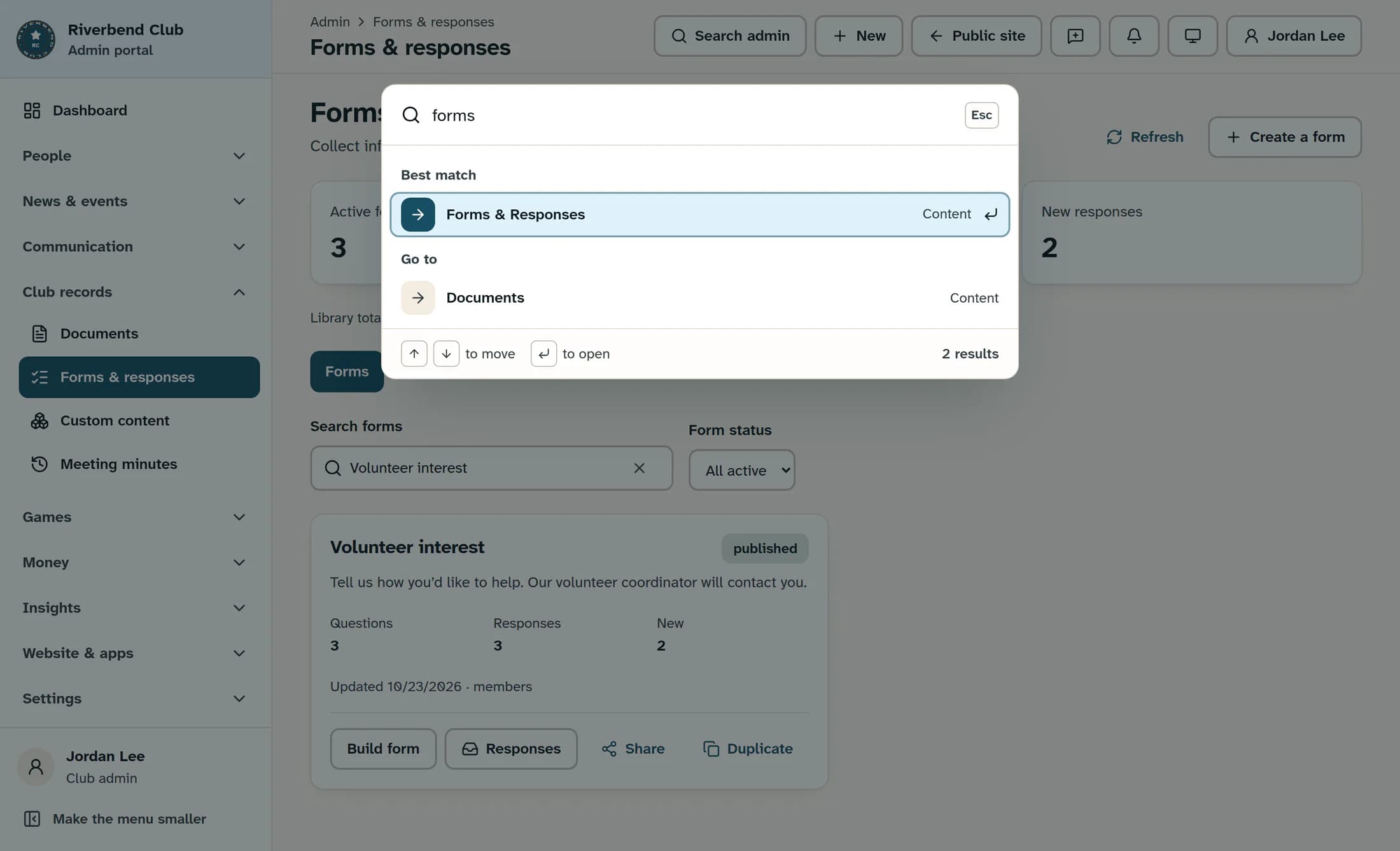
Click Search admin in the top bar and type forms. Under Best match, choose Forms & Responses.
Step 2 of 6
Open the form’s responses
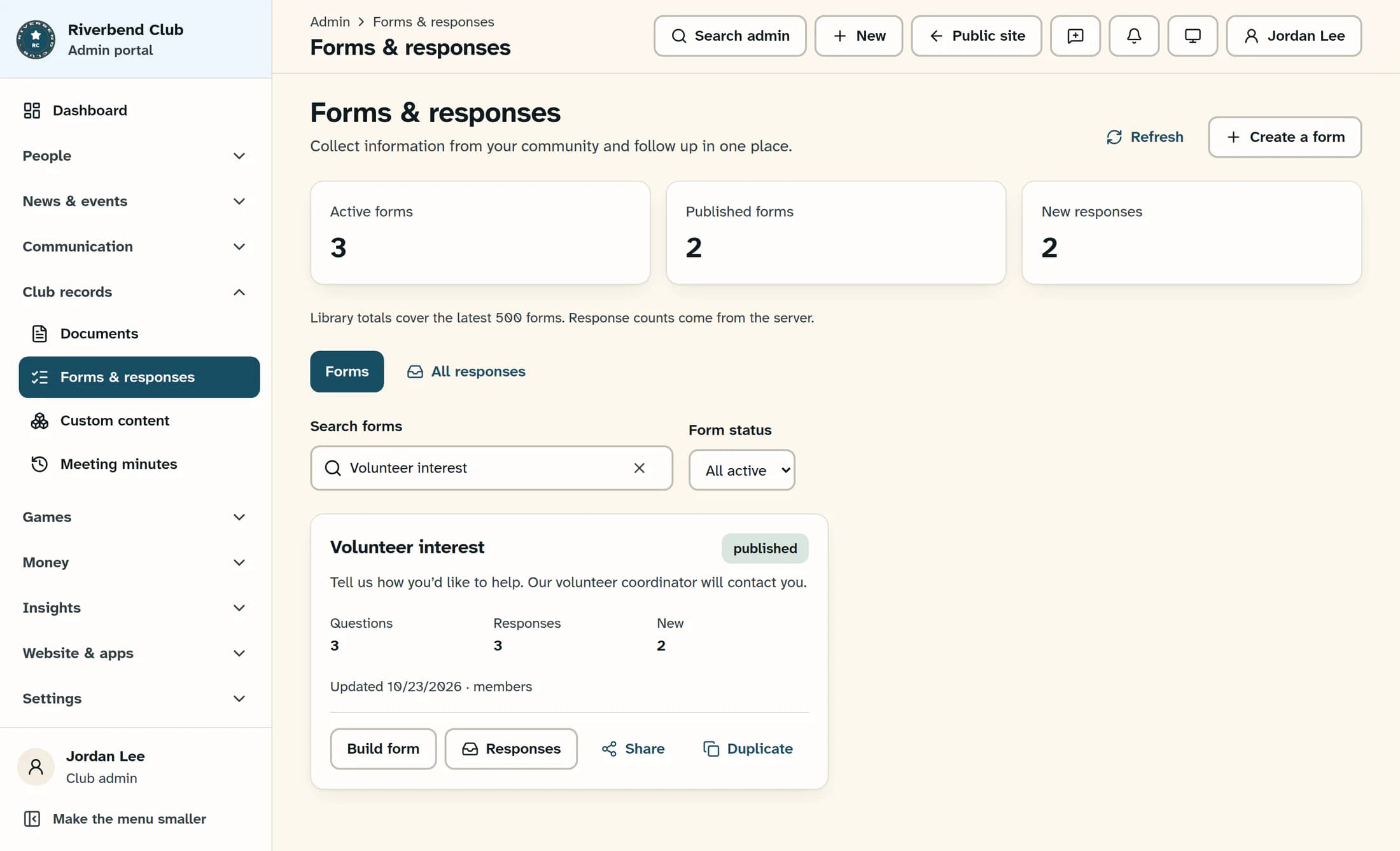
Find the saved form in the library; use Search forms if needed. Click Responses on that form’s card.
Step 3 of 6
Find and read a response
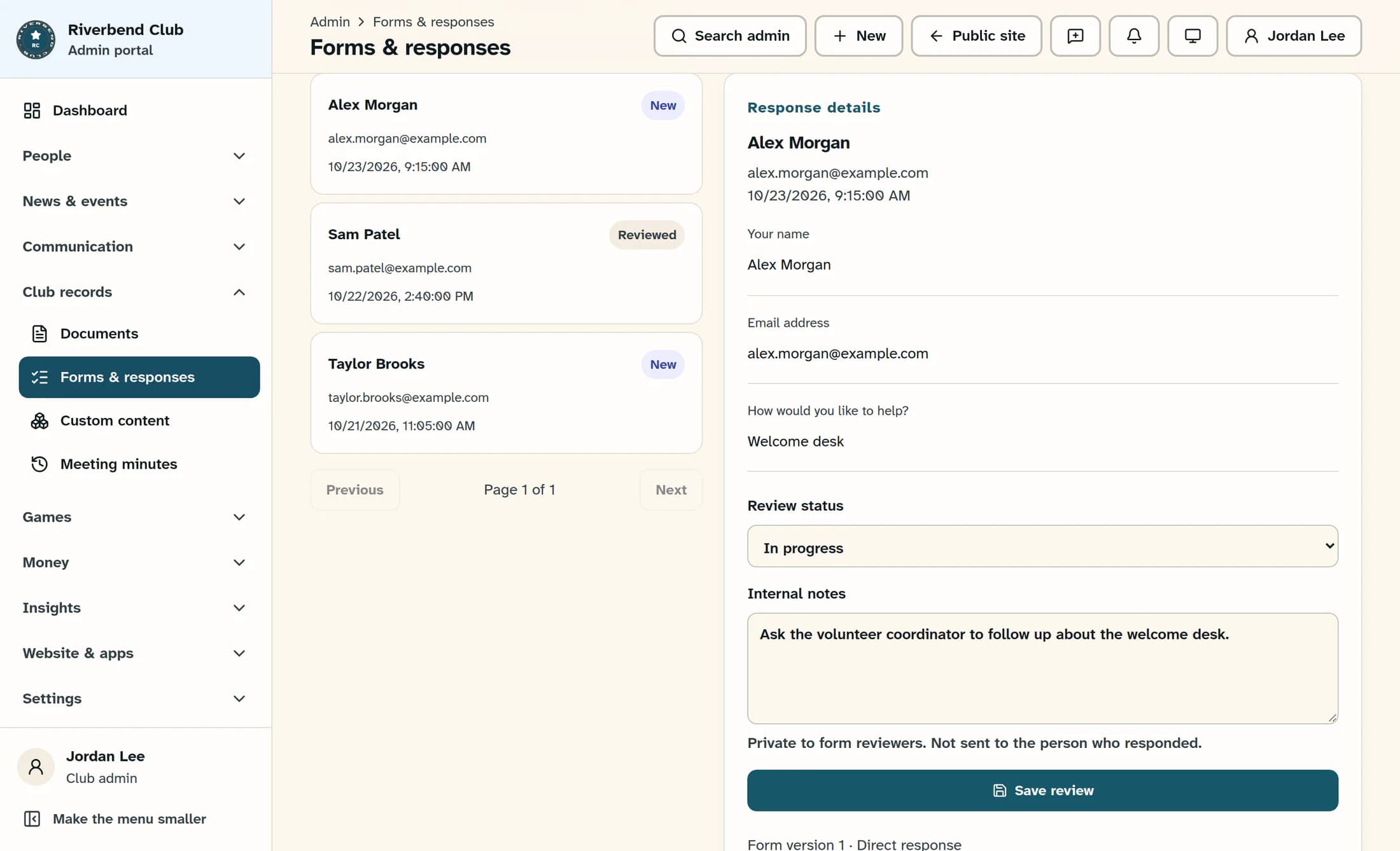
Use Search responses to search by name or email, and narrow the list with Response status, Received from (UTC), and Through (UTC) as needed. Use Previous or Next to move between pages, then select a response in the list. Read its Response details; the questions and answers reflect the form version submitted, even if the form has since changed.
Step 4 of 6
Choose a review status
In Review status, choose New, Reviewed, In progress, Completed, or Archived to match your team’s progress. Opening a response does not mark it as reviewed; a status change takes effect only after you save it.
Step 5 of 6
Add private follow-up notes
Enter follow-up details in Internal notes. These notes are private to form reviewers and are not sent to the person who responded.
Step 6 of 6
Save the review
Click Save review, then check for Review saved. before moving on. Saving a status update does not send an email to the person who responded.
Tips
Troubleshooting
- If Responses is missing, ask your club administrator for permission to review form responses. Permission to build forms alone does not grant review access.
- If another reviewer or window changed the response, copy your unsaved notes somewhere private before using Refresh responses. Compare the latest review, reapply any changes still needed, and click Save review again.
- If the list is empty, clear Search responses, choose All statuses, and check the UTC date range.
Result
The saved review status and internal notes are available to your club’s form reviewers. The submitted answers remain unchanged.
About this guide
The illustrations are source-based reconstructions of the ClubWorks Clubhouse web admin. All club names, people, forms, responses, and notes shown are fictional.
The screens in this guide show example clubs and people. Your club's name, colours and some labels may look different.
