
On this page
Before you start
Step 1 of 3
Open and refresh the payment records
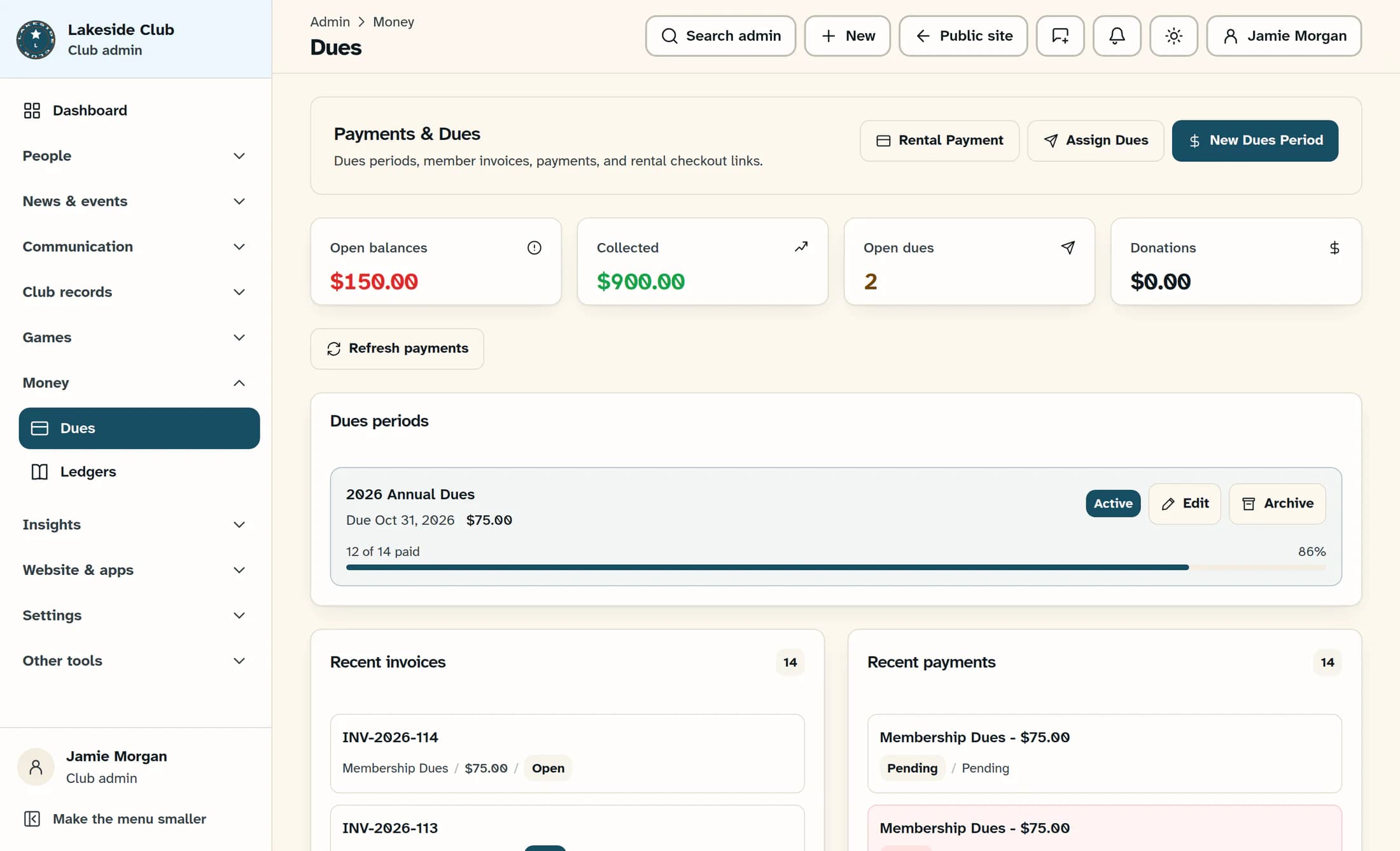
In the admin sidebar, open Money and choose Dues. On Payments & Dues, select Refresh payments and wait for the records to load.
Step 2 of 3
Review the recent entries
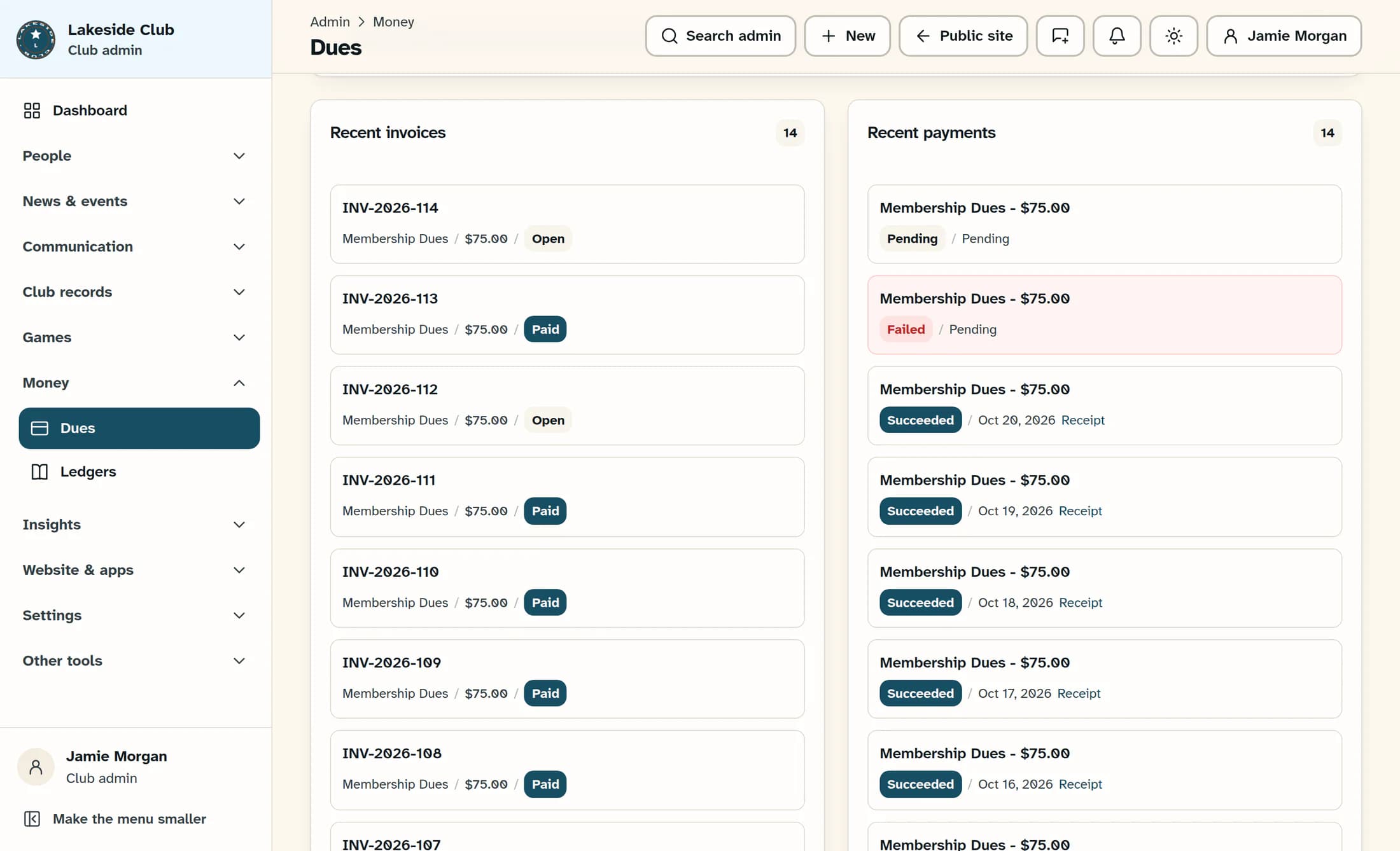
Scroll to Recent invoices and Recent payments. Each invoice shows its number, payment type, total and status; each payment shows its type, amount, status and paid date, or Pending when no paid date is recorded. Each list displays up to 12 of the newest records, even when its count badge is higher.
Step 3 of 3
Open the saved receipt
In Recent payments, select Receipt beside the payment you want to review. The saved receipt address opens in a new browser tab; the link appears only when that payment has a receipt address.
What the records tell you
Your review result
You can now distinguish the recent invoice records from payment activity and review any available saved receipt. Viewing or refreshing these records does not collect a payment or change a member's dues status.
Troubleshooting
- If Receipt is missing, that payment has no saved receipt address on this screen. Ask your club's payment administrator to locate the original receipt.
- If a receipt link fails to open, check whether your browser blocked the new tab. The destination is the saved external address and may be unavailable.
- If you cannot find the record among the newest entries, ask the club's payment administrator to check the original payment records.
- If the page reports a loading error, check the error before relying on the displayed totals. If Dues is missing, ask an administrator to review your access and the club's dues features.
About this guide
The illustrations are a source-based reconstruction of the ClubWorks interface with fictional club, invoice and payment details. No live financial records or actual receipt addresses were used.
The screens in this guide show example clubs and people. Your club's name, colours and some labels may look different.
