
On this page
Before you start
Step 1 of 7
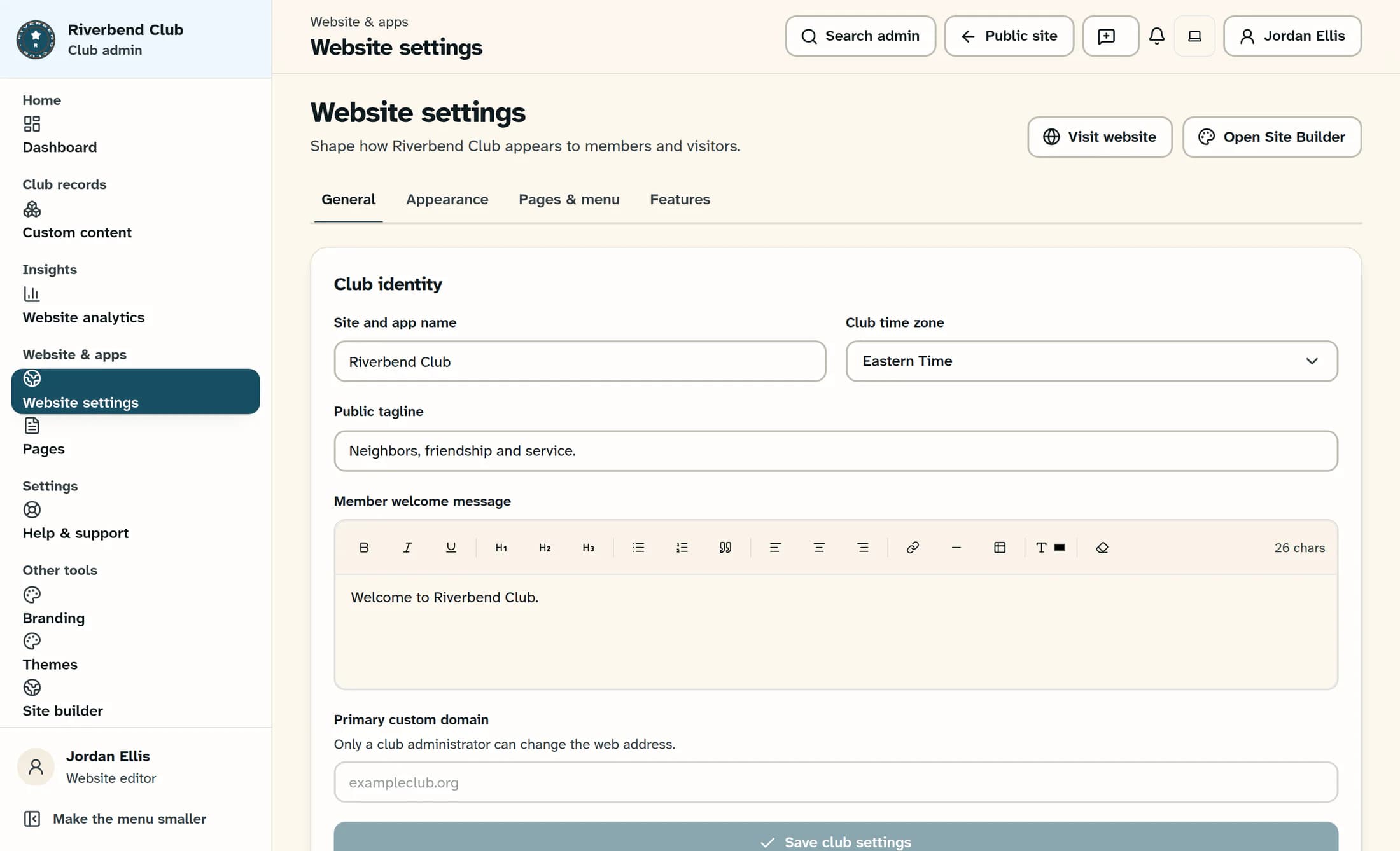
Open the website editor
From Website settings, select Open Site Builder. These steps use the Club Website Designer; keep that editor open for the rest of the draft and publication steps.
Step 2 of 7
Edit the existing page
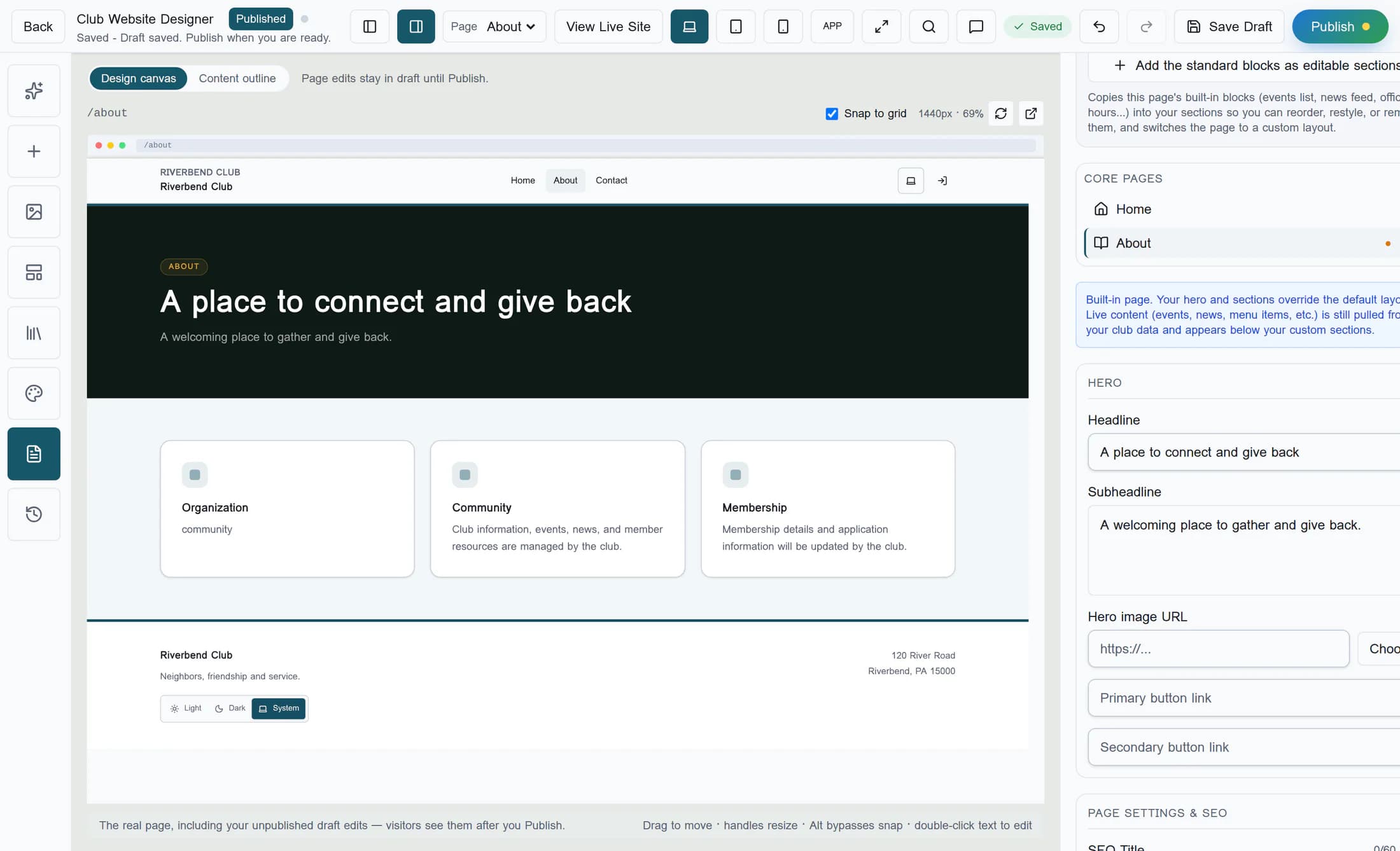
Choose About in the top Page selector; this opens the page controls. If needed, select the Page tool in the left sidebar to open Pages, then update Headline in the Hero group—the input’s placeholder is Hero headline.
Step 3 of 7
Confirm the draft is saved
Select Save Draft and wait for Draft saved. Publish when you are ready. Autosave also runs after eligible edits settle, but it pauses during saves, recovery, conflicts and some other editor activity. This saves pending drafts across pages, including a page you switched away from; it does not publish them.
Step 4 of 7
Publish the selected page
Check that the top Page selector still shows About, then select Publish. This publishes that selected page and its sections; a page with no check findings proceeds directly without a confirmation dialog.
Step 5 of 7
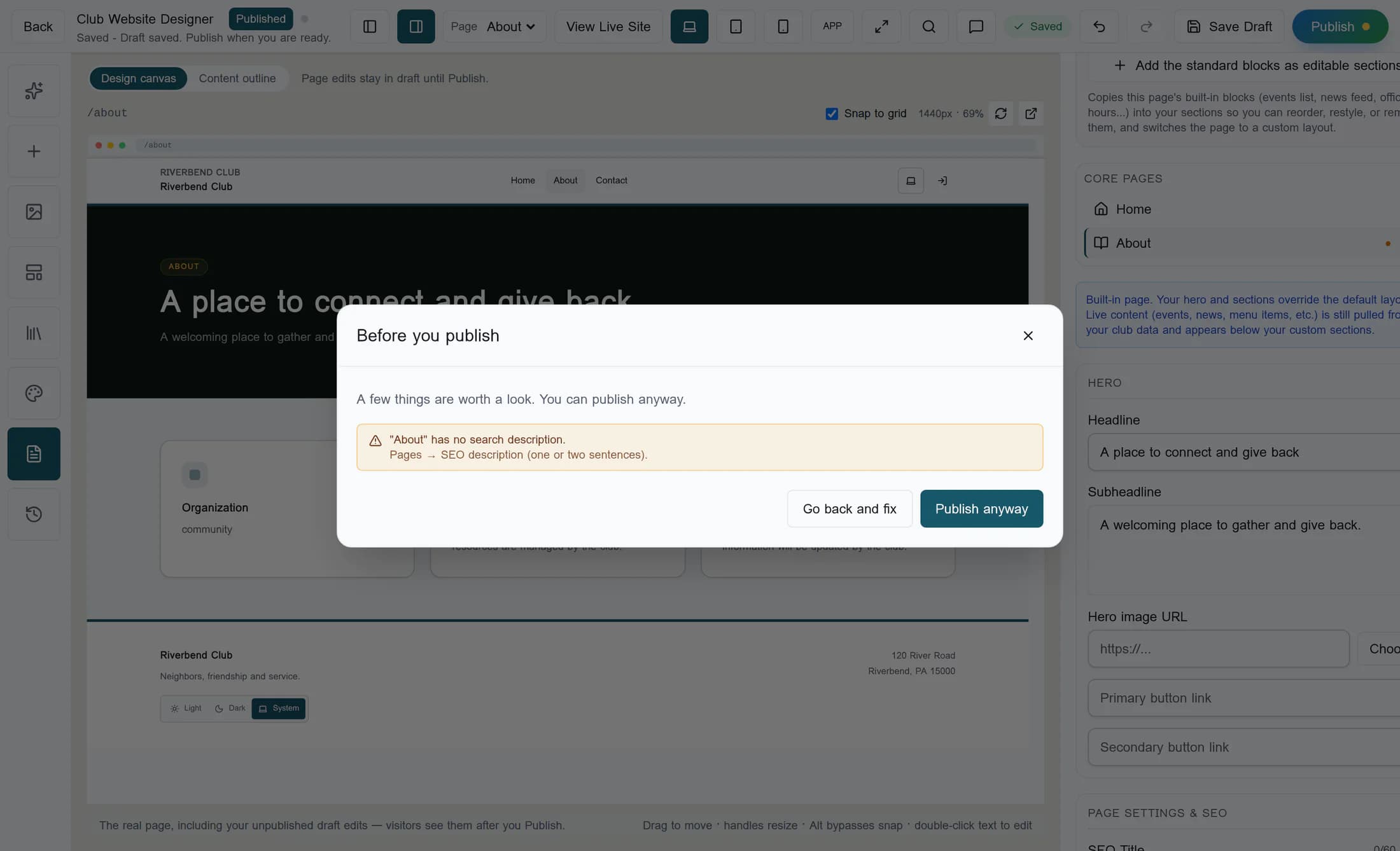
Review findings if they appear
If Before you publish appears, read its findings and choose Go back and fix to return to editing. For warnings only, Publish anyway is also available if you accept the warning; errors must be fixed before publication can proceed. The illustration’s missing search description is one fictional warning, not a required part of every publish.
Step 6 of 7
Wait for the publication acknowledgment
Wait for Published to the live club site. before treating the attempt as successful. A Published badge can describe an older live version, and Saved can describe a draft; neither alone confirms your latest edit is live.
Step 7 of 7
Check the published page
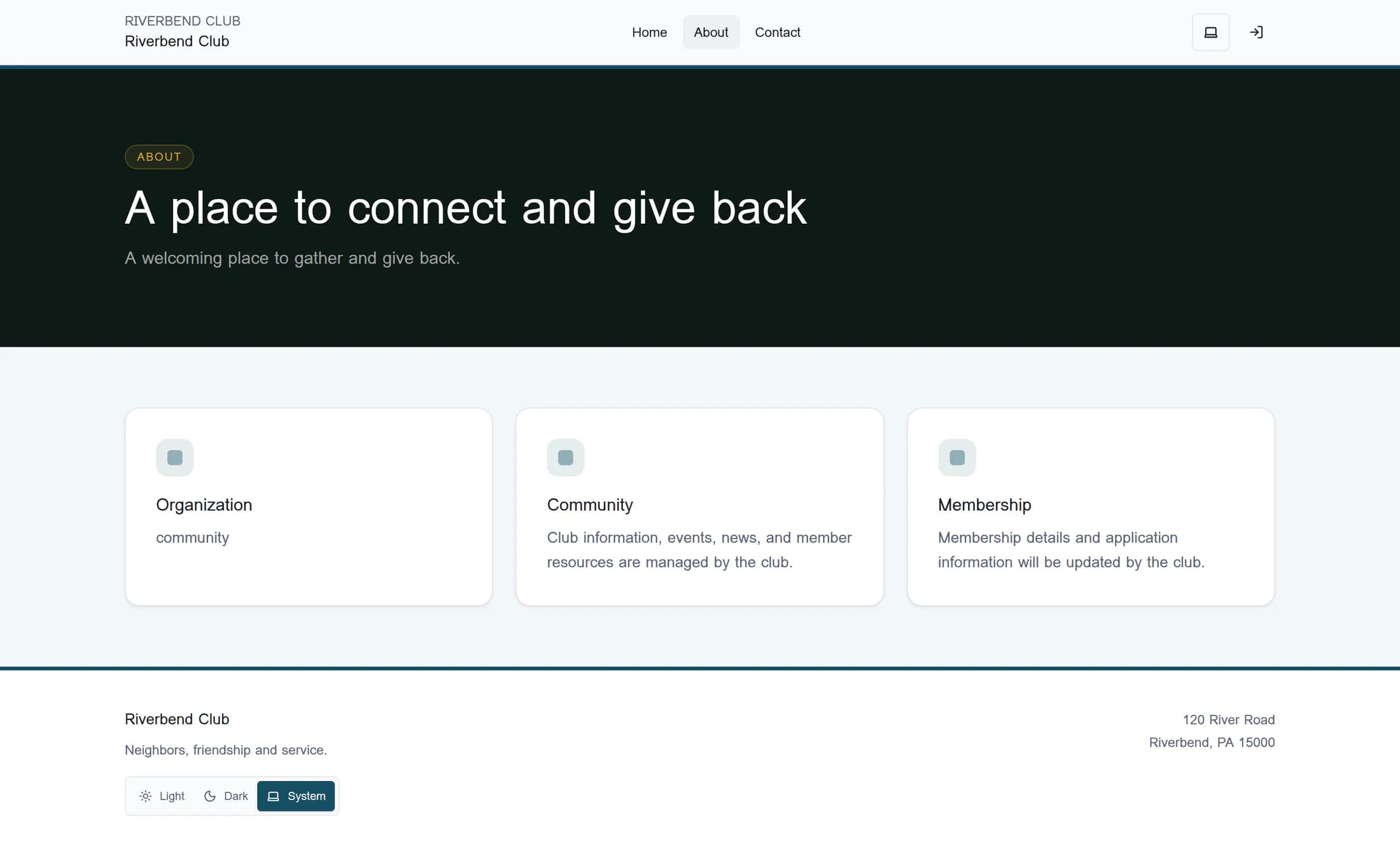
Select View Live Site in the editor to open the published home destination. Follow the existing About link in the website menu and confirm the updated headline there; the editor’s preview can show drafts and is not proof of public visibility.
Keep these save paths separate
Your page is ready to check
The draft acknowledgment confirms saved edits; the publication acknowledgment and the live page check confirm the intended result. Other page drafts stay unpublished until you publish those pages.
