
On this page
Before you start
Step 1 of 4
Open the schedule
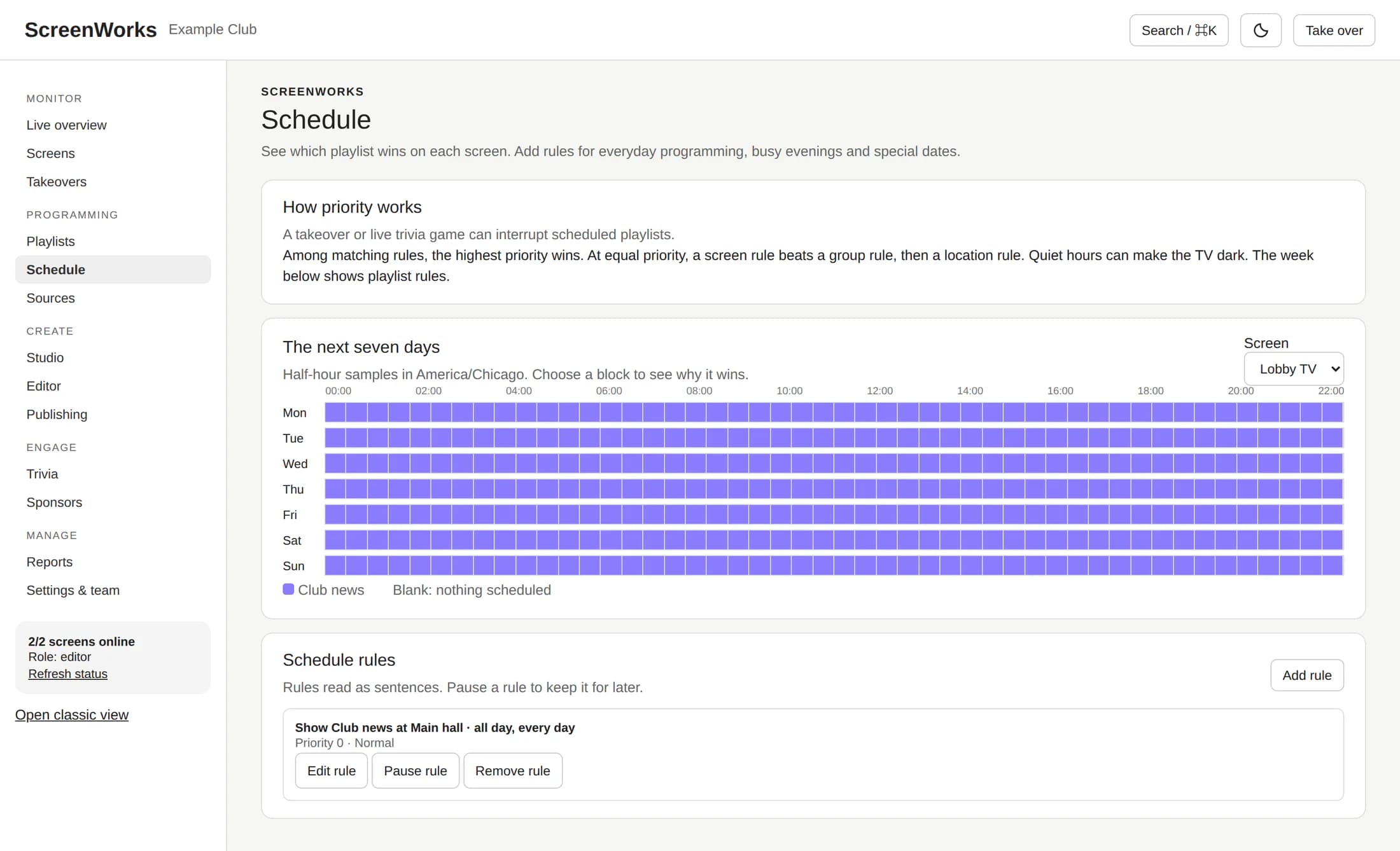
In ScreenWorks, open Schedule under Programming. In Schedule rules, select Add rule and choose the playlist you want to schedule.
Step 2 of 4
Choose where and when it plays
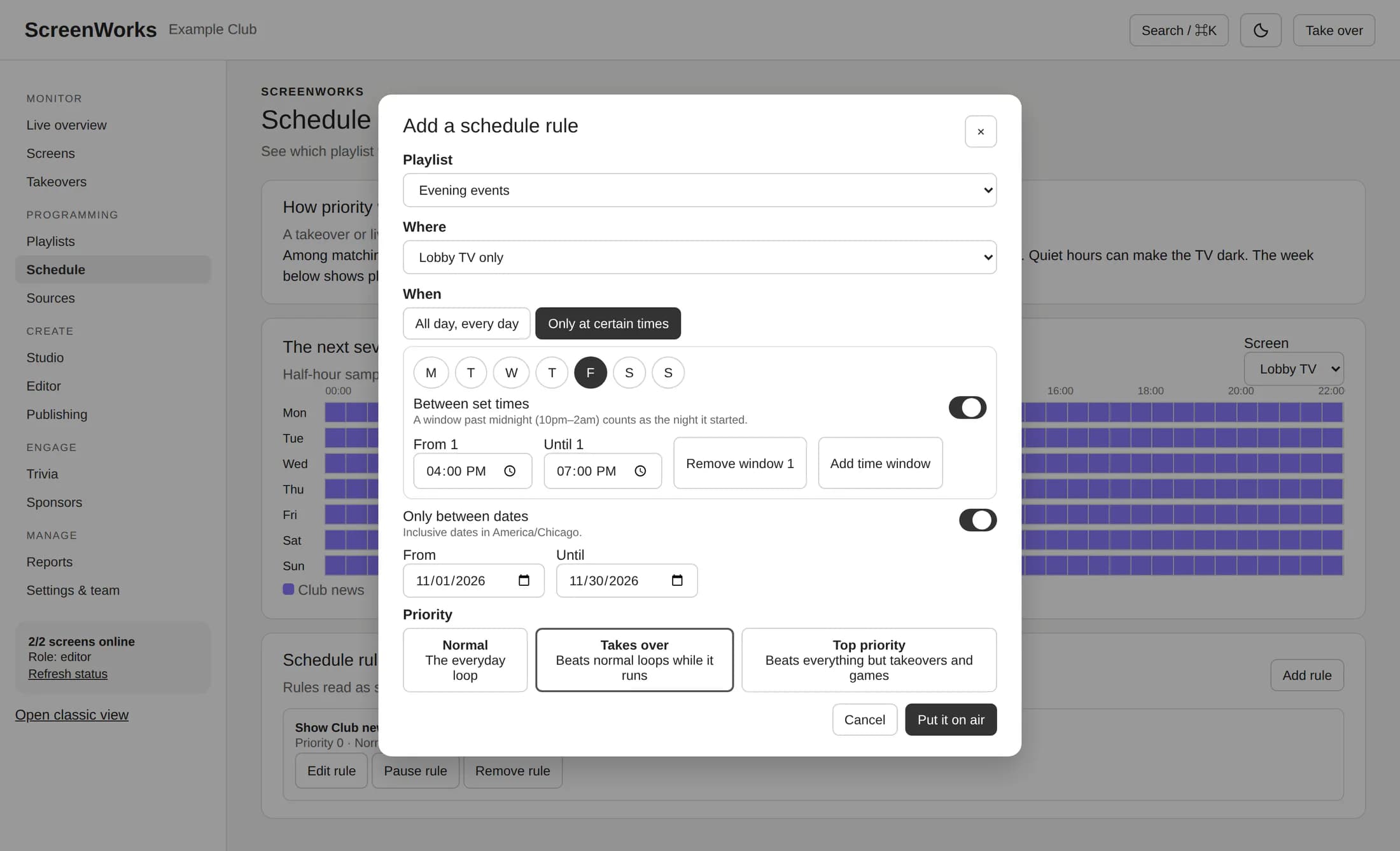
Under Where, choose a screen group, every screen at a location, or one active screen. Under When, keep All day, every day or choose Only at certain times, select days, and set time windows. To limit the rule to dates, turn on Only between dates and enter From and Until; the dates are inclusive in the displayed time zone.
Step 3 of 4
Set priority and save
Choose a Priority: Normal for an everyday loop, Takes over to beat normal loops while it runs, or Top priority for a higher-priority loop. Select Put it on air to save. ScreenWorks says screens pick up the rule within a minute; check the screen and its connection to confirm.
Step 4 of 4
Review the schedule and conflicts
In The next seven days, select a Screen and choose a half-hour block to open Why this playlist wins. Check the winning playlist and any rules marked Lower precedence; the view samples the next seven days in the screen's time zone. The highest priority wins; at equal priority, a screen rule beats a group rule, then a location rule.
Good to know
You're all set
Your rule appears in Schedule rules, and the week view helps you check which playlist is scheduled for each screen.
