
On this page
Draft preview: the illustrations are reconstructed from the application source with fictional example details. They do not show a real account being created or team access being changed.
Before you begin
Step 1 of 6
Create your console if you’re new
Go to
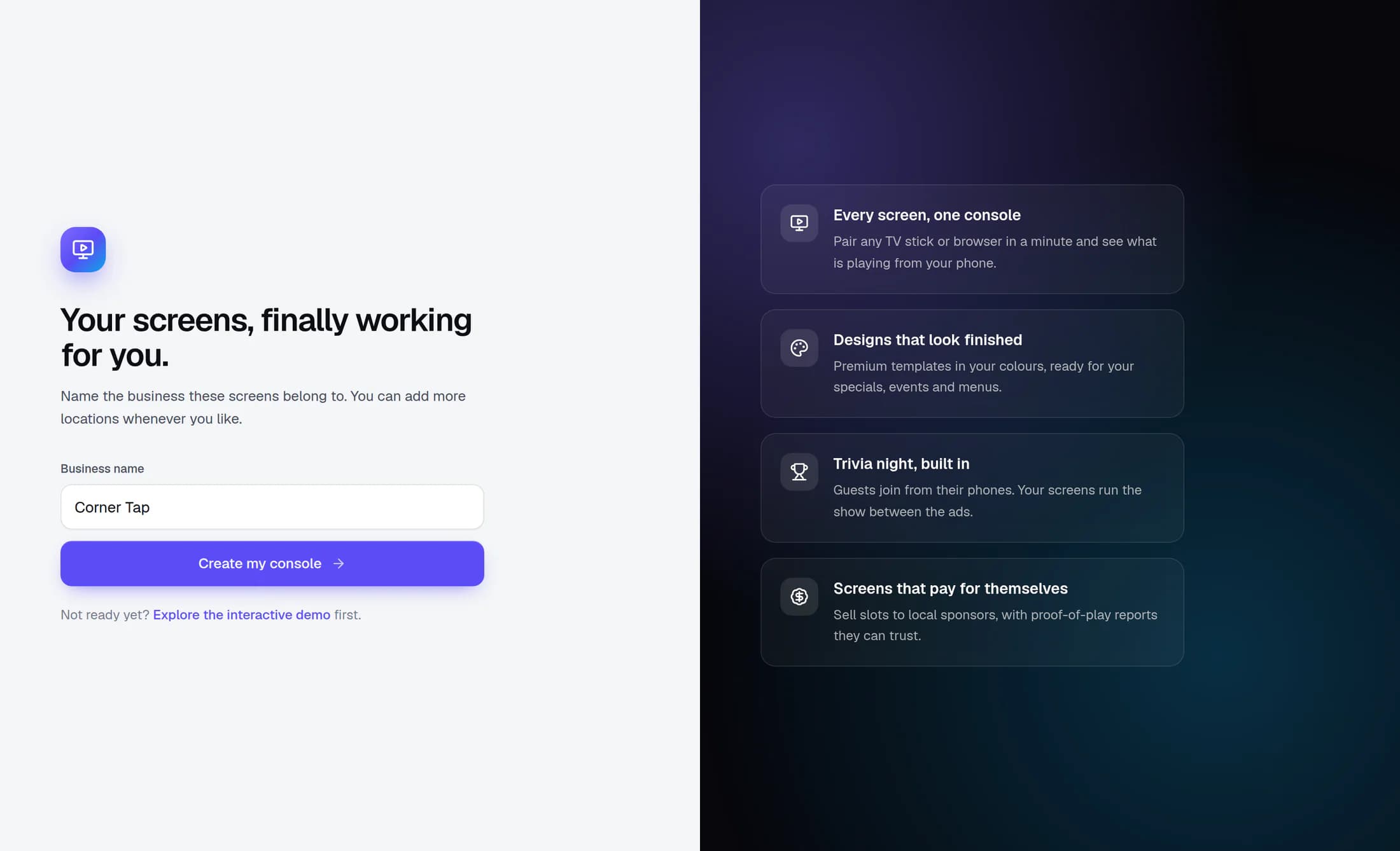
/screenworkson your ClubWorks site while signed in. If your sign-in has no accessible ScreenWorks account, you’ll see Business name. Enter your business name, then click Create my console.ScreenWorks creates a standalone account, makes you its owner, and creates the first location with the same name. The account and first location start in America/New_York. This form asks only for a name; it does not automatically link the account to your current ClubWorks club.
If a console already opens, you already have access to an account. Continue with its settings rather than creating another account.
Step 2 of 6
Find your location and team
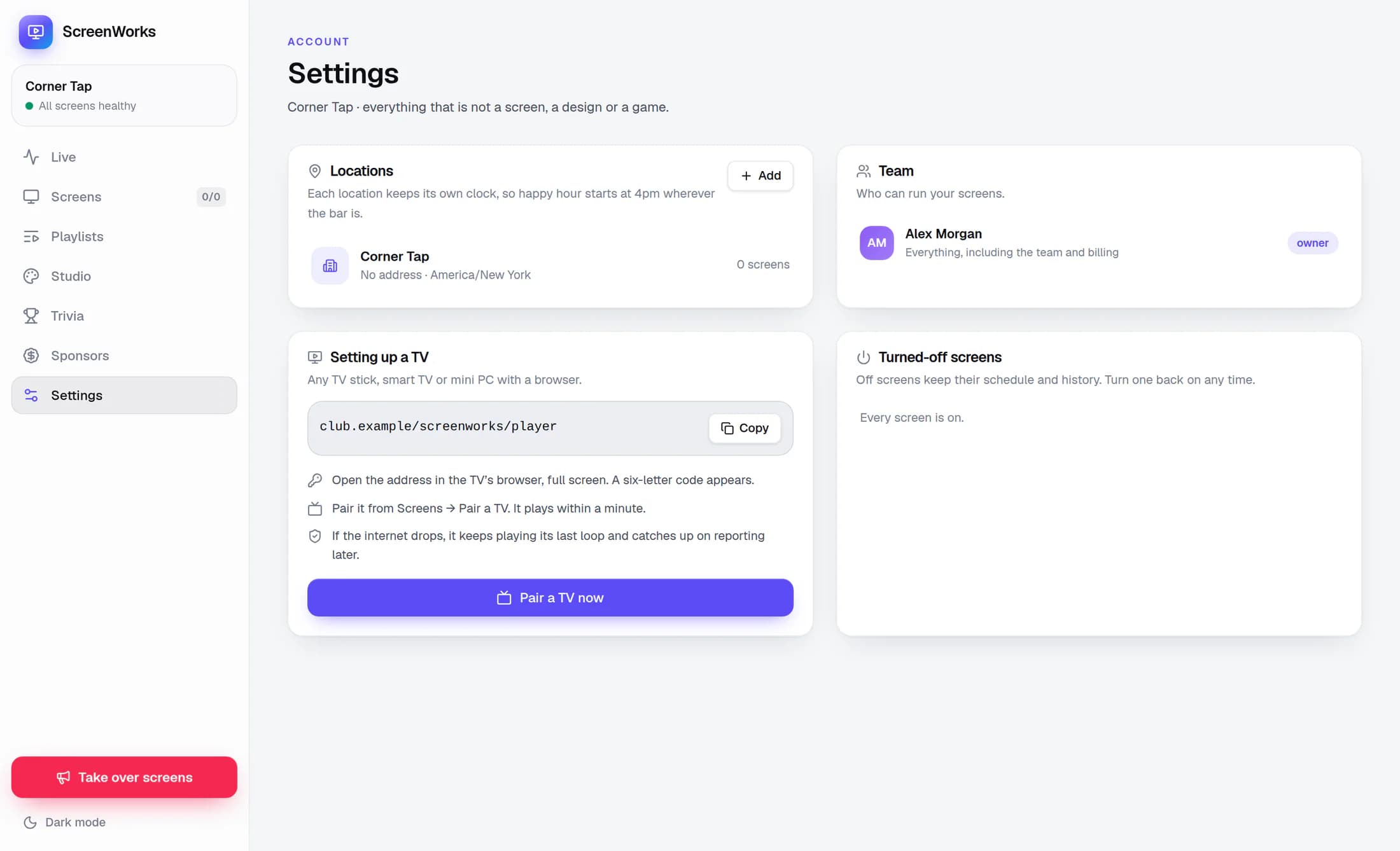
Click Settings in the ScreenWorks sidebar. The Locations card lists the locations and their time zones. The Team card shows active account members, with each person’s role and a short description of their access.
For a new standalone account, you should see yourself as owner. The example shows a fictional business and owner.
Step 3 of 6
Verify the location’s time zone before planning content
The first location inherits the business name and starts in America/New_York. Its time zone appears beside the location in Locations on Settings.
Verify that time zone before planning timed content: schedules, dayparts and quiet hours use the location’s clock. The initial Eastern time zone will not be right for every business.
Step 4 of 6
Understand the roles shown in Team
The Team card describes the four roles:
- owner: “Everything, including the team and billing”.
- manager: “Everything but the team”.
- editor: “Designs, playlists, takeovers and trivia”.
- viewer: “Can look, cannot change”.
These labels describe access. The current classic Team card is a display of members and roles; it has no invitation, role-editing or member-removal controls. Even an owner cannot make those changes from this card.
Step 5 of 6
Use existing linked-club access
If the ScreenWorks account is already linked to a ClubWorks club, admins of that linked club receive owner access automatically when they do not already have an active account membership with a specific role. An existing account role takes precedence. Its Team card says “Admins of your linked ClubWorks club get owner access automatically.”
Sign in with the ClubWorks identity that has an active admin role in that linked club. Automatic club-admin access is separate from the explicit account-member rows displayed in Team, so that list is not a complete roster of everyone who can open a linked account.
Being an admin of a different club does not grant access. Creating a standalone console with Business name also does not establish this club link.
Step 6 of 6
If someone still needs access
For a standalone account, the creator is provisioned as owner. Other people need an existing active ScreenWorks account membership; this setup flow and the classic Team card do not provide a way to invite them or assign their roles.
Ask the account owner or your ClubWorks administrator to confirm the account and arrange help with access. For a linked account, they can also check the person’s existing admin access to the linked club. There is no self-service linking control in this setup form or Team card. Avoid creating a separate console as a workaround for missing access.
You’re ready for the next step
Your console has a first location, and you know how its clock and team access work. Once access is settled, you can move on to pairing a TV and building the content it will play.
