
On this page
Before you start
Website or phone app?
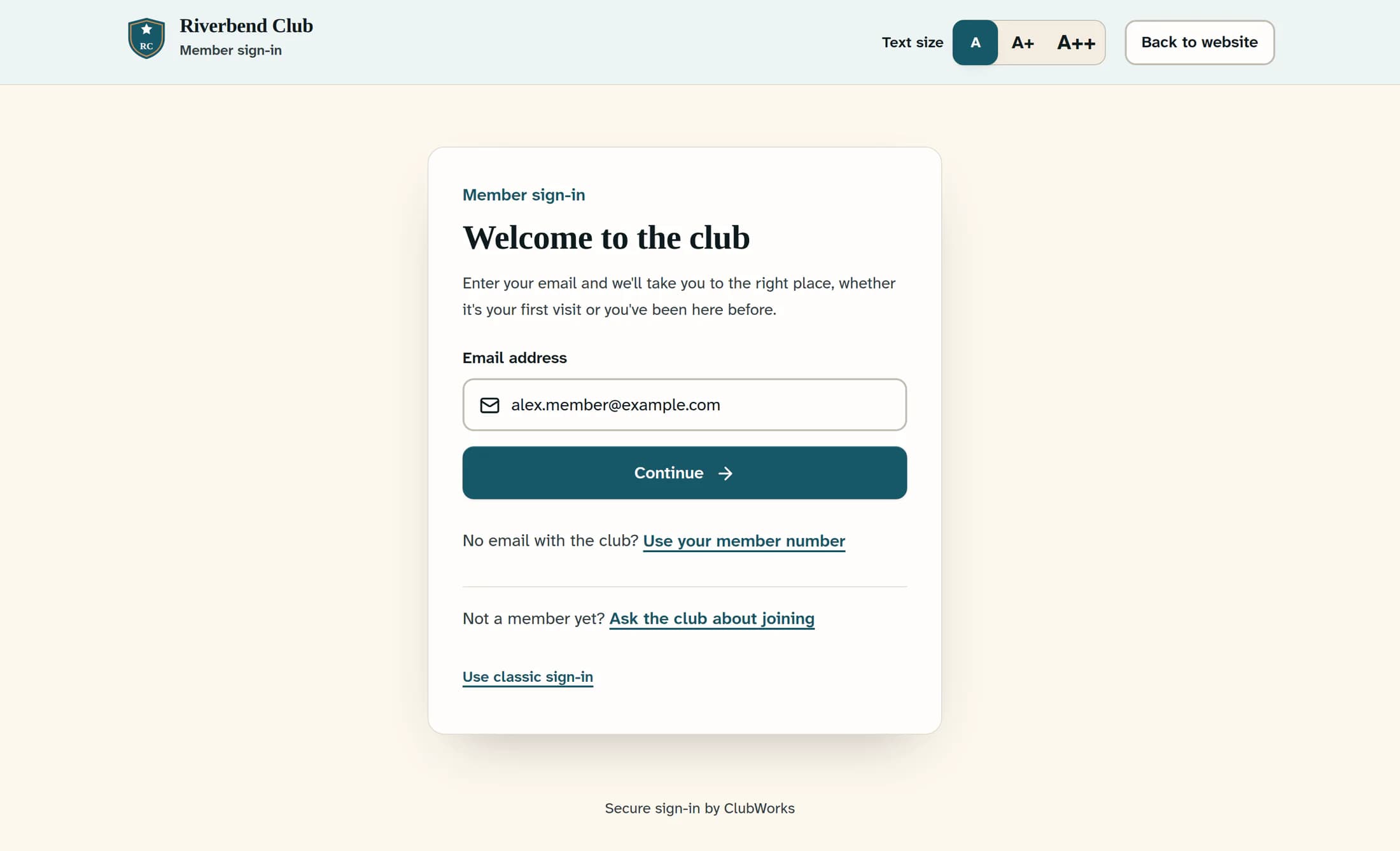
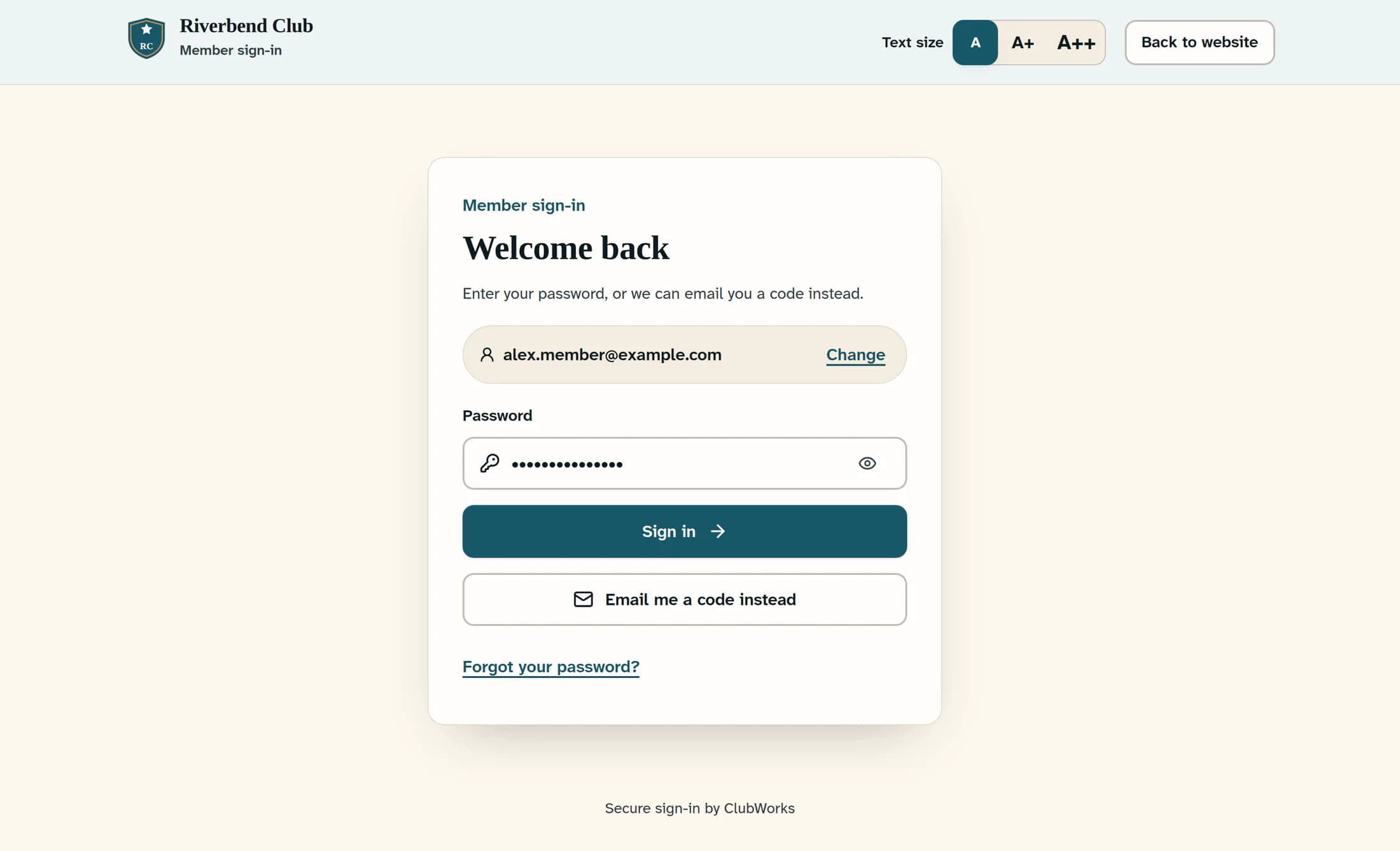
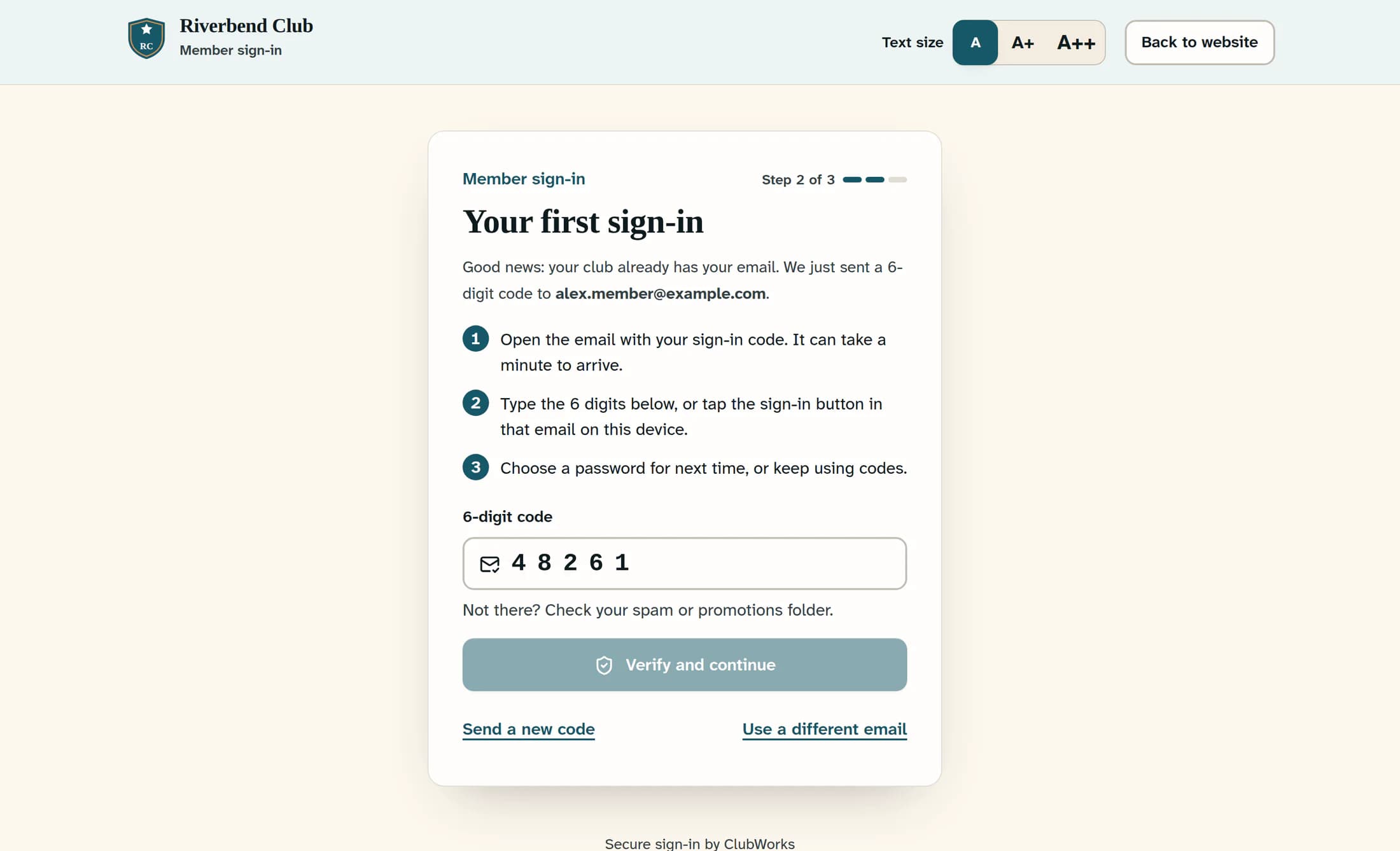
These steps describe the current Clubhouse sign-in page in a web browser, including a browser on your phone. The installed member and Workforce apps may show different screens; use your club’s website to follow this guide. The illustrations below are reconstructed from the current website source with a fictional club and email address, not live captures; your club’s name and colours may differ. The example code is shown partway through entry; enter all six digits from your own email.
Step 1 of 5
Open your club’s sign-in page
Open the sign-in link your club gave you, or go to your club’s website address with /login added at the end. Staff should use their manager’s link to the staff area so they return to the right place after signing in.
Step 2 of 5
Enter your email address
Enter your email in Email address, then select Continue. If you see Welcome back, follow step 3; if you see Your first sign-in or Check your email, go to step 4.
Step 3 of 5
If asked, enter your password or choose a code
On Welcome back, enter your Password and select Sign in—use the password your admin gave you if they set one, even on your first visit. To use a code instead, select Email me a code instead, then follow step 4. If your password signs you in and your club page opens, you’re finished.
Step 4 of 5
If sent a code, check your email
Open the newest sign-in email and enter its six digits in 6-digit code; the form checks the code as soon as you enter the last digit. If the form is still waiting, select Verify and continue, or use the sign-in button in the email on this same device. When your email is on file but you don’t yet have a sign-in password, the website may send this code automatically after Continue.
Step 5 of 5
If offered, add a password for next time
If You're in! appears, enter at least eight characters in Choose a password, then select Save password and continue. To keep using email codes, select Skip for now.
If the email does not arrive
If you still cannot sign in
What happens next
After sign-in and any optional password step, your member page opens or you return to the page from your original sign-in link. Staff who used a manager’s link return to that staff area, subject to their access.
