
On this page
- Before you start
- Check which address is shown
- Give the message a moment to arrive
- Request another code when the button is ready
- Use the newest code that arrives
- Return to email entry if the address is wrong
- Enter the correct address
- Use an existing password if that option appears
- Ask your club for help if you still cannot continue
- What happens next
- Related tasks
- If the email is still missing
Before you start
Step 1 of 8
Check which address is shown
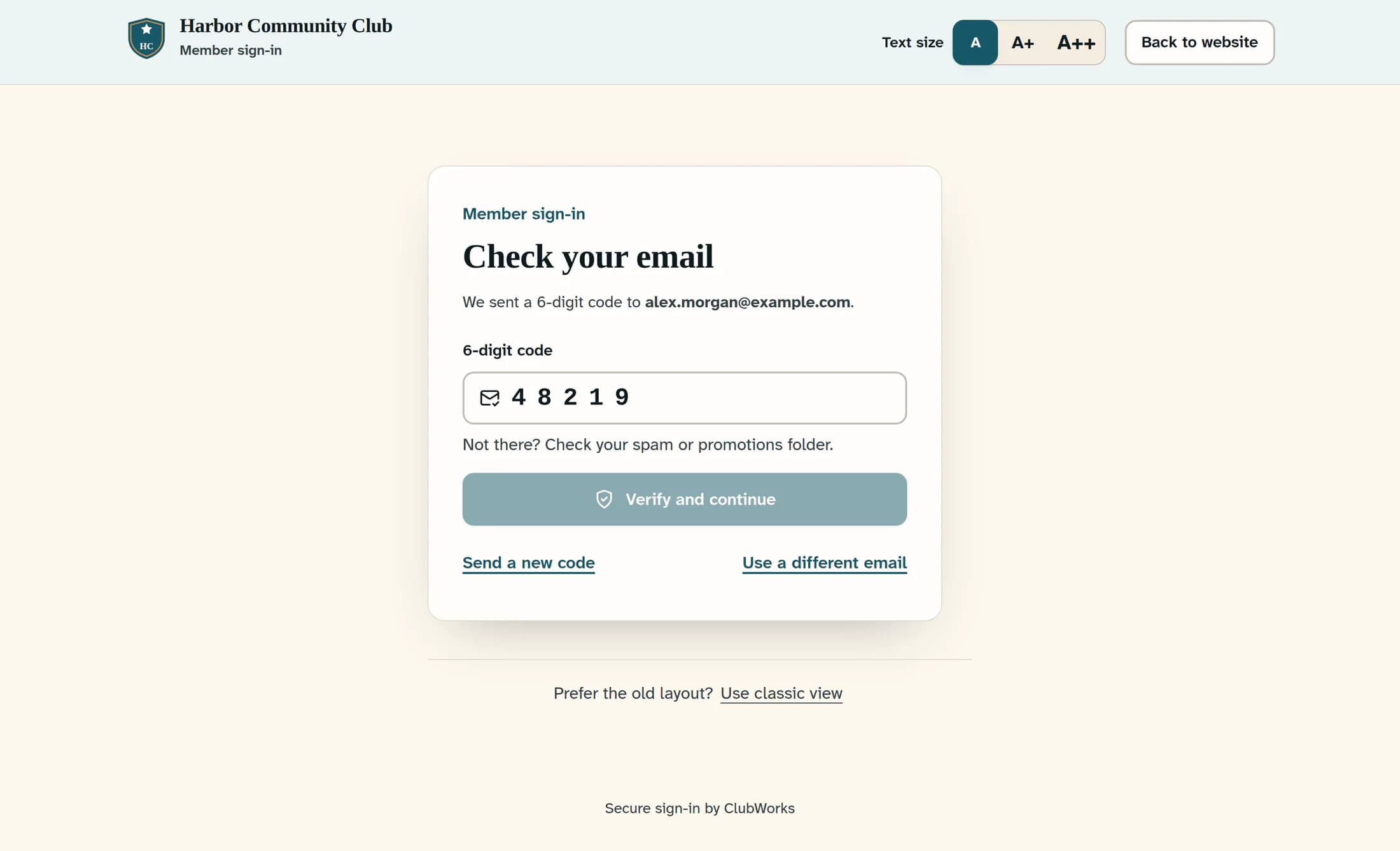
Read the email address under Check your email and make sure it is the inbox you are checking. You may instead see Your first sign-in for a first visit or Confirm your email when confirming an address while linking a membership; the code and resend controls work the same way. The message saying a code was sent does not confirm that it reached your inbox.
Step 2 of 8
Give the message a moment to arrive
Allow a minute for the email to arrive, then check your inbox, spam and promotions folders. Keep the sign-in page open while you look in the inbox for the address shown there.
Step 3 of 8
Request another code when the button is ready
Wait for the 30-second resend countdown to finish, then select Send a new code below the code field. This countdown controls when you can send again; it is not the code’s expiry time. If a sending error or a message asking you to wait appears, follow that message before trying again.
Step 4 of 8
Use the newest code that arrives
Enter the six digits from the newest sign-in email in 6-digit code. Verification starts automatically when all six digits are entered. If the code does not work, check the newest email or use Send a new code again when it becomes available.
Step 5 of 8
Return to email entry if the address is wrong
If the displayed address has a typo or is not the address your club uses for you, select Use a different email beneath the code field.
Step 6 of 8
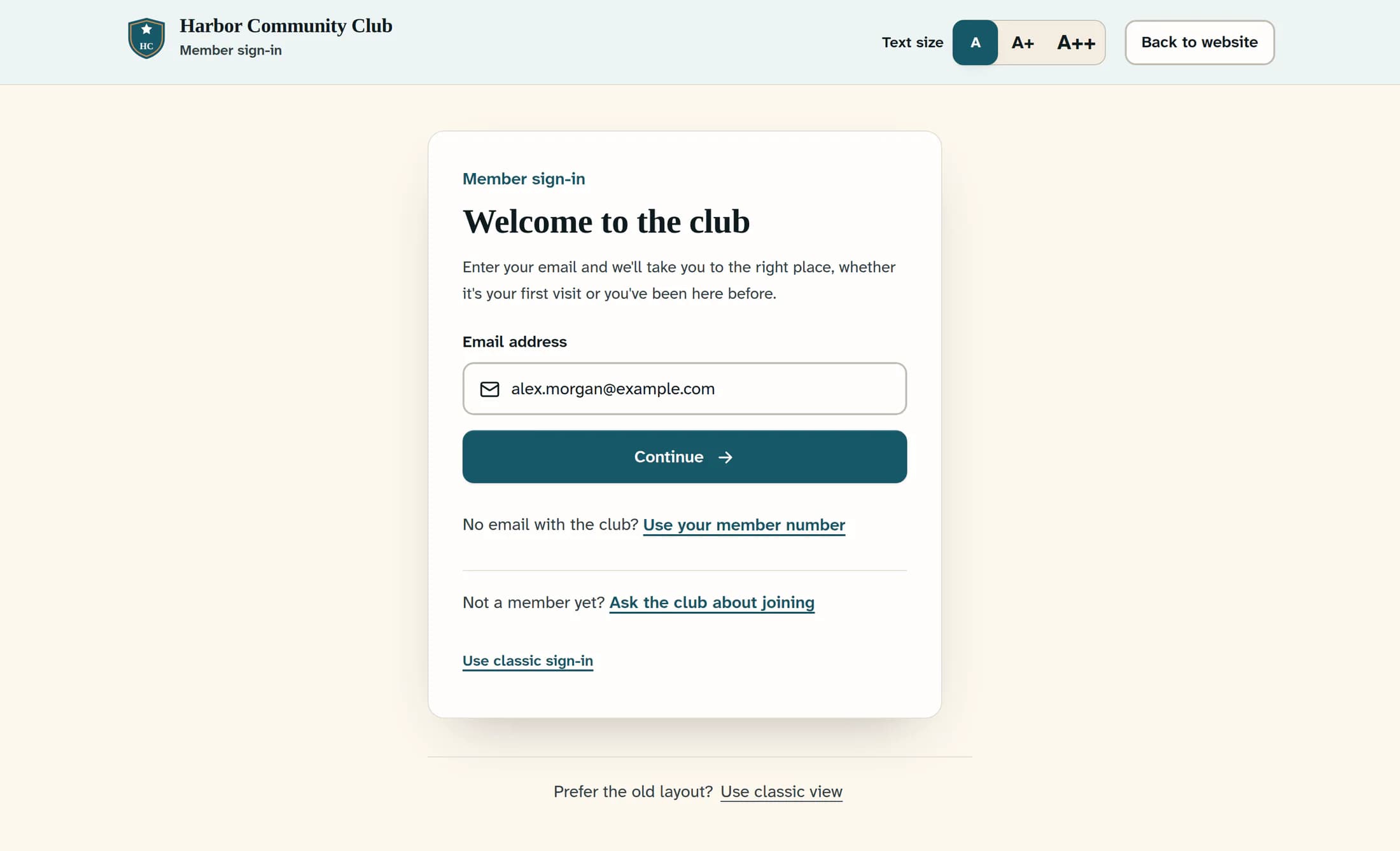
Enter the correct address
Enter the correct address in Email address, then select Continue. Use an inbox you can open and the address your club or manager has on file; entering a different address does not update the club’s records.
Step 7 of 8
Use an existing password if that option appears
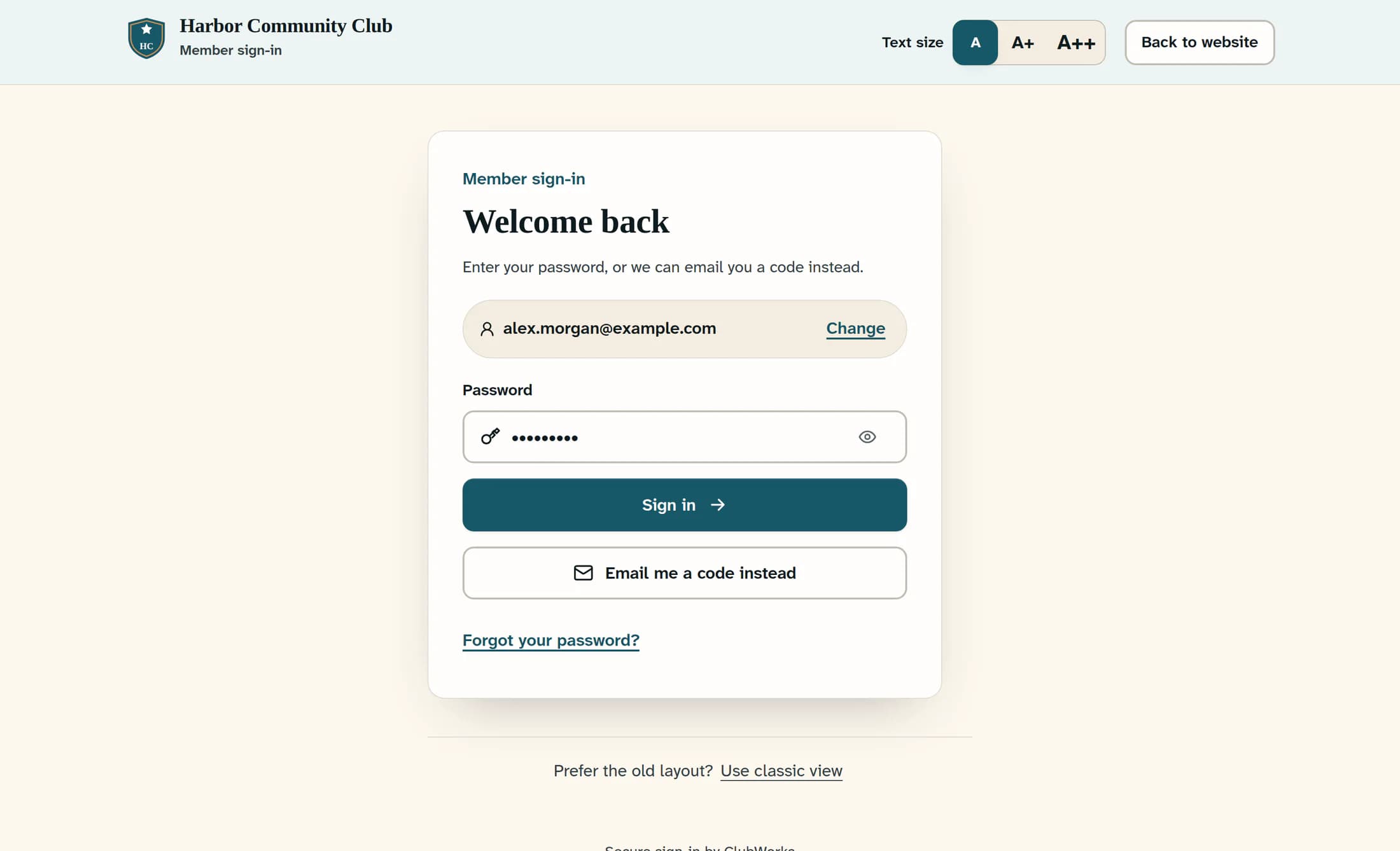
If the corrected address takes you to Welcome back and you already know your password, enter it in Password and select Sign in. This lets you try signing in without waiting for an email code; an address that goes straight to a code screen may not offer this option.
Step 8 of 8
Ask your club for help if you still cannot continue
If you cannot open the inbox, or the message still does not arrive after these checks, contact your club office; staff should contact their manager. Tell them the address shown and any error message so they can check the email and account record. Do not share your password or sign-in code.
What happens next
An accepted code moves you to the next sign-in step; you may be offered the option to add a password. Email verification alone does not guarantee access to a club account or confirm membership. If you are verified but your club account will not open, follow the message shown and contact the club if it continues.
If the email is still missing
Check the displayed address, allow time for delivery and look in spam or promotions before sending another code. Use an existing password when offered, or ask the club office or your manager to help with an inbox or account problem.
About this guide
Applies to member and staff web sign-in in the October 21, 2026 release (16782cba). The illustrations are source-based reconstructions with fictional details, using the Clubhouse design; your club’s branding or classic layout may differ. Native apps and live email delivery have not been verified for this guide.
The screens in this guide show example clubs and people. Your club's name, colours and some labels may look different.
