
On this page
Before you start
Step 1 of 5
Find the right member
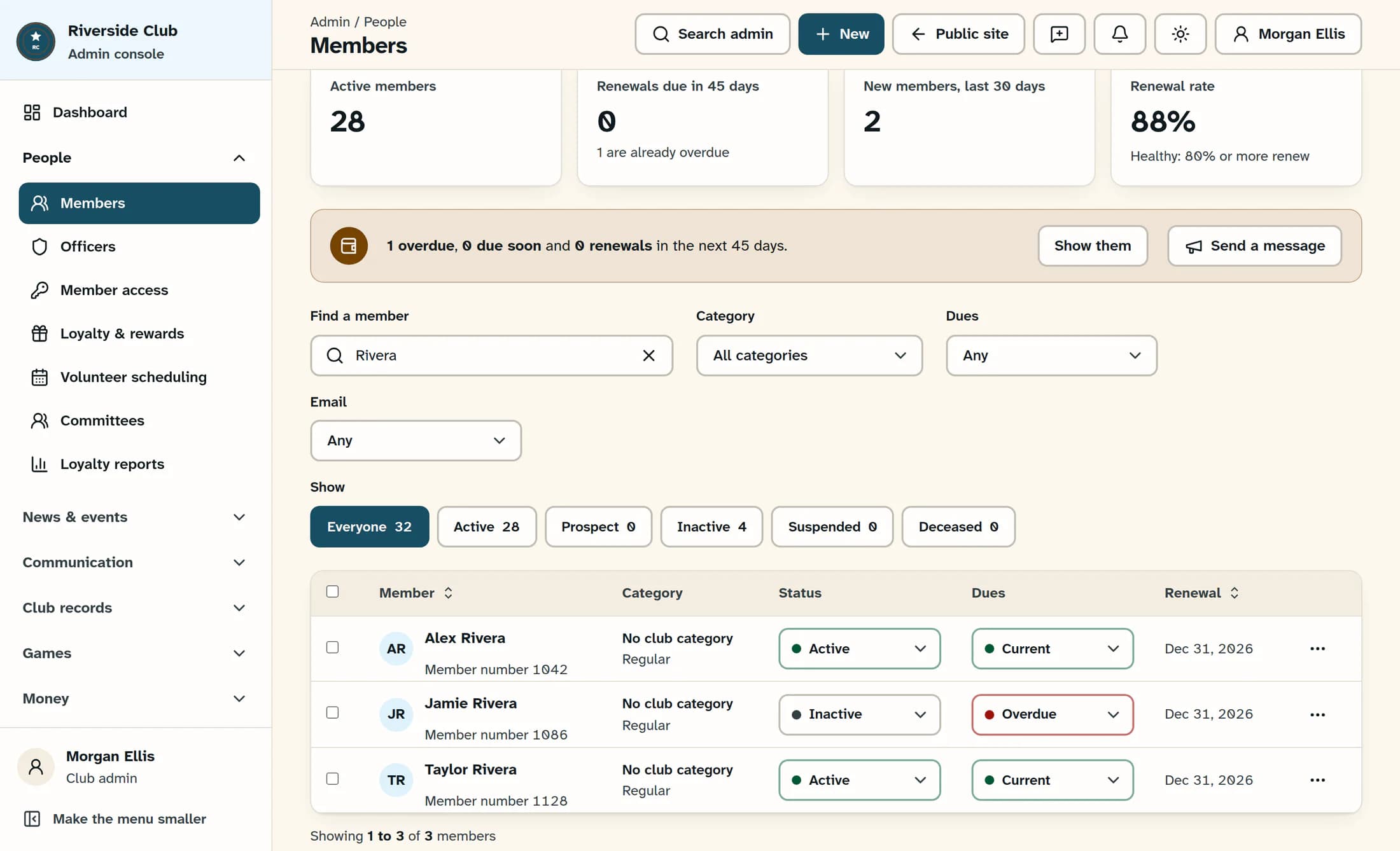
Open People > Members, then use Find a member to locate the person and check their name and member number. The Show chips and the Dues filter above the table only change which records you see; the selectors in the member’s row change that member’s record.
Step 2 of 5
Change membership status in the row
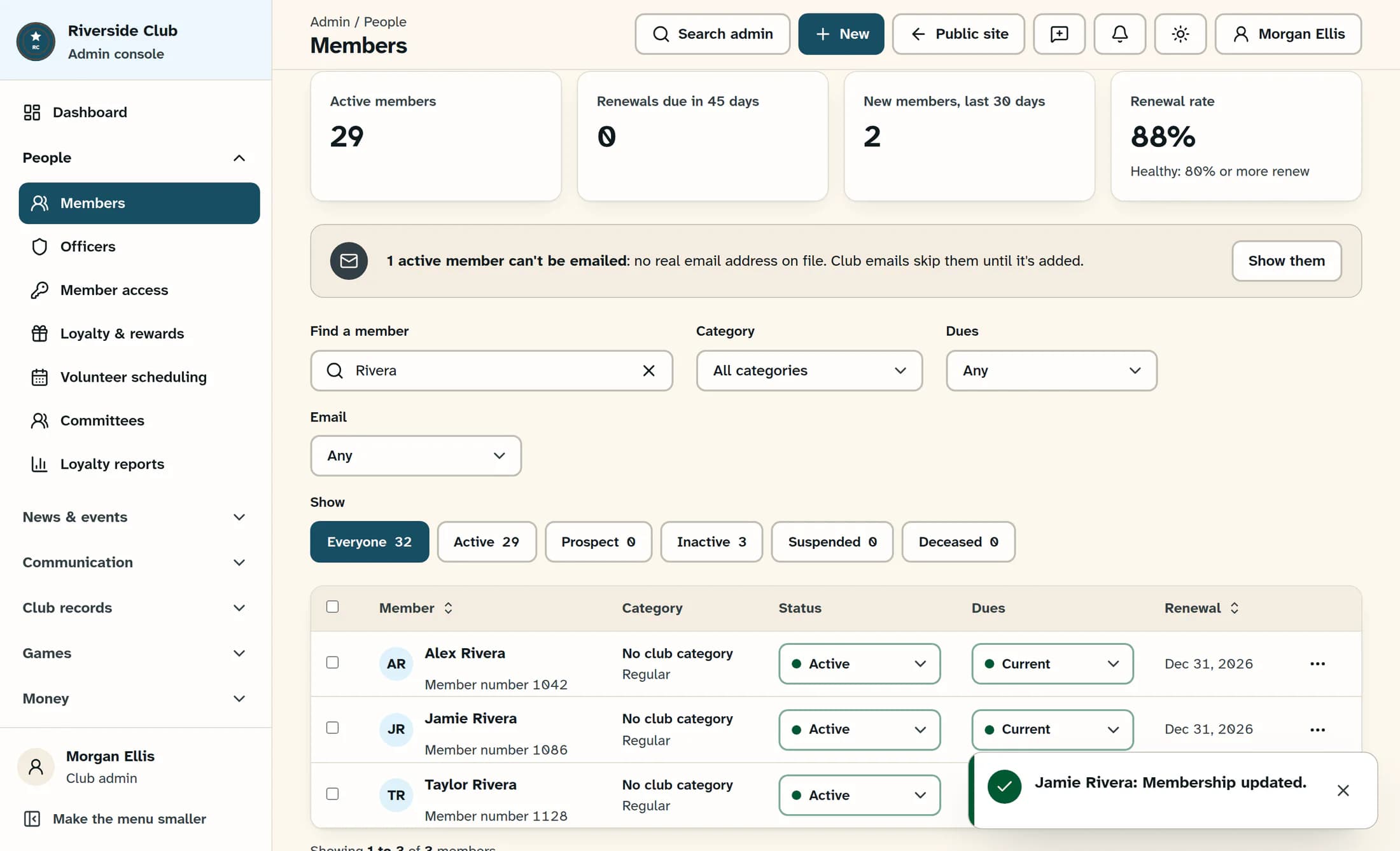
In the correct member’s row, choose the intended value from Status: Active, Inactive, Suspended, Deceased or Prospect. For a correction like the example, change Inactive to Active and wait for the success notice before changing another control. Ordinary row changes save immediately, with no separate save button or confirmation; suspension uses the separate process below.
Step 3 of 5
Correct the dues label
After the status update finishes, choose the intended value from the same row’s Dues selector: Current, Due soon, Overdue, Exempt or Not set. Wait for the member’s success notice; the example shows Overdue corrected to Current, which saves the label immediately.
A dues label is not a payment
Changing the label to Current does not record or settle a payment, change the paid-through or renewal dates, or remove a suspension. Not set means the dues status is unknown. For date changes, use Update a member’s paid-through date.
Step 4 of 5
Check the saved values
Check the member’s row after each success notice. If the row disappears, switch Show to Everyone and the top Dues filter to Any, then clear any other filters or search terms that exclude the member. Use Refresh if needed to reload the records; filters still apply after a refresh, as explained in Find members with search and filters.
Understand the access effects
Use the suspension process when needed
Choosing Suspended from another status in the row opens a separate suspension form; the member is not suspended until Suspend member is submitted. Changing away from Suspended closes an open suspension history entry as a status change. For a managed suspension, use Lift suspension now through Manage a member suspension and reinstatement.
Step 5 of 5
Alternatively, edit the member’s details
Click the member’s name to open Member details, then find Status and Dues status in Membership. Choose the values you need and select Save member; the panel keeps ordinary edits pending until you save. The panel’s Status list includes Suspended only for a member who is already suspended.
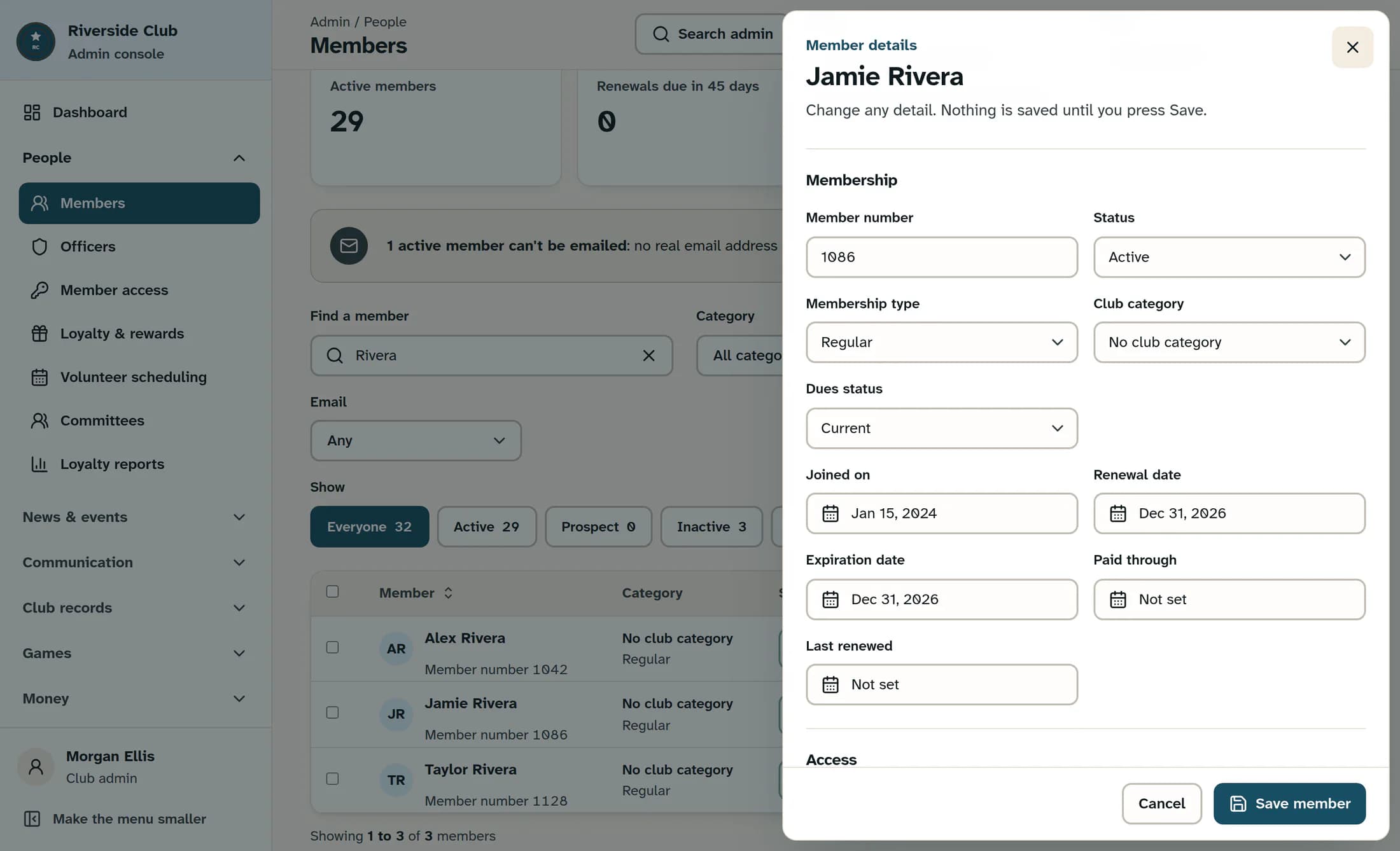
Cancel before saving discards ordinary panel edits, but does not undo row changes that already saved. A profile save can partly succeed; if it reports an error, check the saved record before retrying. See Edit a member profile for the full editing and recovery flow.
You’re done
The member’s saved status and dues label now reflect the correction. Handle payments, membership dates, login access and suspensions through their own controls when those also need to change.
About this guide
Based on ClubWorks release 16782cba. The illustrations are fictional reconstructions from the source; live workflow testing is still pending.
The screens in this guide show example clubs and people. Your club's name, colours and some labels may look different.
