
On this page
Before you start
Step 1 of 6
Start with the blank template
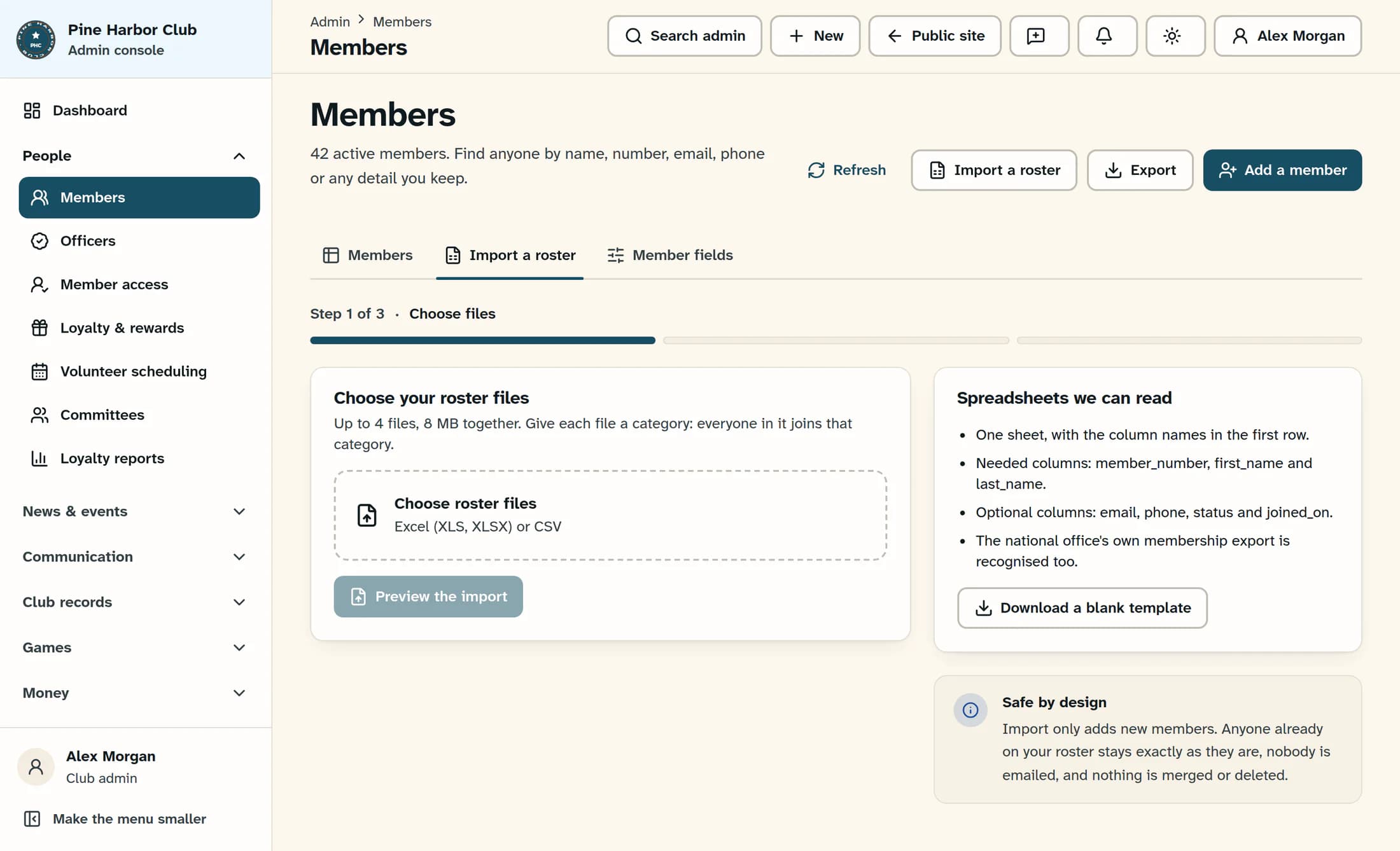
In the admin sidebar, go to People > Members, then open Import a roster. In Choose files, find Spreadsheets we can read and select Download a blank template. The downloaded roster-template.csv has these headers:
member_number,first_name,last_name,email,phone,status,joined_onFor a general spreadsheet, use these exact headers in the first row. The required columns are member_number, first_name, and last_name; a single full-name column does not replace the two name columns.
Step 2 of 6
Keep one category in each file
Prepare an XLS, XLSX, or CSV file with one populated roster sheet and one member per row. Remove totals, notes, and other extra content from a general spreadsheet. Keep the header row at the top.
Everyone in a file receives the same active club category, so split your roster by the intended category before choosing files. For example, keep Social members in one file and Volunteer members in another. A batch can contain up to 4 files, no more than 8 MB together, and up to 10,000 nonempty roster rows across all files.
ClubWorks also recognises the supported original FOE Aerie/Auxiliary export in its exact legacy layout. That does not mean every national-office export is supported. Preserve that original file; if its layout is not recognised, use the blank template instead.
Step 3 of 6
Check every member's fields
Review the values before saving:
- member_number: required; 1–40 letters, digits, or hyphens. Keep this column as text to preserve leading zeros, such as 00125.
- first_name and last_name: both required. The combined name, including the separating space, must be no longer than 180 characters.
- email: optional. Leave it blank if you do not have a real address. A blank, invalid, shared, or already-used email does not by itself skip an otherwise valid new member; the preview can say New member; unique email needed for manual linking. That member will need a unique email and manual account linking later. Do not invent an address.
- phone: optional; no more than 40 characters.
- status: use active, inactive, suspended, deceased, or prospect. A blank value becomes active. Importing suspended does not create a managed suspension, lift date, or letter; use the suspension guide for that follow-up.
- joined_on: optional; use a real date in YYYY-MM-DD format, such as 2025-06-15. Slash dates are interpreted as month/day/year.
The importer reads only these listed fields from a general spreadsheet. Extra columns in a current ClubWorks export do not all come back through import. The club category is assigned to the whole file, and existing members stay unchanged. Import does not restore arbitrary built-in membership types: a category name containing “aux” gives new members the Auxiliary type; otherwise they receive Regular. Your club's type labels may differ; for example, Regular may be called Aerie. Dues starts as Not set. Even a usable email does not create a sign-in account or send an invitation.
Save the file, then reopen it and check that member numbers still have their leading zeros and dates still have the intended values.
Step 4 of 6
Choose your files and check their categories
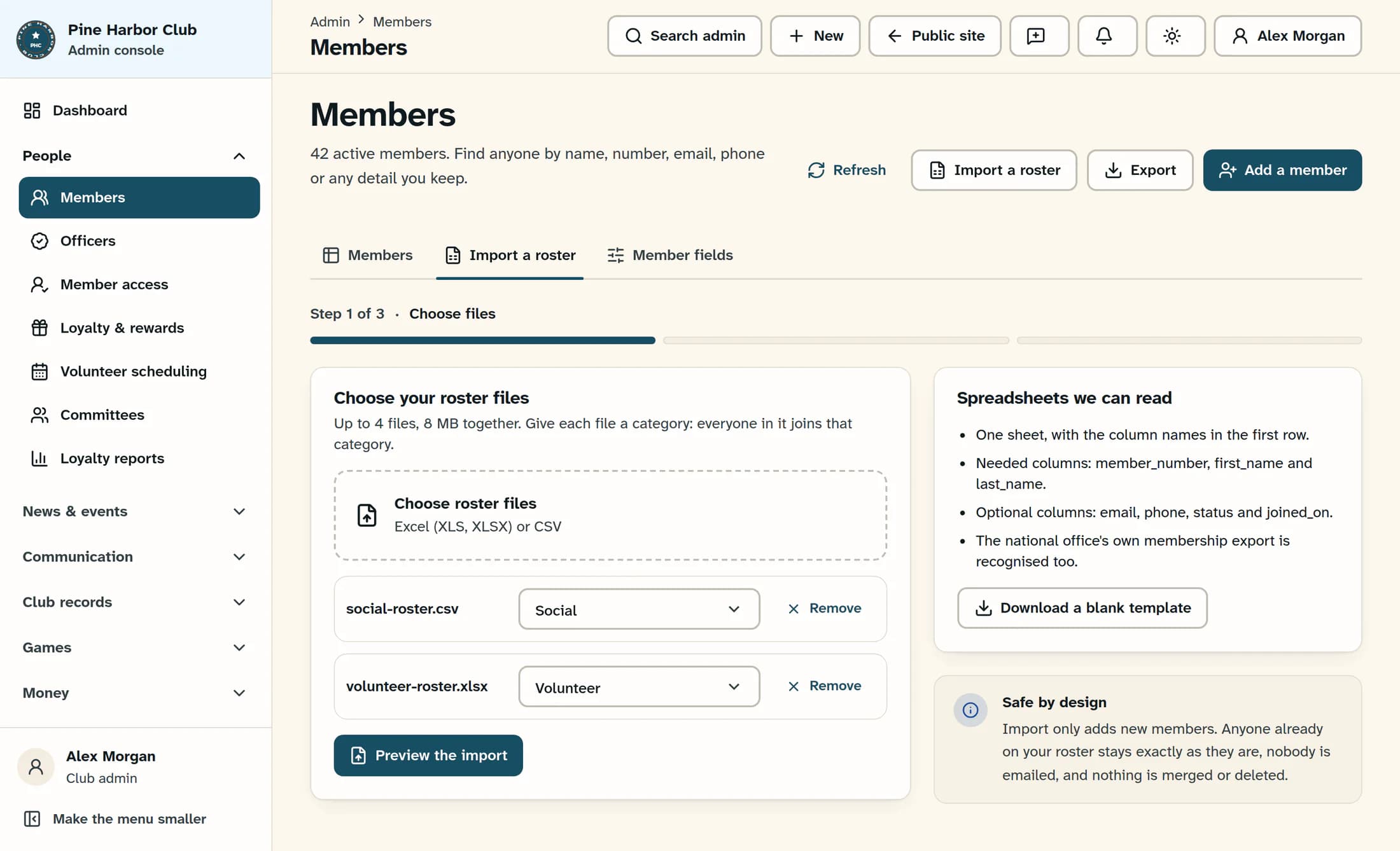
Back in Import a roster > Choose files, select Choose roster files and choose your prepared files. Check the category beside every filename. ClubWorks may guess from a category name in the filename, or select the club's only category; confirm the choice yourself.
Once each file has the right active category, select Preview the import. This reads the files and checks them against the current roster without adding members or changing existing records.
Step 5 of 6
Read all four preview groups
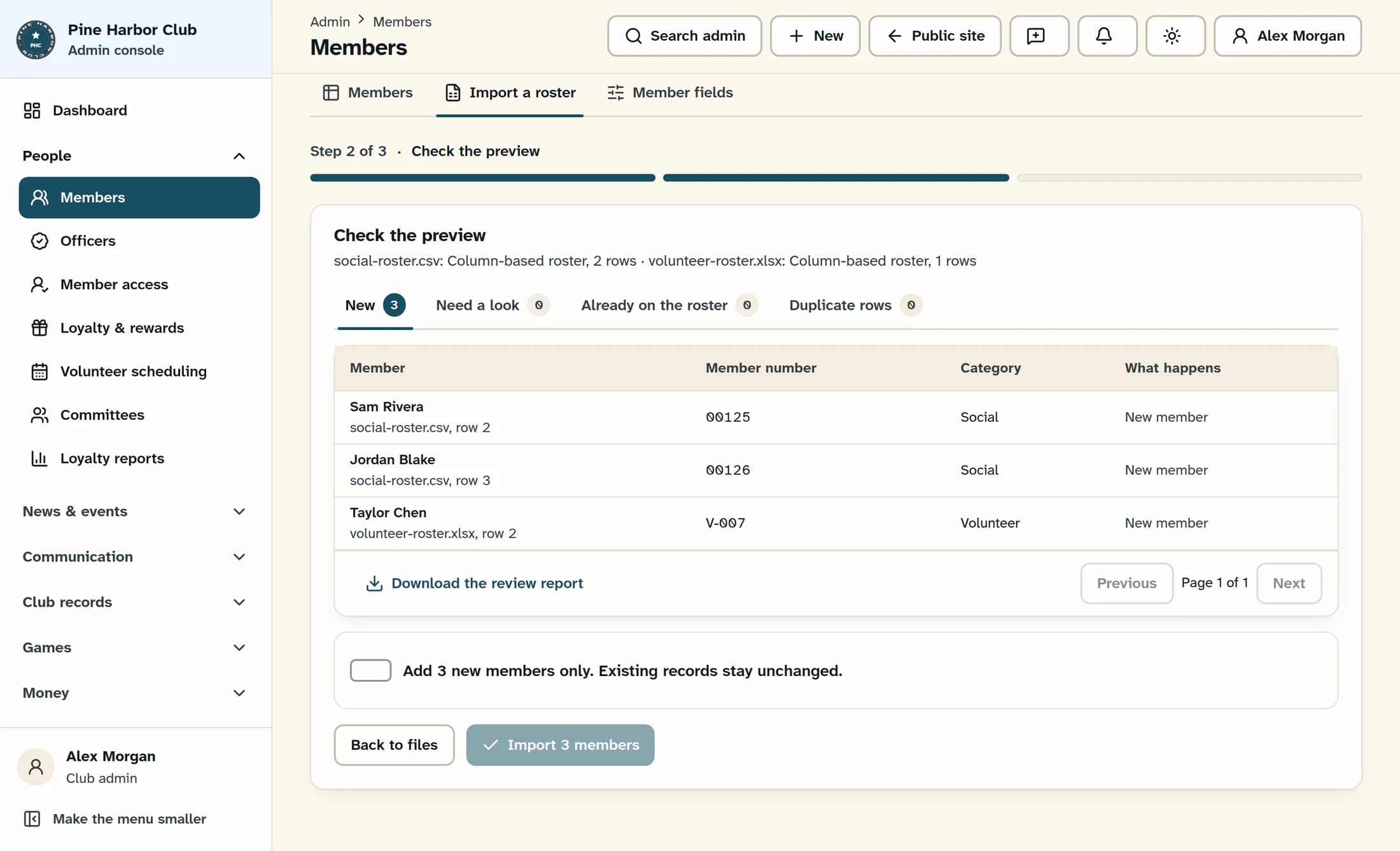
In Check the preview, check the counts for New, Need a look, Already on the roster, and Duplicate rows. Open each nonempty group. Read What happens for each row:
- New: the row is eligible to be added. Check for any unique-email/manual-linking note.
- Need a look: the row is held for review. Reasons include invalid fields, conflicting member numbers, a different category on an existing membership, or a similar name with a different or missing member number.
- Already on the roster: the matching member stays unchanged. Import does not update that record.
- Duplicate rows: an exact repeated roster row will not be added again.
Select Download the review report to keep the file, row number, category, result, and reason for every row. Use Previous and Next if a group has more than one page.
Step 6 of 6
Correct the spreadsheet and preview again
The preview is not an editor. Fix any issues in your original working spreadsheet, save it, then select Back to files. Use Choose roster files to reselect the corrected files, check their categories again, and select Preview the import for a fresh result.
Stop here when the preview matches your intended roster. Leave the confirmation box unticked; completing the import is covered in Import a membership roster.
Ready for the next step
You now have files with the expected columns, a checked category for each file, and a reviewed preview. Keep the original files and review report with your preparation records.
About this guide
Based on accepted ClubWorks release 16782cba (October 21, 2026). The illustrations reconstruct that release with fictional data. The live workflow was not tested.
The screens in this guide show example clubs and people. Your club's name, colours and some labels may look different.
