
On this page
Before you start
Step 1 of 6
Match your question to a report family
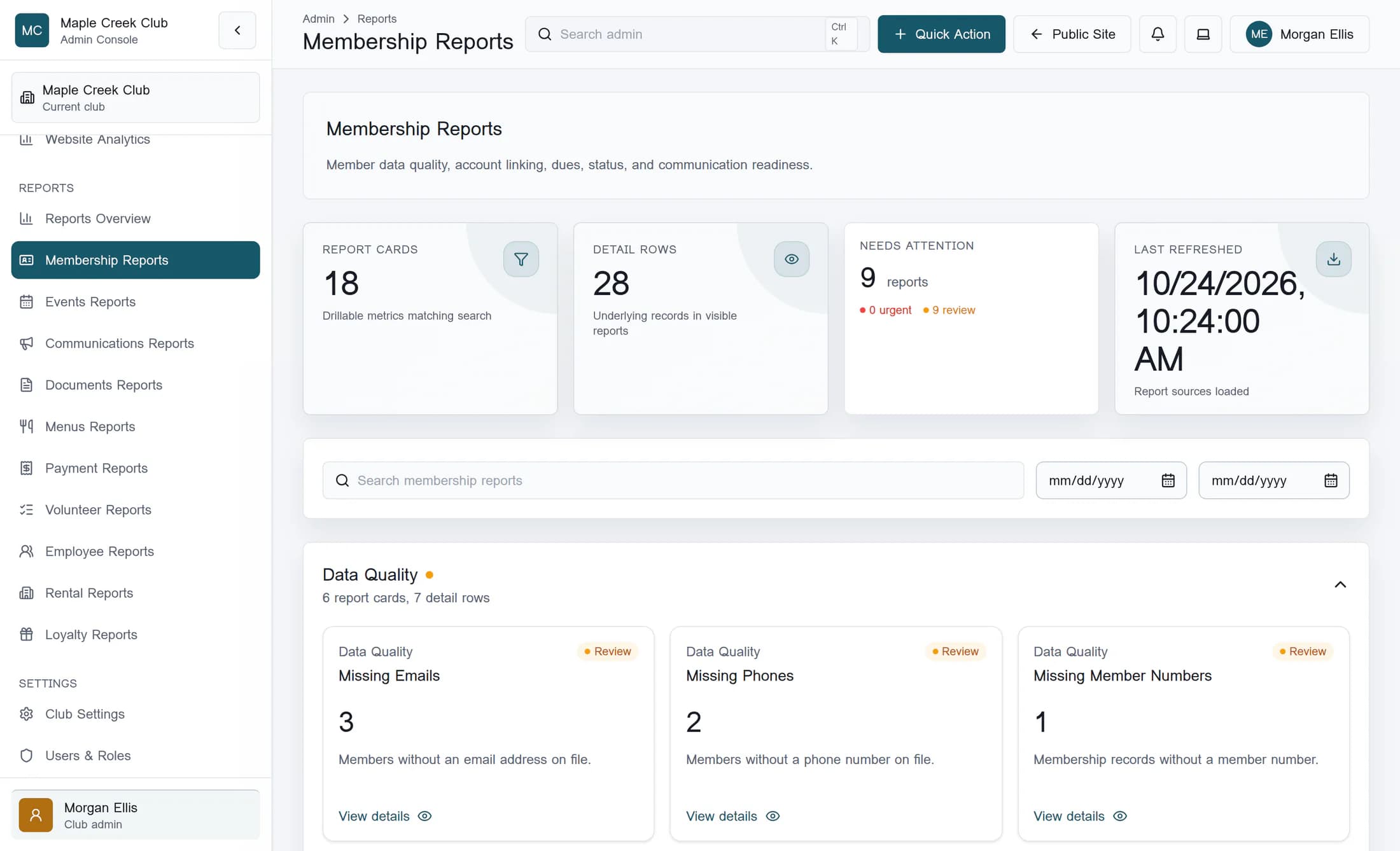
In the classic admin menu, the Reports category contains Reports Overview and the report families. Reports Overview provides cross-module health checks. For contact cleanup, open Membership Reports.
- Which member details, accounts or dues need review? — Membership Reports
- Which events need publishing or setup work? — Events Reports
- What needs attention in news, notifications or contact readiness? — Communications Reports
- Which documents need visibility or upload checks? — Documents Reports
- Which menu items need pricing, photos or availability work? — Menus Reports
- What money is owed or received across modules? — Payment Reports
- Where is volunteer coverage needed? — Volunteer Reports
- What needs review in employee records, schedules or time off? — Employee Reports — the page title is Workforce Reports
- Which rental bookings or related follow-ups need attention? — Rental Reports
Available report families depend on your club’s features and permissions. Card counts reflect the records available to you. Rental Reports here is the Club Admin family; the dedicated Rental Management reporting workspace is a separate tool.
Step 2 of 6
Check that the report data has finished loading
Wait until Loading every record for these reports. The numbers below may change when it finishes. disappears before interpreting counts. If the page says Some report data could not be loaded, so a few reports may be incomplete. Refresh the page to try again., reload the browser page. If that warning remains, have the relevant data access or loading issue checked before relying on the figures.
A missing row or zero count does not prove there are no matching records when a source failed. Last Refreshed records the load’s completion time even when some sources failed; it is not proof that every source loaded. Do not rely on an export from a partial load.
Step 3 of 6
Open the Missing Emails card
On Membership Reports, Data Quality starts expanded. Find the Missing Emails card, described as Members without an email address on file. Click that card using its View details prompt. The whole card is the button.
In this fictional example, the card contains three members. Missing Addresses is currently an empty placeholder and does not identify missing addresses; its zero count is not an address-quality check.
Step 4 of 6
Read the count, explanation and member rows
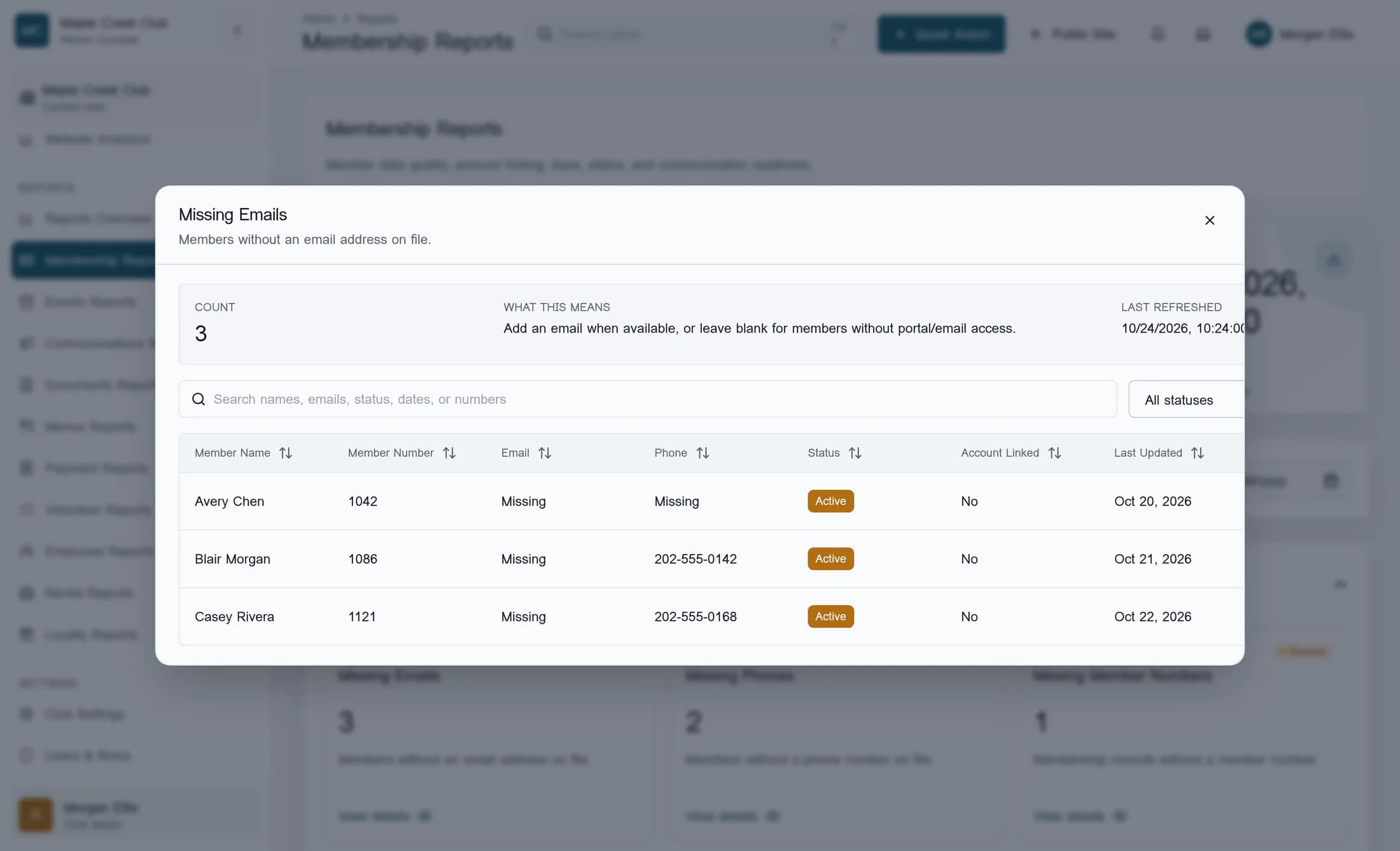
In the Missing Emails drawer, Count shows the number of matching rows. With no row filters, the example has three. What this means explains the follow-up: Add an email when available, or leave blank for members without portal/email access. Check Last refreshed alongside the page’s loading state.
Use Member Name and Member Number to identify each person. The rows also show Email, Phone, Status, Account Linked and Last Updated. Here, each email is shown as Missing. That identifies an absent email value, not proof that the member wants email or has consented to messages.
Step 5 of 6
Identify the follow-up, then close the report
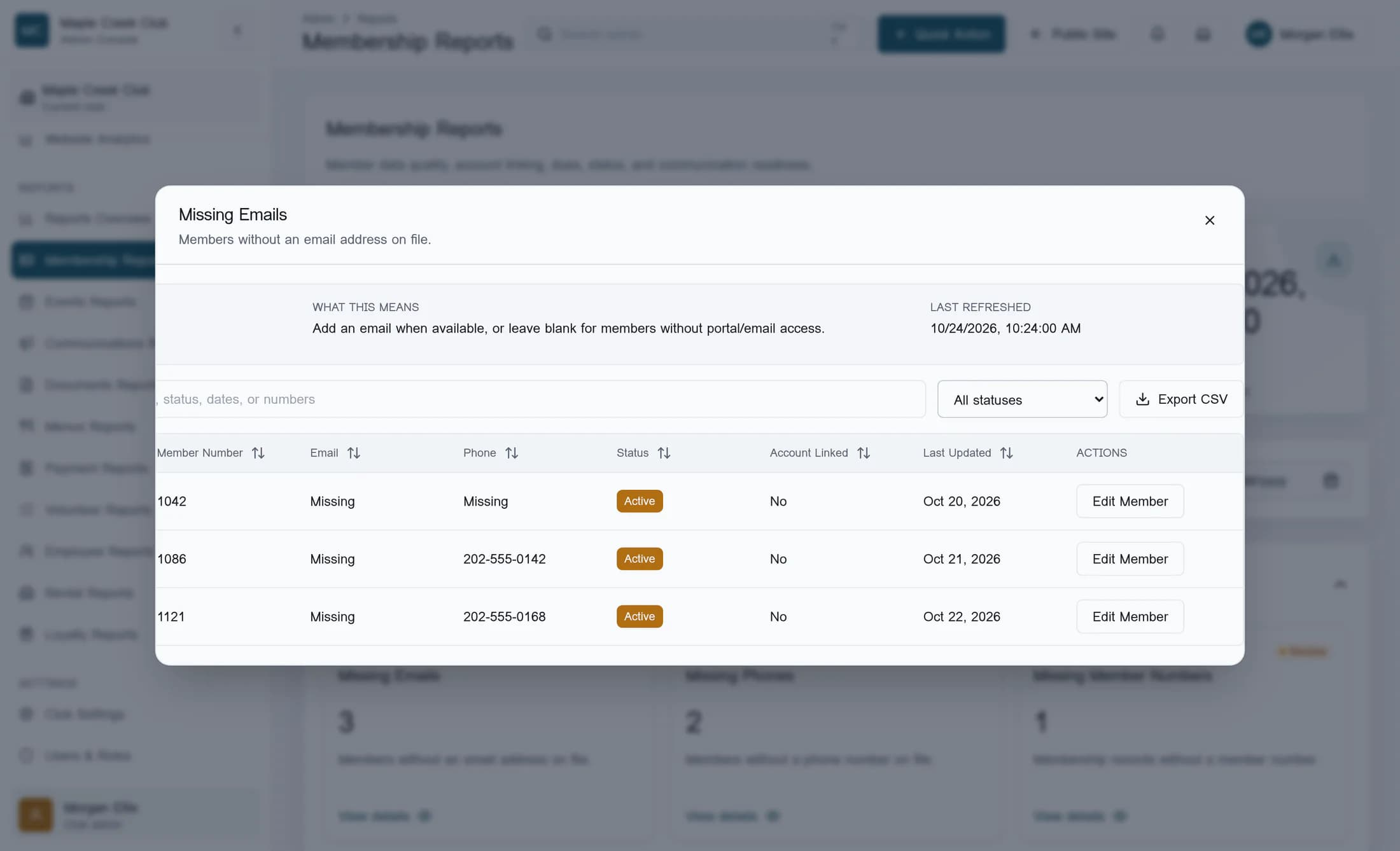
The wide drawer may need horizontal scrolling to the right to show Actions. The row’s Edit Member link leads to the general Members page. It does not open that person’s record directly: you would still need to locate the person there using their name or member number. No member edit is needed to review this report. Click Close at the top right when you have finished reading the drawer.
Step 6 of 6
Interpret totals without double-counting
Report Cards counts the cards matching the page’s report search. Detail Rows adds up the records included across those cards; the same member can appear in Missing Emails and another card, so this is not a unique-member total. Needs Attention counts nonempty reports marked urgent or review, not individual people or problems. It covers all reports in this family, even when the page’s report search hides some cards.
These reports read current records, not historical snapshots. Date inputs affect dated sources, but many current-state cards ignore them. Membership cards, including Recently Renewed, do not apply those date inputs; Recently Renewed checks whether a renewal date exists. Do not treat those cards as a dated renewal history.
You have the right starting point
You can now choose the report family that fits your question, check its loading state and use a card’s rows to identify follow-up work. Keep record changes in the relevant module, and treat overlapping counts and current-state reports according to what they actually measure.
