
On this page
Before you start
Step 1 of 7
Open Audit Logs
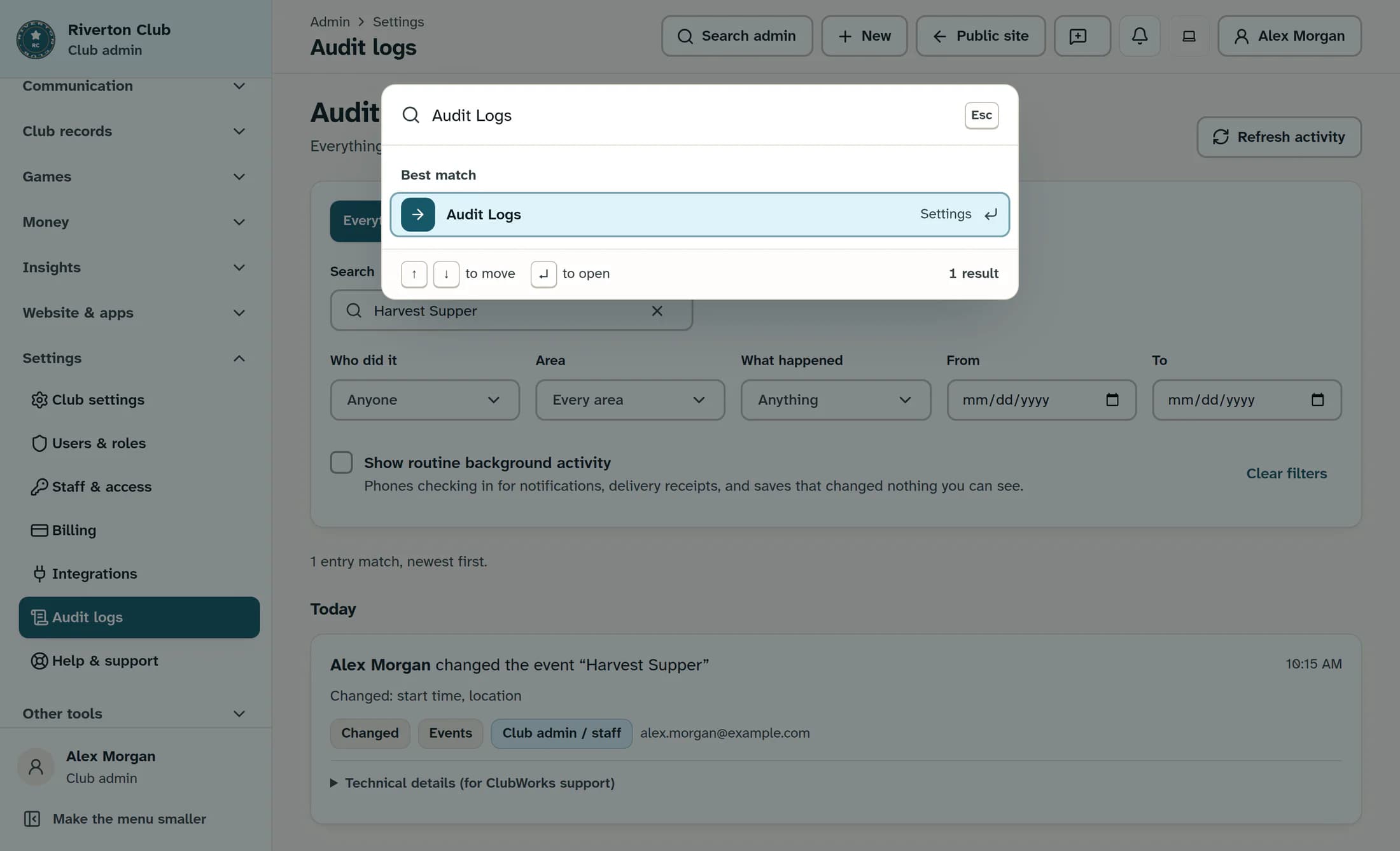
Select Search admin in the top bar, then enter Audit Logs in Search members, pages, or what you want to do. Choose the Audit Logs result and wait for Audit activity to load.
Step 2 of 7
Find the record’s activity
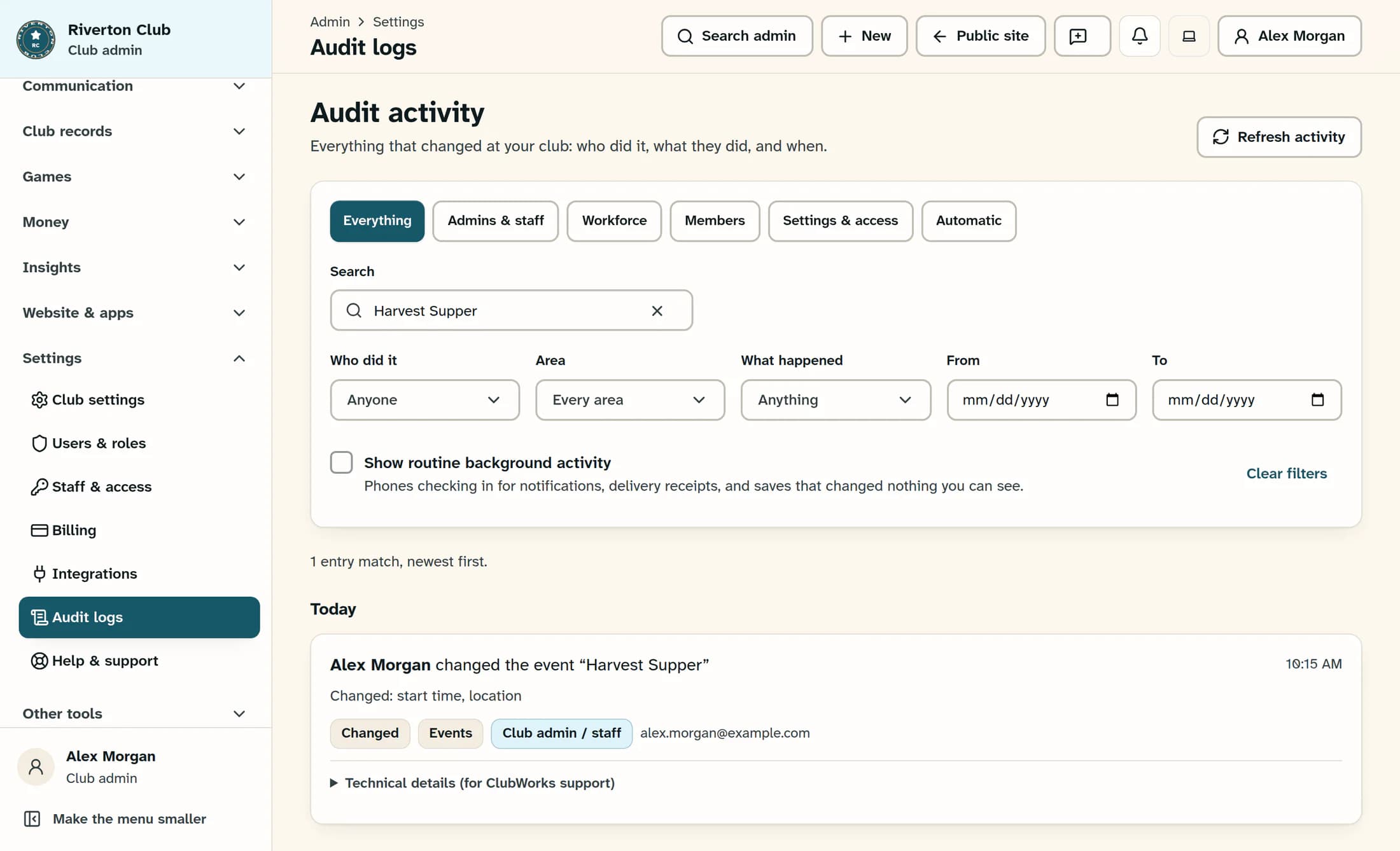
Enter a known record or person in Search, which has the placeholder A person, an event, a page, a member…. For example, search for Harvest Supper; results update after a short pause.
Step 3 of 7
Read who changed what
Read the matching entry’s person, action, record name, and time; the newest entries appear first. Check the changed-field lines and badges to distinguish a change from an addition, removal, or automatic activity. A changed-field line names the fields affected; it does not necessarily show their old and new values.
Step 4 of 7
Confirm the exact record
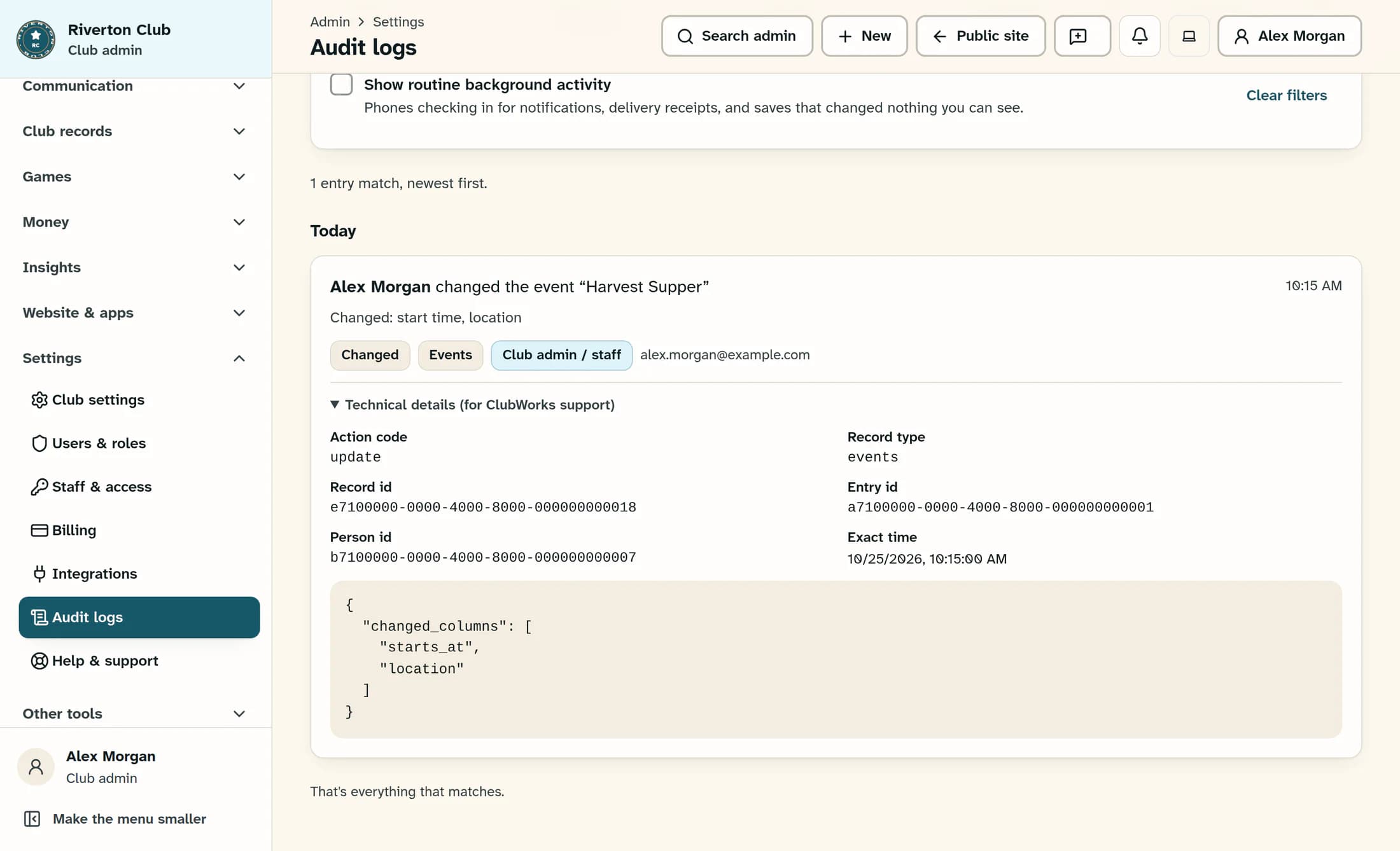
Expand Technical details (for ClubWorks support) below the matching entry. Compare Record type and Record id with the record you are investigating, then check Action code, Entry id, and Exact time to distinguish similar changes. In the illustrated example, Alex Morgan changed the Harvest Supper event’s start time and location.
Step 5 of 7
Look further back when needed
If the change is older, select Show older activity below the activity list when that button is available. The count shows loaded entries, with a plus sign when another page may exist; each page holds up to 50 entries. A full page can leave the button available until a further request confirms there are no more matches.
Step 6 of 7
Recover when nothing matches
If you see Nothing matches, select Clear filters at the lower right of the filter panel, then search again with another known name. Quick views such as Admins & staff or Everything change the person and area filters only, so they do not clear an existing search or date range. No audit activity yet means the unfiltered feed currently has no entries to show.
Step 7 of 7
Reload activity if it could not load
If Activity could not load: appears, select Try again in that message. Use Refresh activity at the top of the page to request the latest matching activity.
Keep the result in context
Illustrations are reconstructed from the browser interface using fictional people, records, addresses, and identifiers. They are not captures of a live club or verified member activity.
What you have found
You now have the recorded actor, action, time, and record identity for the matching change. Keep the entry’s details together when discussing the change with your club administrator or ClubWorks support.
