
On this page
Before you start
Step 1 of 5
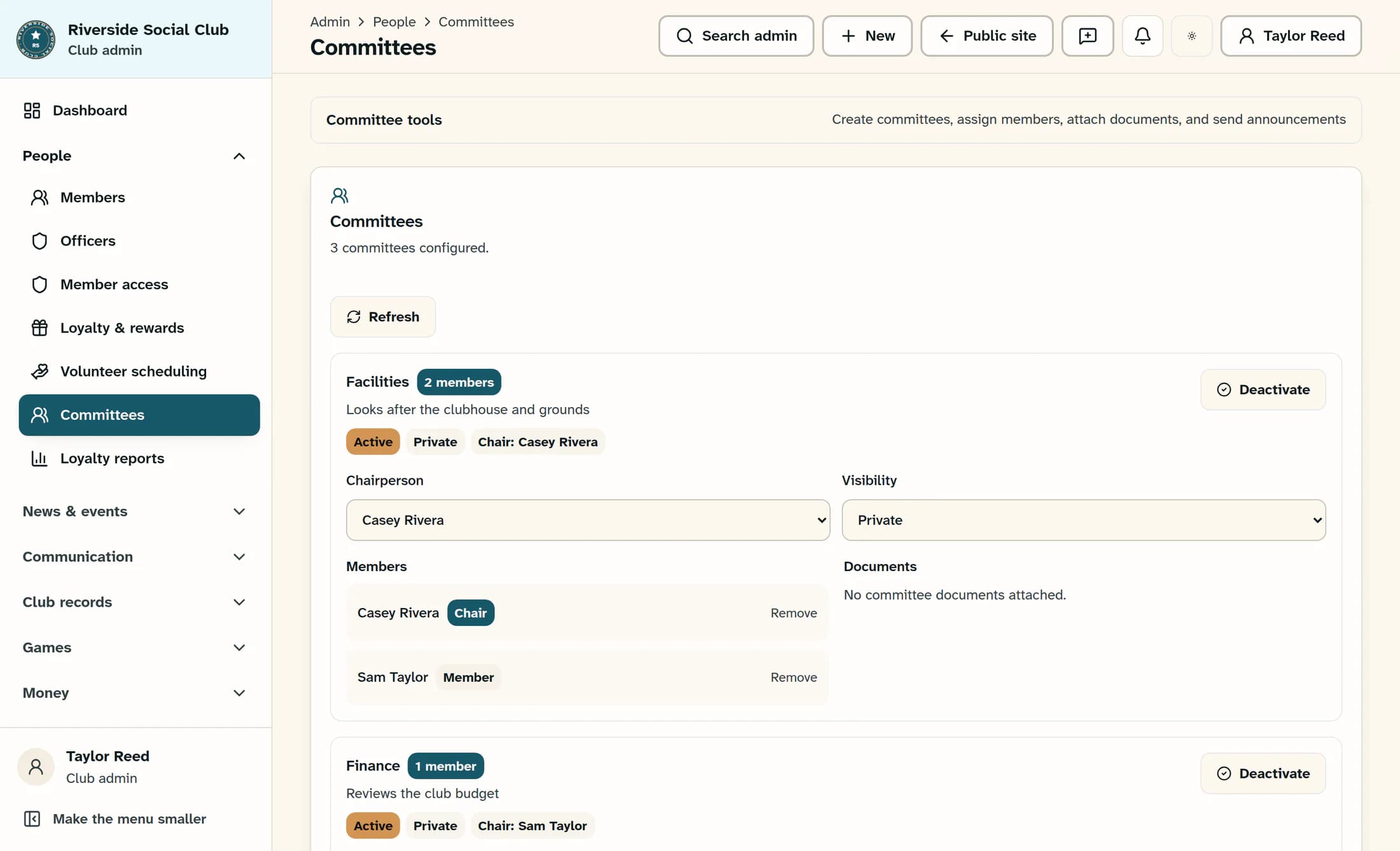
Open committee tools
In the admin menu, choose Committees under People, then expand Committee tools.
Step 2 of 5
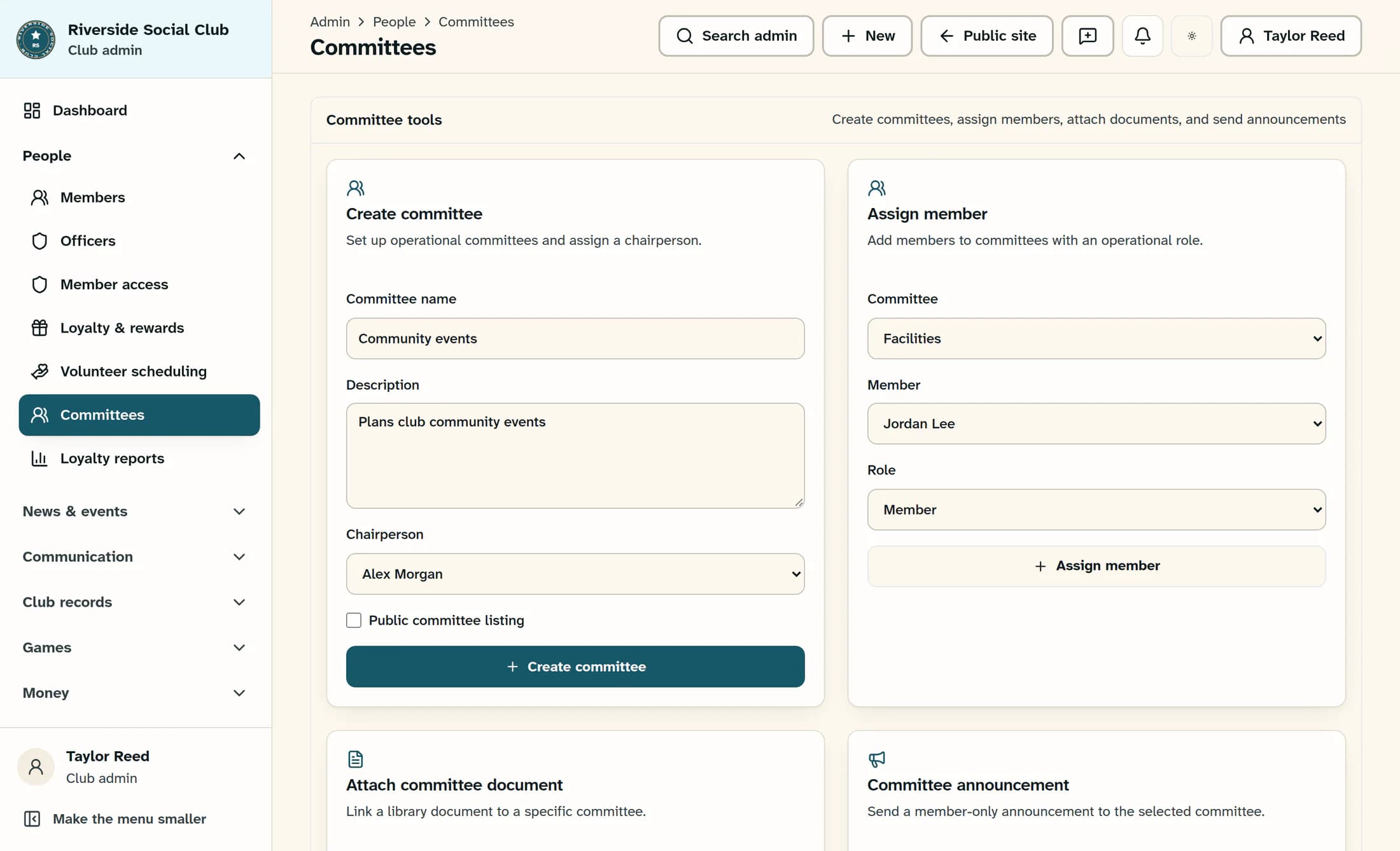
Create your committee
In Create committee, enter Community events in Committee name and, optionally, Plans club community events in Description. Choose Alex Morgan in Chairperson and leave Public committee listing unchecked for this private example. Click Create committee, then check that Community events appears in the committee list.
Step 3 of 5
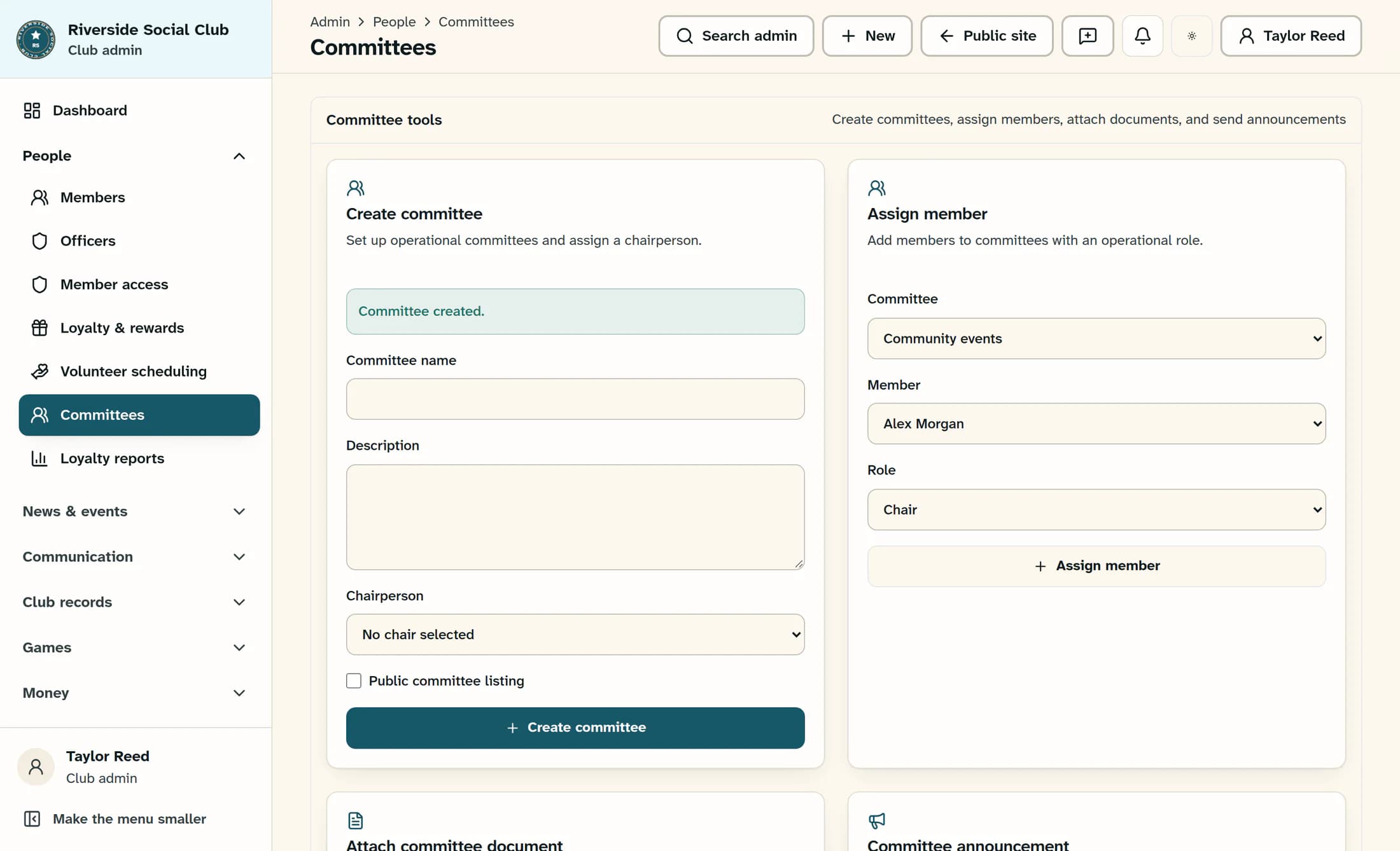
Add the chair to the roster
In Assign member, explicitly choose Community events in Committee, Alex Morgan in Member, and Chair in Role. Check both the committee and person before clicking Assign member; selecting a chairperson during creation does not add that person to the roster.
Step 4 of 5
Assign another member
Repeat step 3 for Jordan Lee, using the Member role. Always check the committee and person: the first loaded options may already be selected, and selections stay in place after an assignment.
Step 5 of 5
Check the committee roster
Under Community events in the committee list, confirm that Members includes Alex Morgan with the Chair role and Jordan Lee with the Member role. The committee should show two members, alongside its chairperson and Private status.
Tips
- Committee roles Chair, Vice Chair, Secretary, and Member describe committee responsibilities. They do not grant app login or admin permissions.
- To correct a committee role, repeat step 3 for the same committee and person with the intended role. Assigning an existing person updates that roster entry rather than adding another one.
- Public committee listing makes an active committee eligible for an existing website committee section. It does not create a website page or automatically share private documents or member details.
- Creating a committee and assigning members do not send announcements.
Result
Your private committee has a chairperson and a two-person roster. The chairperson also has an explicit committee membership with the Chair role.
Troubleshooting
- If a person is missing from a picker, ask a club administrator to check their roster record and access. These pickers load active user records only.
- If the committee name is blank, complete step 2 with a nonblank name.
- If a name duplicates an existing committee, click Refresh in the committee list and check that committee first. For the intended committee, continue at step 3; for a genuinely separate committee, repeat step 2 with a distinct name.
- If you are unsure whether a save worked, click Refresh and check the existing committee and roster before retrying step 2 or step 3. Retry only when the expected result is missing.
- If Committees is missing or a save is denied, ask a club administrator to check your view and edit access.
- If a committee role is wrong, follow the correction in Tips using step 3.
About this guide
These illustrations are source-based reconstructions of ClubWorks. Names, committee details, and other example data are fictional.
The screens in this guide show example clubs and people. Your club's name, colours and some labels may look different.
