
On this page
- Before you start
- Open the right member record
- Check and save the member's details
- Create the one-time link
- What the link does
- Copy and send it privately
- Keep the link before closing the card
- Have the member choose their password
- Check the sign-in result
- If you cannot create a link
- If the member cannot use the link
- You're ready to help the member sign in
Before you start
Step 1 of 7
Open the right member record
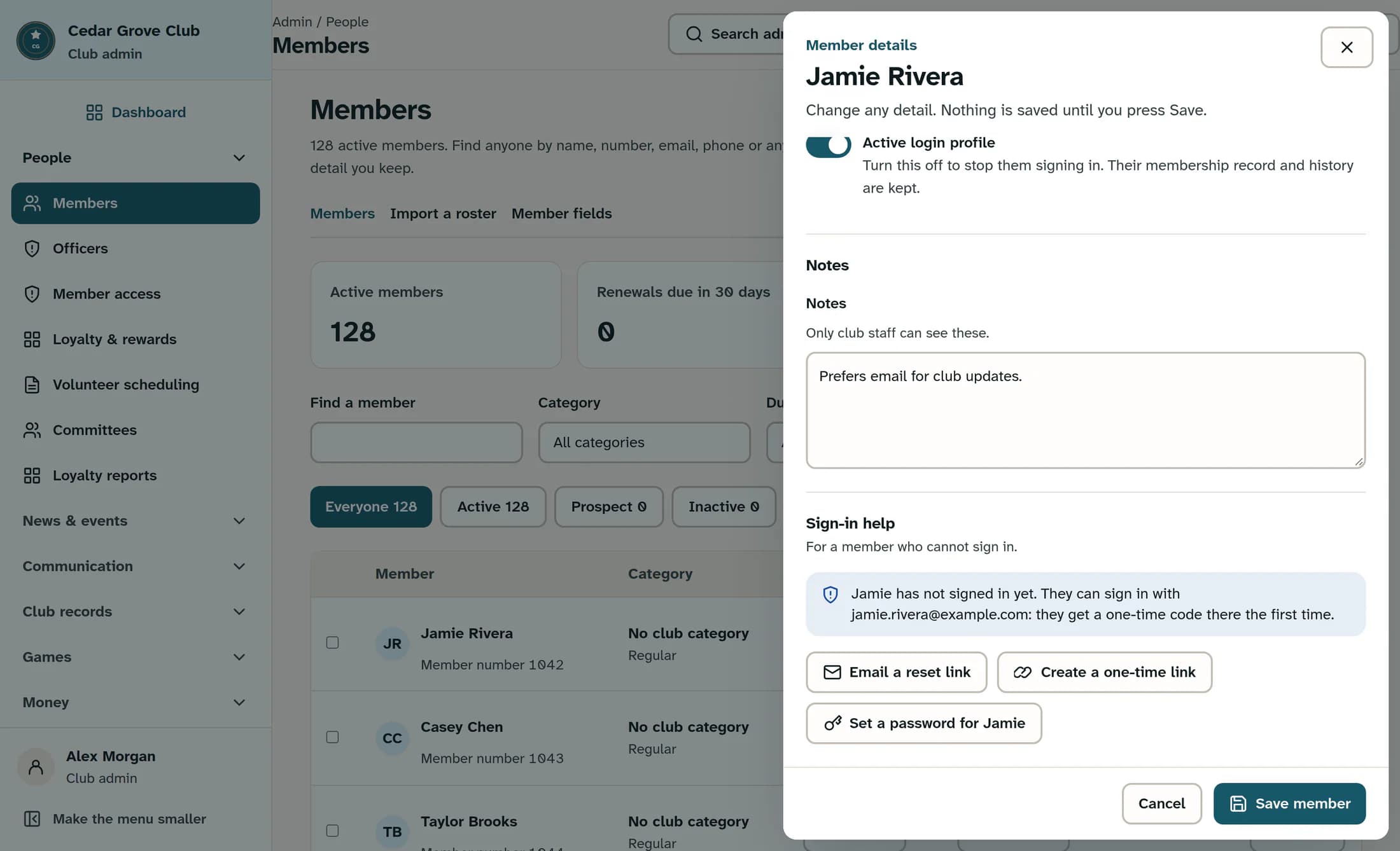
Under People, open Members and find the person by name or member number. Select their name to open Member details, then scroll to Sign-in help.
Step 2 of 7
Check and save the member's details
Confirm the saved email belongs to this member and the sign-in address shown in Sign-in help matches it. If either is wrong, follow Correct a member's sign-in email or account link first. Save any profile changes with Save member and reopen the record before creating a link: it uses the saved email, not unsaved edits.
Step 3 of 7
Create the one-time link
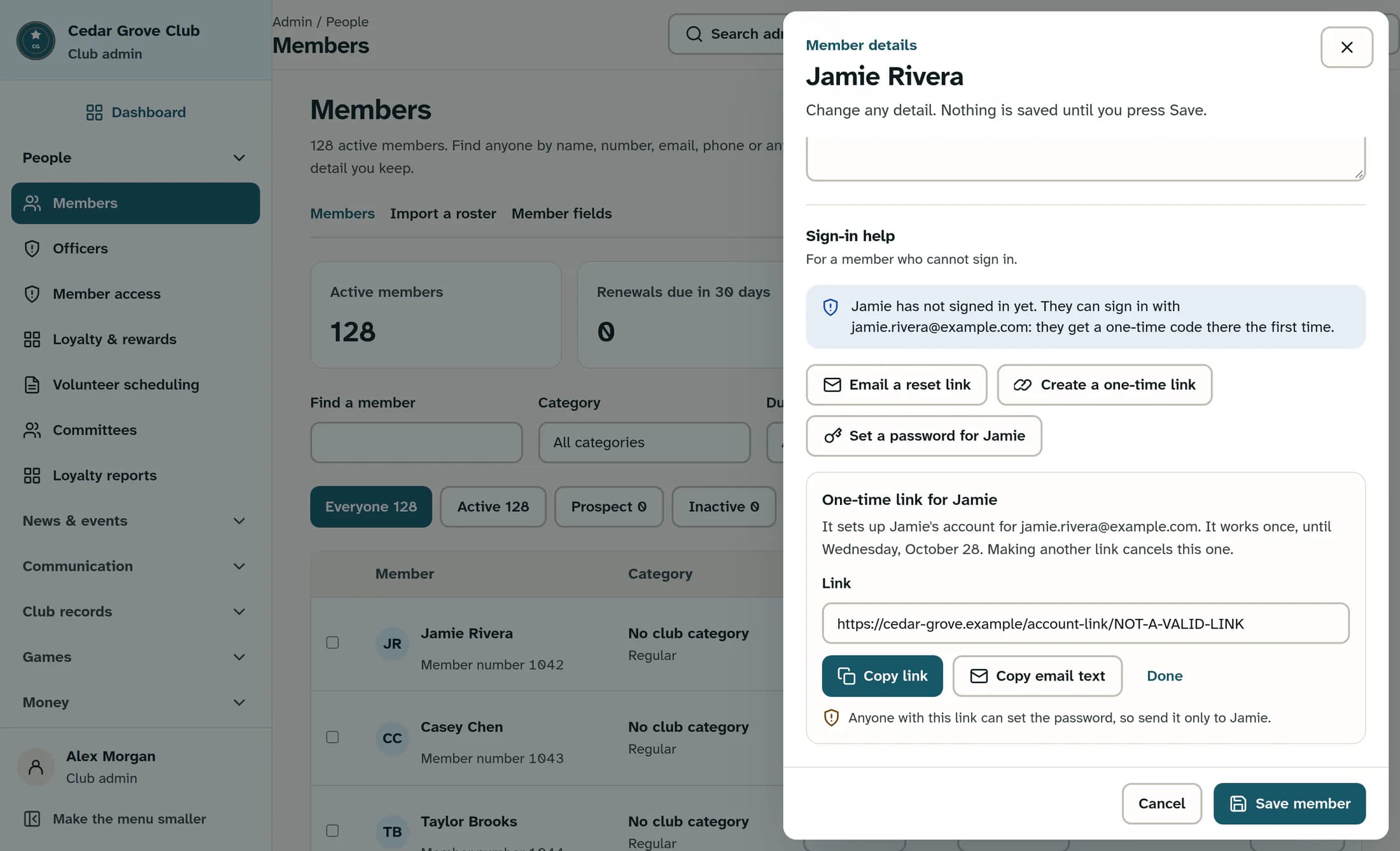
Select Create a one-time link in Sign-in help. A card named One-time link for Jamie appears for the example member, with the link and an until date.
What the link does
- If the member has never signed in, the link sets up their account. If they have signed in before, it lets them choose a new password; having a linked account alone does not decide which screen appears.
- Both paths require the member to choose a password. Opening the link does not immediately open the member portal.
- The link works once and expires seven days after creation. The until date uses your browser's local date; it does not promise expiry at midnight.
- Creating another link cancels previous unused links for that member. Copying a link does not create a new one or extend its expiry.
Step 4 of 7
Copy and send it privately
Select Copy link to copy the URL, or Copy email text to copy a ready-written message with the link and sign-in email. Paste and send it yourself through a trusted direct channel to the intended member only. Both buttons copy to your clipboard; neither sends an email.
Step 5 of 7
Keep the link before closing the card
After copying it, select Done to close the card. Closing the card or refreshing the page loses the displayed link, but does not revoke it. If you lose your copy, create a replacement and share that newest link; the previous unused one will stop working.
Step 6 of 7
Have the member choose their password
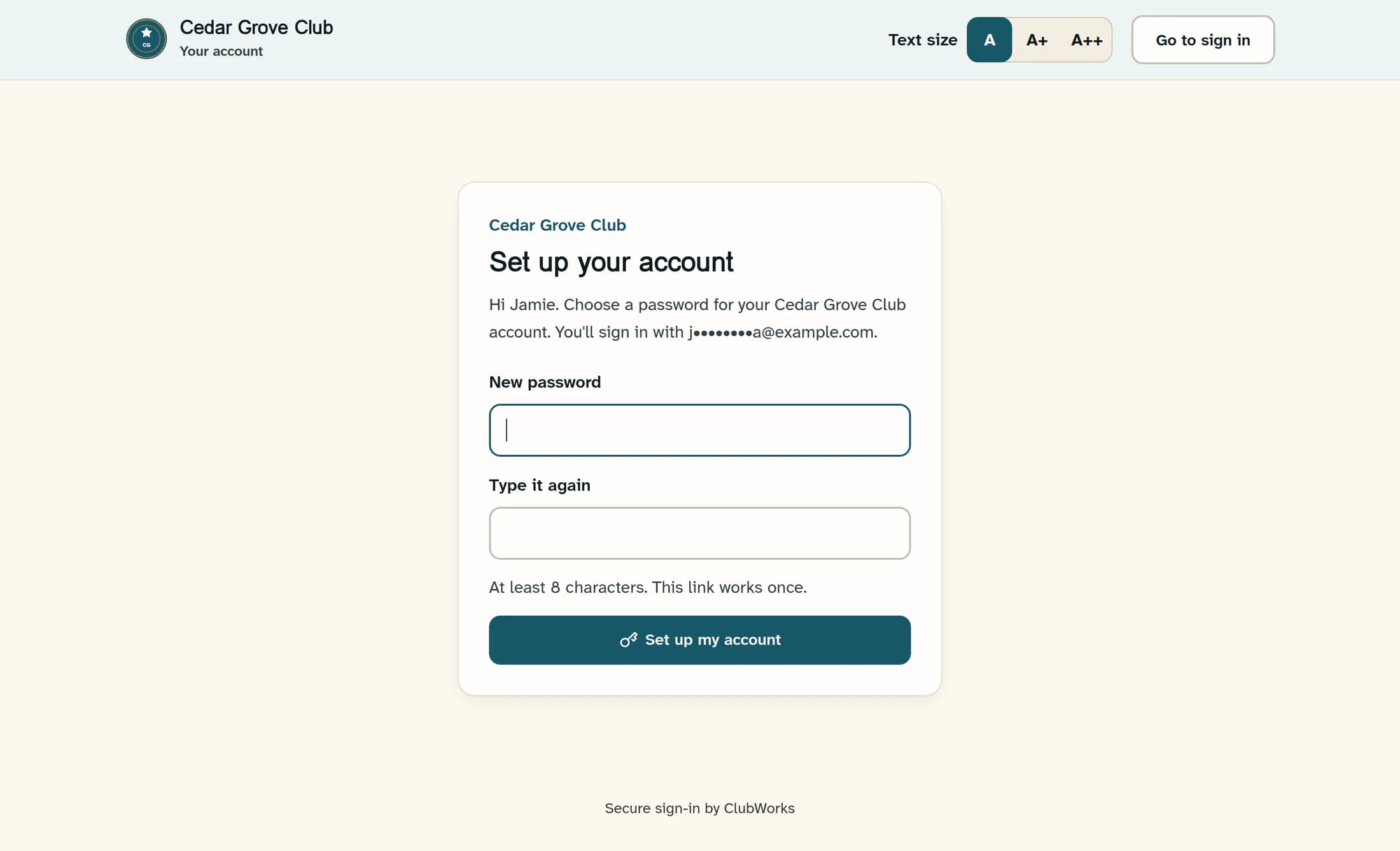
The member opens your link and sees Set up your account or Choose a new password, with a masked email hint. Ask them to enter a password of 8–72 characters in New password, repeat it in Type it again, and select Set up my account or Save my new password. They should choose and enter the password themselves.
Step 7 of 7
Check the sign-in result
After saving the password, ClubWorks normally signs the member in and opens the member or admin area according to their existing permissions. If the page says the password is saved and offers Go to sign in, the member should use that link and sign in with their confirmed email and new password.
If you cannot create a link
If the member cannot use the link
These illustrations reconstruct release 16782cba and have not been tested against a live account. Example addresses are display redactions of fictional records; the real workflow requires the member's deliverable inbox. The illustrated URL is deliberately invalid and the password fields are empty.
You're ready to help the member sign in
The member has a private, time-limited way to choose a password. This does not change dues, membership status, or permissions, and it does not create an app invitation.
