
On this page
Before you begin
Step 1 of 6
Find the right member
In the admin area, open People, then Members, and find the member by name or member number. Confirm their details and click their name to open Member details.
Step 2 of 6
Correct the email address
Under Name and contact, replace Email with the member's confirmed address. Review the other fields before saving: Save member saves the whole form, including required custom fields, so keep membership, dues and access details accurate.
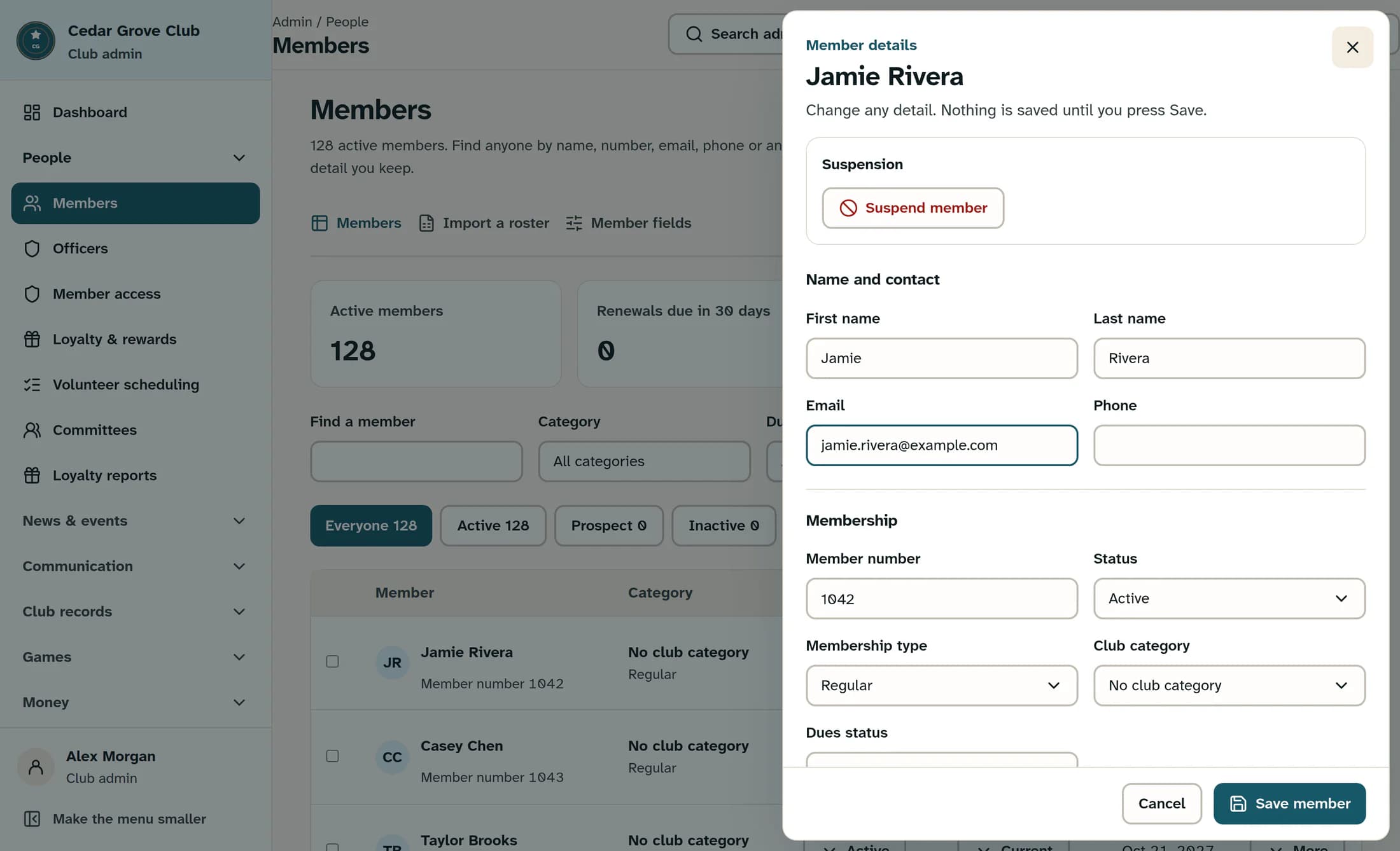
Sign-in help, near the bottom of the panel, uses the saved email, not an unsaved change in the form. If its warning shows an older sign-in address, compare it with the address the member confirmed; save the new email before using any sign-in help action.
Step 3 of 6
Save and read the full notice
Click Save member and read the entire result. “Member profile updated.” may be followed by instructions for the new email, or by “Their sign-in still uses the old email:” and an error explaining why the login link could not be reset.
Saving removes spaces around the email and makes it lowercase. After the profile, membership details and custom fields save successfully, an email change on a previously linked profile triggers an attempt to release an old login whose email differs. If any part fails, some profile changes may already be saved: reload the member and check the saved values before trying again.
Step 4 of 6
Check the saved email and sign-in
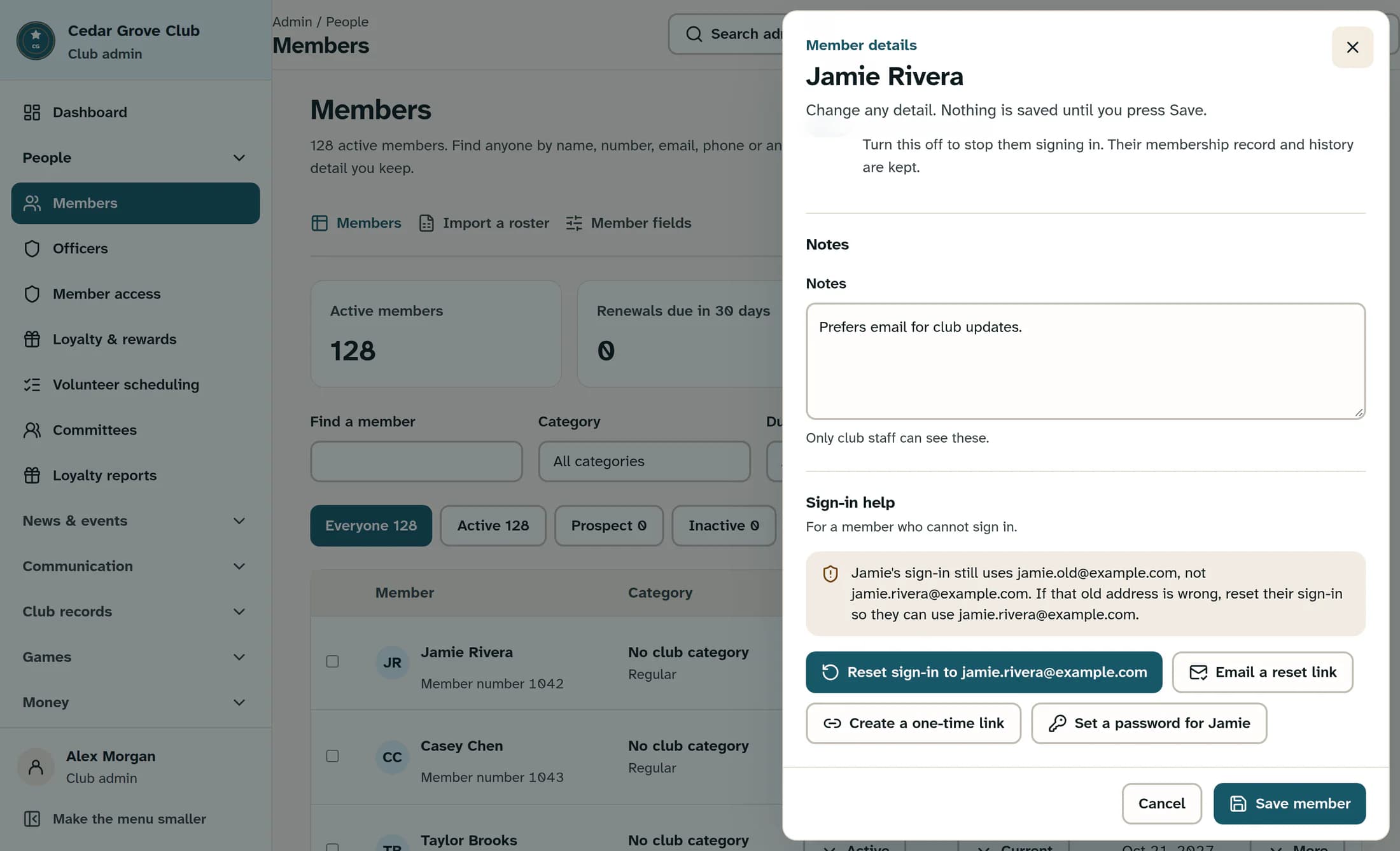
Reopen the member, confirm the saved Email, and scroll to Sign-in help. If the loaded details confirm matching emails or no linked login, skip the reset and verify sign-in with the member. If a warning still shows the old login address, verify both addresses and use Reset sign-in to followed by the saved email, when that button is available to you.
Step 5 of 6
Confirm the sign-in correction
If you selected Reset sign-in to followed by the email, check the member's name and destination email in the confirmation dialog, then click Reset sign-in. This action happens immediately and independently of Save member; closing the member panel with Cancel afterward does not undo it.
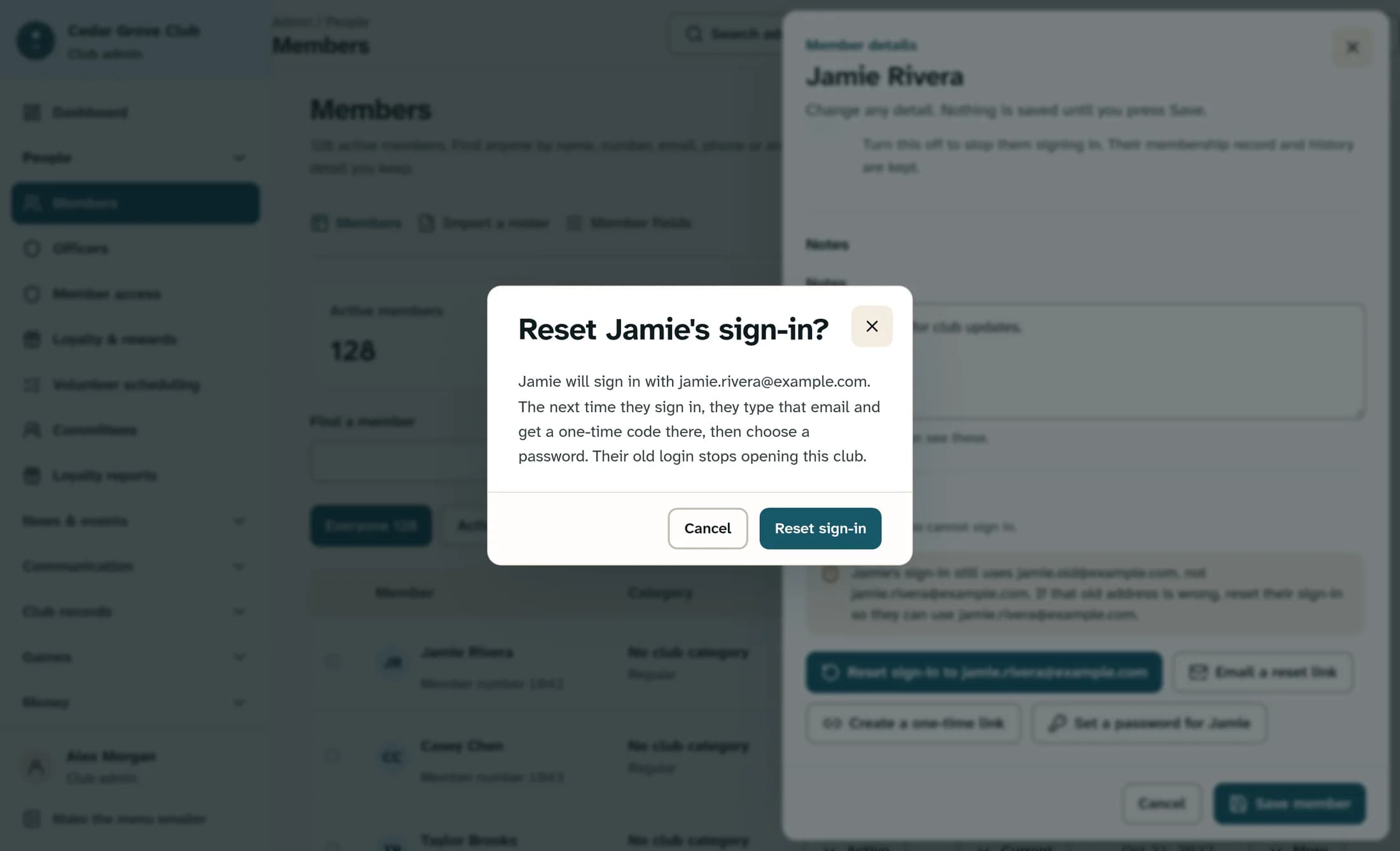
The dialog explains that the member will use the saved email, receive a code and choose a password, and that the old login stops opening this club. This releases this club's profile from its old login; it does not rename or delete that login account, change its email or password, or change the account's use at other clubs. It is not a password reset, a global session sign-out, or a way to restore dues status or door-card access.
Step 6 of 6
Verify the correction with the member
After saving the correction or seeing Sign-in reset, refresh or reopen the member and check the saved address and Sign-in help again. Ask the member to sign in to the correct club with their confirmed email and follow the sign-in screen: ownership may be checked by an emailed code, while an existing account at that address may already have a password. Confirm that they reach their own member record.
If the correction is blocked
You're done
The correction is complete when the member can open their own record using the confirmed address. Resolve any remaining save or sign-in warning before treating the issue as fixed.
About this guide
These are source-based, fictional reconstructions of ClubWorks release 16782cba; live-screen verification is pending. Example addresses replace private details for display only. They cannot receive email and are not usable member addresses; use the member's real, deliverable inbox.
The screens in this guide show example clubs and people. Your club's name, colours and some labels may look different.
