
On this page
Before you start
Step 1 of 6
Open a new event
In Rentals, open Calendar, then select New event or hold. The New event form opens with Hold the date selected. If you start from an inquiry's Book it button instead, review the prefilled details—the form still starts as a hold.
Step 2 of 6
Enter the client, date, and space
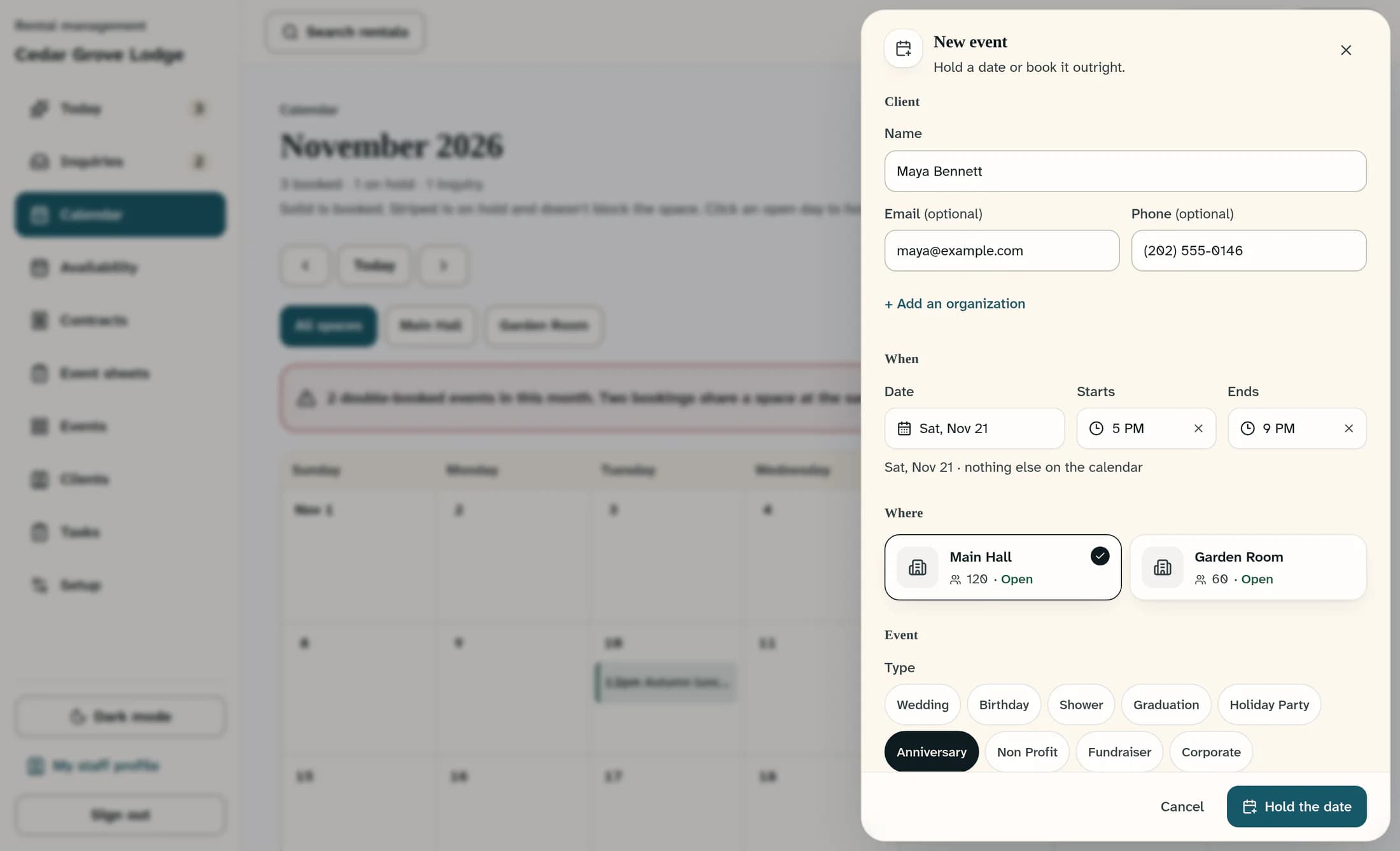
Enter the client's Name, then add Email and Phone if available. Set Date, Starts, and Ends, then choose the space under Where. Name and Date are required; complete the times and space before relying on the availability shown.
Step 3 of 6
Add the event details
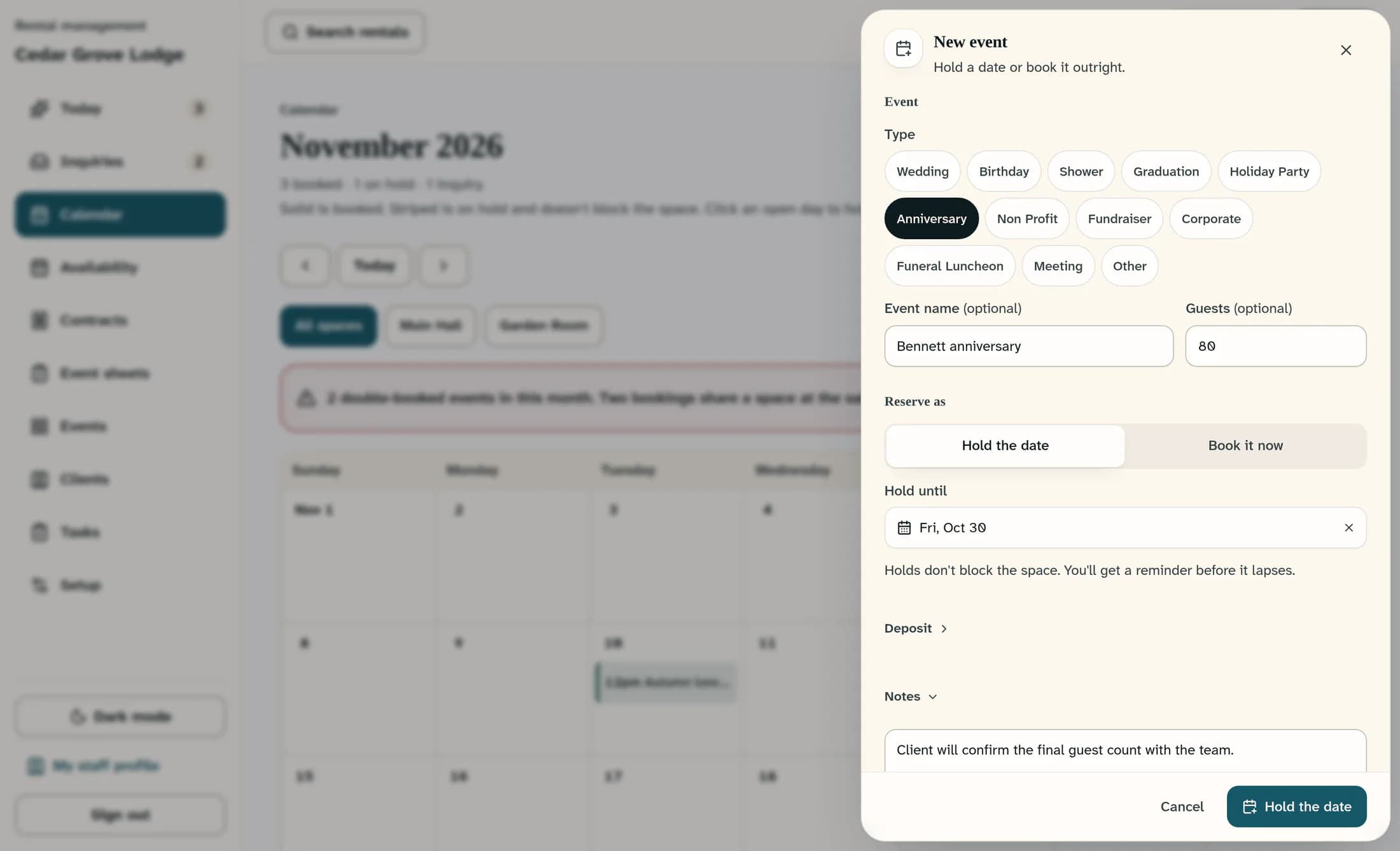
Under Event, choose a Type and add an Event name if useful. Enter Guests and check the selected space's capacity. A capacity warning does not prevent saving; resolve any capacity concern with your team.
Step 4 of 6
Choose a hold or a booking
Under Reserve as, keep Hold the date for a tentative event and review Hold until, or select Book it now to reserve the selected space immediately when you save. Hold until uses your club's hold period, or seven days if none is set. A hold can overlap other events and never reserves the space; an overlapping confirmed booking prevents Book it.
Step 5 of 6
Review the deposit and notes
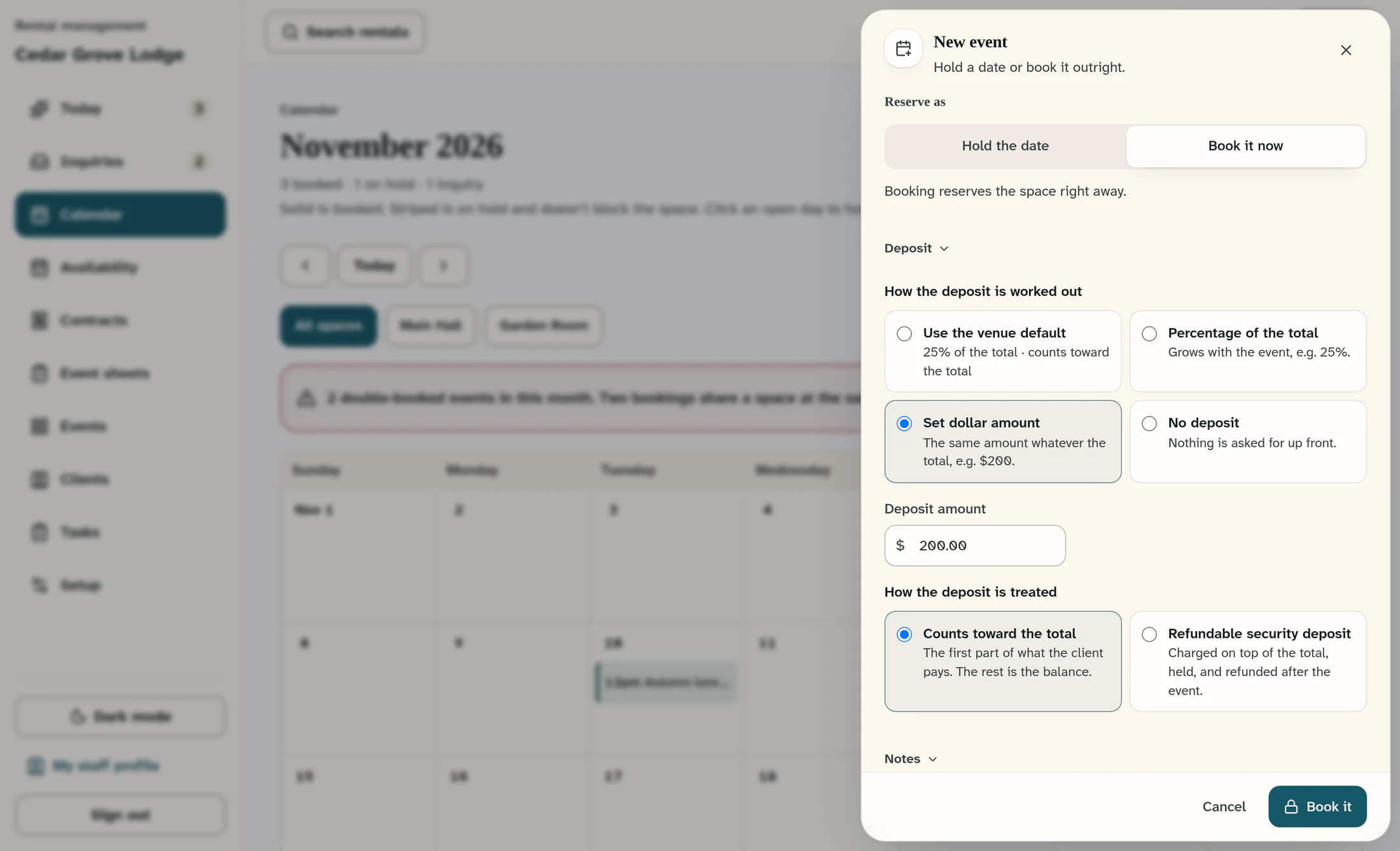
Expand Deposit to review the room or venue default, or choose Percentage of the total, Set dollar amount, or No deposit for this event. For a percentage or dollar amount, also choose whether it Counts toward the total or is a Refundable security deposit. Add optional Notes for the team; setting a deposit here does not collect money.
Step 6 of 6
Save and check the event
Select Hold the date at the bottom to save a hold, or Book it to save a confirmed booking. The event detail opens after a successful save; check its date, time, space, and status. On hold does not reserve the space, while Booked reserves the selected space.
Useful to know
If something gets in the way
- No New event or hold button: ask your club administrator for permission to manage bookings.
- Save button unavailable: check Name, Date, and any deposit error. A percentage must be from 0 to 100; a set amount must be filled in and cannot be negative.
- Space already booked: check the date, space, and both times. Choose a non-overlapping time or another space before booking; saving a hold still does not reserve it.
- Unsure whether saving worked: refresh and check existing events before trying again, so you do not create a duplicate.
What happens next
Your event is on the calendar with the status you selected. A hold leaves the space open to other bookings; a confirmed booking reserves the selected space and time.
