
On this page
The illustrations are source-based reconstructions of the current Clubhouse Rentals interface, using fictional club and event details.
Before you start
Step 1 of 6
Open the rental calendar
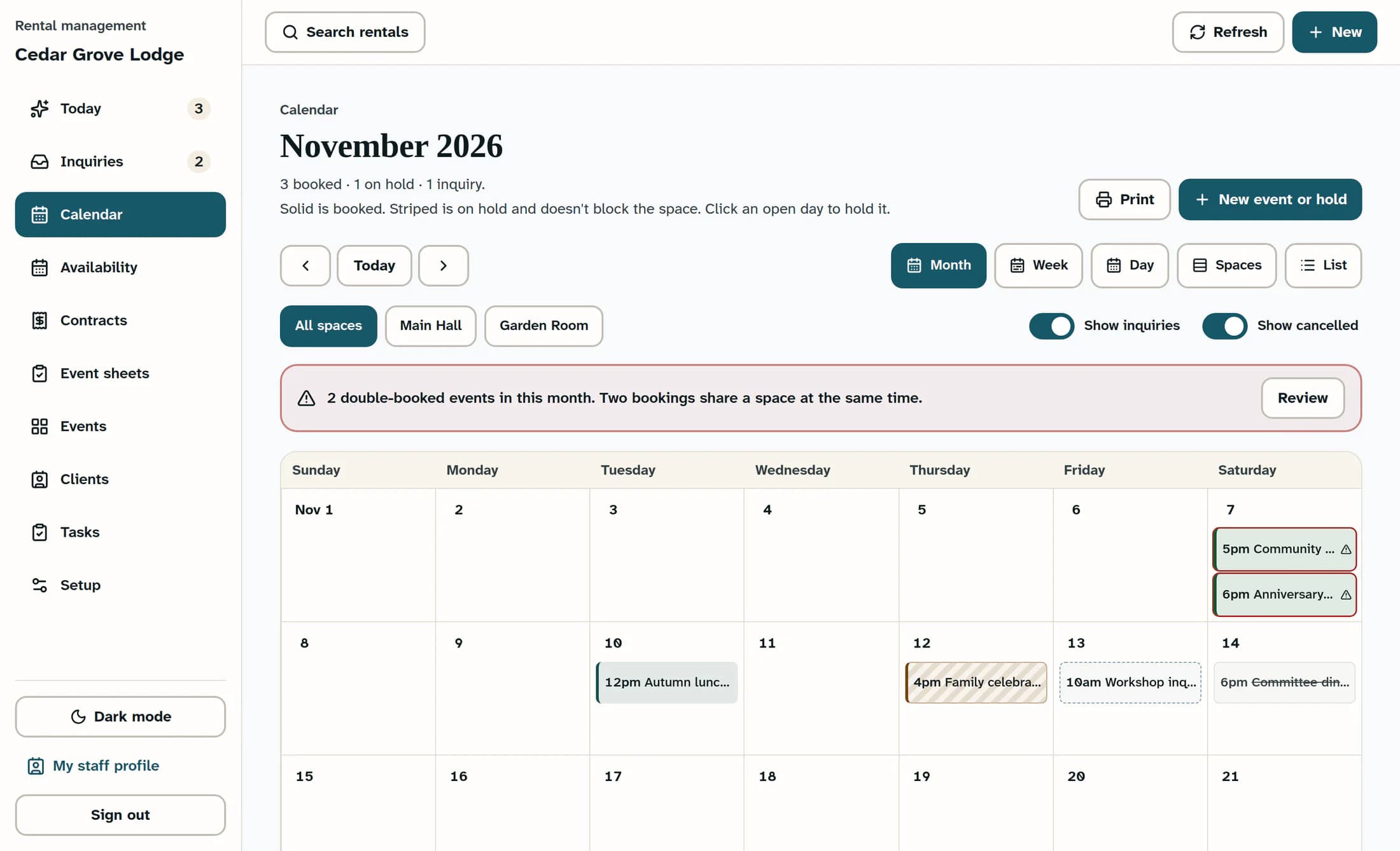
In Rental Management, select Calendar in the left menu. The heading shows the date or period you are viewing, with a count of booked events, holds and inquiries below it.
Your last calendar view may be remembered. On a small screen, the calendar may start in List.
Step 2 of 6
Choose a view and date
Use the view buttons above the calendar:
- Month gives you an overview of dates and events.
- Week shows the week's events against their times.
- Day gives you a closer look at one day's schedule.
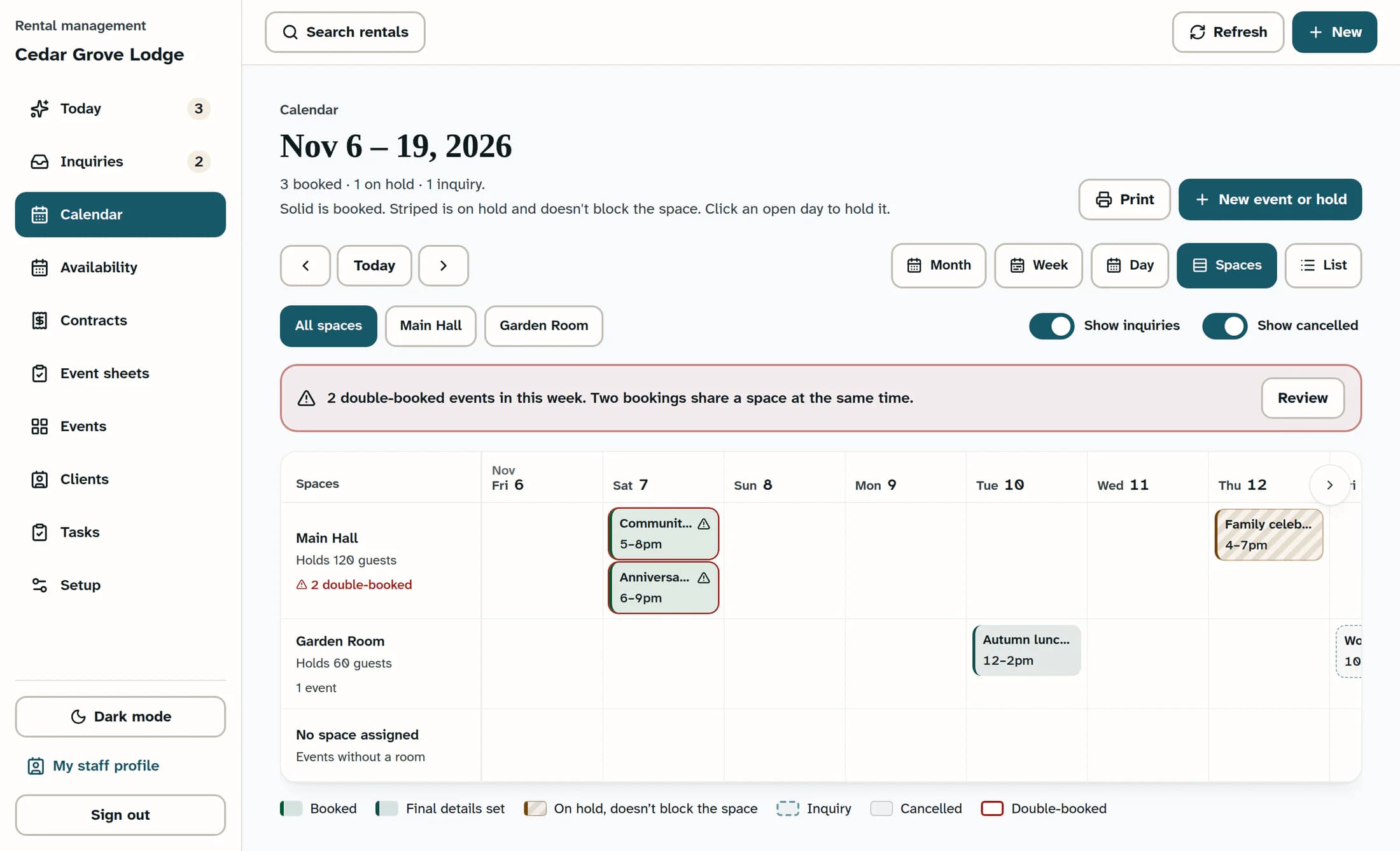
- Spaces compares spaces across a two-week timeline. Scroll sideways to see more dates.
- List shows the month's events in an agenda.
Use the left and right arrows to move through time. They move one month in Month or List, one week in Week or Spaces, and one day in Day. Select Today to return to the current date.
Step 3 of 6
Check which spaces and records are visible
Select an active space's name above the calendar to filter to it. You can select more than one space. Select All spaces to clear the space filter.
Turn on Show inquiries when you want to include dated inquiries. This switch appears only if you can view inquiries. Turn on Show cancelled when you need to see cancelled records; these are hidden by default.
A space filter can hide records with no space assigned. Return to All spaces before deciding that nothing is scheduled.
Step 4 of 6
Read the event styles and check for conflicts
Use the legend below the calendar to interpret the entries:
- Solid entries show booked or later-stage events. Final details set has its own colour. A signed event can appear solid before the booking is confirmed, so inspect its details before treating it as reserved.
- Striped entries are on hold. A hold does not block the space until the booking is confirmed.
- Dashed entries are inquiries. An inquiry does not reserve a space.
- Cancelled entries are muted and struck through when Show cancelled is on.
- Double-booked entries have a warning outline and icon. The calendar has found overlapping confirmed bookings in the same space. Saved setup and cleanup times count; a booking without a complete time window is treated as occupying the whole day for conflict checks.
If a double-booking notice appears above the grid, select Review. The calendar switches to Spaces at the first affected date. Compare the room and times before discussing availability.
Step 5 of 6
Inspect an event
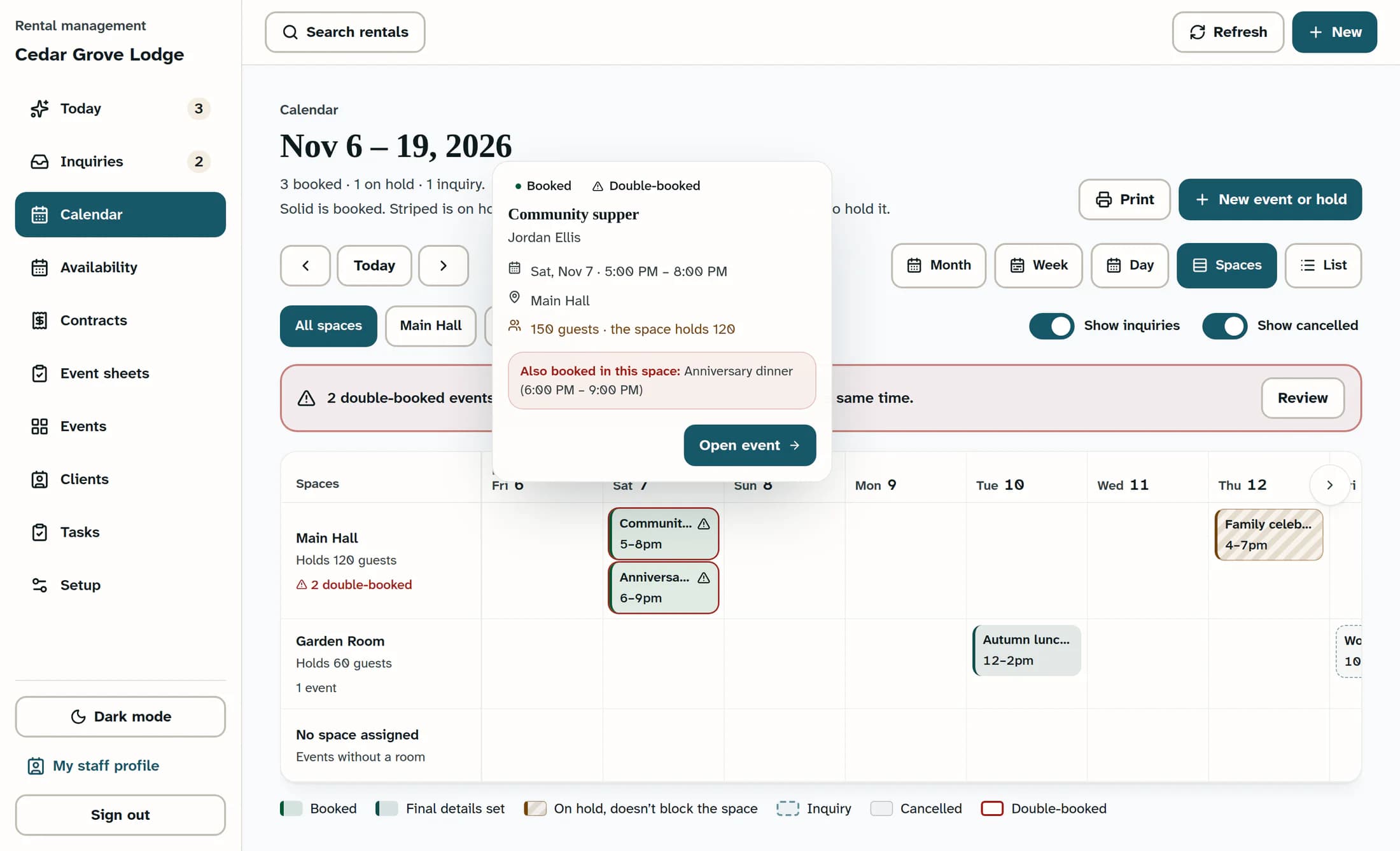
On a computer, click an event entry to open its quick look. Check its stage, date, time, assigned space and guest count. The panel may also show a hold expiry, a capacity warning or Also booked in this space with the conflicting event's time.
Select Open event if you need the full record. Payment information appears only when your permissions allow it. Inquiries and event taps on touch devices may open the full record directly.
In Month, a +N more link means the day contains additional entries. Open it to see the day's list.
Step 6 of 6
Finish the availability check
Before offering the date, confirm the intended space and times, guest capacity, setup and cleanup needs, and any holds or inquiries that still need a conversation. Check records with missing times or no assigned space too.
A clear grid or the absence of a double-booking warning is not a capacity guarantee. Calendar warnings depend on saved booking details; the final booking checks still matter. Stop here if you are only reading or planning.
Tips
Troubleshooting
- An expected event is missing: check the displayed date and view, return to All spaces, and check Show inquiries or Show cancelled as appropriate. Inquiries without a date do not appear on the calendar.
- A space is missing from the filters: the filter buttons list active spaces. Ask your rental administrator to check the space and your access.
- You cannot see Calendar or Show inquiries: ask your rental administrator to check your role and the club's rental features.
- The calendar shows a loading or refresh warning: wait for the data to load successfully before using it to promise availability.
Outcome
You have checked the relevant dates, spaces and visible records, and identified any timing, capacity or conflict questions to resolve before offering a date.
