
On this page
Before you start
Step 1 of 5
Open the event and prepare its contract
In Rentals, open Events, choose the event, and select Contract. Under Prepare the contract, choose the agreement template to prepare it with the event’s details. If a contract is already prepared, continue to review it.
Step 2 of 5
Review the agreement and its details
Select Preview to review the agreement, then check What the contract will say; Show every detail expands the values and where they come from. Confirm the event, client and prices before selecting Send for signature.
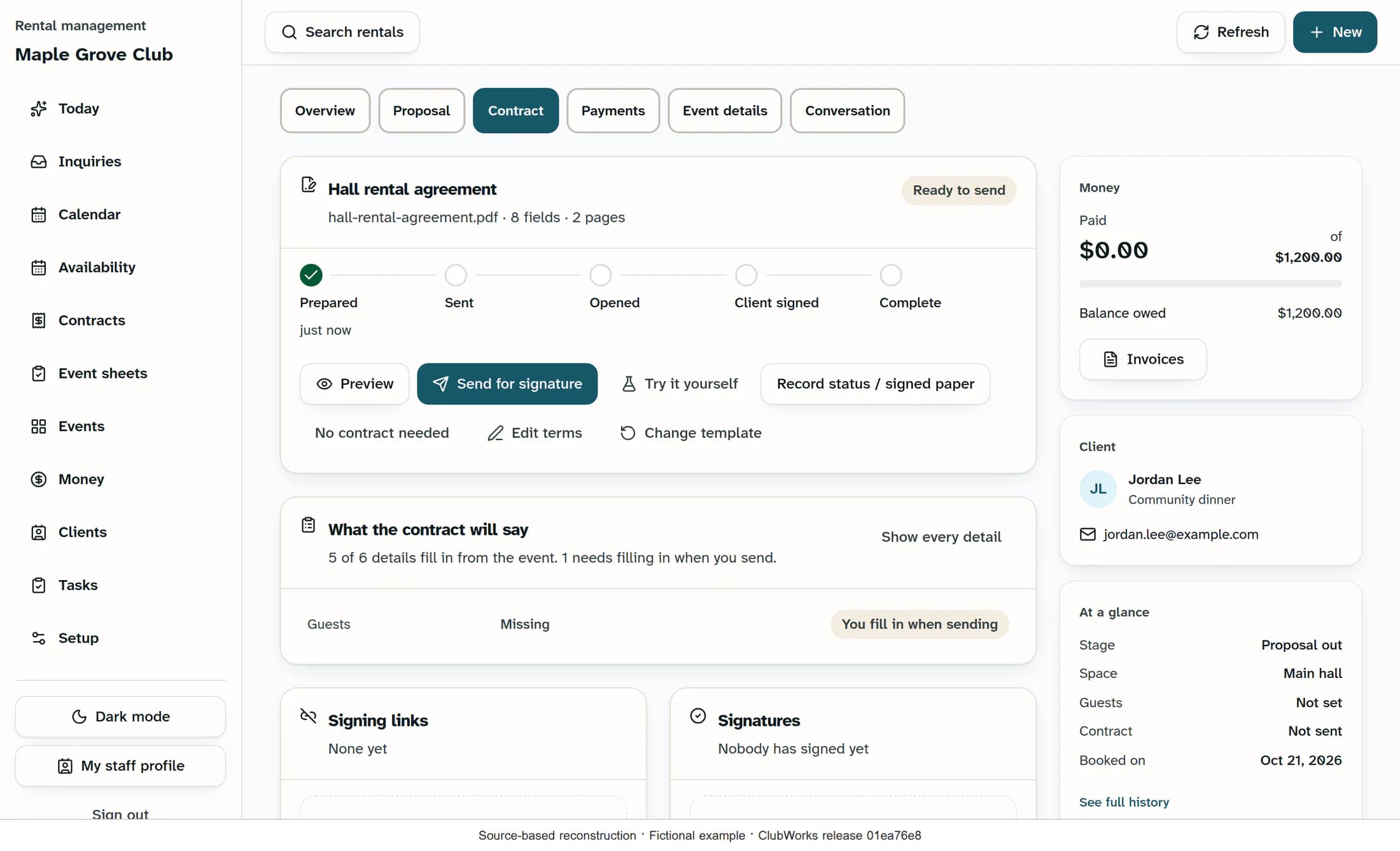
Illustration 1: source-based reconstruction of the prepared Contract tab, using fictional event details. This is not a live capture.
Step 3 of 5
Check the signer and complete missing details
In Send for signature, check Signer and Email, and complete anything under Fill in before sending. Event details entered here also save to the booking; the client can add details marked for them before signing. Add an optional Message, or leave it blank for the default message.
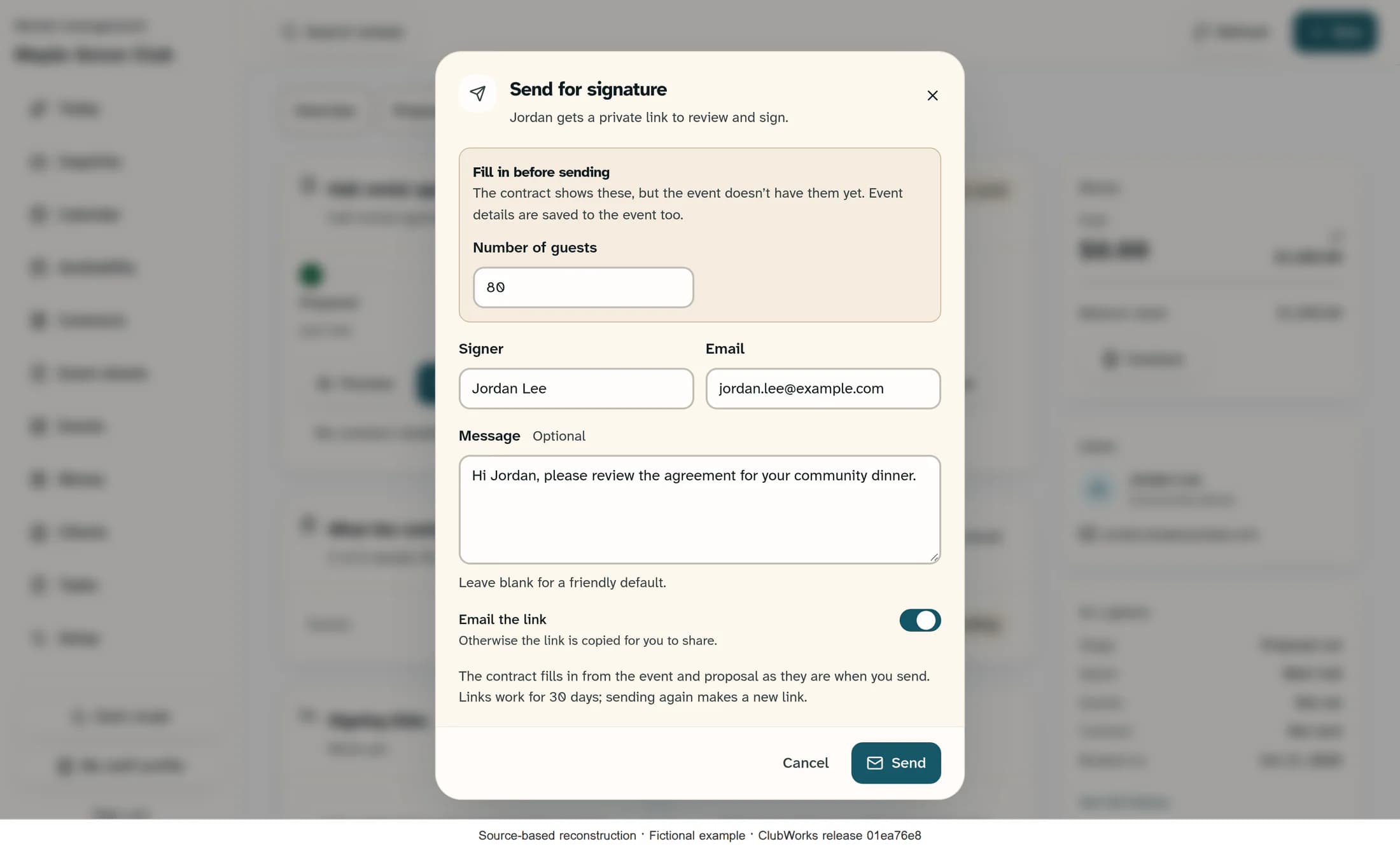
Illustration 2: source-based reconstruction of the send dialog before submission. The fictional signer uses an example.com email address.
Step 4 of 5
Send or share the private link
Leave Email the link on—the default—and select Send to create the link and attempt to email it. To share it yourself, turn Email the link off and select Create & copy link; Signer and Email are still required. Confirm that the link actually copied before pasting it into your own message.
Step 5 of 5
Check the link and signature progress
Check Signing links and the contract timeline after sending, especially if the connection dropped or the email failed. Use Copy signing link to recover the current client link; if your browser blocks copying, this control displays the URL for you to copy manually. Check the existing link before using Resend for signature, which creates another link.
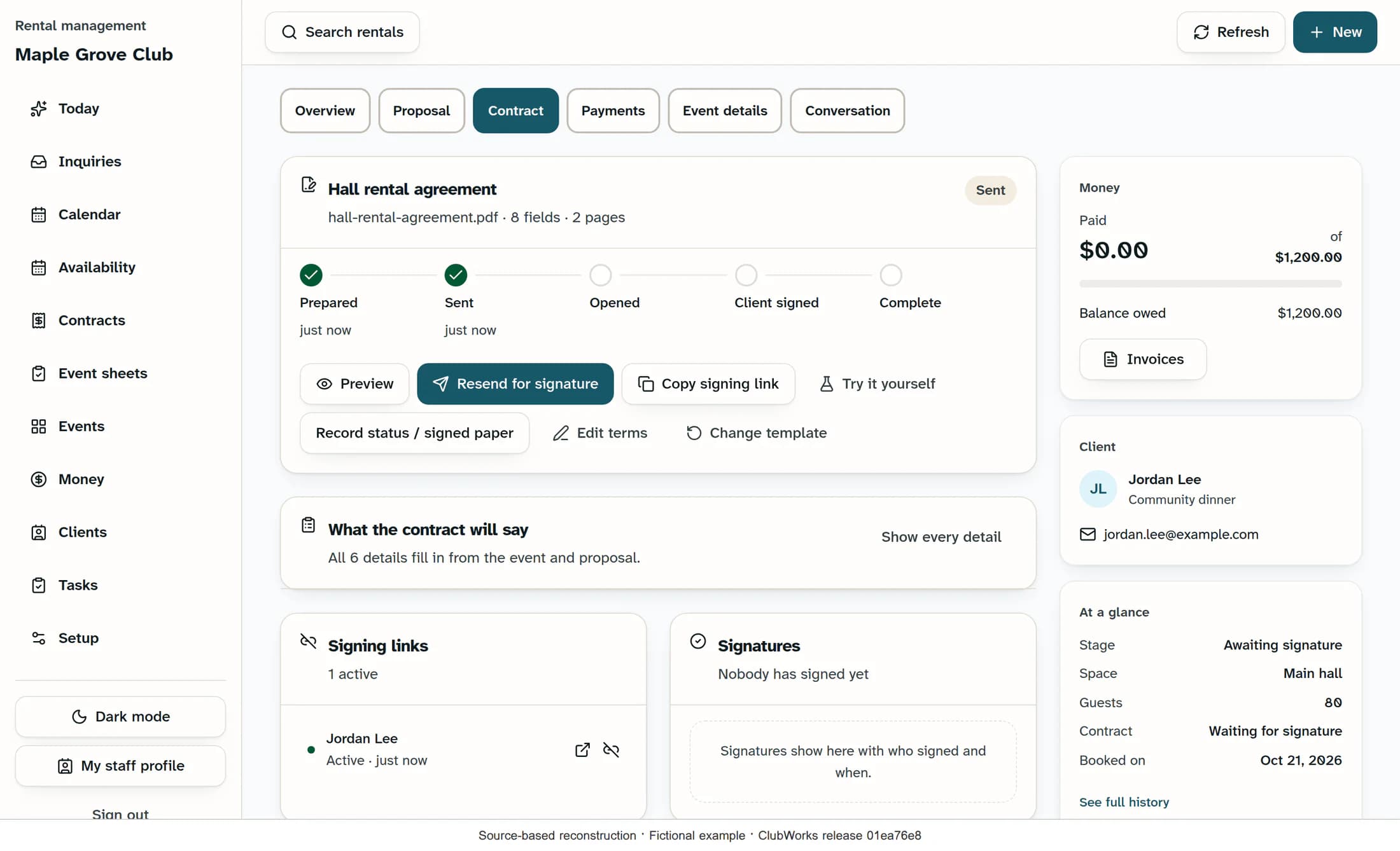
Illustration 3: source-based reconstruction of a sent contract with an active link and no signatures yet. The example does not represent an email delivery or signing test.
What the progress means
- Prepared → Sent → Opened → Client signed → Venue signed (when required) → Complete.
- Sent can mean a link was created, including when email was off or failed. It does not confirm inbox delivery, that the recipient opened it, or that they signed.
- A client signature is not completion when a venue signature is required. A partly signed contract’s wording is locked; use the venue signing controls to finish the required signature.
- Normal signing links last 30 days. Resending creates a new link and does not automatically turn off earlier active links. Share the intended current link only with its signer.
If you cannot continue
Summary
Your client can review and sign through their private link. Return to the Contract tab and confirm Complete after every required signature is recorded.
Source note: this guide and its reconstructed illustrations were checked against ClubWorks release 01ea76e8372d62d0f635d9e33f1cc605b3486cbe (October 21, 2026). No live contracts, client emails or signing requests were created or tested.
