
On this page
Before you begin
Step 1 of 5
Open the control room
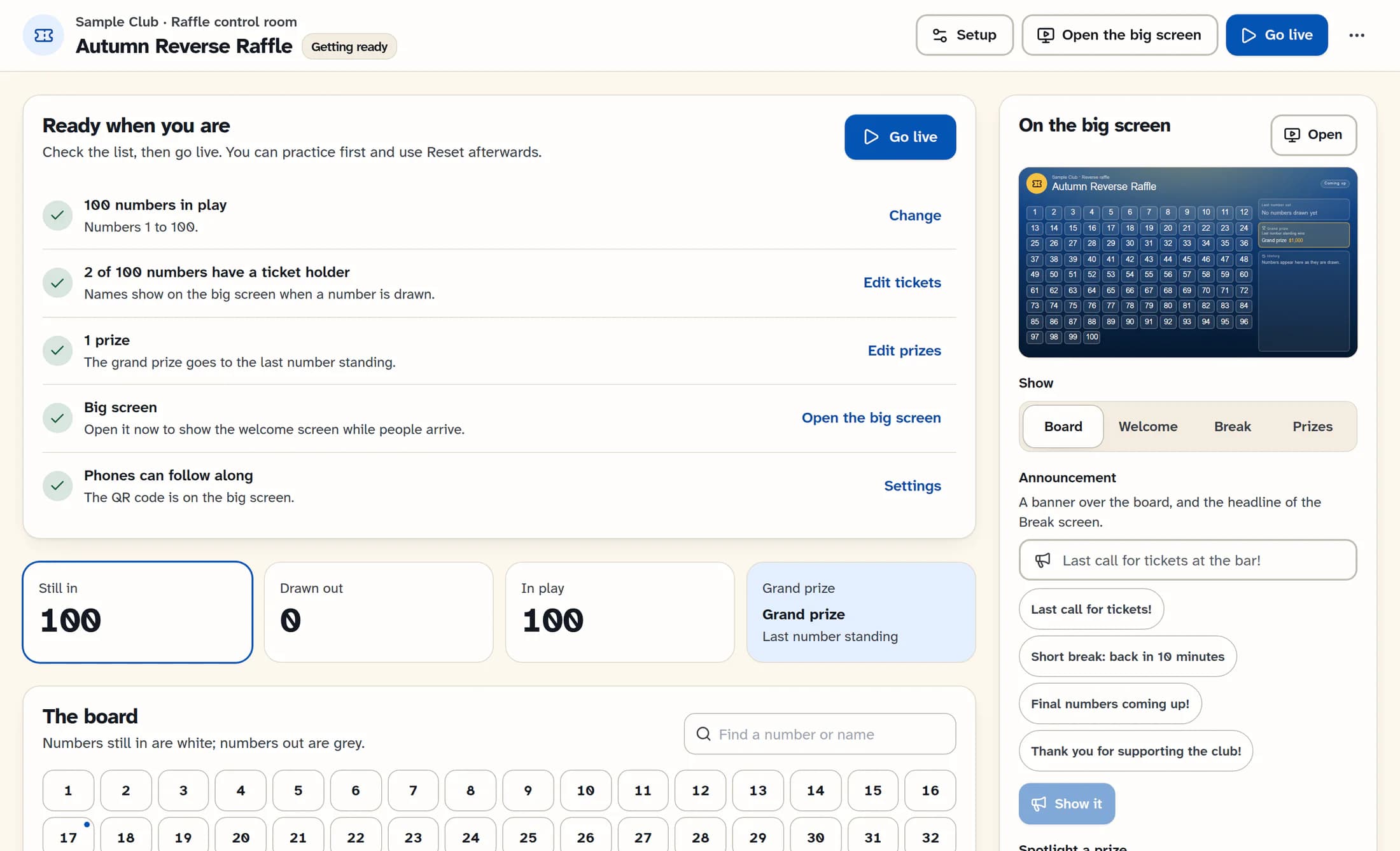
In the raffle’s overview, select Open the control room. It opens in a separate tab so you can run the drawing while keeping setup available.
Step 2 of 5
Go live
Review the readiness list and select Go live. If the raffle is paused, resume it before drawing.
Step 3 of 5
Draw a number
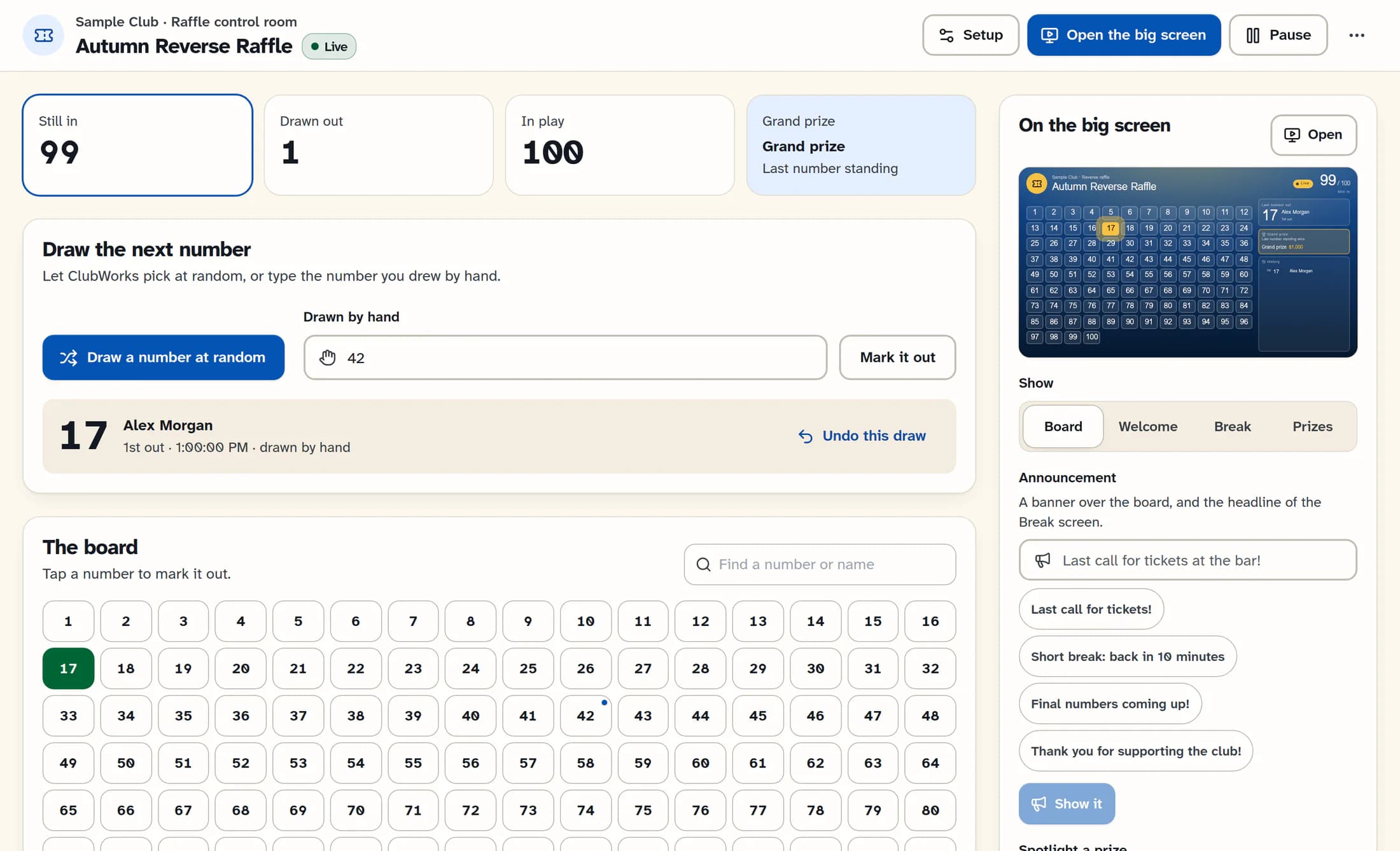
Select Draw a number at random to let ClubWorks pick from the numbers still in. To record a physical draw instead, enter the ticket number under Drawn by hand and select Mark it out.
Step 4 of 5
Use the board for a hand-drawn number
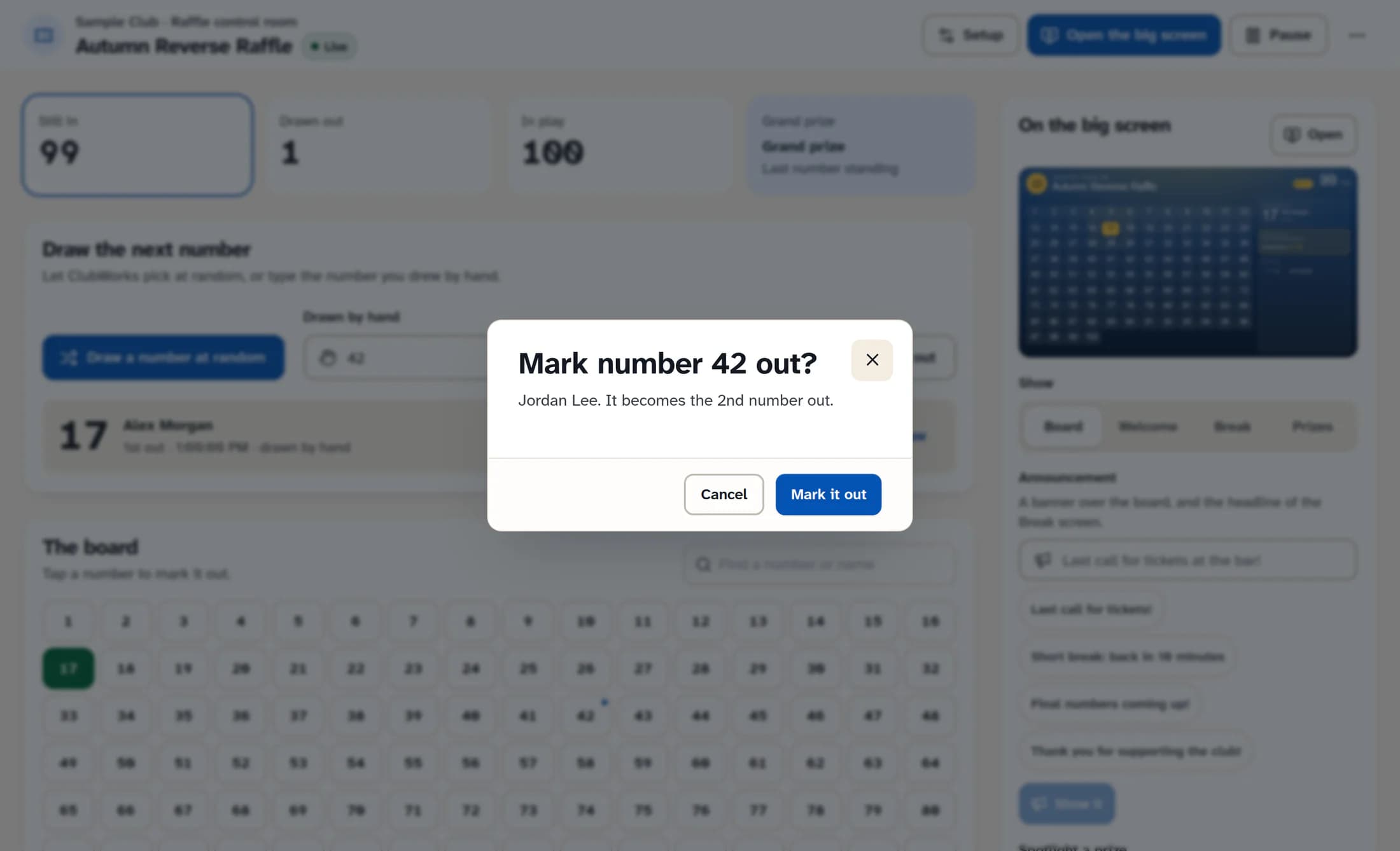
You can also select a number still in on The board. Check the number and holder in the confirmation, then select Mark it out.
Step 5 of 5
Correct the latest draw
If the latest draw was a mistake, select Undo this draw, then Put it back in. The number returns to the board, the big screen and phones update, and the undo stays in the raffle’s record. If the raffle has finished, select Reopen first; this clears the result and returns it to live status.
Good to know
You’re ready to draw
Continue drawing until the last number is standing. The split option appears when 25 or fewer numbers remain, or earlier if the configured split threshold is higher; it is available while at least two numbers remain.
