
On this page
Before you start
Step 1 of 3
Open the help page
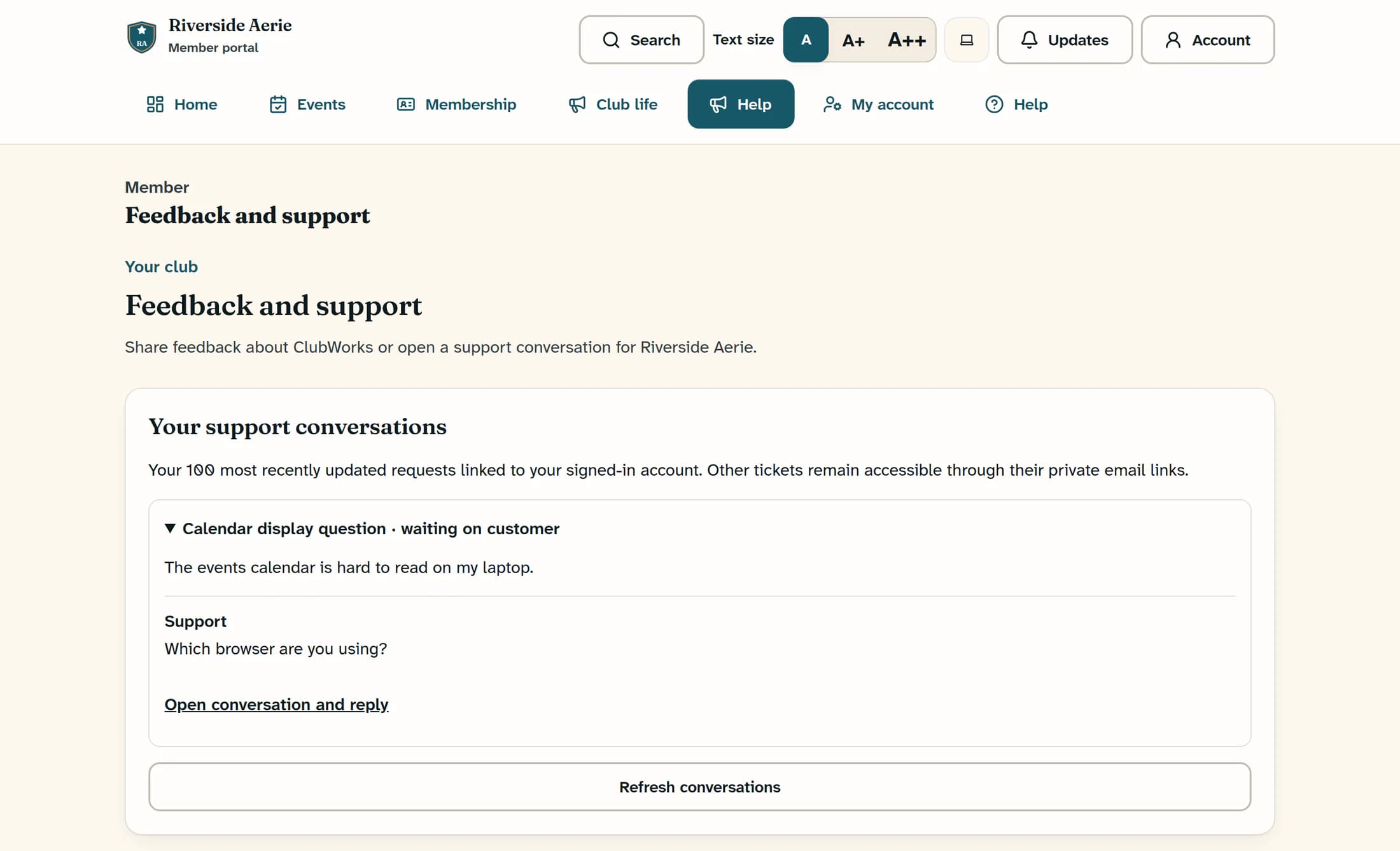
Select Help in the member portal navigation to open Feedback and support. Look for Your support conversations near the top of the page.
Step 2 of 3
Read a linked support conversation
Each conversation title expands to show its request and the replies shared with you. Select Open conversation and reply when that link is available to continue on the ticket page. Use Refresh conversations to reload the list.
This list contains requests linked to your signed-in account for the current club. A matching contact email alone does not make a ticket appear here. Other conversations may still be accessible through the private links in your support emails.
Step 3 of 3
Open a private link from a support email
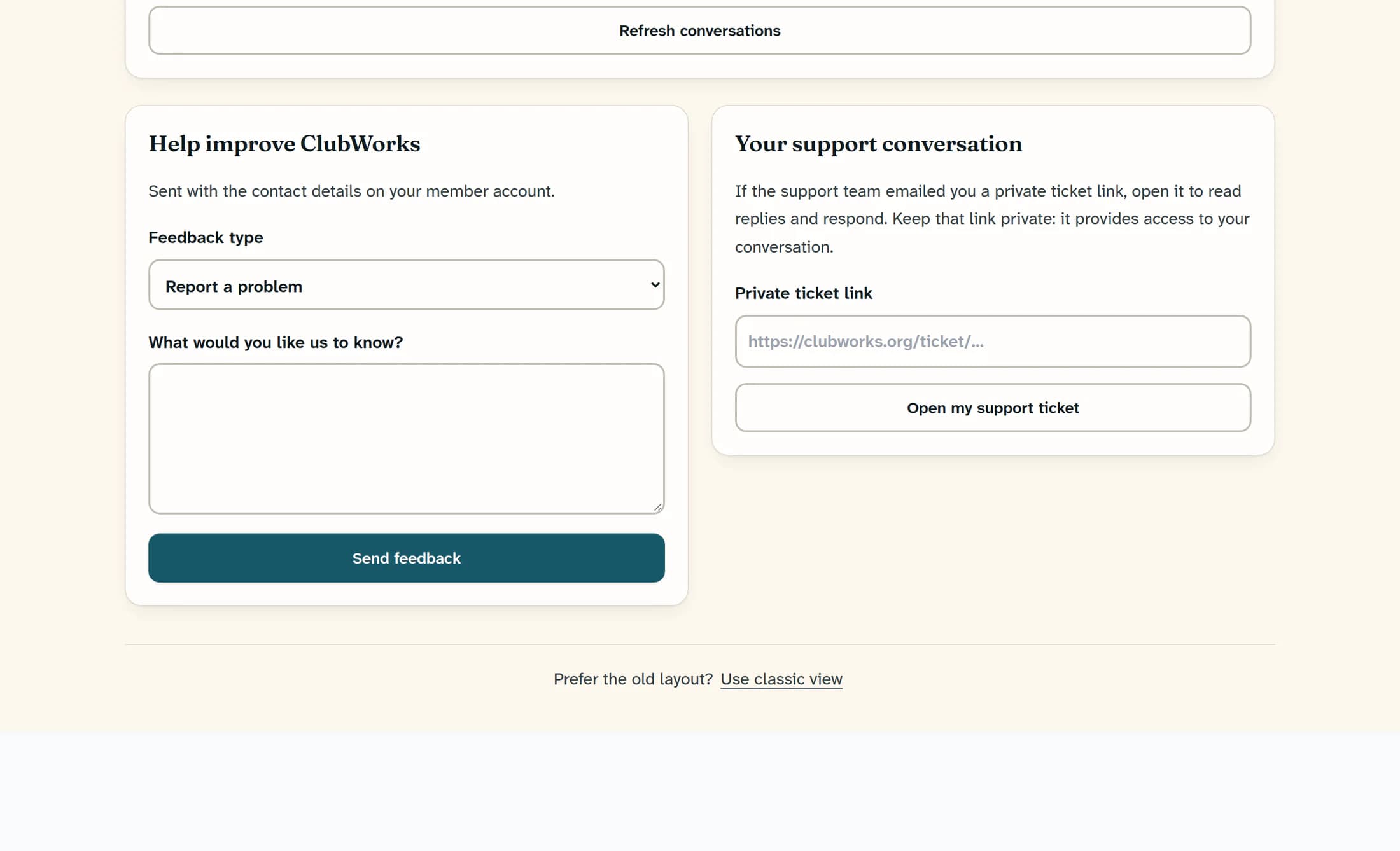
Find Your support conversation beside the feedback form. Paste the private ClubWorks ticket link from your actual support email into Private ticket link, then select Open my support ticket. Keep the link private: it provides access to that conversation.
If no conversations are linked
No conversations are linked to your account. means this account has no linked requests in the current club; it does not rule out a ticket reached through an email link. If you have no ticket link, use the support contact route you were given or contact your club through its usual route for club matters.
Product feedback is separate
Help improve ClubWorks saves product feedback for review. Sending feedback does not itself create a support conversation or guarantee that a message reaches the club office. See Complete member forms and send feedback for that separate task.
If you cannot find or open a conversation
Keep the right route handy
Use linked conversations or your private support email link for an existing request. Keep private links confidential, and use your club’s usual contact route for membership and local club questions.
