
On this page
Before you start
Step 1 of 6
Check the club website
Go to the member portal at your club's website, using
/memberafter the website address. Check the club name in Let's connect your membership; if it names another club, return to the correct club website.Step 2 of 6
Check which account you used
Make sure you signed in with your own verified email address. If you used the wrong account, select Sign out on the connection screen, then sign in with the right account before continuing.
Step 3 of 6
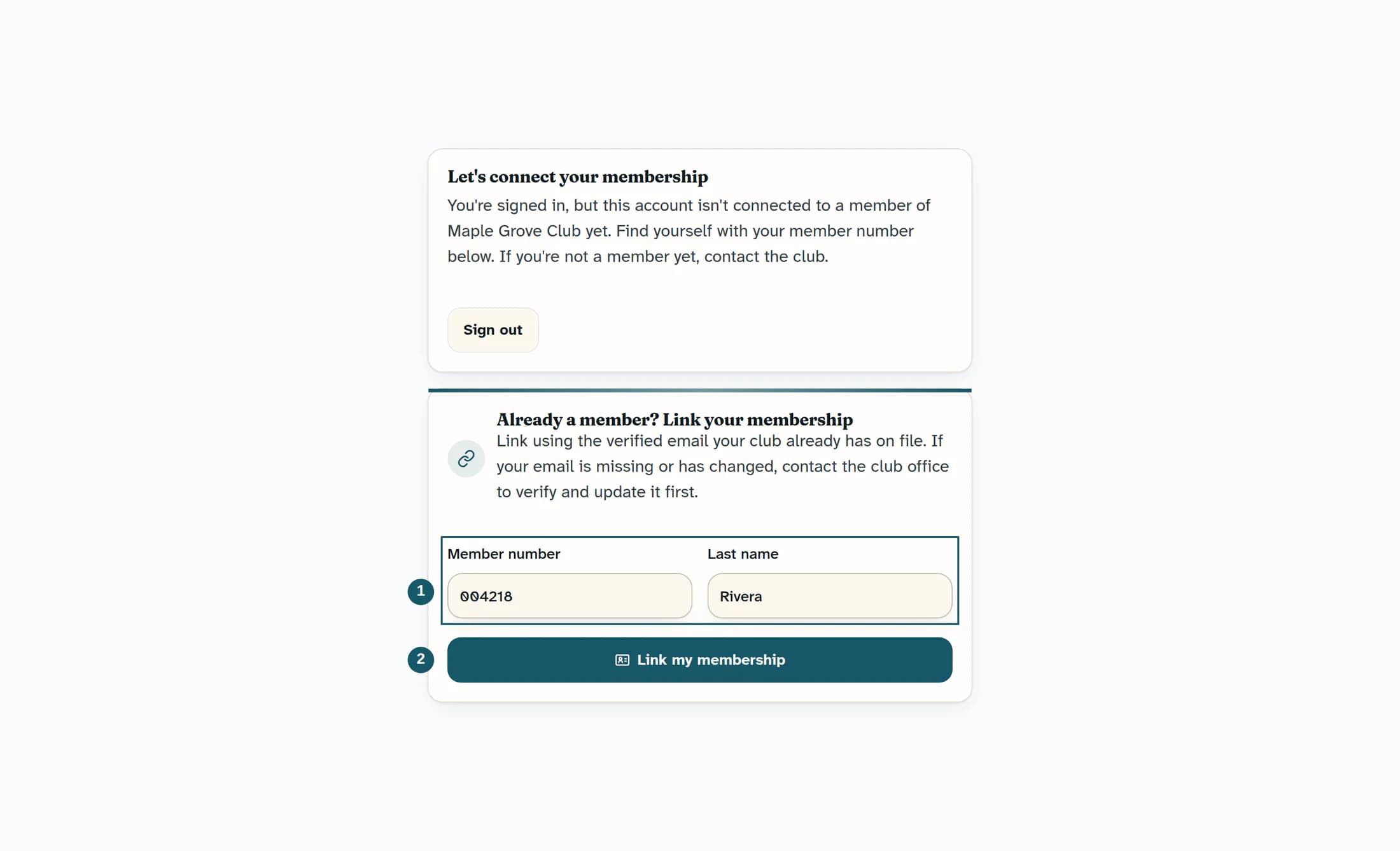
Enter your member number
Under Already a member? Link your membership, enter your number in Member number. Use your own number as recorded by the club, including any leading zeros.
Step 4 of 6
Enter your last name
Enter your surname in Last name as the club has recorded it. Check spelling, spaces, and hyphens before continuing.
Step 5 of 6
Link the existing membership
Select Link my membership once. If the record has no usable email and qualifies for linking, this also adds your verified email to that member record. The change is recorded, and ClubWorks attempts to notify the club office.
Step 6 of 6
Open the member portal
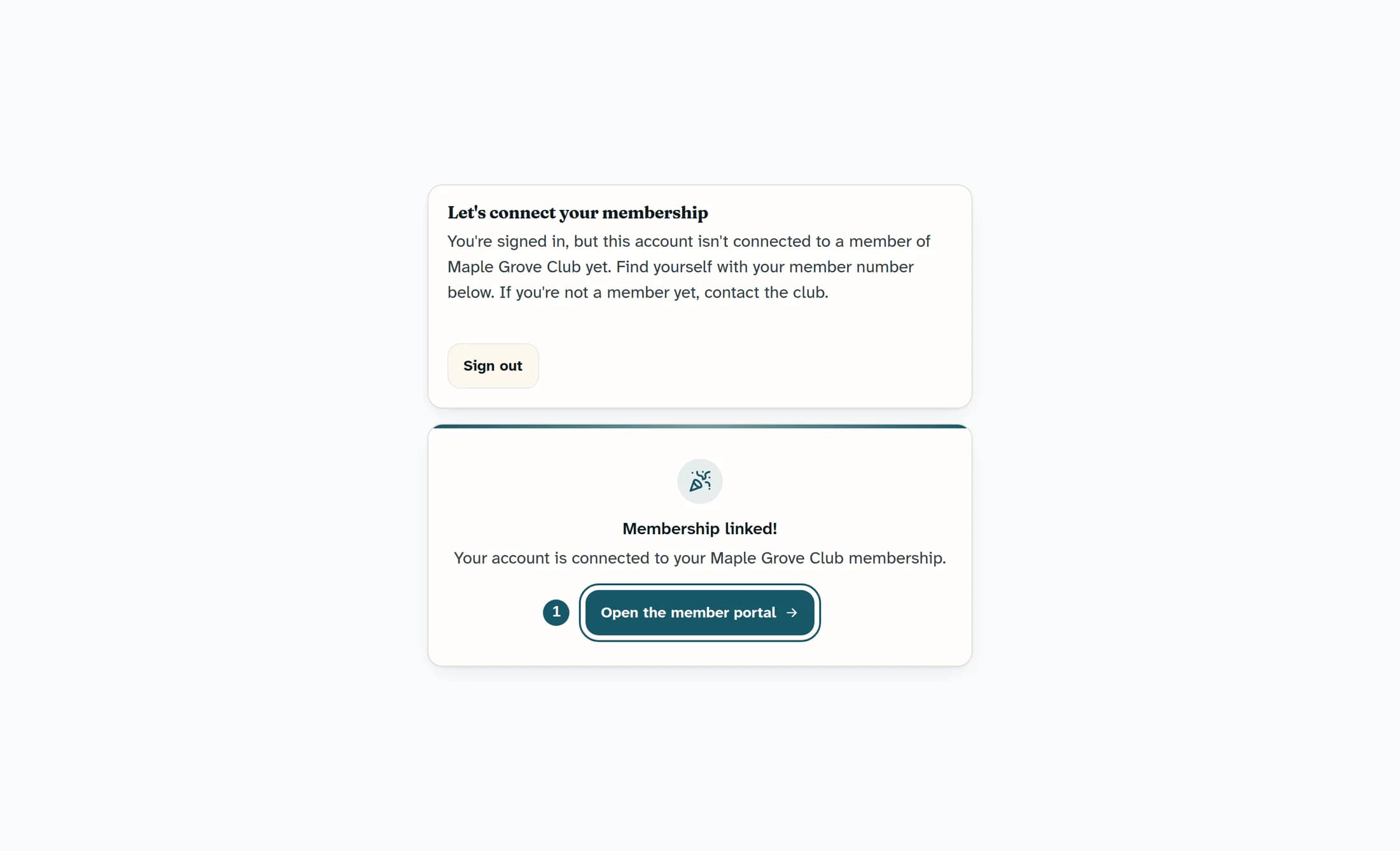
When Membership linked! appears, select Open the member portal. If this account was already connected, the card may say You're all set instead.
If the details do not match
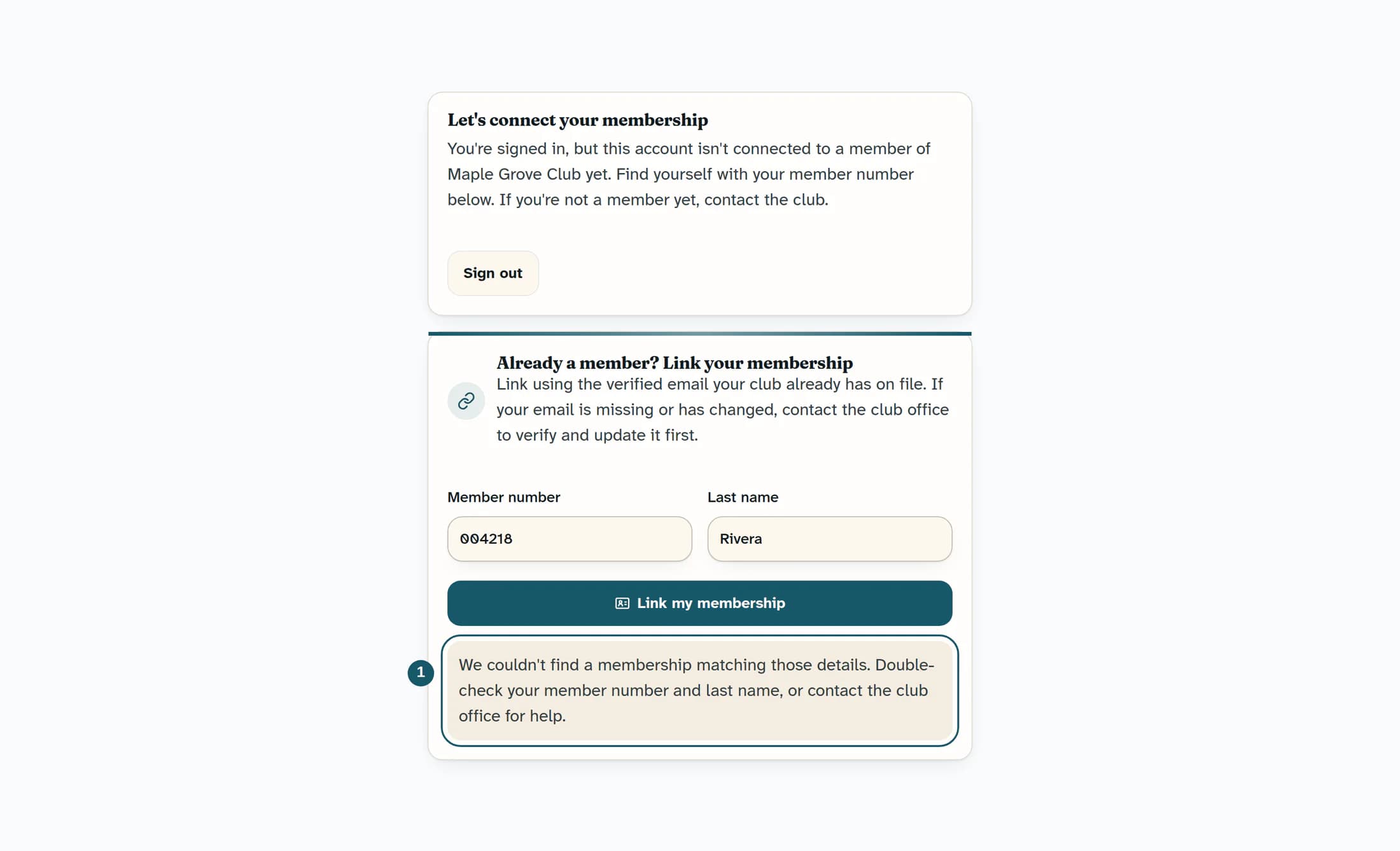
The message “We couldn't find a membership matching those details” does not identify which detail failed. Check the club, member number, last name, and verified email once; if they look right, ask the club office to check your existing record and account link.
Other messages and next steps
- “Enter your member number and last name to link your membership.” — Complete both fields.
- “Sign in before linking your membership.” or “Unable to verify the signed-in user. Please sign in again.” — Sign in again with your own verified account, then return to the club's member portal.
- “That email already belongs to another member of this club.” — Ask the office to check the records. Do not link to another person's membership or create a duplicate record.
- “Too many attempts.” — Stop retrying, wait a few minutes as the message asks, or contact the club office.
- “We couldn't link your membership right now. Please try again.” — Try again later; contact the office if the problem continues.
When this is a different problem
- Still at the sign-in screen? The member-number first-time claim flow starts there and has different steps. Use the related membership-claim guide below.
- Seeing “Your membership is not active,” a suspension notice, or “This membership is closed”? Contact the club using the details on that screen. Linking an account does not restore membership access or remove a restriction.
- Arriving in a staff workspace? Staff access does not itself mean you have a club membership. If you also belong to the club, ask the office to check your member record.
- No existing membership? Contact the club about joining. Do not use someone else's member details.
Expected result
Your verified account is connected to your existing membership at the correct club. If the portal still does not open, give the club office the message you see and ask it to review your existing record.
About this guide
Applies to the ClubWorks web member portal, checked against release 16782cba from October 21, 2026. The illustrations reconstruct the source with fictional details; club branding may differ. Native app steps and a live membership-linking workflow have not been verified for this guide.
The screens in this guide show example clubs and people. Your club's name, colours and some labels may look different.
