
On this page
- Before you start
- Choose the website page
- Add the form widget
- Connect the section to your form
- Review the placement
- Save and reopen the page draft
- Publish the intended page
- Check the live page for the intended audience
- Attach a form to an event
- Check the event’s form choices
- Save and reopen the event
- Remove a placement when it is no longer needed
- If a change does not save or appear
- Summary
Before you start
Step 1 of 11
Choose the website page
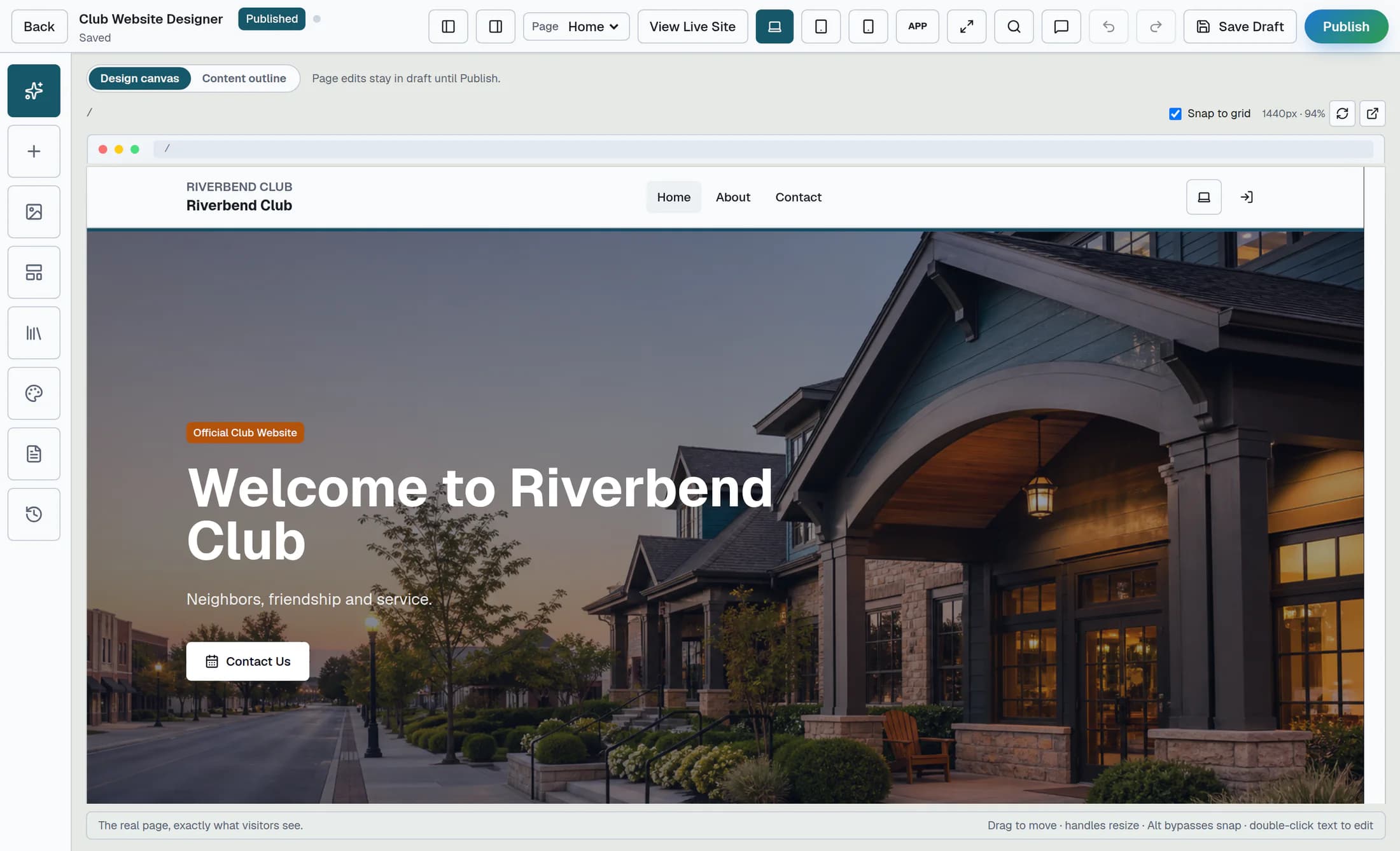
Open Site Builder in the club admin area. In the illustrated builder, choose the existing page with the Page selector in the top toolbar, then open Sections in the left toolbar.
Step 2 of 11
Add the form widget
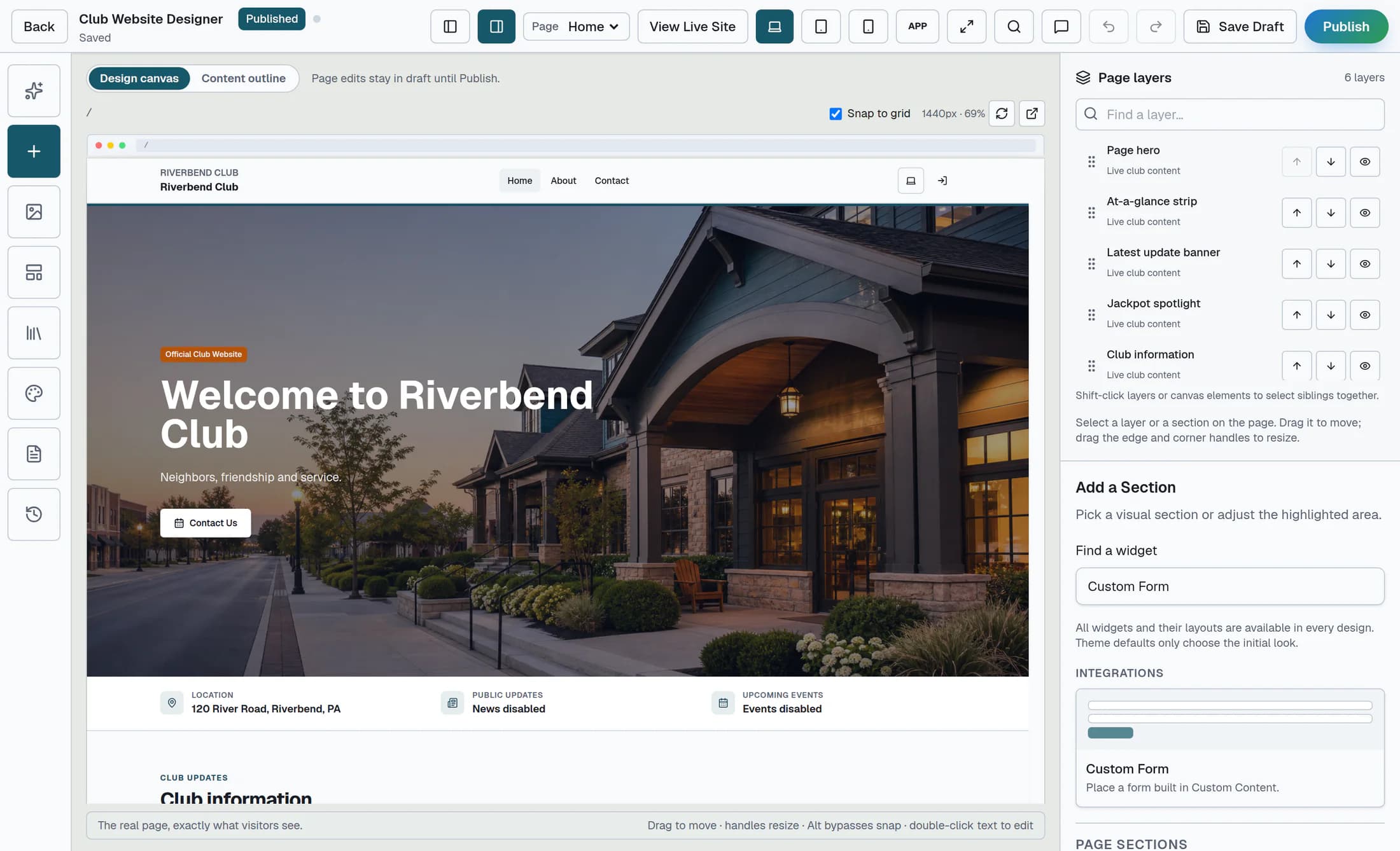
In the right panel, enter Custom Form in Find a widget. Select the Custom Form card to insert it on the current page; the inserted section becomes selected.
Step 3 of 11
Connect the section to your form
Under Selected Section, use Form to choose the intended form; the empty choice reads Choose a form. Check the selected form’s name and the section’s position before saving. The live canvas refreshes new content after the draft saves.
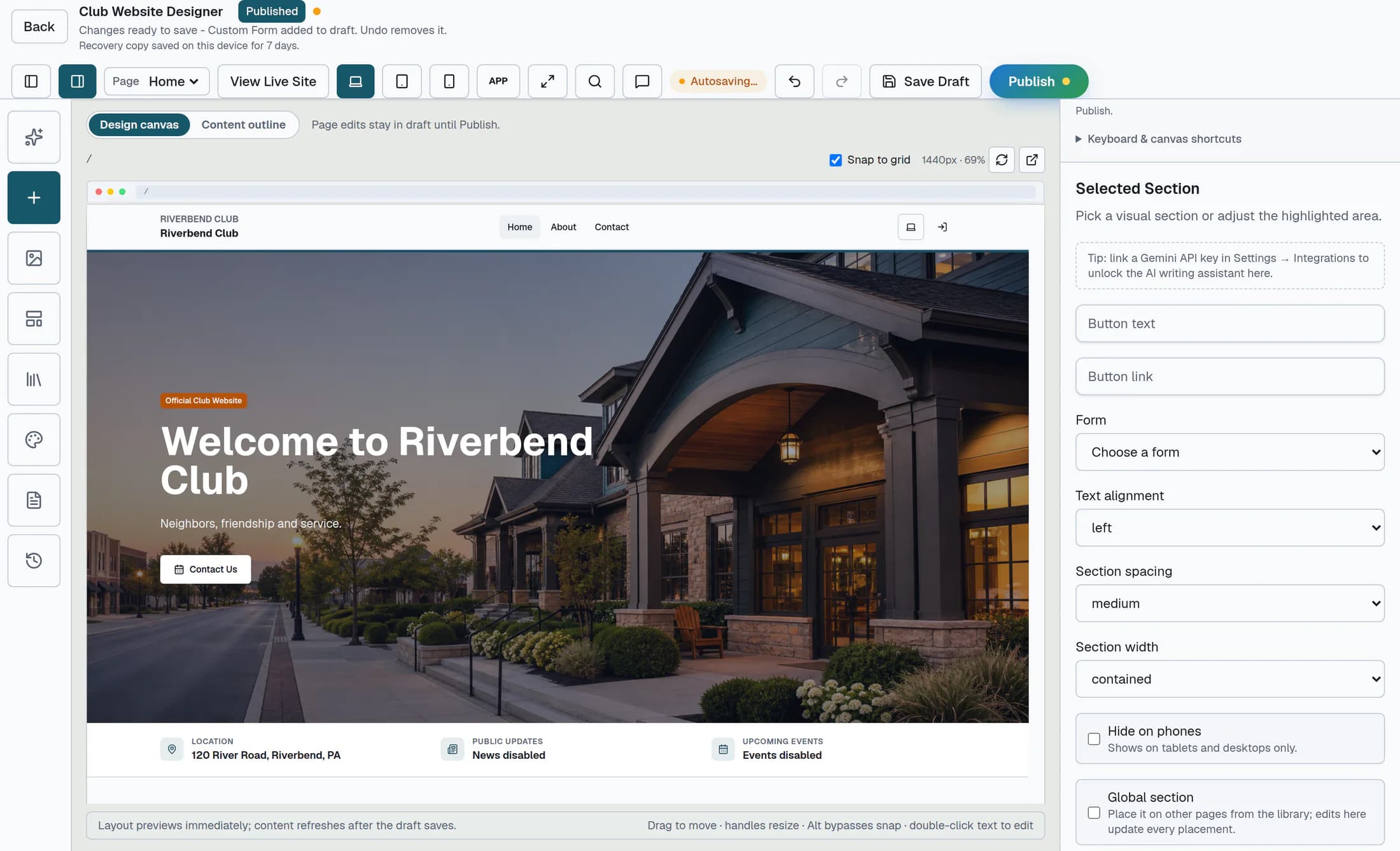
This builder lists published forms from the same club, including forms with restricted audiences. Placing one does not publish or reopen it, change its audience, or give visitors access to a protected form; the page’s access rules and the form’s access rules both apply.
Step 4 of 11
Review the placement
Review the section’s title, order and visibility, plus the page’s access level. Use Desktop, Tablet and Mobile to check the layout; the builder preview is for reviewing placement, not proving that a response was sent.
Step 5 of 11
Save and reopen the page draft
Edits autosave as drafts; Save Section or Save Draft requests an immediate save. Wait for the saved confirmation, then reopen the intended page and selected section to confirm the Form choice persisted.
Step 6 of 11
Publish the intended page
When the page is ready, confirm the correct Page is selected and select Publish. If Before you publish appears, fix every error—an unconnected form section blocks publication—and use Go back and fix to return to the editor.
Publish applies to the selected page; a draft save alone does not make the placement live. The warning-only dialog can offer Publish anyway when there are no errors, so review its findings before proceeding.
Step 7 of 11
Check the live page for the intended audience
Use View Live Site to open the website after publication, then navigate to the intended page. Check that the form appears for the intended audience, including the required sign-in or role for a protected form; checking the placement does not require sending a response.
Step 8 of 11
Attach a form to an event
In Events, open the existing event with Edit, then find Add a form below its content editor. Use Choose a form to attach to select the intended form; up to six forms can be attached, and forms already attached are omitted from the choices.
Step 9 of 11
Check the event’s form choices
Review the attached form’s name and status, and use Refresh form choices after changing forms elsewhere. Manage forms opens form management in another tab; the event picker can include draft or closed forms, so choose a published form that is still accepting responses.
Step 10 of 11
Save and reopen the event
Review the event’s other current edits, then select Save changes and reopen Edit to confirm the attachment. This save also writes other event edits and can update configured push reminders or send a configured Facebook post; for a recurring event, the form attachment applies to the series.
The event’s member restrictions and the form’s audience are separate. Attaching a form does not register attendees, charge a payment, issue a ticket or reserve capacity; it also does not publish or reopen the form.
Step 11 of 11
Remove a placement when it is no longer needed
On a page, hide or remove the form section in the builder, save the draft and publish that page to hide it from visitors. On an event, use the attached form’s remove control, then Save changes; detaching either placement keeps the form and its earlier responses.
If a change does not save or appear
For more event-specific detail, see Attach a form to an event.
Summary
The page draft holds its form placement until you publish that page; the event attachment is saved with the event. Each placement points to the form’s current published version and keeps the form’s own audience and availability rules.
