
On this page
Before you start
Step 1 of 8
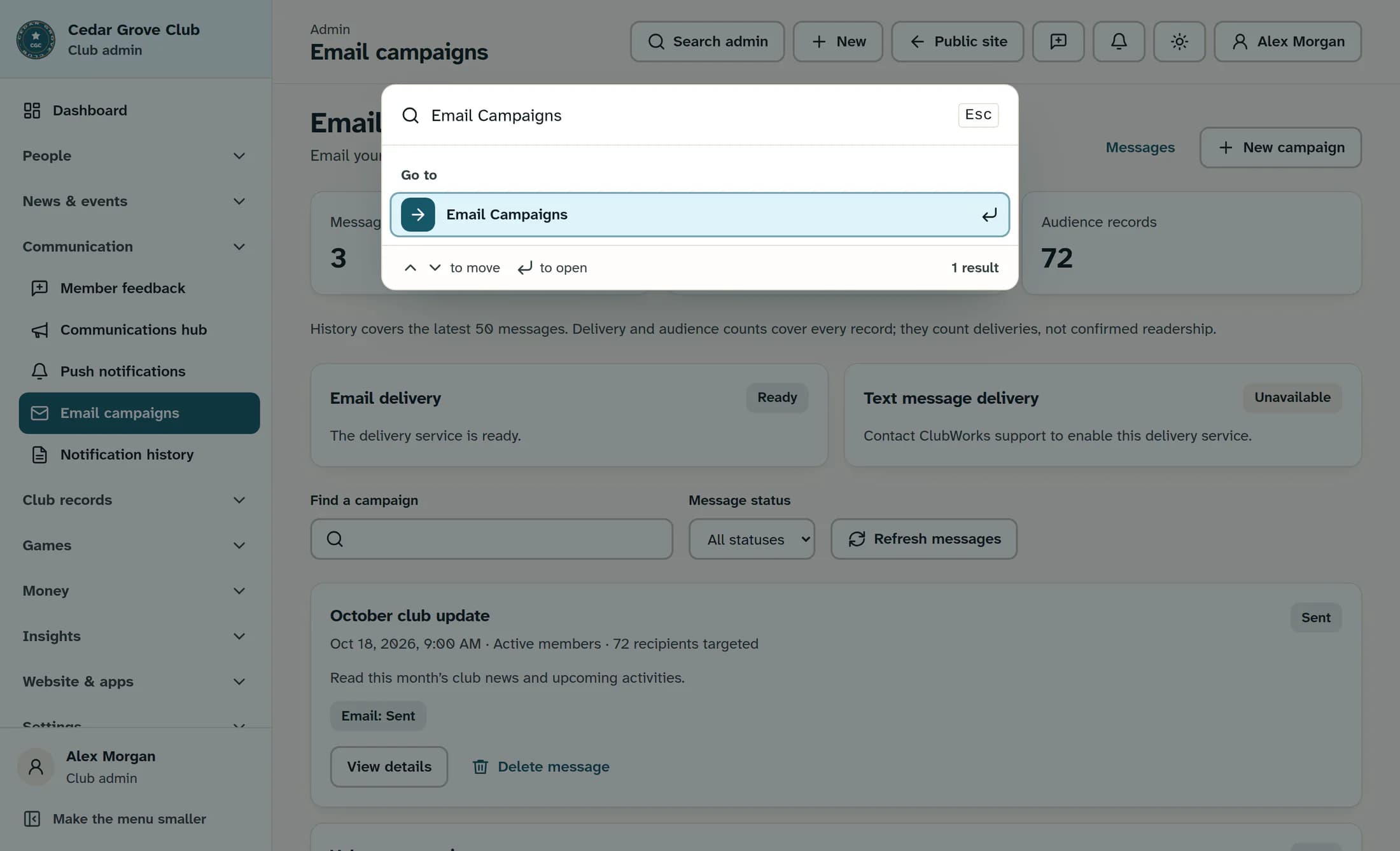
Find Email Campaigns
Open Search admin in the top bar and type Email Campaigns in the search box. Choose the Email Campaigns result.
Step 2 of 8
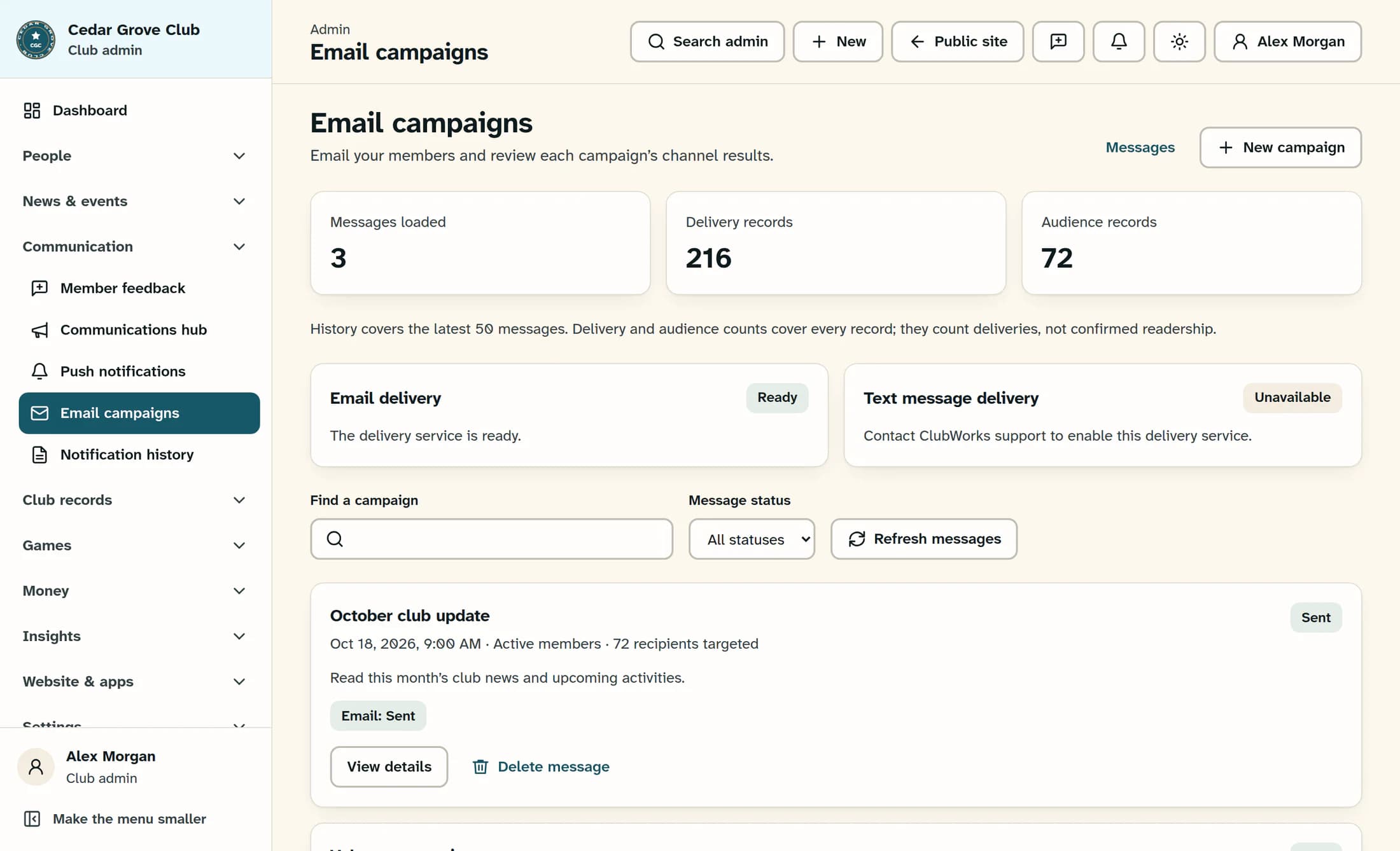
Start a campaign
On Email campaigns, choose New campaign. The New email campaign composer opens.
Step 3 of 8
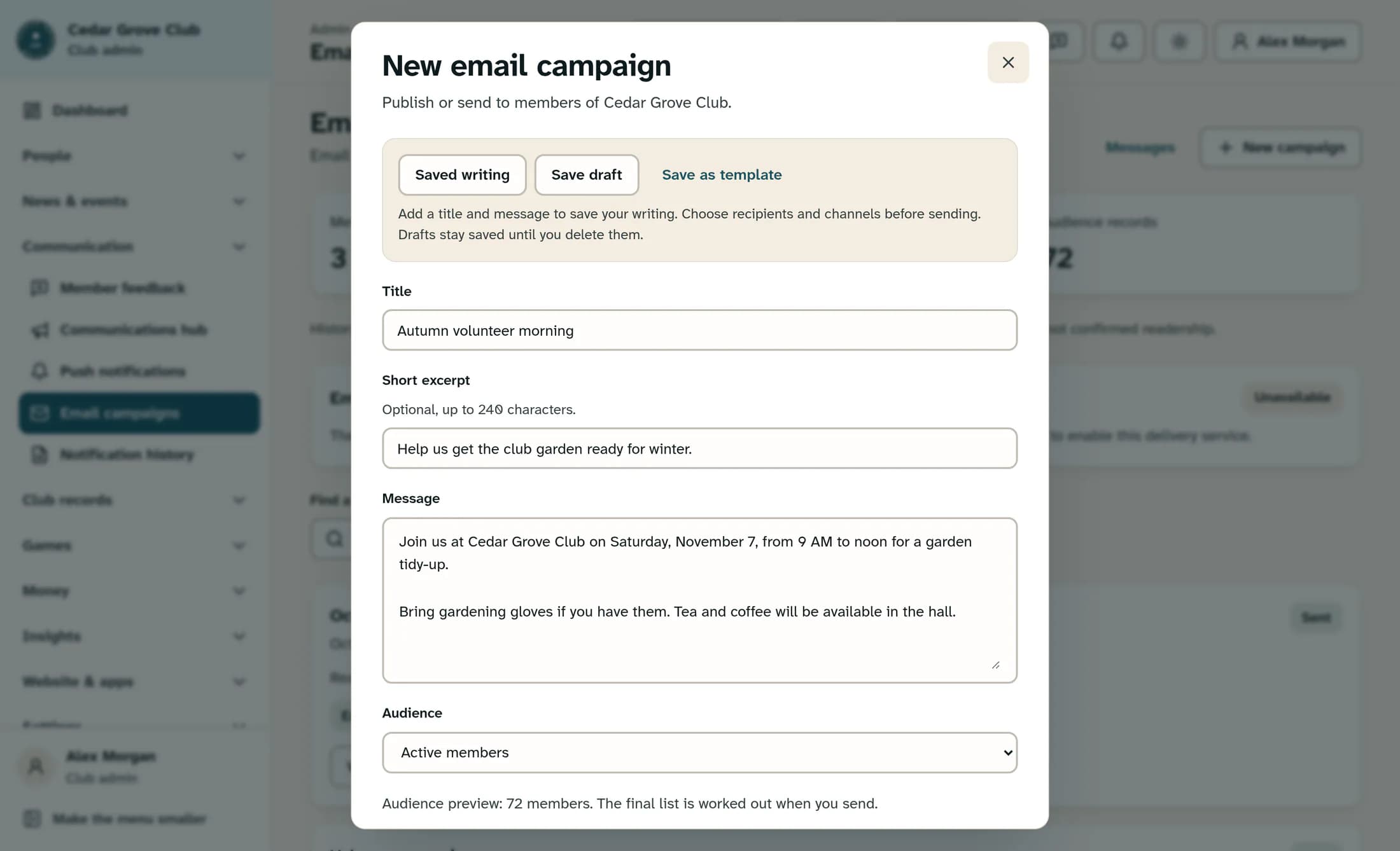
Write your message
Enter a Title and Message. Add a Short excerpt if useful; the title allows up to 140 characters and the optional excerpt allows up to 240.
Step 4 of 8
Review the audience
In Audience, choose the group you intend to reach. Check Audience preview below the selector; this is an estimate, and the final list is worked out when you send.
Step 5 of 8
Review the channels
Scroll to Channels and review the checked options. A new email campaign starts with Email selected and the other channels off; keep Email selected for the email preview.
Step 6 of 8
Preview the email
Further down, under Check the email, choose Preview the email. Review the subject and message in Email preview, which uses your name as the greeting, then choose Close preview. Previewing does not send or save your writing.
Step 7 of 8
Save your writing
Scroll back near the top of the composer and choose Save draft. Wait for “Draft saved. No message was sent.” before leaving; saving keeps the title, message and excerpt, but not the audience, channels, send time or tracking choices.
Step 8 of 8
Continue later, if needed
To return later, open New campaign, choose Saved writing near the top, then choose Continue draft beside your draft. If the composer already contains a title or message, confirm replacement only when you are ready to replace that writing. Review the audience and channels again, and use Save draft changes after editing.
Tip
Expected result
Your writing is saved for later, and no email has been sent through these steps. Drafts stay saved until you delete them; previewing alone does not save a draft.
Troubleshooting
- Save draft is unavailable: add both a title and a message.
- The preview is unavailable: check that Email is selected and that the title and message are filled in. Follow any displayed error before trying again.
- Saving fails: keep the composer open and preserve your text. If the draft changed or was removed, reload Saved writing before trying again.
About this guide
The illustrations are reconstructed from ClubWorks source code using a fictional club and message. They are not live screenshots, and the workflow has not been verified in a live session; no live drafts or emails were created for this guide.
The screens in this guide show example clubs and people. Your club's name, colours and some labels may look different.
