
On this page
Before you start
Step 1 of 4
Open a new notification
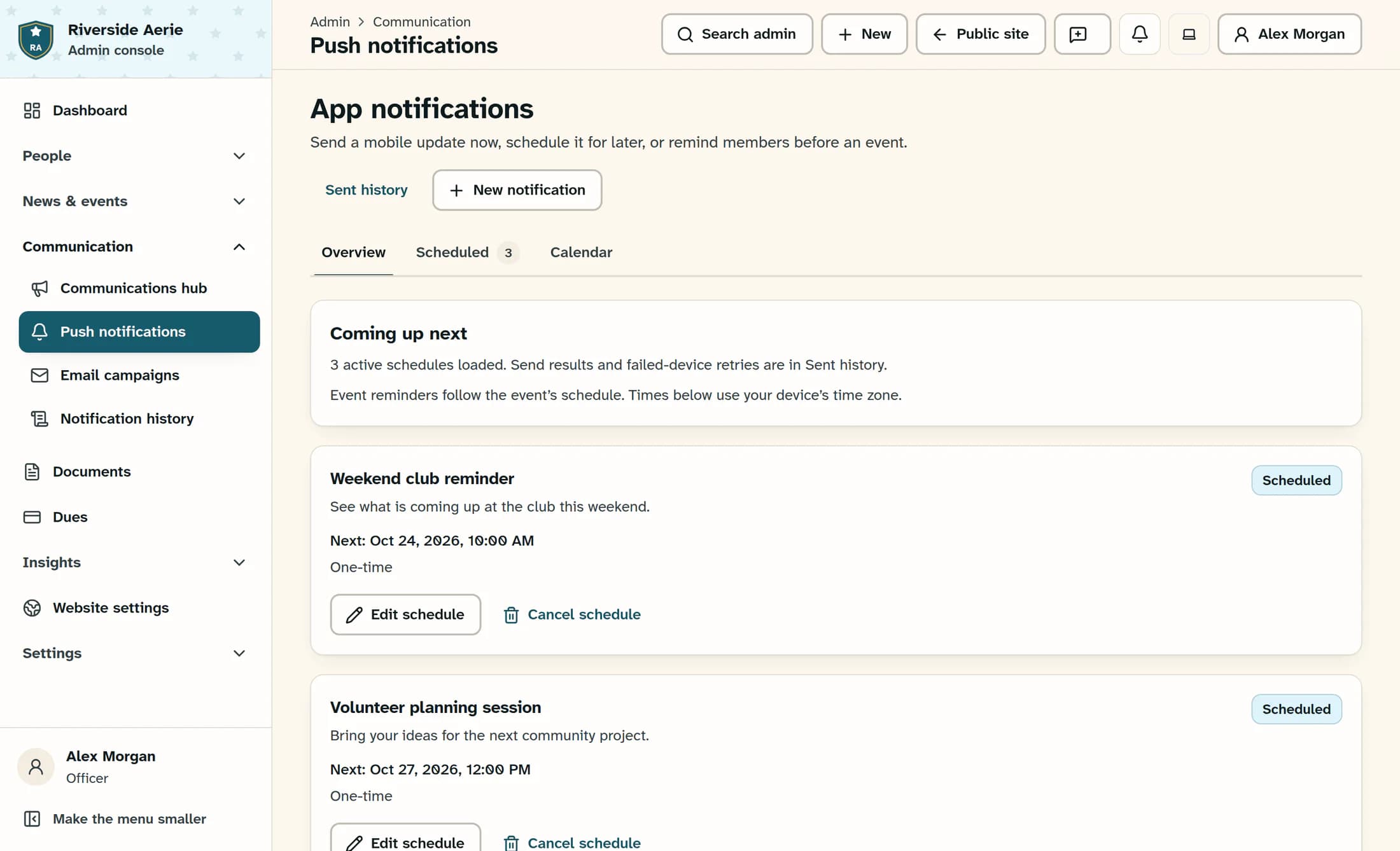
In the sidebar, open Communication and select Push notifications. On App notifications, select New notification. Check the club named in the New app notification window before continuing.
Step 2 of 4
Write and review the message
Enter a Title of up to 120 characters and a Message of up to 1,000 characters; both are required. Under When to send, choose Send now. Review the Notification preview, checking the club name, title and message.
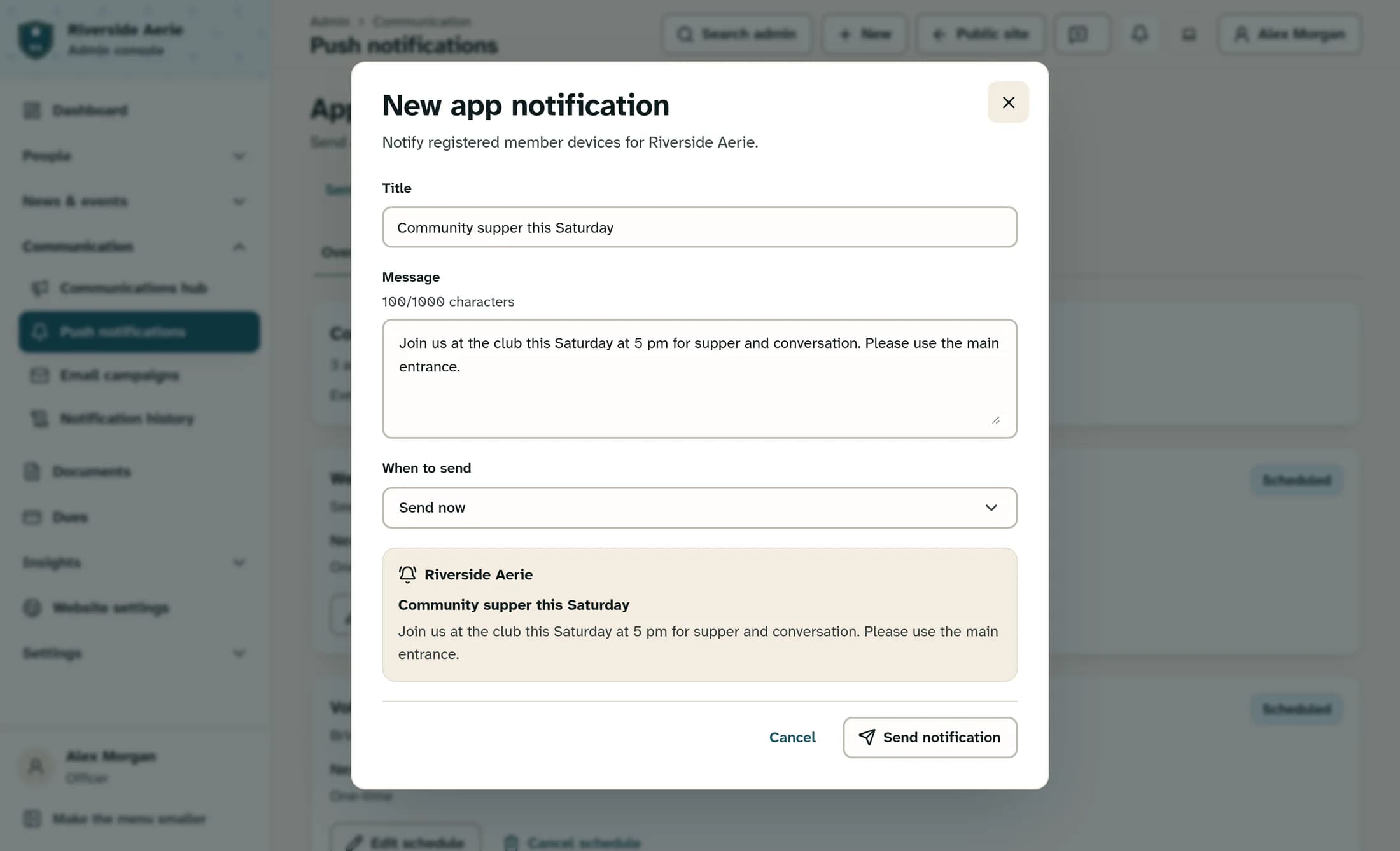
The other choices, At a time and Before an event, create scheduled notifications and are separate tasks.
Step 3 of 4
Send after checking the club
Select Send notification. Your browser asks whether to send now to registered member devices for the named club; check that club and confirm only when you are ready. Before confirming, you can cancel the browser prompt to stop the send, or use Cancel in the editor to close the unsent message.
Step 4 of 4
Check the delivery result
After the request finishes, read the result, then open Sent history and find the notification by its title and time. Use Find a notification to search if needed, and review the acceptance count, error count and any explanation. These results describe delivery acceptance, not receipt or reading.
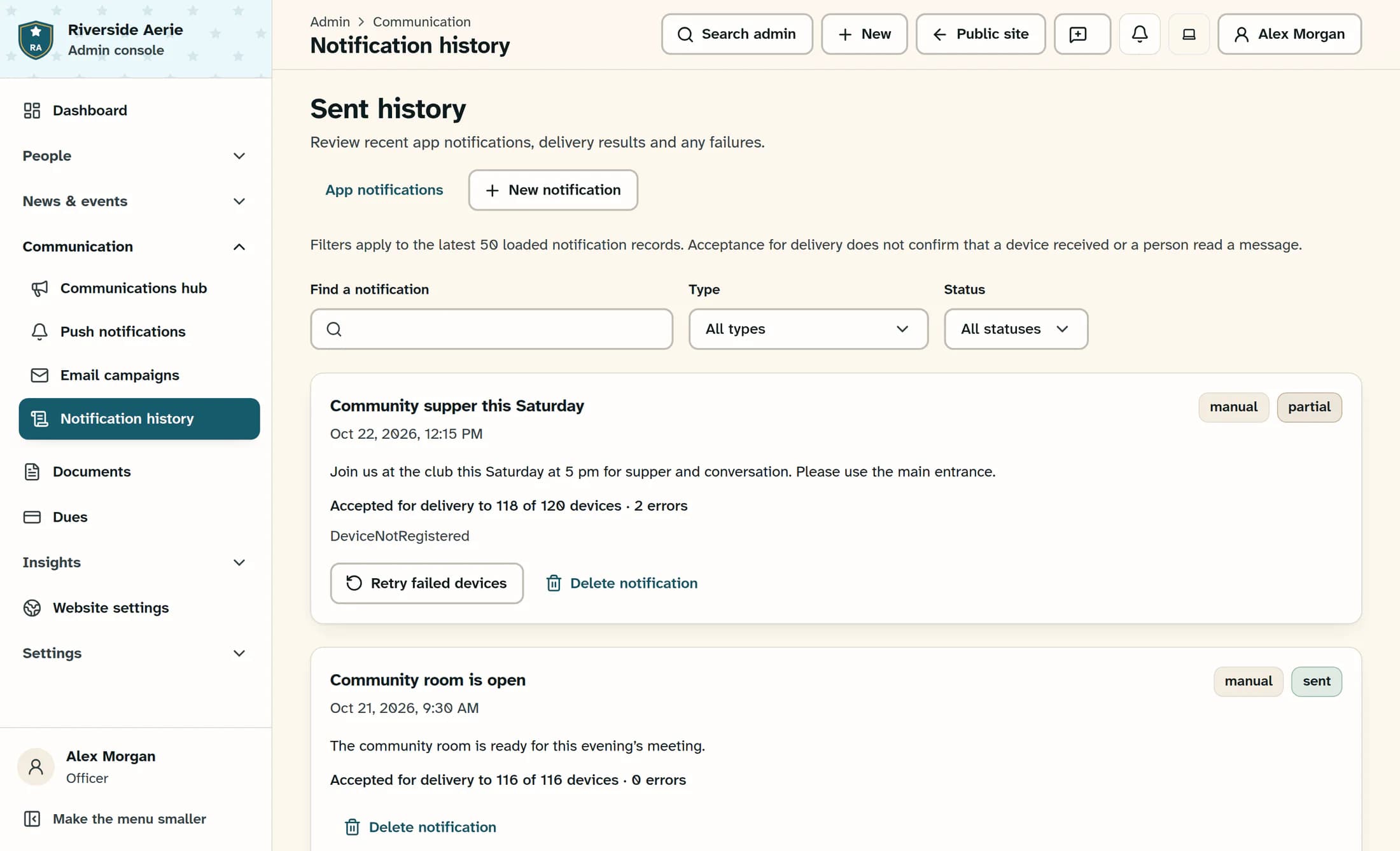
History initially loads the latest 50 records, and its filters apply to the loaded records. If Load older notifications is available, use it to look further back.
If the send is uncertain or has errors
Confirm the result before moving on
Keep the notification’s title and delivery result together when checking what happened. Use the accepted-device and error counts to guide any follow-up, without treating them as a read receipt.
