
On this page
Before you begin
Step 1 of 4
Review your current schedule
Go to
/employeeon your club’s website while signed in. Confirm your name in Employee Portal, then review My Schedule for possible conflicts before requesting another shift.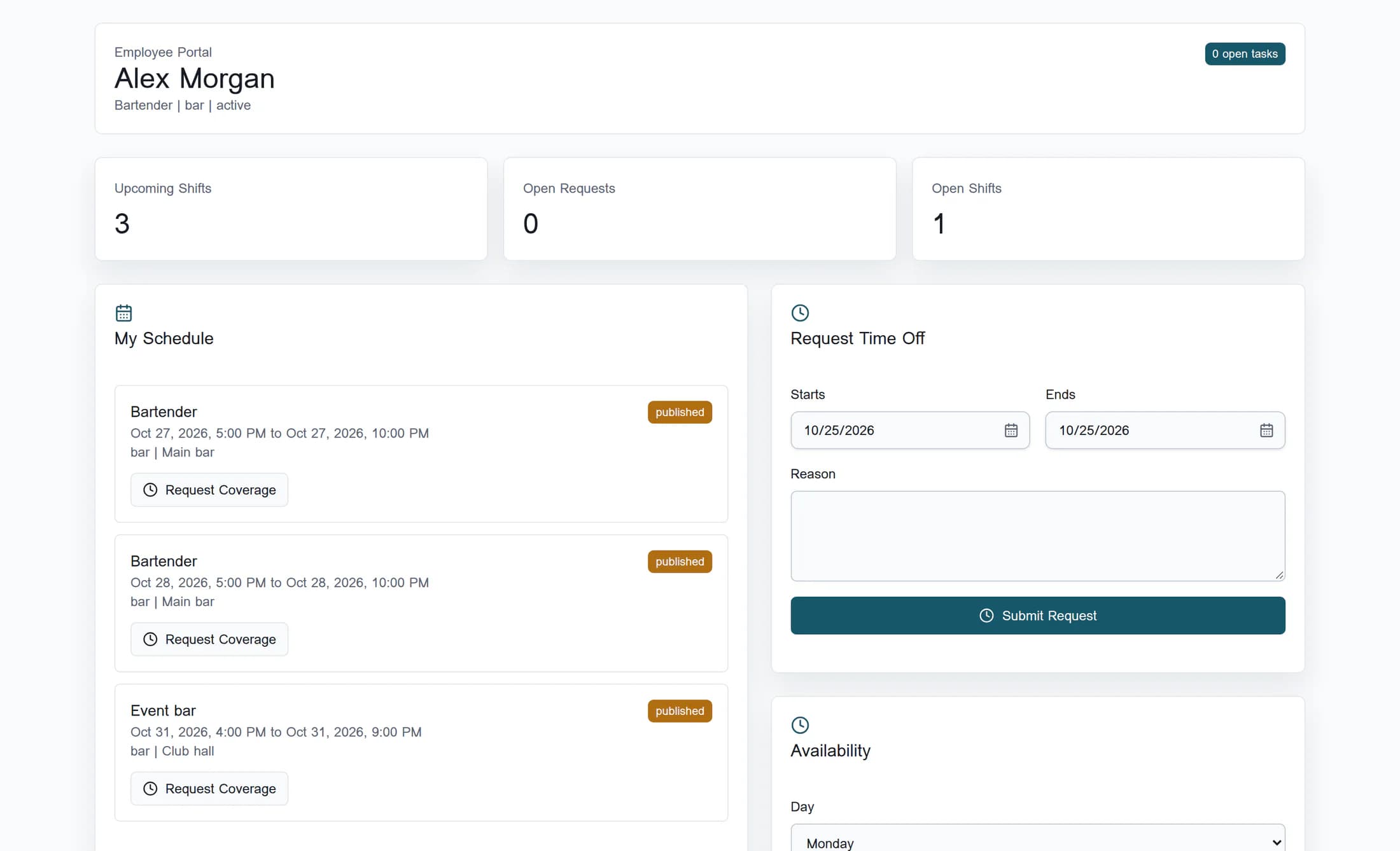
Step 2 of 4
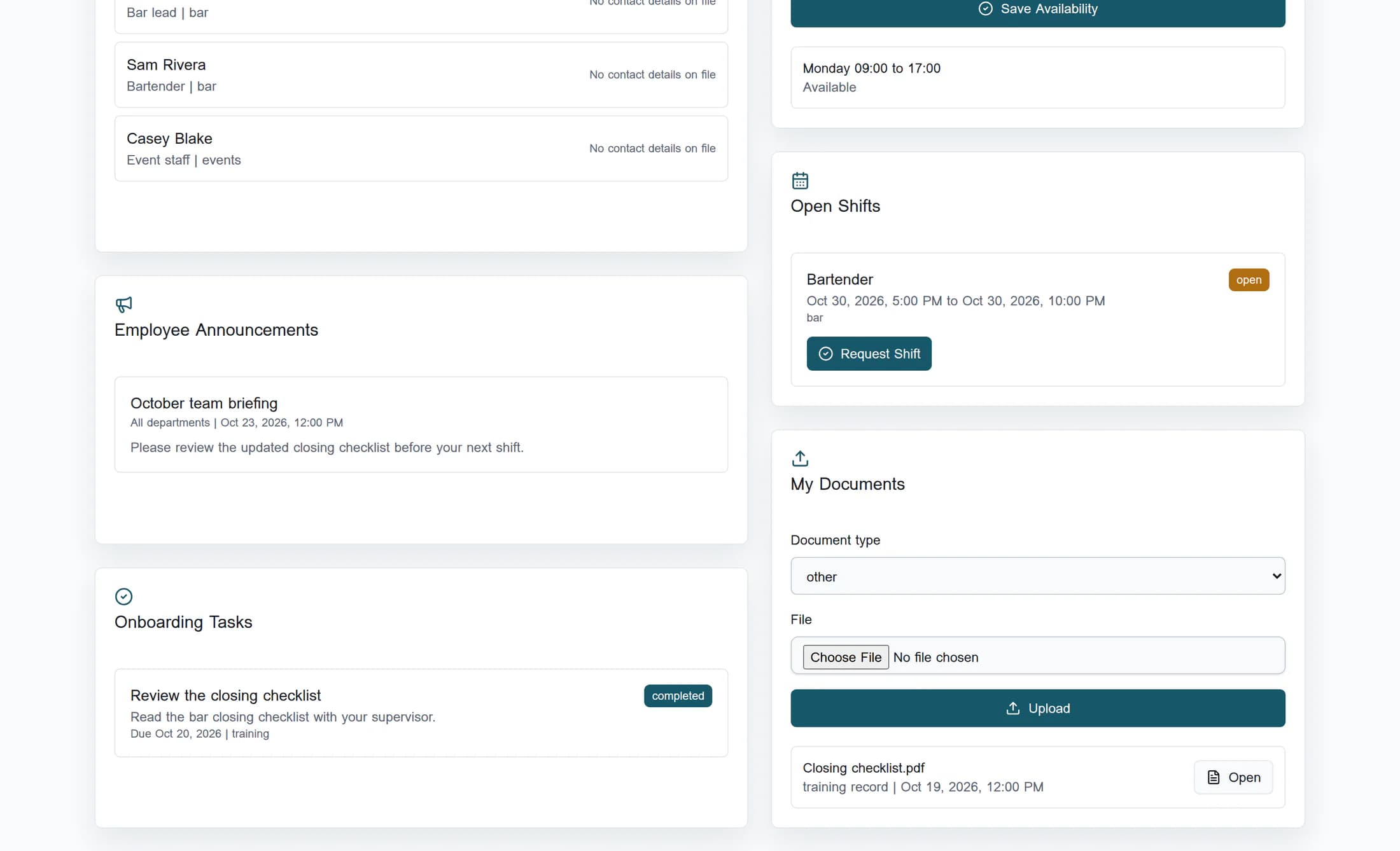
Request the intended open shift
Scroll to Open Shifts and review the intended card’s role, date, start and end time (or Until Close), department and status. Select Request Shift on that card once when you are sure the details work for you, then let the page reload.
Step 3 of 4
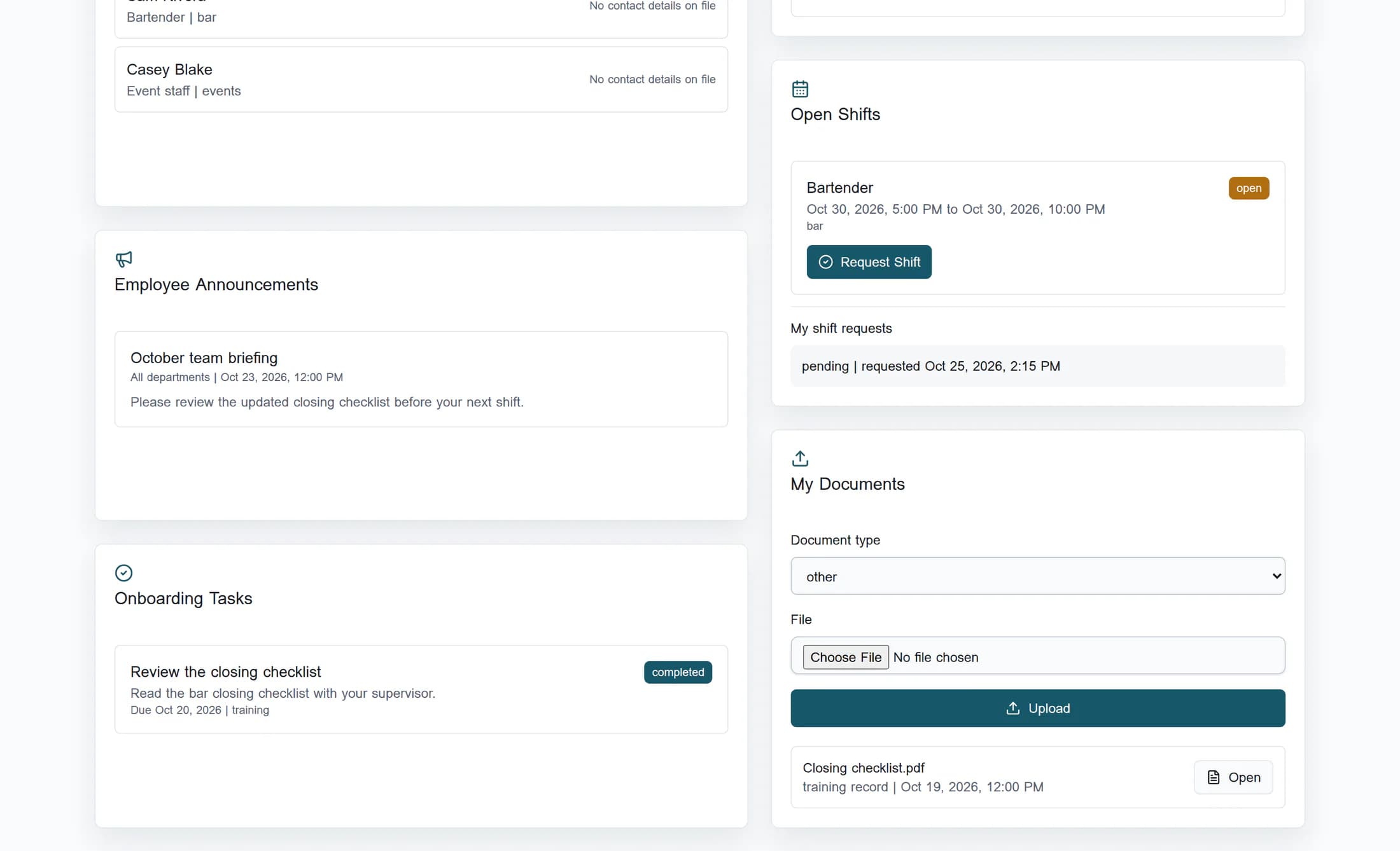
Check your request after the reload
Return to Open Shifts and find My shift requests. Check the newest request’s status and requested time; a pending entry is waiting for a manager’s decision. The list also includes coverage requests and does not show the shift’s role or date, so ask your manager if you cannot identify your request.
Step 4 of 4
Wait for the assignment
After your manager approves the request, confirm that the published shift appears in My Schedule. Until then, treat it as a request, not an assigned shift.
If you are unsure
Draft illustrations reconstruct the browser interface with fictional data. They do not verify the live portal, create a real shift request, or demonstrate mobile behavior or notification delivery.
Summary
Your request is submitted when its new entry appears in My shift requests. A manager still needs to approve it, and My Schedule is where you confirm your published assignment.
