
On this page
Before you start
Step 1 of 3
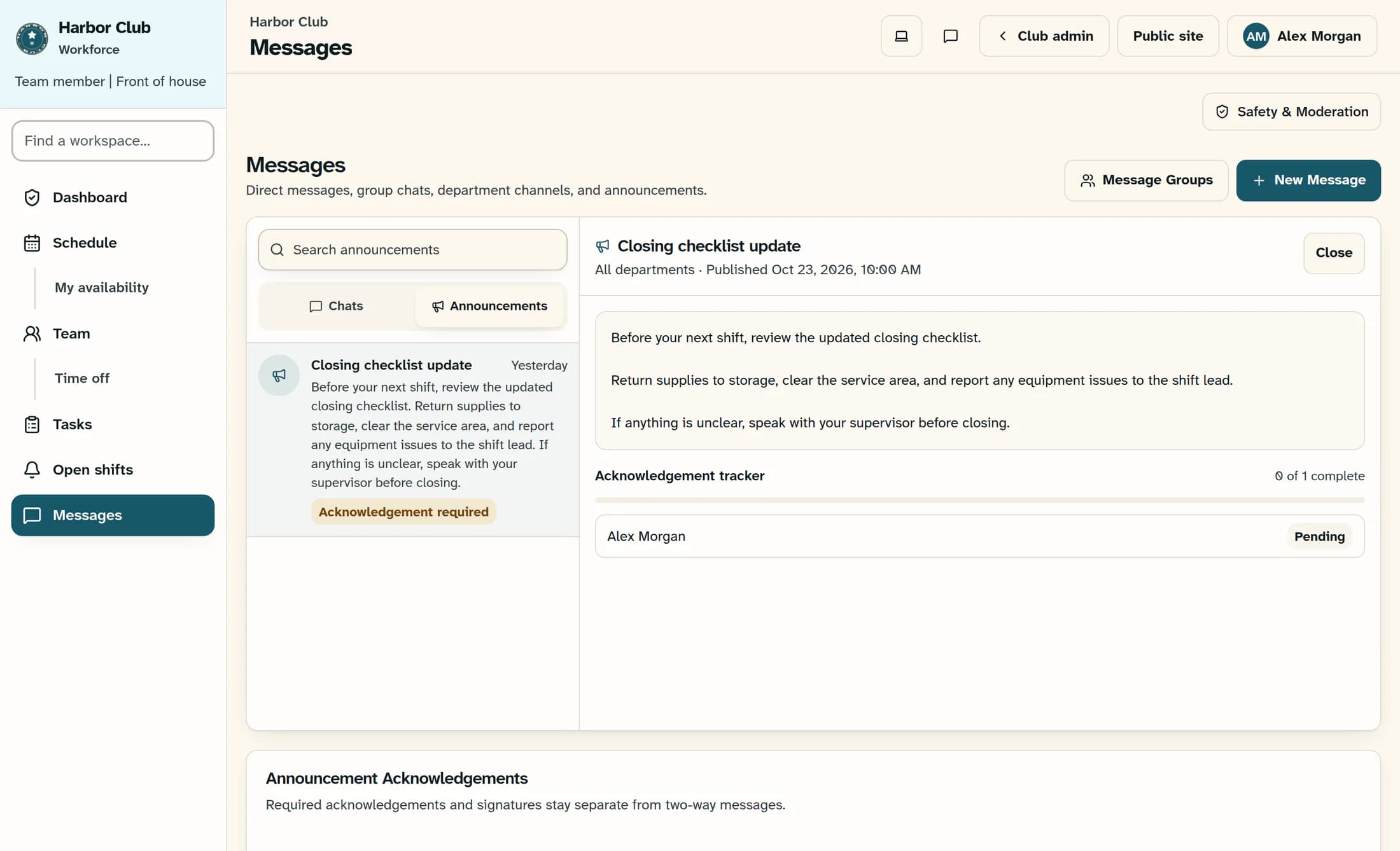
Open and read the announcement
Choose Messages, then Announcements. Find the announcement you need by its title and select its card marked Acknowledgement required; several cards may have that badge, so check the title before choosing. Read the full title, publication details and message in the detail panel.
Step 2 of 3
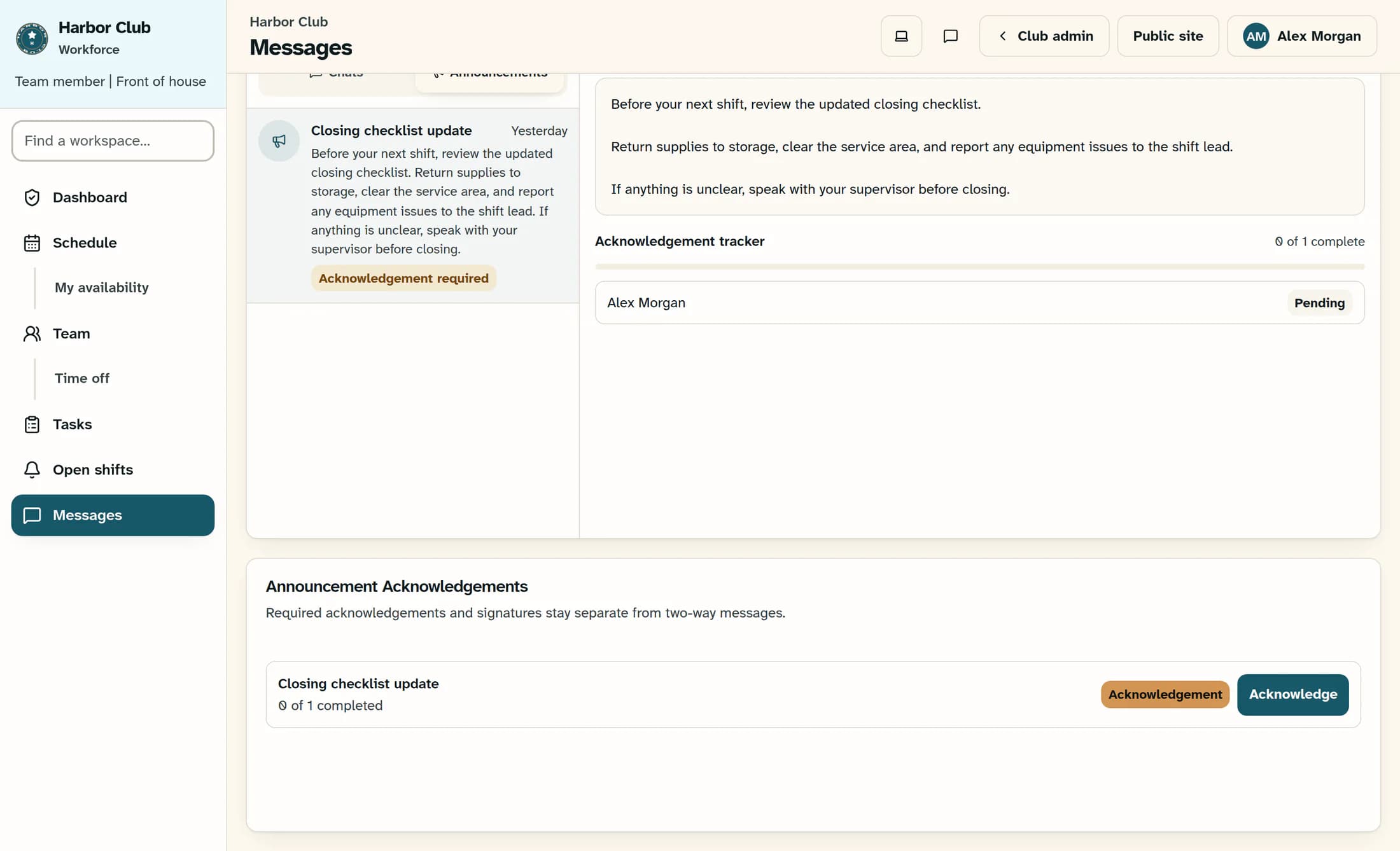
Record your acknowledgment
Scroll below the inbox to the separate Announcement Acknowledgements card. Find the same announcement title, check that its badge says Acknowledgement, then choose Acknowledge in that row. The action submits immediately, without a confirmation dialog.
Step 3 of 3
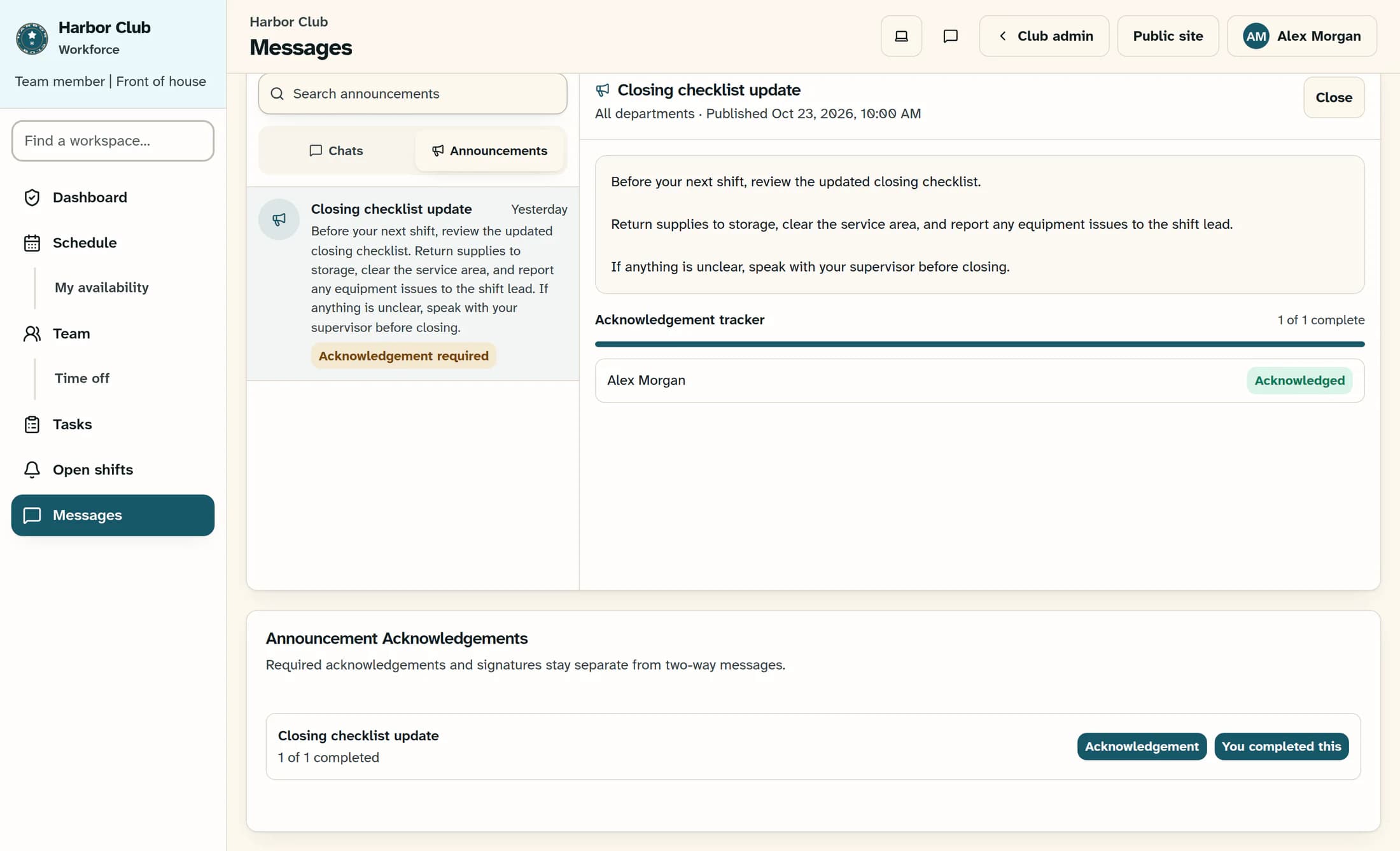
Check your completion status
Wait for the announcement status to refresh, then check that your announcement row shows You completed this. The page also displays Announcement acknowledged. above the inbox, which may be above your current scroll position. If the result is unclear or an error appears, reload the page, return to the same announcement row, and check for You completed this before trying again.
Keep in mind
Illustrations are source-based reconstructions with fictional data. These workflows have not been verified live.
Summary
You completed this confirms your own acknowledgment of that announcement.
