
On this page
Draft preview: the illustration is reconstructed from the application source with fictional example details. It does not show a real password change or sign-in being tested.
Before you start
Step 1 of 3
Open your sign-in methods
Visit
/account/sign-in-methodsdirectly on your club’s ClubWorks website. The email address and Primary provider: on the Sign-in methods page identify the account you’re updating.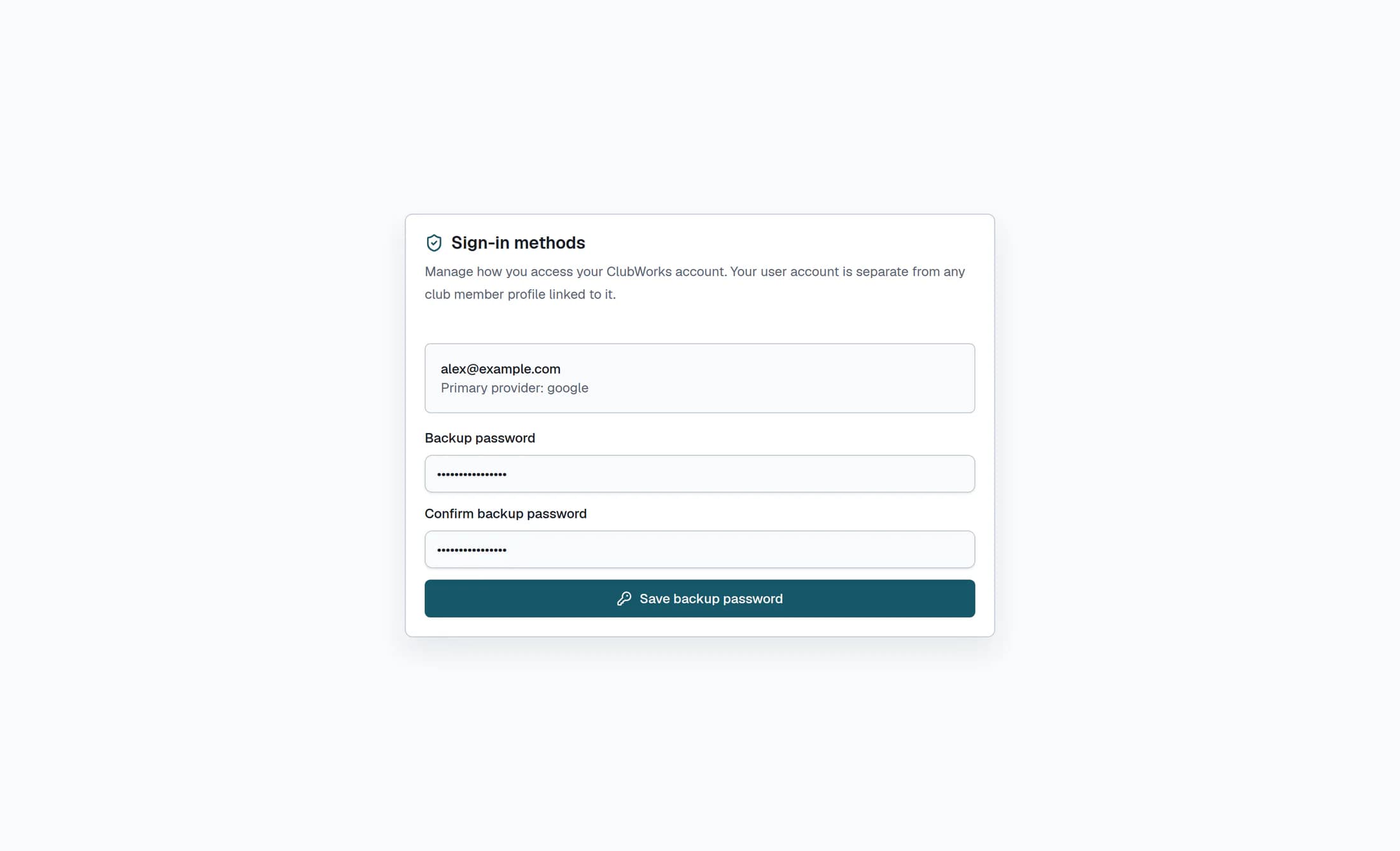
Step 2 of 3
Enter your backup password
Enter a password of at least 8 characters in Backup password. Enter the same password in Confirm backup password; Save backup password becomes available when both entries match and meet the length requirement.
Step 3 of 3
Save the password
Select Save backup password. Wait for “Backup password saved.” and both password fields to clear before treating the change as confirmed.
If the change isn’t confirmed
Your backup password
Once the page confirms the save, your ClubWorks account has the new password. This page doesn’t link or unlink social sign-in providers.
