
On this page
Before you start
Step 1 of 3
Select the page
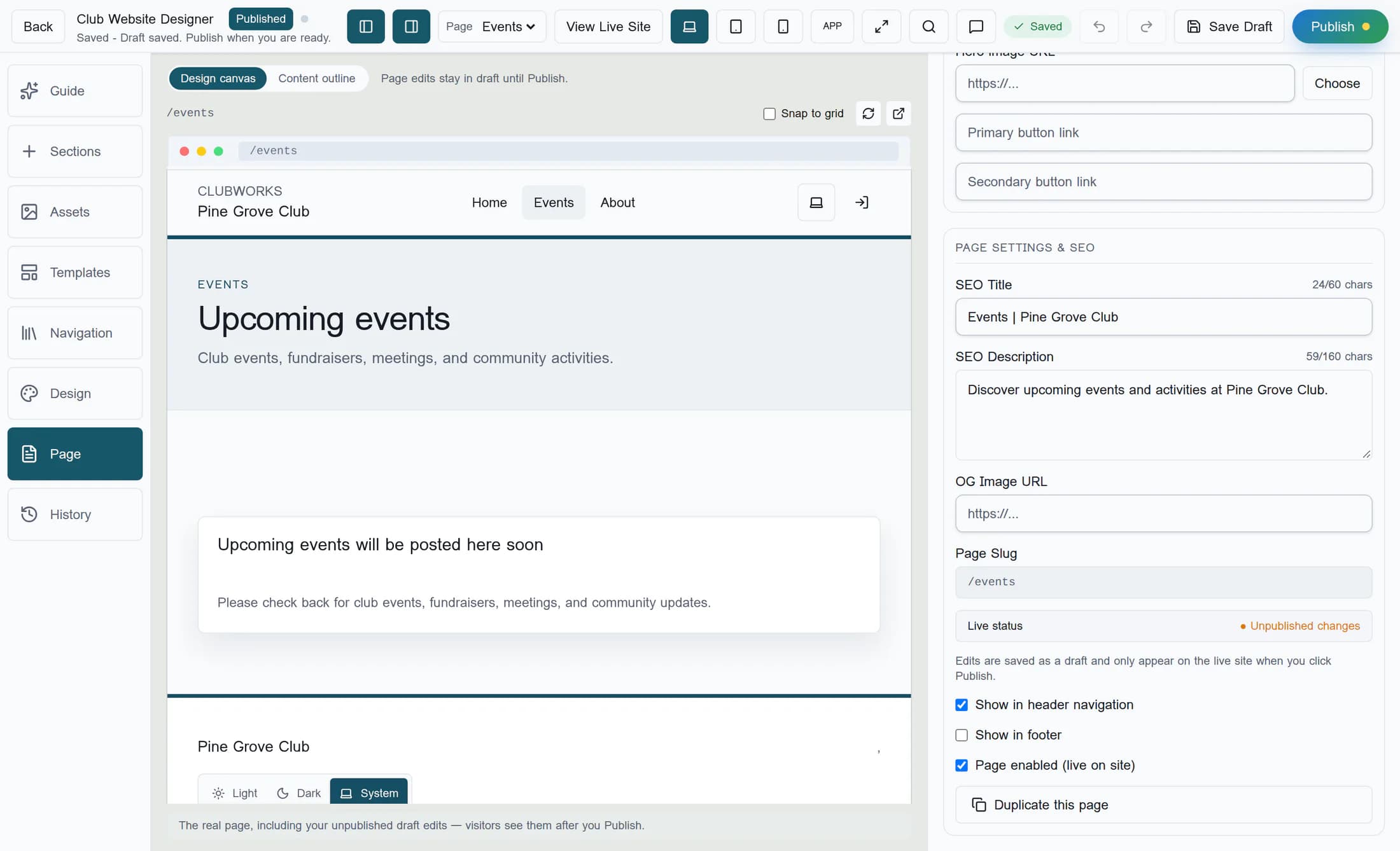
Open the classic Club Website Designer from Site Builder in the admin area. Use the Page selector in the top toolbar to choose the page you want to edit. Select Page in the left toolbar if its settings are not already open, then scroll down to Page Settings & SEO.
Step 2 of 3
Enter the search and sharing details
Enter a descriptive SEO Title and SEO Description. For example, a fictional club might use ‘Scholarships | Pine Grove Club’ and ‘Learn about local scholarships and how to apply.’ The 60- and 160-character counters are guidance: they change color above those numbers, but the fields do not enforce those lengths.
In OG Image URL, enter the address of an image you want sharing services to use. The field shows a preview when it has a value. Use a publicly accessible image and check that the preview loads. Save and publish validation accepts a valid HTTP or HTTPS URL or a path starting with
/; it does not check that the image is reachable or that a service can use it. If you see ‘Open Graph image URL is invalid,’ correct the address and try saving again.Step 3 of 3
Save the draft and publish
Edits normally autosave as a draft. To force a save, select Save Draft and check the status for confirmation. A draft does not update the live site. When ready, select Publish. Resolve any blocking findings; review warnings before deciding whether to continue. Check the status and the live page after publishing. If publishing cannot be confirmed, check the live page before retrying; your draft is retained.
What to expect
Summary
Choose the page, enter its search and sharing details, save the draft and publish when ready. Check the public page and allow outside services time to refresh.
