
On this page
Before you start
Step 1 of 7
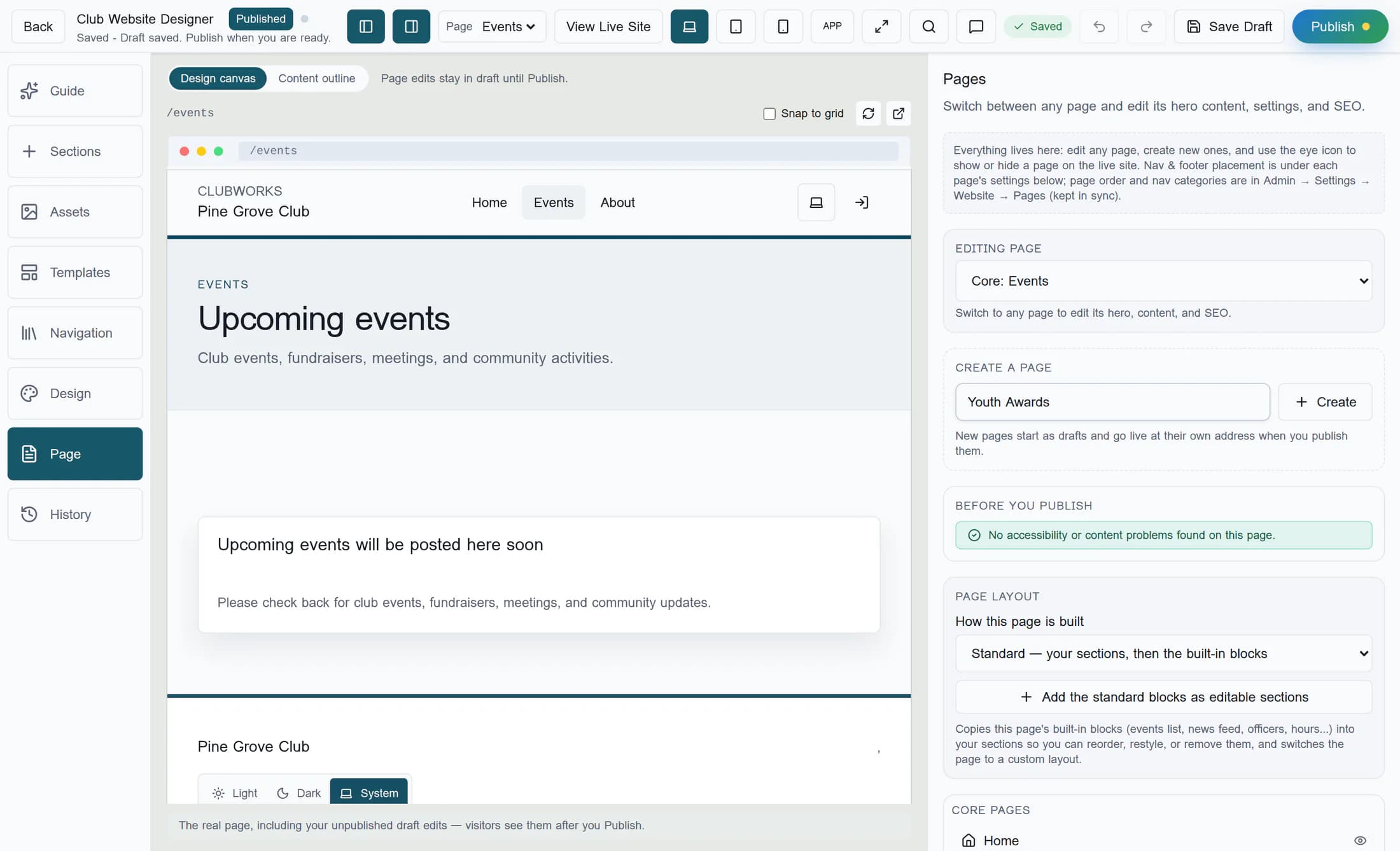
Select a page
In the designer, select Page in the left toolbar. Choose a page from Editing page, the grouped page list, or the Page selector in the top bar. Core and feature pages include built-in pages; custom pages are pages your club creates.
Step 2 of 7
Create a custom page
Under Create a page, enter a name, such as Youth Awards, and select Create. The new page opens as a draft with an address based on its name; if that address is taken or reserved, the designer adds a number. New pages start outside the header and footer.
Step 3 of 7
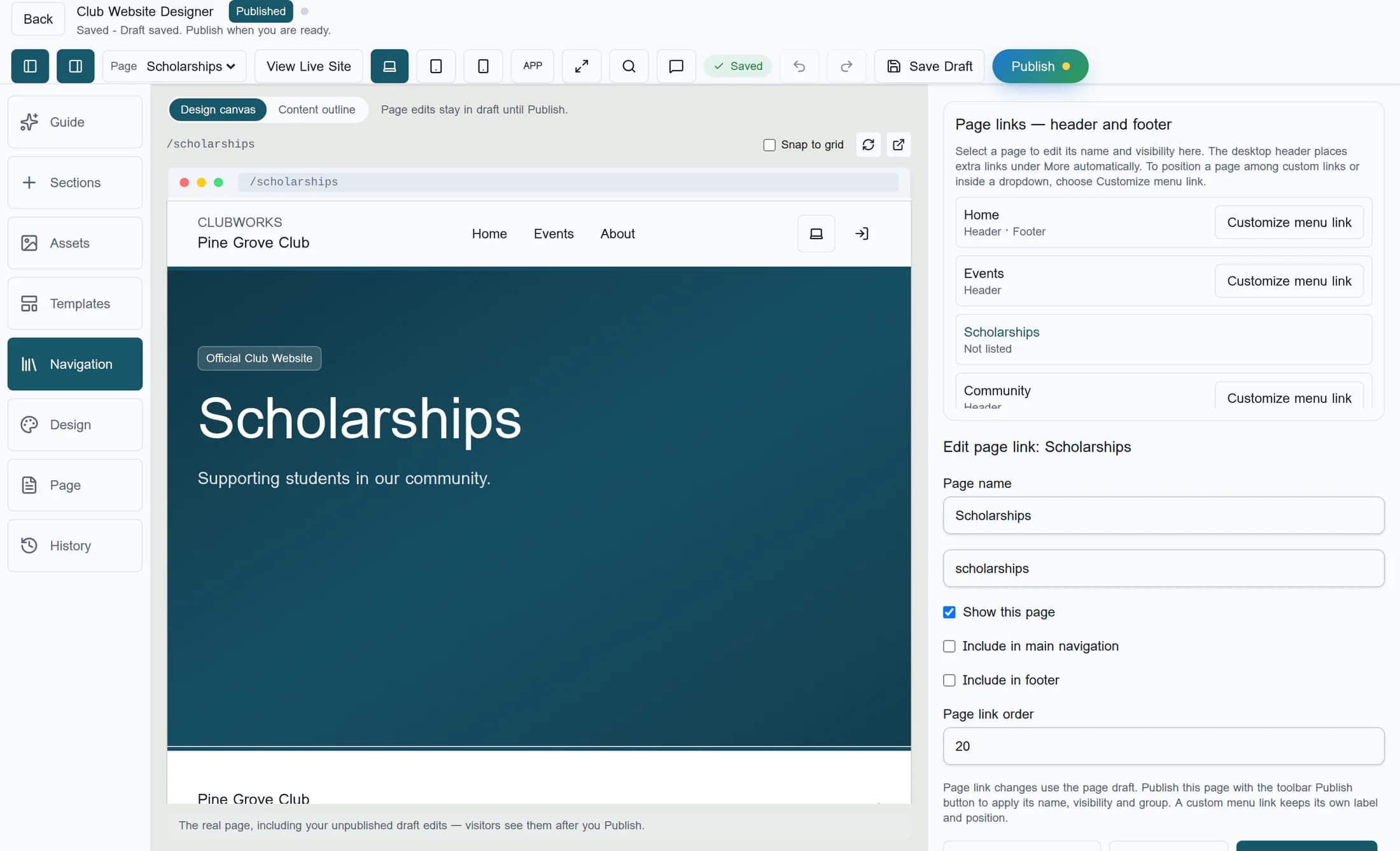
Set the name and address
Select Navigation, then select the page under Page links — header and footer. Edit Page name and, for a custom page, its page address. Use lowercase letters, numbers and hyphens, starting and ending with a letter or number; built-in pages have fixed addresses, and custom pages cannot use reserved or built-in addresses.
Step 4 of 7
Choose where the page appears
In Navigation, use Show this page, Include in main navigation, and Include in footer for the selected page. A page can be enabled without a header or footer link; hiding a link is different from hiding the page. The eye icon in the Page list also stages a show or hide change.
Step 5 of 7
Arrange page links
In Navigation, set Page link order for the selected page and choose a Page navigation group when available. In the Page list, custom pages also have Move up and Move down controls; publish each affected page to apply the changed positions. A customized menu link keeps its own label and position; menu edits use Publish Navigation separately.
Step 6 of 7
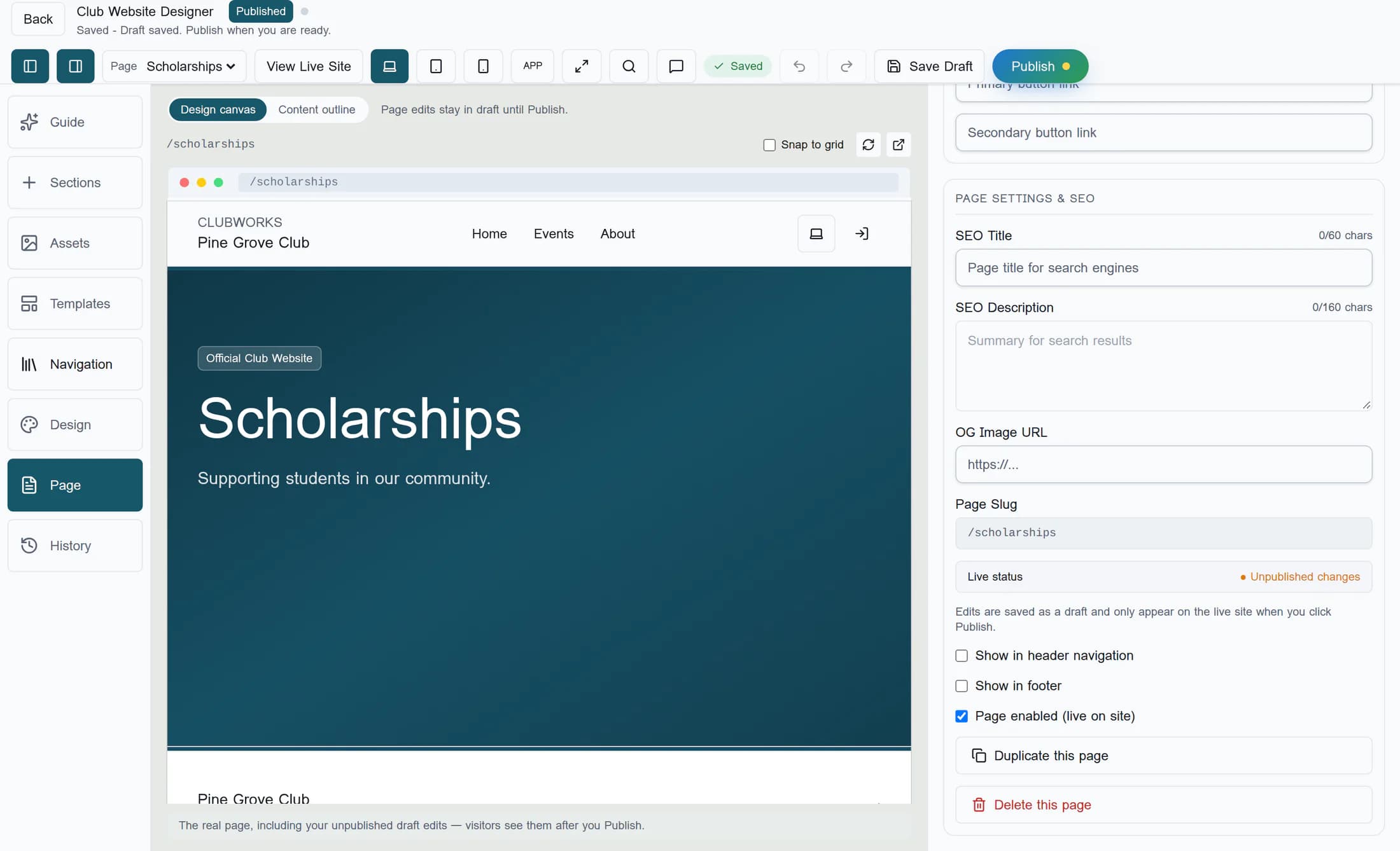
Copy or hide a page
In Page, select a page and scroll to the Page Settings & SEO area. Duplicate this page creates a new custom draft with copied sections; review it before publishing. For an eligible custom page, Delete this page stages hiding it rather than permanently deleting it; publish to apply, or use Undo to restore the draft. Built-in pages cannot be deleted.
Step 7 of 7
Save and publish
Page edits autosave as drafts; select Save Draft to save immediately. Select the page you want to make live and choose Publish; fix any errors in the checks, or review warnings and choose Publish anyway if appropriate. Visit View Live Site to check the result, and repeat for each changed page you want to publish.
If you need to recover changes
Summary
Your page changes stay in draft until you publish each affected page. Check the live site and publish navigation separately when you change the custom menu.
