
On this page
Step 1 of 8
Check the club, page and address
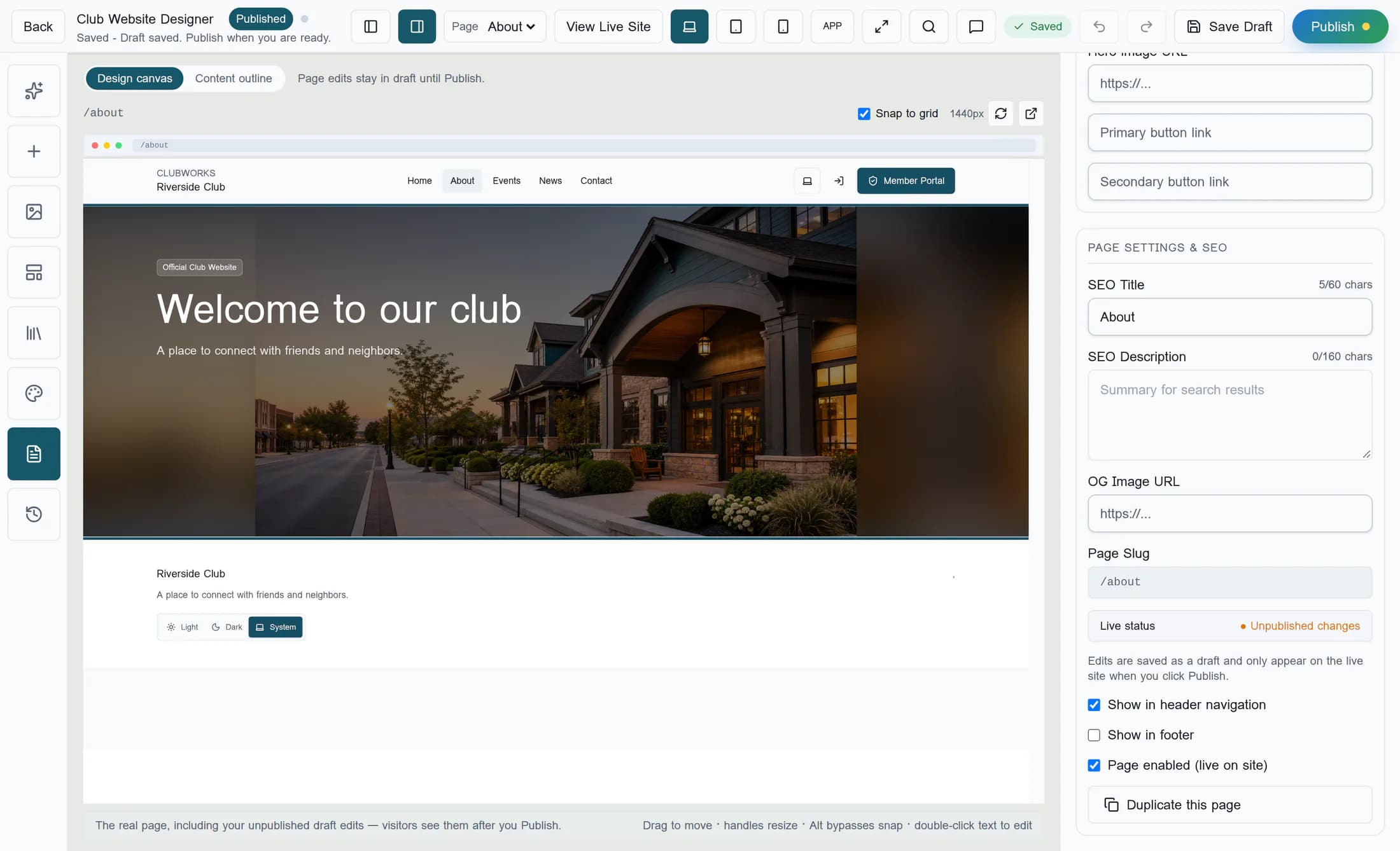
In Club Website Designer, use the Page selector to check that you are editing the intended page for your club. Use View Live Site and compare the club and page address with the page you expected; the Page panel also shows the page slug.
Step 2 of 8
Check whether the draft saved
The canvas can show draft edits that visitors cannot see. Wait while Autosaving… or Saving… is shown; if you see Save needs attention or a draft save failure, keep the editor open and use Save Draft to retry. A saved draft still needs to be published.
Step 3 of 8
Resolve a conflict or recover unfinished work
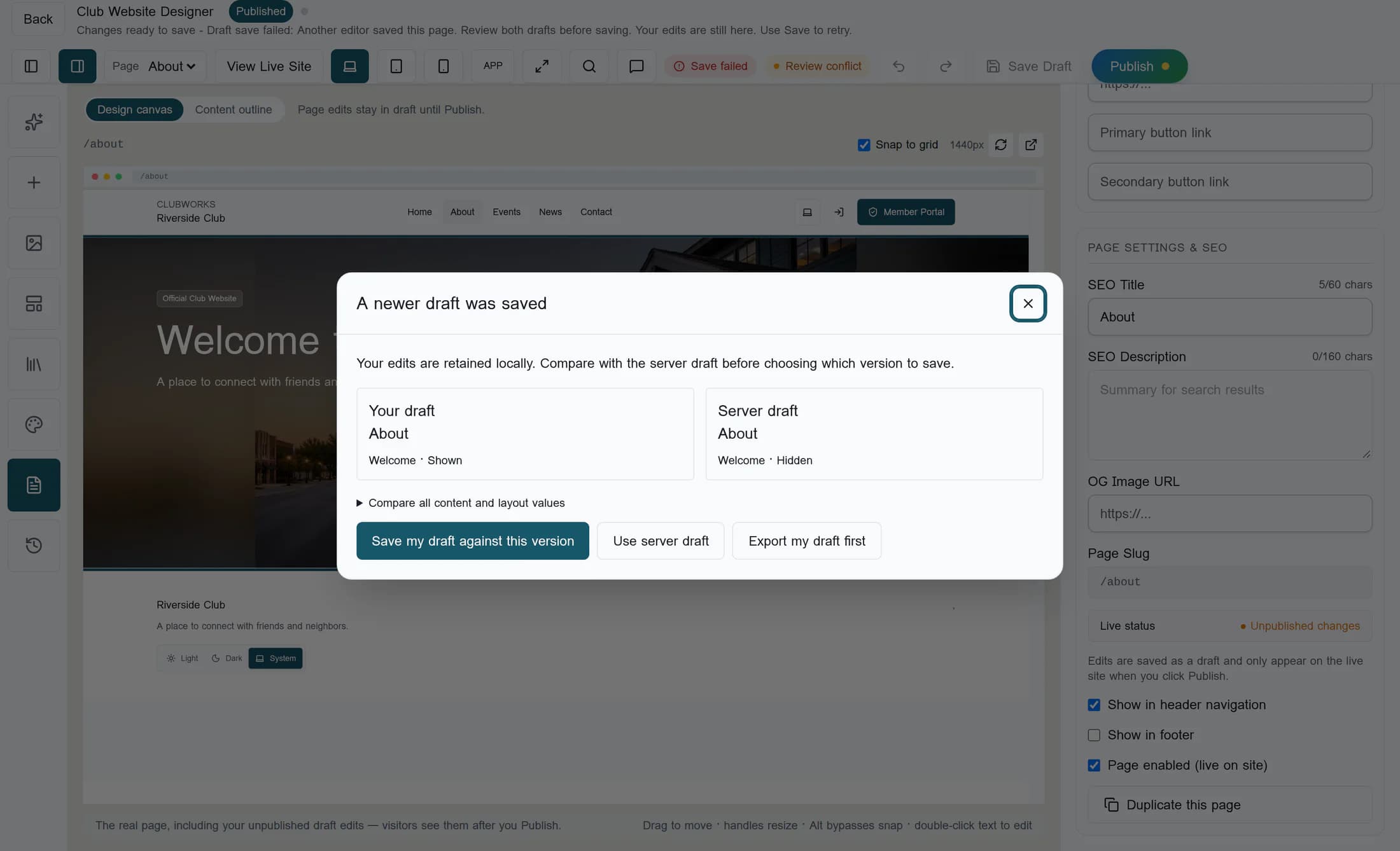
If A newer draft was saved appears, compare your draft with the server draft and choose the version to keep; Export my draft first can preserve your copy. If Recover unfinished work appears, Restore unfinished edits brings them back as a draft, not a live change. Resolve the prompt before saving or publishing.
Step 4 of 8
Check publication
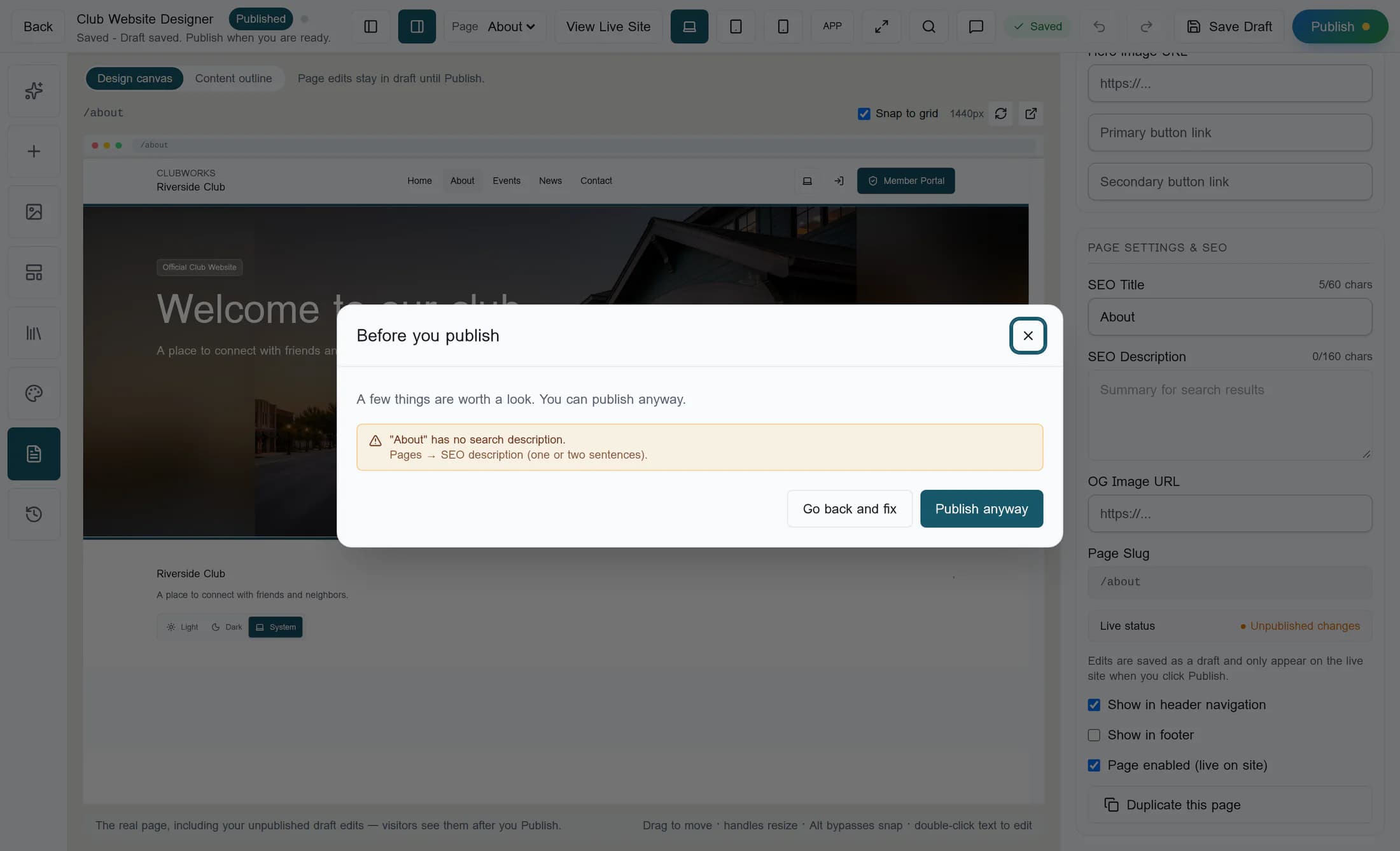
With the right page selected, check Live status in Page: Unpublished changes or Draft (not live) means the page has work that is not live. When ready, select Publish; if Before you publish appears, fix any errors first, or review warnings and use Publish anyway if appropriate.
Step 5 of 8
Confirm the result
Look for Published to the live club site. and then check the intended live page. If you see Publish could not be confirmed, the draft is retained: check the live page before retrying, since the result is uncertain. A Published badge alone does not prove your latest edits are live when there are unpublished changes.
Step 6 of 8
Check page and section visibility
In Page, check Page enabled (live on site) and whether Show in header navigation or Show in footer matches where you expect the link. These page settings are drafts until you publish the page; a missing menu link does not by itself mean the page is unavailable at its address. A page or section may be restricted to members or other roles, so check its intended audience and sign-in access as well as whether the section is shown.
Step 7 of 8
Check design and navigation separately
Design choices save separately from page drafts and apply to the live site when saved. If a design save failed, open Design and use Apply design now to retry; that button also applies custom CSS. Custom menu edits have their own Publish Navigation action, separate from publishing a page.
Step 8 of 8
Get help if the change is still missing
Note the club, page address, what you expected to see, and the exact save or publish message. Contact your club’s site administrator or use Help & Support, and share those details so they can investigate without assuming the publish succeeded.
Summary
A saved draft, a confirmed publication and a separately saved design are different things. Check the intended live page after any confirmed change.
