
On this page
Before you start
Step 1 of 5
Open the directory
In the member portal’s top navigation, select Club life, then Directory. The Directory privacy panel appears above Member directory; the club name in the header helps you confirm which club you are viewing.
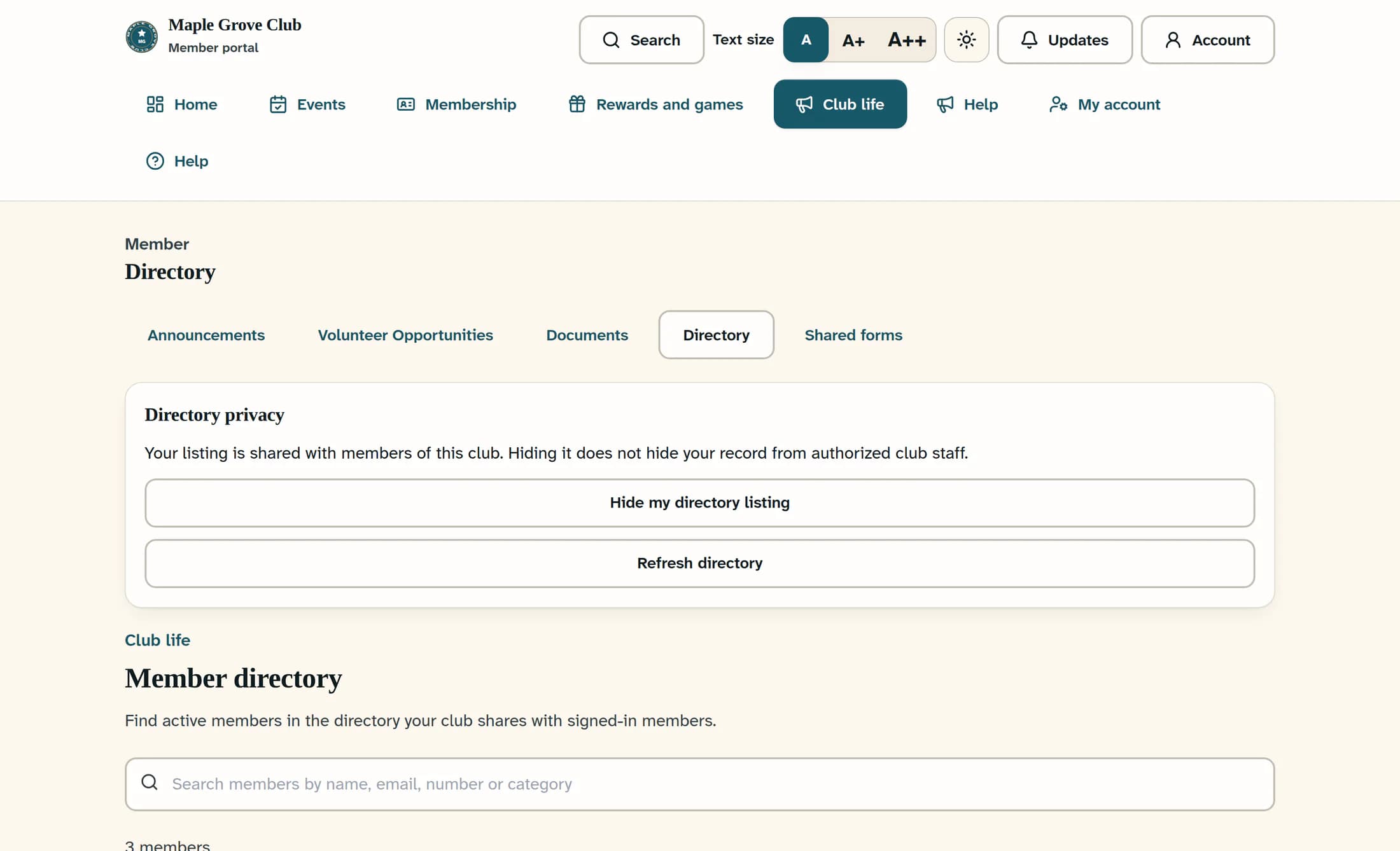
Step 2 of 5
Search for a member
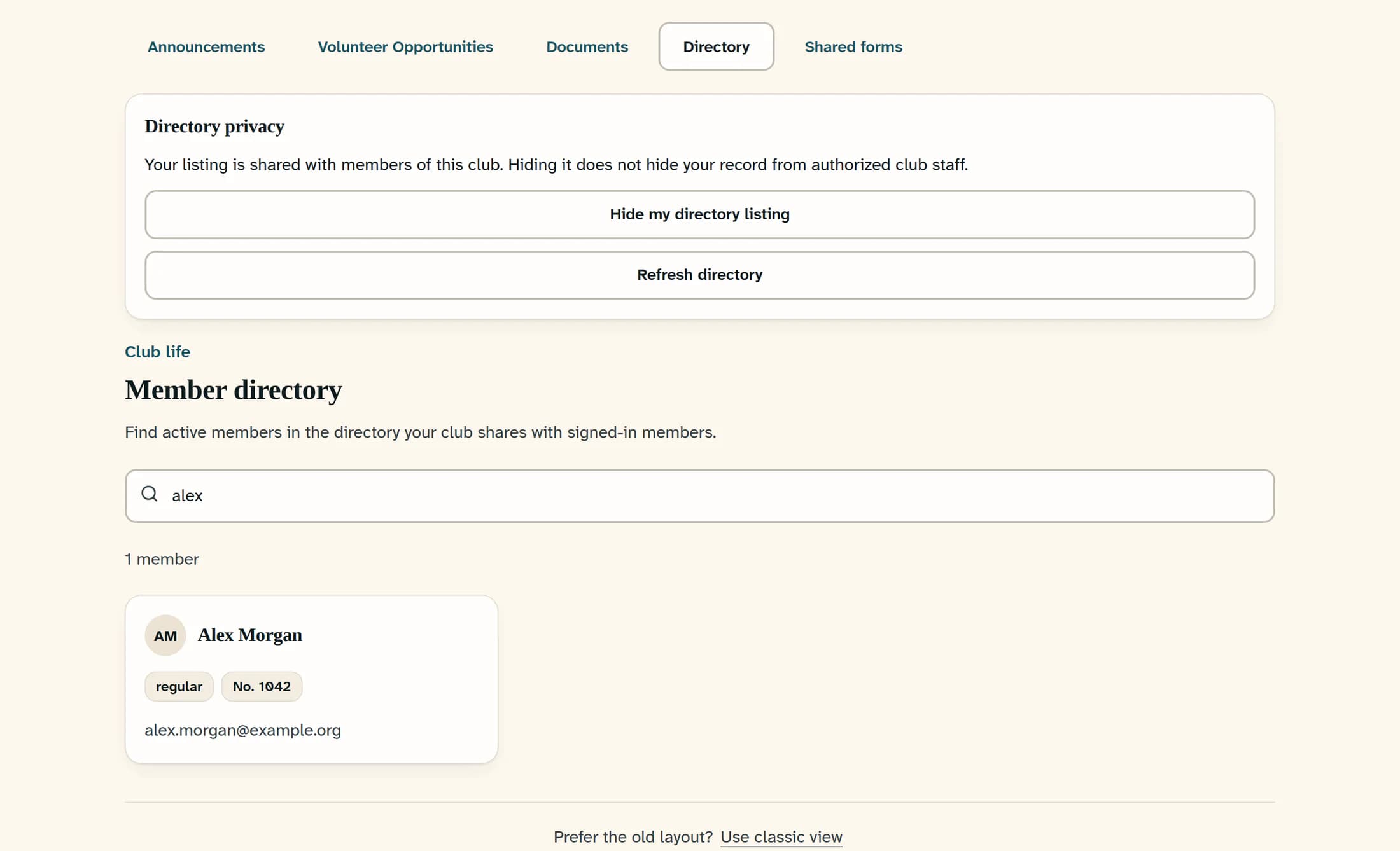
Scroll down to the search field and type a name, email, member number or category into Search members by name, email, number or category. Results update as you type, and you can use part of a value without matching its capital letters.
Step 3 of 5
Read the matching cards
Each card shows the member’s name, category and email, plus a member number when one is available. The number above the cards counts the visible members matching your search, not the club’s full roster. Email addresses appear as text, and the cards do not open contact profiles.
Step 4 of 5
Try again when no members match
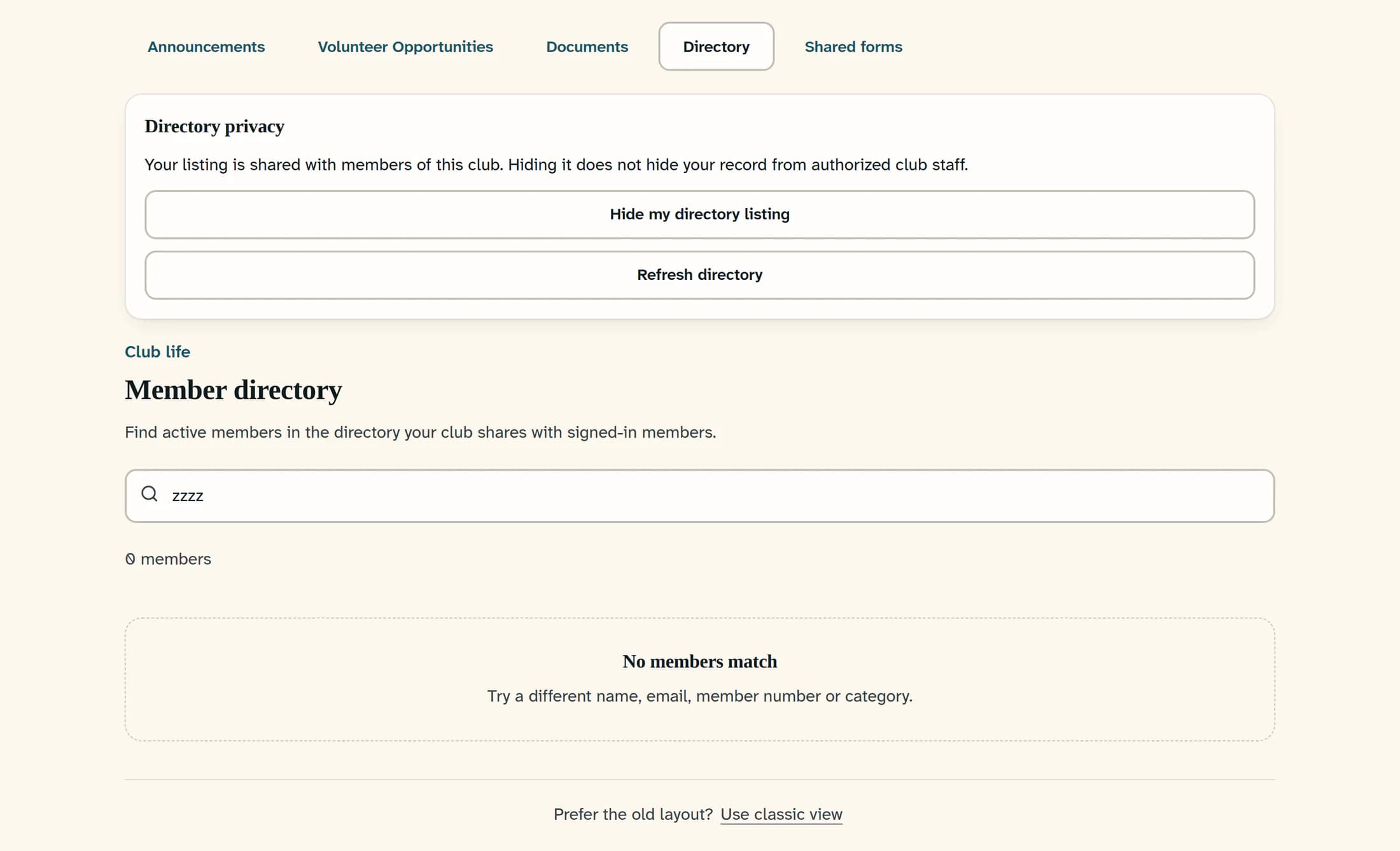
If No members match appears, replace the search text with a shorter name or another detail, or delete all the text from Search members by name, email, number or category. With the search empty, the directory shows all listings available to you.
Step 5 of 5
Refresh results if needed
If results still seem incomplete, select Refresh directory in the Directory privacy panel and wait for the request to finish. An error means the refresh did not confirm current results; see the recovery notes below.
If someone is missing or the directory will not load
Your own directory listing
Hide my directory listing controls whether other members can see your listing; it does not hide your record from authorized club staff. You do not need to change it to search the directory. See Update your profile and privacy preferences for the separate privacy task.
Expected result
You can browse or search the current club’s visible member listings and read the details shown on their cards. The count reflects your current search and the listings available to you.
About this guide
This guide covers the redesigned ClubWorks web member portal. The illustrations are reconstructed from the October 21, 2026 source release, checked against the relevant production files on October 22, 2026, and use fictional names and example.org addresses. They are not live screenshots or proof of a completed live workflow; the native member apps have not been verified for this guide.
The screens in this guide show example clubs and people. Your club's name, colours and some labels may look different.
