
On this page
Before you start
The illustrations are reconstructed from the ClubWorks web interface with fictional records, not live screenshots. Your club’s branding and available menu items may differ; the native phone apps are not covered here.
Read balances and history only after the page finishes loading without an error. A loading or access error does not confirm a zero balance or an empty payment history.
Step 1 of 4
Open your dues page
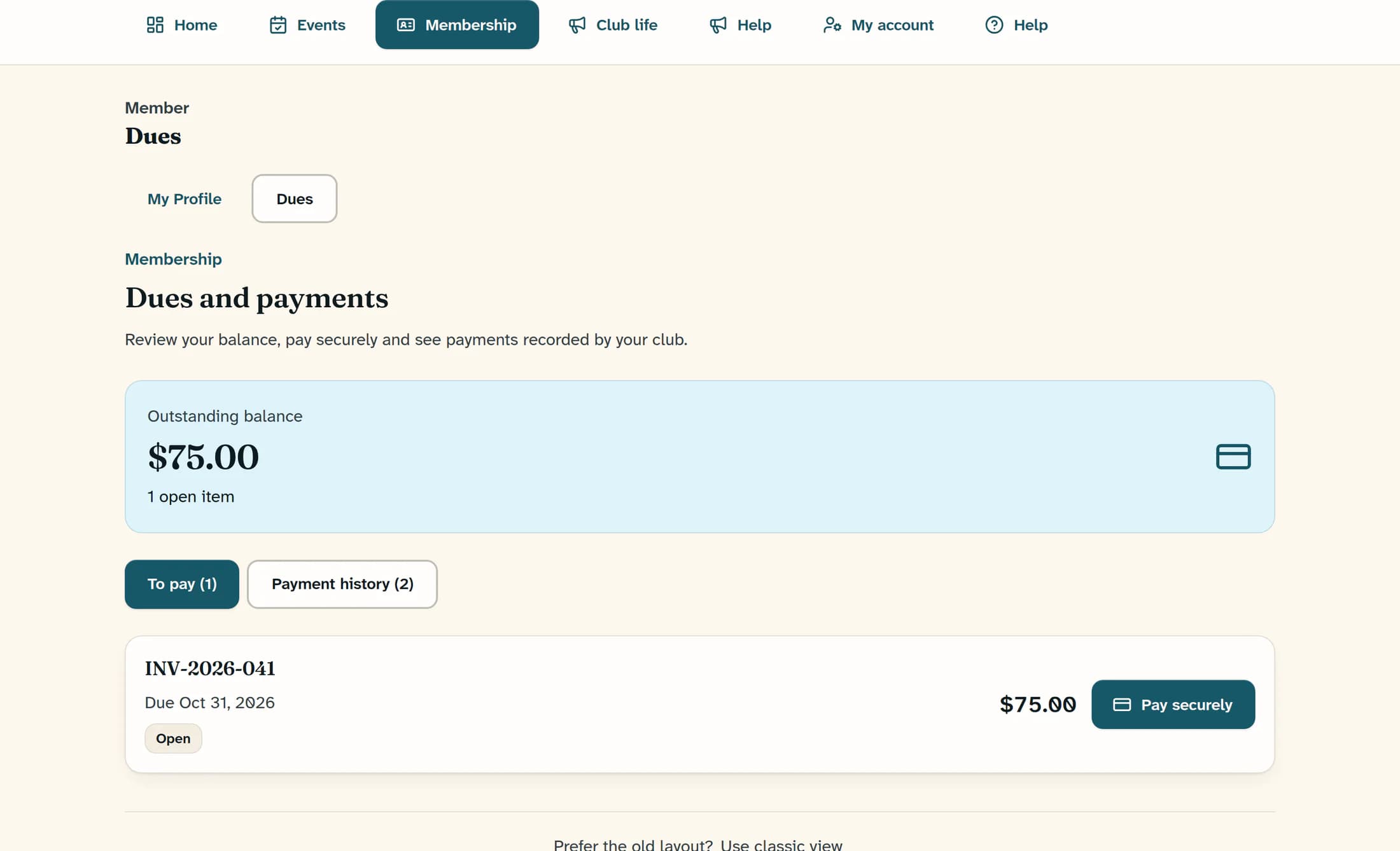
In the member navigation, choose Membership, then Dues. On Dues and payments, review Outstanding balance and the To pay tab, which opens by default.
Step 2 of 4
Read the balance and open items
The balance totals the dues currently assigned, open or overdue: each item uses the remaining invoice balance when linked to an invoice, otherwise the assigned dues amount. Under To pay, each item shows its invoice number or Dues assignment, due date, status and amount. You do not need to press Pay securely to review this information.
Step 3 of 4
Review payment history
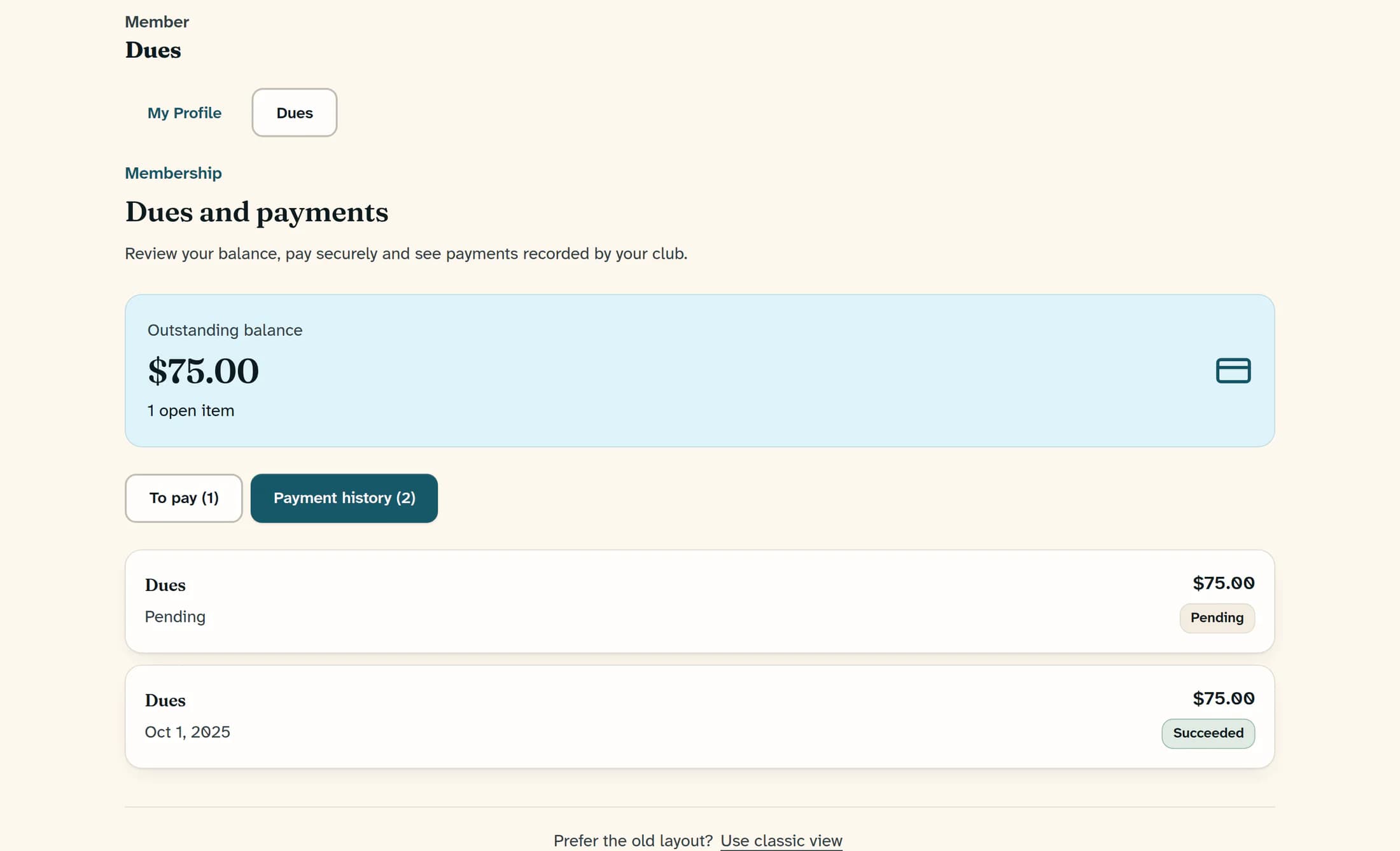
Select Payment history; its count is the number of payment records shown. Each row gives the payment type, date, amount and status, with the most recently created record first. The history can include other payment types recorded for your account, not just dues.
Read the status as well as the amount
- Succeeded identifies a successful payment record. Other rows may be pending, failed, refunded or have another status; a row in the history does not always mean a successful payment.
- The date is the recorded payment date when one is available. Pending in the date position means no payment date is recorded there; it is not a completed payment date.
- This member history screen has no receipt-download, refund or payment-edit control. Ask the club office if you need a receipt or help with a record.
Step 4 of 4
Understand a zero balance or empty history
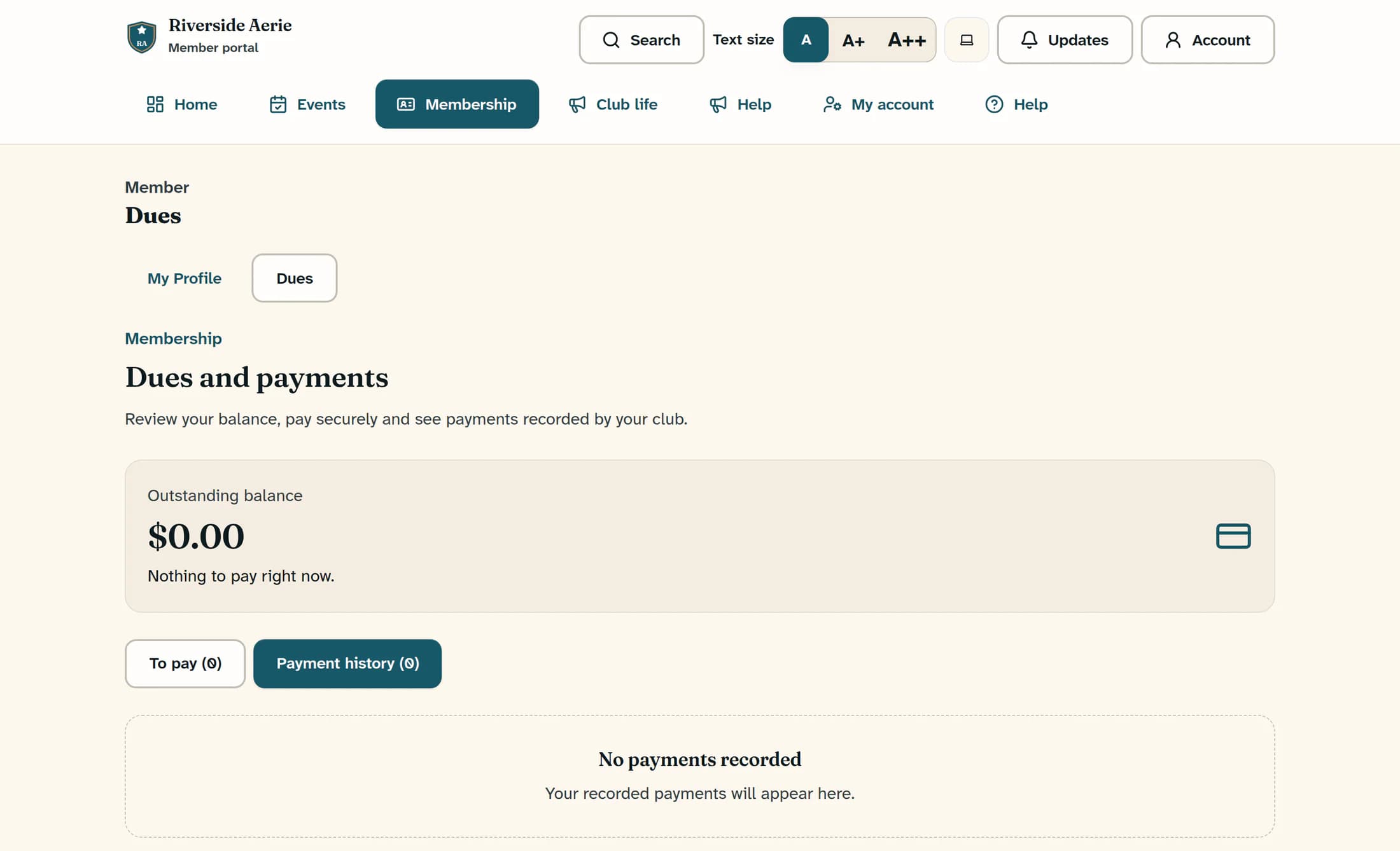
A zero balance with Nothing to pay right now., or You are up to date under To pay, describes the dues shown online; it does not independently confirm membership status or a paid-through date. No payments recorded means no payment records are shown for this account and club, not that you have never paid. Prior or offline payments may need to be checked with the office.
If something looks wrong
Summary
Use the open dues list to understand the balance shown, and the payment history to review each record’s date and status. Ask the club office to resolve missing or conflicting records before making another payment.
About this guide
Based on the October 21, 2026 web release, with relevant source compared against the live release on October 22, 2026. Live payment and workflow checks, and native app checks, are still pending.
The screens in this guide show example clubs and people. Your club's name, colours and some labels may look different.
