
On this page
Before you start
Step 1 of 5
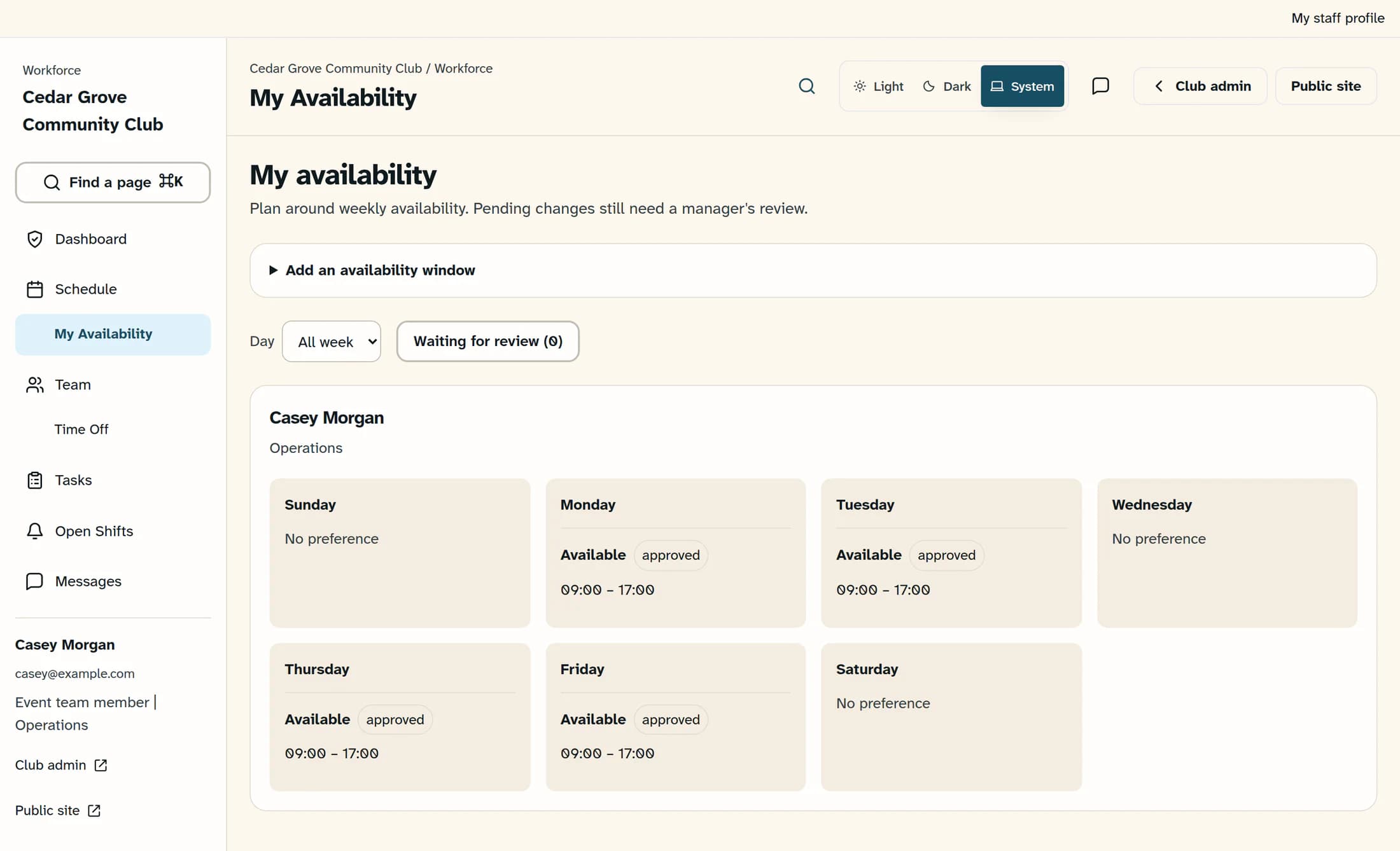
Open your staff profile
From your club’s Workforce workspace, select My staff profile in the Staff account bar above the workspace. The profile page opens with your existing details.
Step 2 of 5
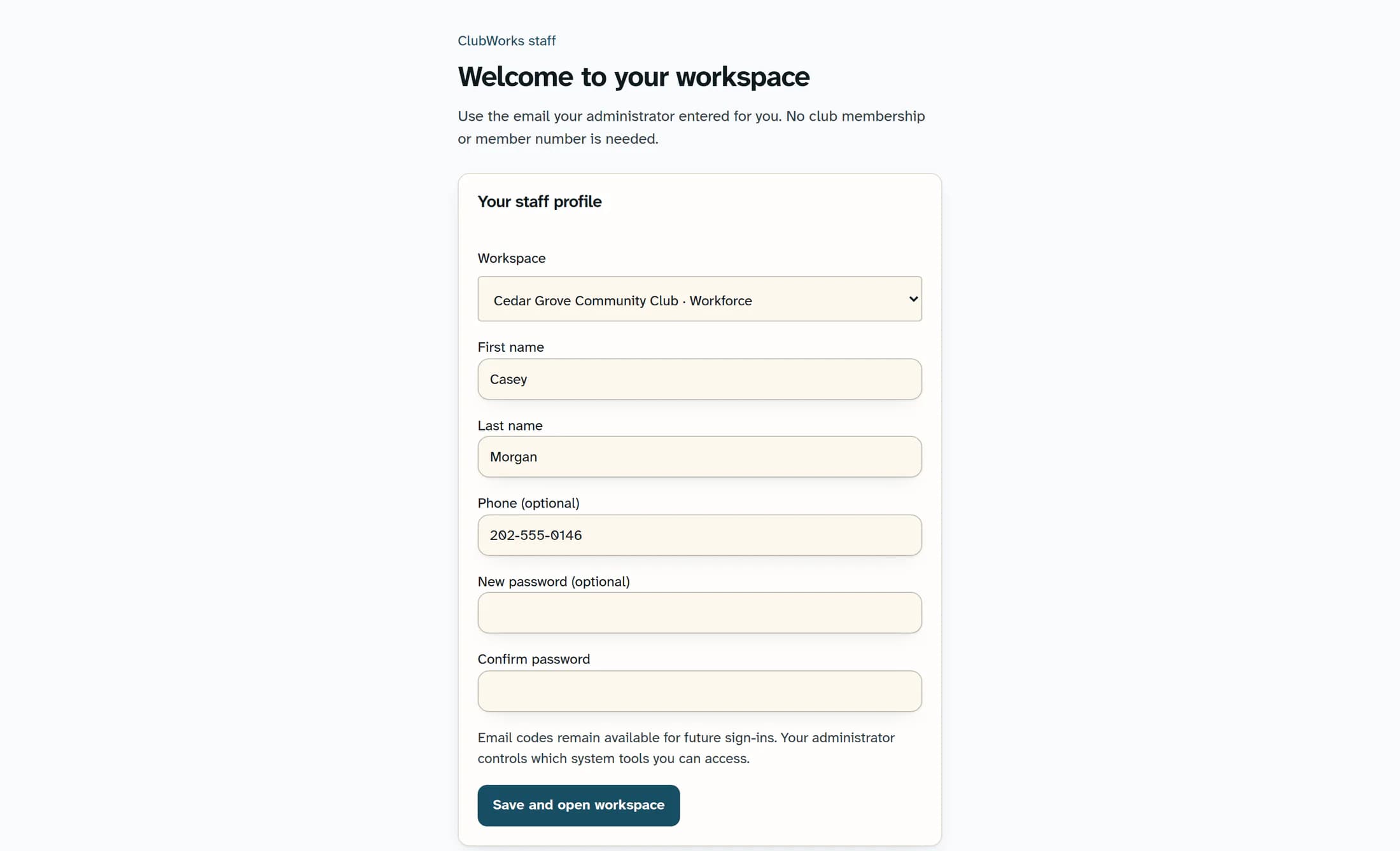
Check the workspace
Check the club name and system shown on the profile card. If Workspace is available, select the Workforce assignment you want to update before entering changes.
Step 3 of 5
Update your name and phone
Enter your First name and Last name. Update Phone (optional) if you want a contact number on this staff profile.
Step 4 of 5
Keep your current password
Leave New password (optional) and Confirm password blank when you only want to update your contact details. You can still use email codes for future sign-ins.
Step 5 of 5
Save and return to work
Select Save and open workspace. After a successful save, you return to the selected club’s Workforce workspace.
If something does not work
- No assignment appears: ask the administrator to check that your sign-in email has staff access to the intended club.
- First and last name are required and each allows up to 100 characters. Phone is optional and allows up to 50.
- If the page shows Choose a password, initial password setup is still required. Use at least eight characters and enter the same password in Confirm password.
- If an error stays on the profile page, your save has not been confirmed. Review the message and correct the fields before trying again.
- The profile form does not change your email address, job role, pay or permissions. Your administrator manages those details.
Your profile is updated
Your saved name and contact number belong to the selected staff assignment. Returning to Workforce confirms that the save completed; this flow does not display a separate profile-saved toast.
About this guide
Illustrations are source-based reconstructions with fictional staff and club details. The browser workflow was checked against matching application source; live saves and native app screens have not been verified.
The screens in this guide show example clubs and people. Your club's name, colours and some labels may look different.
