
On this page
Before you start
Step 1 of 5
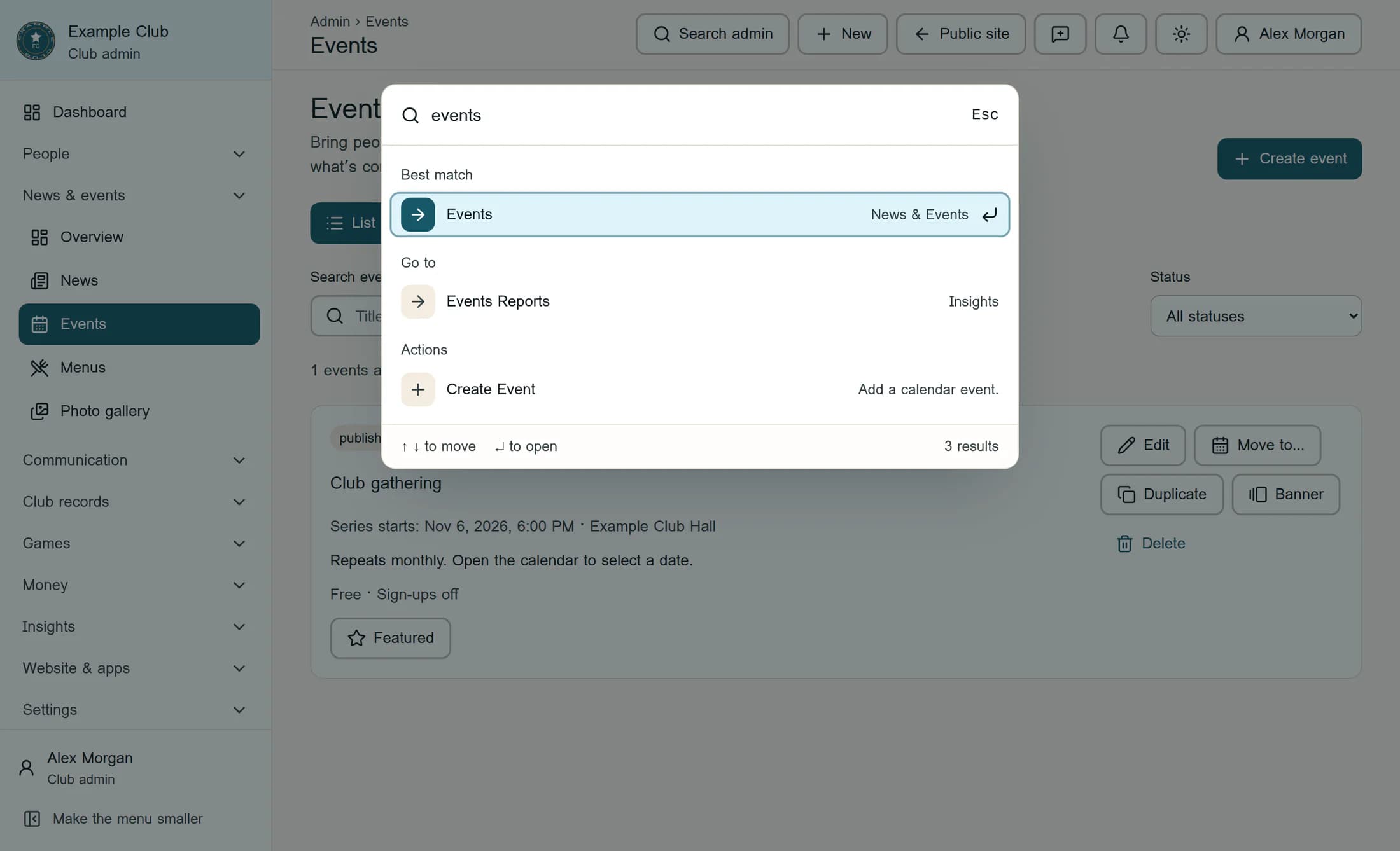
Open Events
Click Search admin in the top bar, type events, and choose Events under Best match.
Step 2 of 5
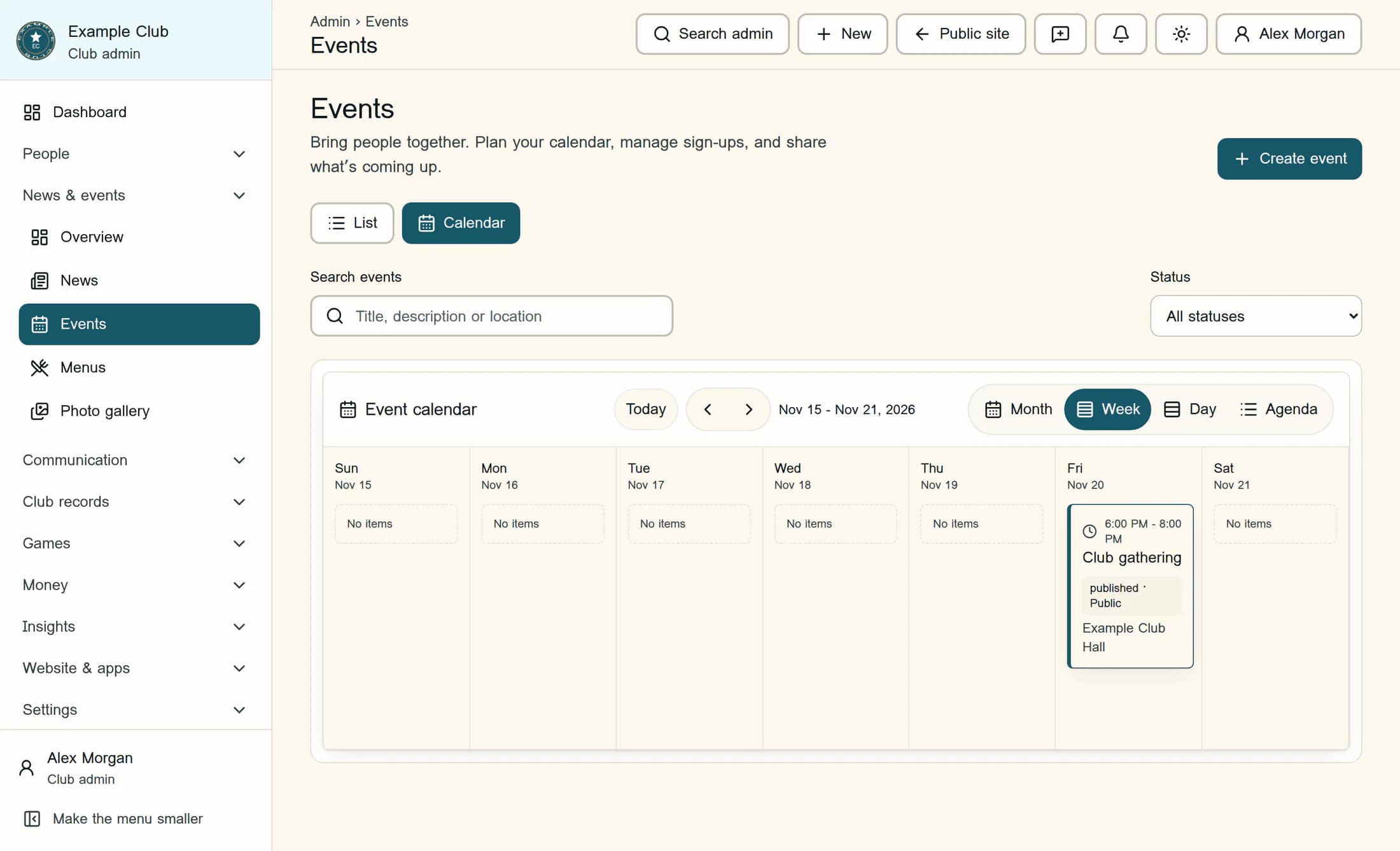
Find the date in the calendar
Choose Calendar, then Month or Week. Use the Previous and Next arrows to reach the date, then drag that occurrence to its new day; in this example, drag the November 20 Club gathering to November 21. The Move event dialog opens.
Step 3 of 5
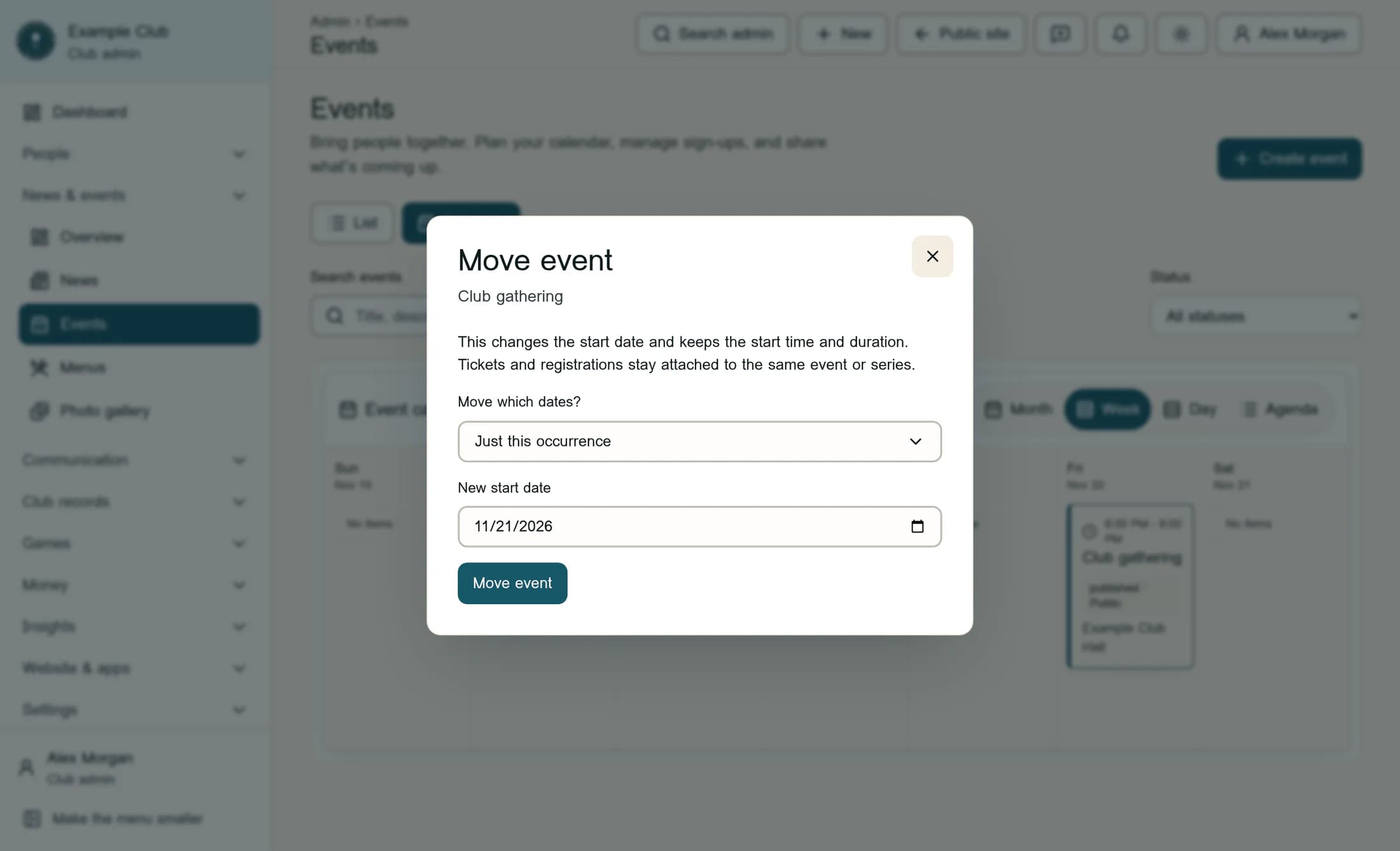
Choose which dates move
In Move which dates?, explicitly choose Just this occurrence for the November 20 example. Check this choice every time you move an event, because your previous choice can remain selected.
For a wider date change
- This and future occurrences moves the selected occurrence and later occurrences by the same number of days. For the example’s one-day move, November 6 stays put; November 20, December 4 and December 18 move to November 21, December 5 and December 19.
- Entire series moves every occurrence by that same number of days, including earlier dates. In this example, November 6 also moves to November 7.
- These choices shift dates while preserving the start time and duration in the club’s time zone. They do not set a separate time for one occurrence.
Step 4 of 5
Check the new date and move
Check New start date and set it to November 21, 2026 for this example. Recheck Move which dates?, then click Move event.
Step 5 of 5
Check the calendar
After Event moved appears, check the calendar for the new date. For the one-occurrence example, confirm that November 21 is at 6:00 PM and that November 6, December 4 and December 18 are unchanged.
Tips
Result
The dates covered by your chosen scope move, while the event’s start time and duration stay the same. With Just this occurrence selected in the example, only November 20 moves to November 21.
Troubleshooting
- Wrong scope or date? Use Undo in the move confirmation before another edit changes the event. If the move can no longer be undone, refresh and check the current dates before making another change.
- If the event changed, the request did not finish, or a reminder-related error appears, refresh and check the dates before retrying. A reminder being sent can temporarily prevent a move.
- Choose a different valid date, between 1 and 366 days earlier or later than the selected occurrence’s current date.
- If you cannot drag an occurrence, cannot see Move which dates?, or use the classic interface, ask your club administrator for help. Do not assume a move without the scope chooser changes only one date.
- If access is denied, ask your club administrator to check your event-editing and publishing permissions.
About this guide
The illustrations are source-based reconstructions of the Clubhouse web interface, with fictional club and event data. This workflow was reviewed against application source and has not been verified in a live session; your club’s appearance may differ.
The screens in this guide show example clubs and people. Your club's name, colours and some labels may look different.
