
On this page
Before you start
Step 1 of 7
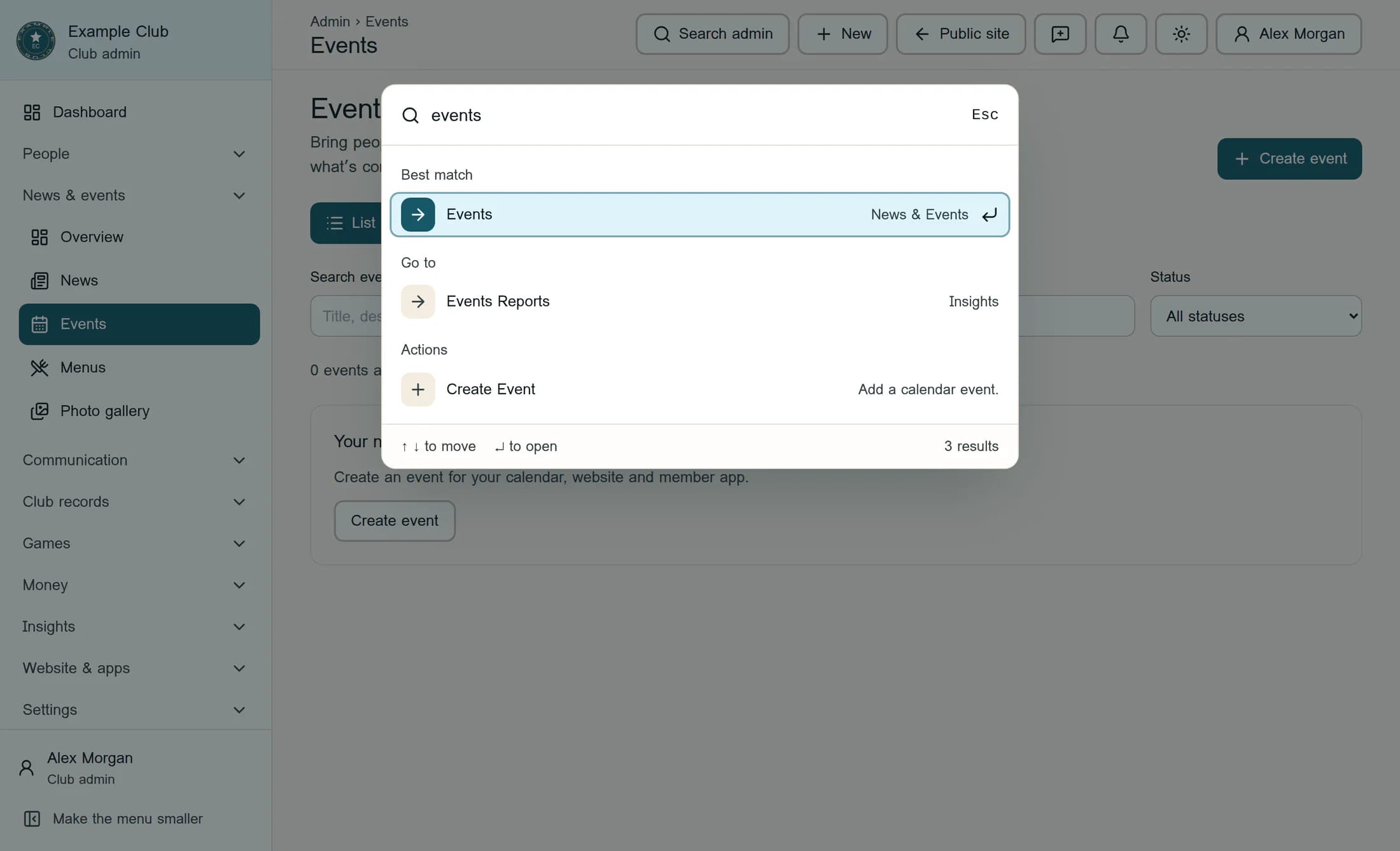
Open Events
Select Search admin in the top bar and type events in the search field. Choose Events under Best match, then select Create event at the upper right of the Events page.
Step 2 of 7
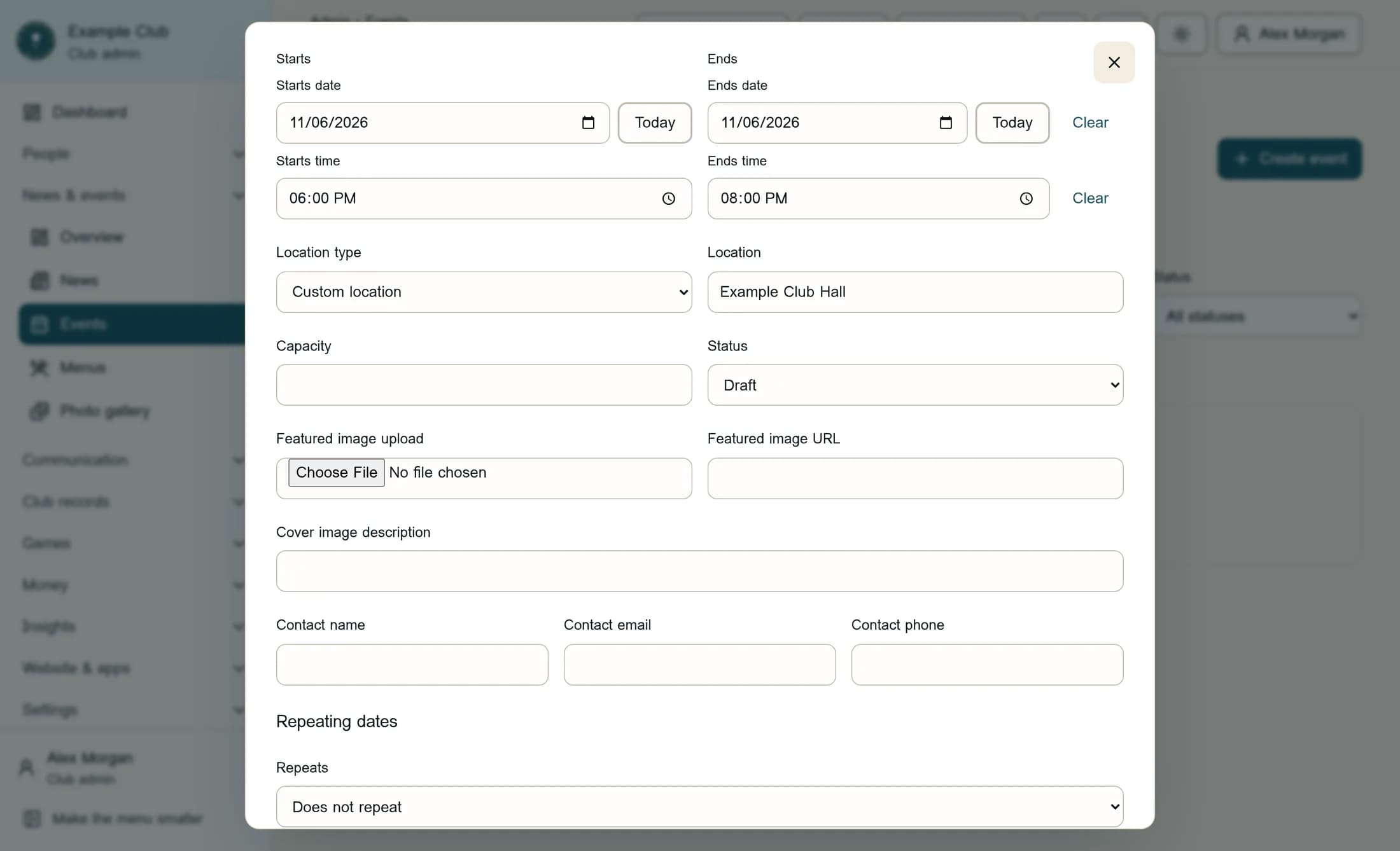
Enter the first date and save status
Enter Friday gathering in Title, November 6, 2026, at 6:00 PM in Starts, and November 6, 2026, at 8:00 PM in Ends. Choose Custom location under Location type and enter Example Club Hall in Location. Set Status to Draft now: new events start with Published selected.
Step 3 of 7
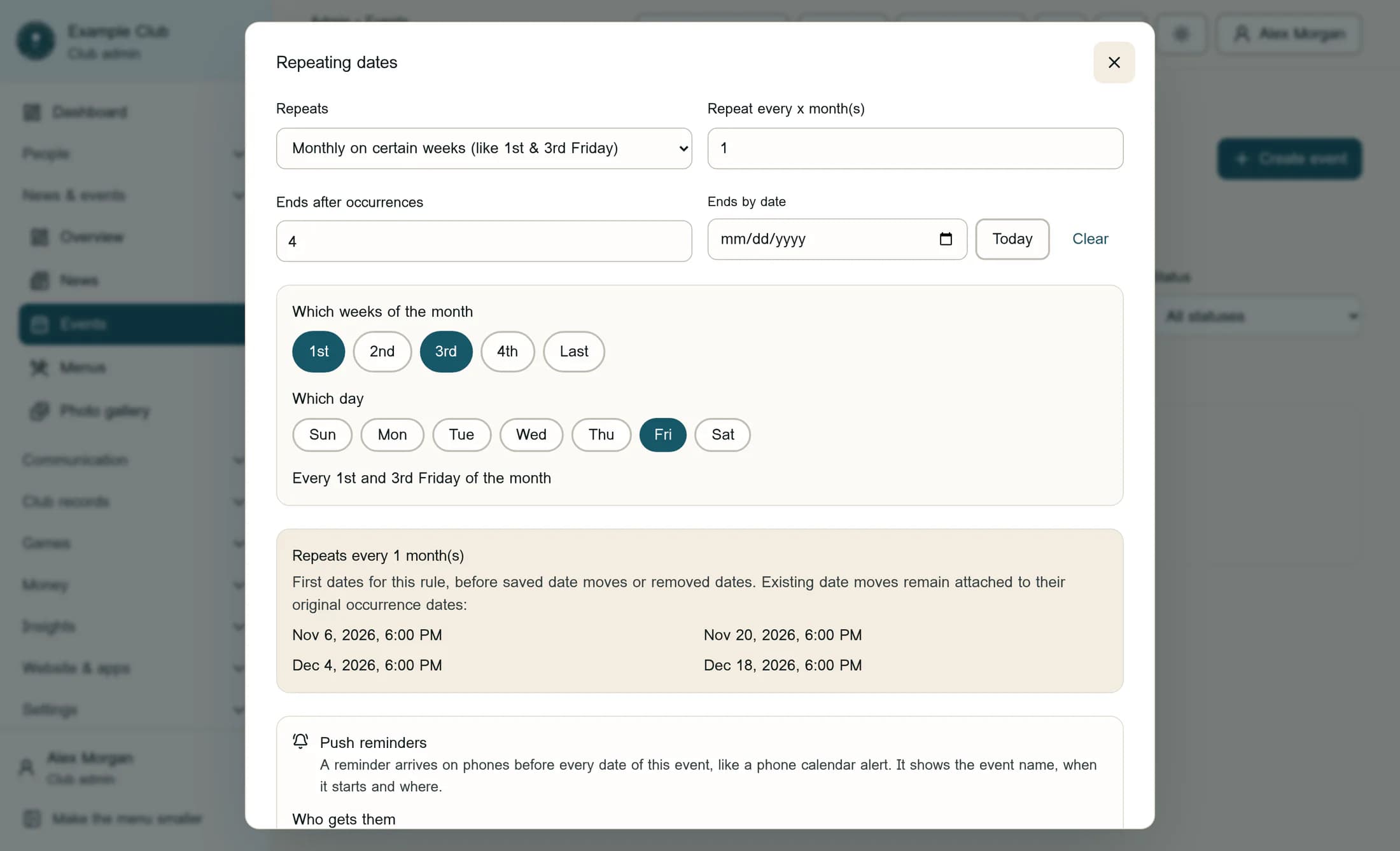
Choose the monthly pattern
Scroll to Repeating dates and choose Monthly on certain weeks (like 1st & 3rd Friday) in Repeats. Set the repeat interval beside Repeats to 1, then select only 1st and 3rd under Which weeks of the month, and only Fri under Which day. Selected buttons are filled; click any extra selected week or day to clear it.
Step 4 of 7
Limit the series to four dates
Enter 4 in Ends after occurrences and leave Ends by date blank. Check that the preview lists November 6, November 20, December 4 and December 18, 2026, at 6:00 PM. The preview shows the first dates for the rule, before any saved date moves or removed dates.
Step 5 of 7
Create the draft
For this free gathering, scroll below the recurrence settings and leave Paid event and Post to Facebook when published unchecked, and leave Push reminders without any added reminders. Check that Status is still Draft, then select Create event at the bottom of the editor. Saving the event does not itself send a push announcement.
Step 6 of 7
Check the saved dates
Back in Events, select Calendar and check the saved dates and times in your club’s time zone, moving between November and December as needed. Confirm November 6, November 20, December 4 and December 18, each from 6:00 PM to 8:00 PM for this example. Return to List and select Edit beside the existing series to review or correct its settings.
Step 7 of 7
Publish when ready
Near the first-date fields in Edit event, set Status to Published when the dates and details are ready. Keep Post to Facebook when I save unchecked for this example, then scroll to the bottom and select Save changes. The editor saves changes to the whole series; moving one date is a separate calendar action.
Tips
Result
You now have one saved recurring series with four planned dates. After you publish it, review its appearance in your club’s calendar and event views.
Troubleshooting
- If the dates do not match, reopen the existing series with Edit and check Starts, the repeat interval, selected weeks and days, and both stopping limits. The preview may differ from the saved calendar if dates were moved or removed earlier.
- If the time is wrong, compare your device’s local time zone with your club’s time zone before changing Starts or Ends. Those fields describe the first date; changing them affects the entire series.
- If saving fails, check for a title and valid start time, an end later than the start, positive whole-number repeat settings, and at least one selected week and day for the monthly pattern.
- If you see “The event was saved, but its reminders were not. Open the event and save again.”, reopen the existing record and save again. Do not create another event: the event itself was already saved.
About this guide
The illustrations are source-based reconstructions of the Clubhouse web interface, not screenshots of a live club account. Example Club, Friday gathering, Example Club Hall, the dates and all other example details are fictional. The instructions were checked against the application source; the workflow in a live club account has not been verified.
The screens in this guide show example clubs and people. Your club's name, colours and some labels may look different.
