
On this page
Before you begin
The illustrations are reconstructed from ClubWorks source with fictional club details and draft text. They show the expected screens, not a live AI response or a tested clipboard operation.
Step 1 of 5
Open Communications Hub
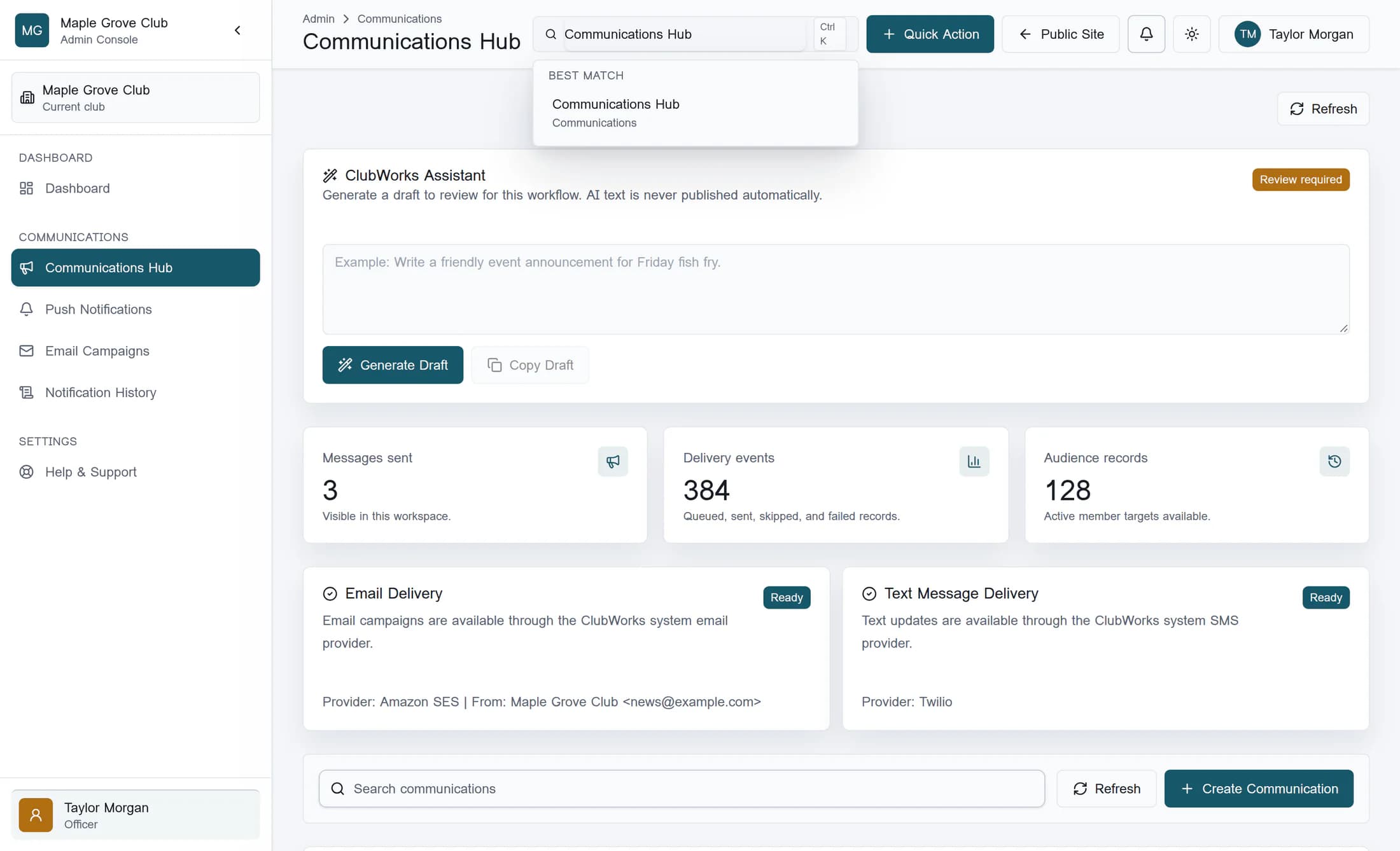
In your admin area, type Communications Hub in Search admin, then select the Communications Hub search result. Find ClubWorks Assistant above the communications workspace.
Step 2 of 5
Describe the draft you need
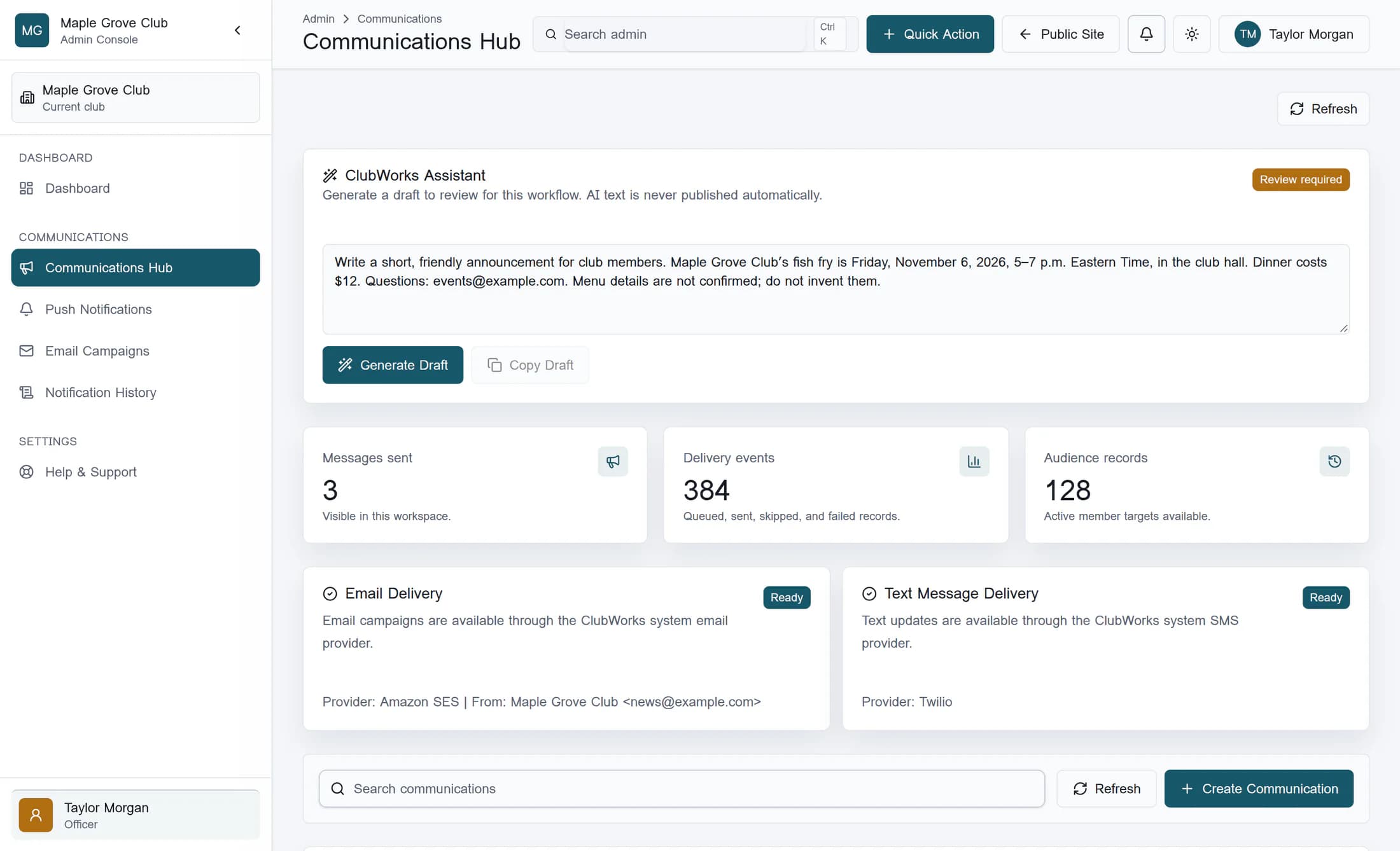
Enter your request in the assistant’s text box, identified when empty by Example: Write a friendly event announcement for Friday fish fry. Include the facts the draft must use and say what is unknown; the assistant does not look up the club’s information or read linked pages for you. Replace the fictional details in this example with your approved information:
Write a short, friendly announcement for club members. Maple Grove Club’s fish fry is Friday, November 6, 2026, 5–7 p.m. Eastern Time, in the club hall. Dinner costs $12. Questions: events@example.com. Menu details are not confirmed; do not invent them.
Step 3 of 5
Generate the draft
Select Generate Draft once and wait for the request to finish. The button is disabled while generation is in progress.
Step 4 of 5
Check the returned text
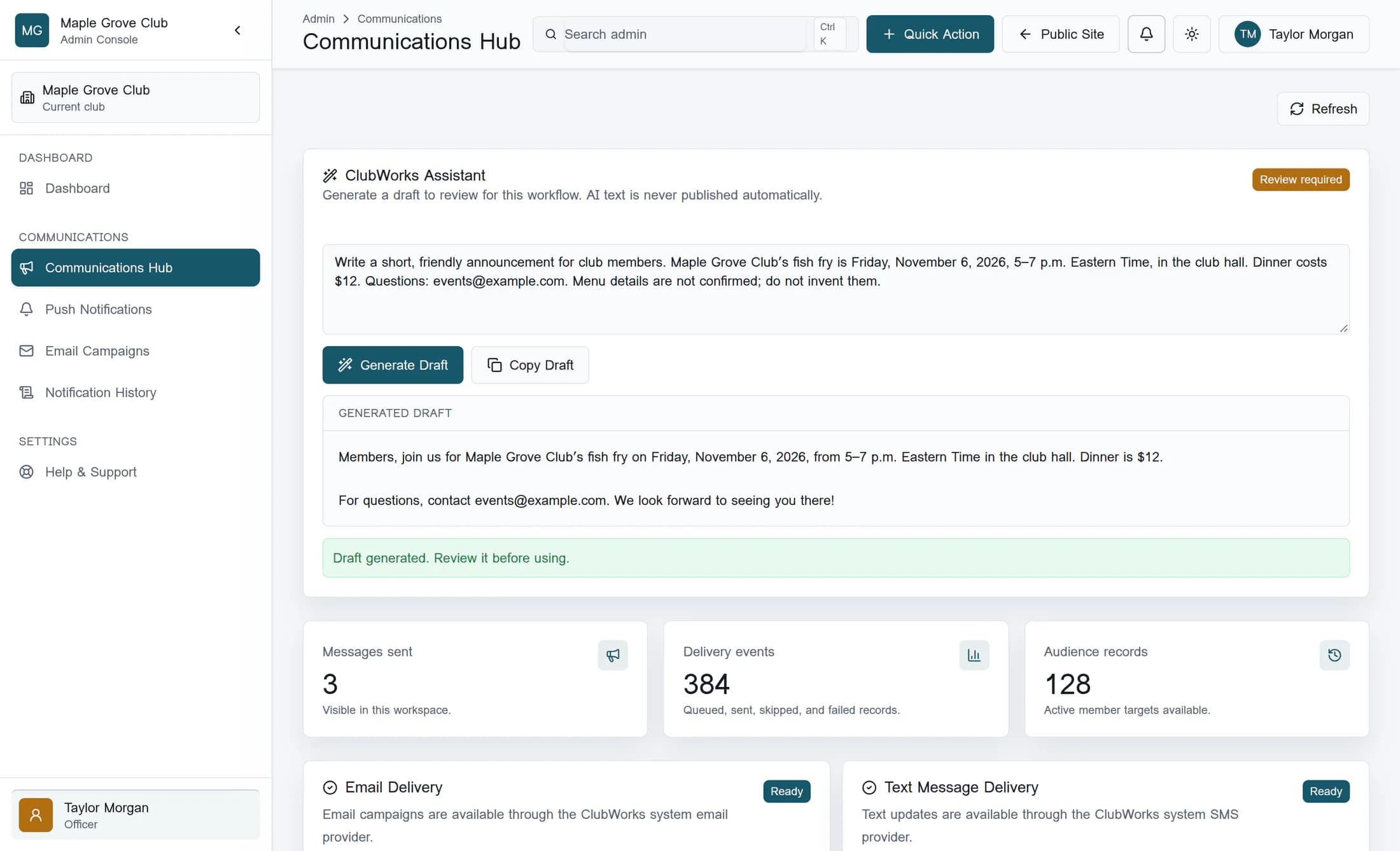
Look for Generated draft and the status Draft generated. Review it before using. Read the whole draft against your approved facts, checking the audience, date, time zone, location, price, and contact details. The Review required badge stays visible because you still need to approve the wording.
Step 5 of 5
Copy the reviewed draft if you need it
Select Copy Draft after review, then check for Draft copied. Review and paste it into the editor when ready. Copying only puts the text on your clipboard; entering it into an editor and saving or sending it are separate tasks.
If you need another version
You can change the complete request in the same text box and use Generate Draft again. The assistant does not send the previous draft along automatically, so a request to revise specific wording needs to include that wording. A successful request replaces the displayed draft; keep a copy of any version you still need first.
Keep track of your draft
What you have now
You have a text draft to review and use where it belongs. Nothing has been inserted into another editor, saved as an announcement, sent to members, or published automatically.
