
On this page
Before you start
Step 1 of 6
Open Volunteers
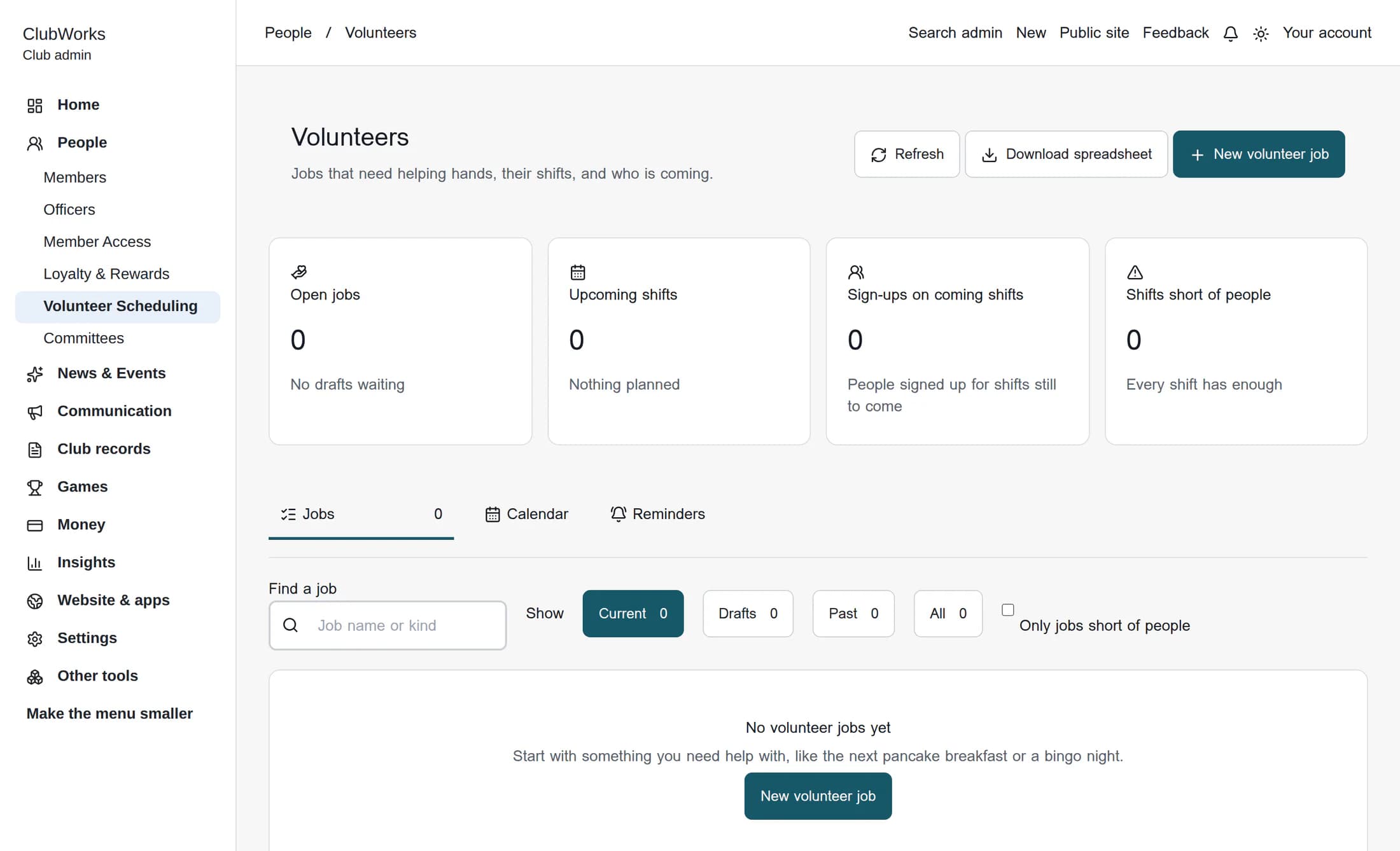
In the admin menu, open Volunteer Scheduling under People. On the Volunteers page, select New volunteer job.
Step 2 of 6
Describe the job
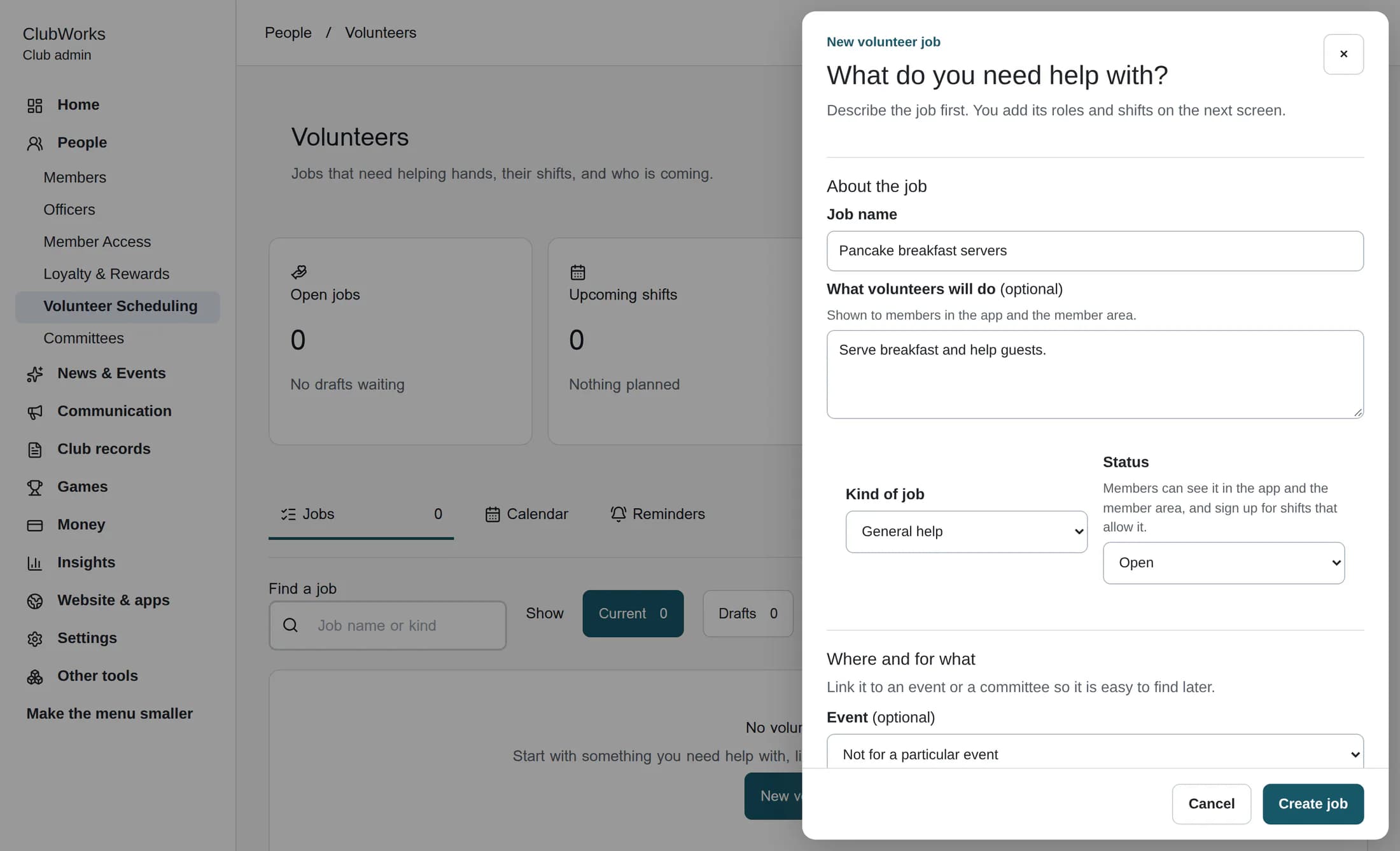
Enter a Job name, such as “Pancake breakfast servers.” This is the only required text field. Optionally describe What volunteers will do; members see that description in the app and member area. Choose the Kind of job and Status. New jobs default to General help and Open.
Step 3 of 6
Choose the right status
Draft is visible to staff only and cannot receive sign-ups or reminders. Open lets members see the job and sign up for eligible shifts. Sign-ups closed keeps the job visible and existing sign-ups in place, but stops new sign-ups; reminders can still go out. Completed stays visible for records without further reminders. Cancelled hides the job from members and stops reminders; people signed up are not notified automatically, so tell them yourself.
Step 4 of 6
Set the optional details
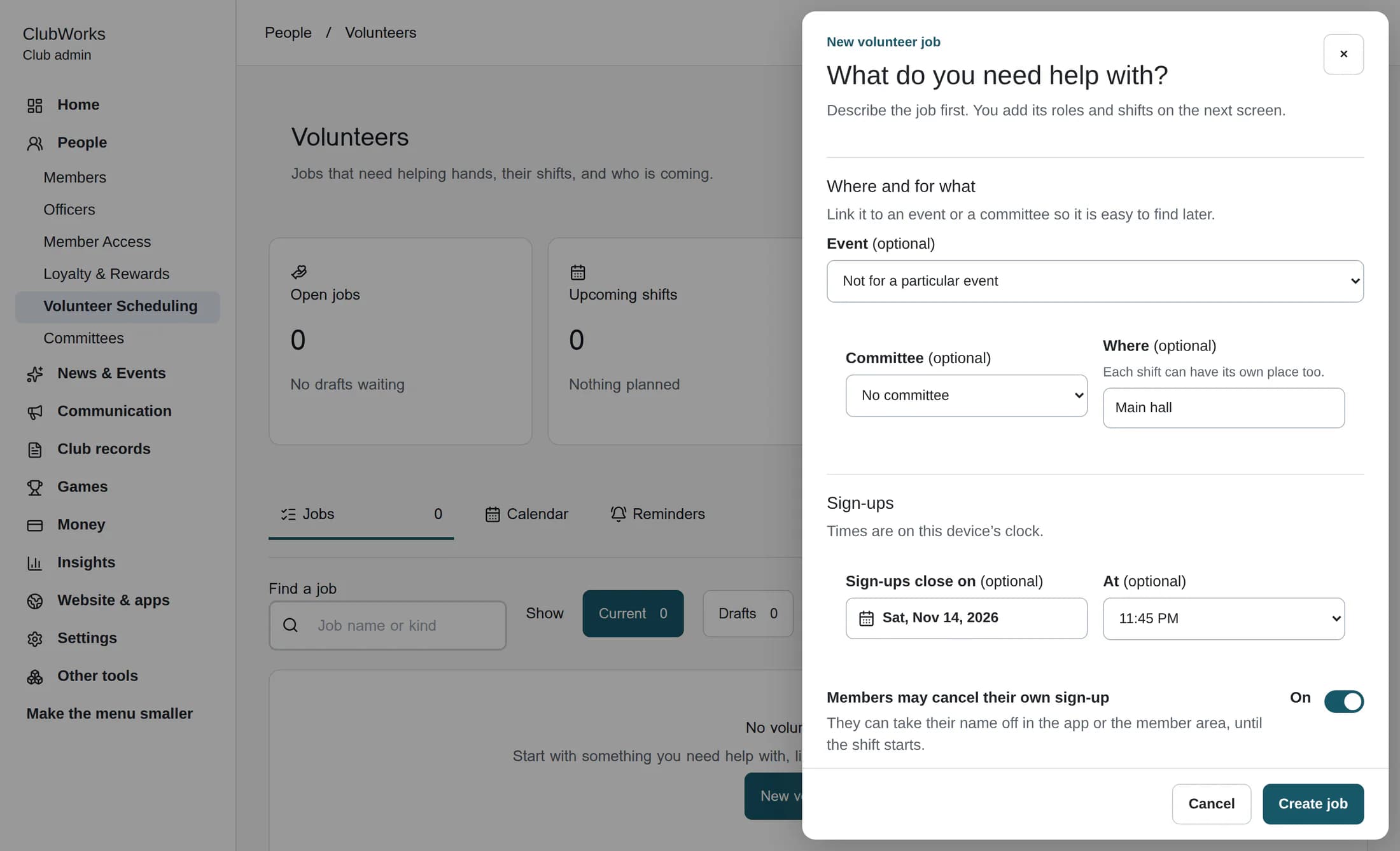
Under Where and for what, optionally link an Event or Committee and enter Where. Each shift can have its own place. Under Sign-ups, you can choose a closing date and time and whether members may cancel their own sign-up until their shift starts. Times use your device’s clock. A date without a time closes at 11:59 PM that day; a time requires a date. For a new Open or Draft job, choose a future deadline or leave it blank.
Step 5 of 6
Review reminders and notifications
Choose an Automatic reminder, including no automatic reminder or a custom whole number from 1 to 720 hours before a shift. The default is 24 hours. Reminders are intended for signed-up volunteers by push and, if they have an email address and have not turned off club emails, email. You can also turn on Send an app notification when it opens. That sends a one-time call for help when the job is created Open or first set to Open, using the job name and description. Delivery depends on members having the app and notifications available; it is not an email announcement. Draft, Completed and Cancelled jobs do not send reminders. If you create the job as Open with this option on, the call can go out immediately, before you add roles or shifts. To avoid sending members to an empty job, create it as Draft or leave the notification off until the job is ready.
Step 6 of 6
Create the job
Select Create job. If the save succeeds, the job opens and a message prompts you to add a role and its shifts. Creating the job alone does not create shifts for members to join. If saving fails, review the message in the form and correct the details or try again. If the job saves but the app notification fails, the job remains saved; check the warning before deciding how to reach members.
Next
Add the roles and shifts the job needs, then check its status and notification settings before inviting members to help.
