
On this page
- Before you start
- Find the reason and the source row
- What each group means
- Keep the review report beside your spreadsheet
- Correct invalid values in the source copy
- Invalid values and their fixes
- Separate exact repeats from conflicting rows
- Resolve identity and category concerns carefully
- Identity reasons and the next step
- Recognize email issues that do not hold a row
- Reselect the corrected files
- Check the fresh preview before proceeding
- If the file cannot reach the preview
- If an import attempt reports an error
- What to expect
Before you start
Step 1 of 10
Find the reason and the source row
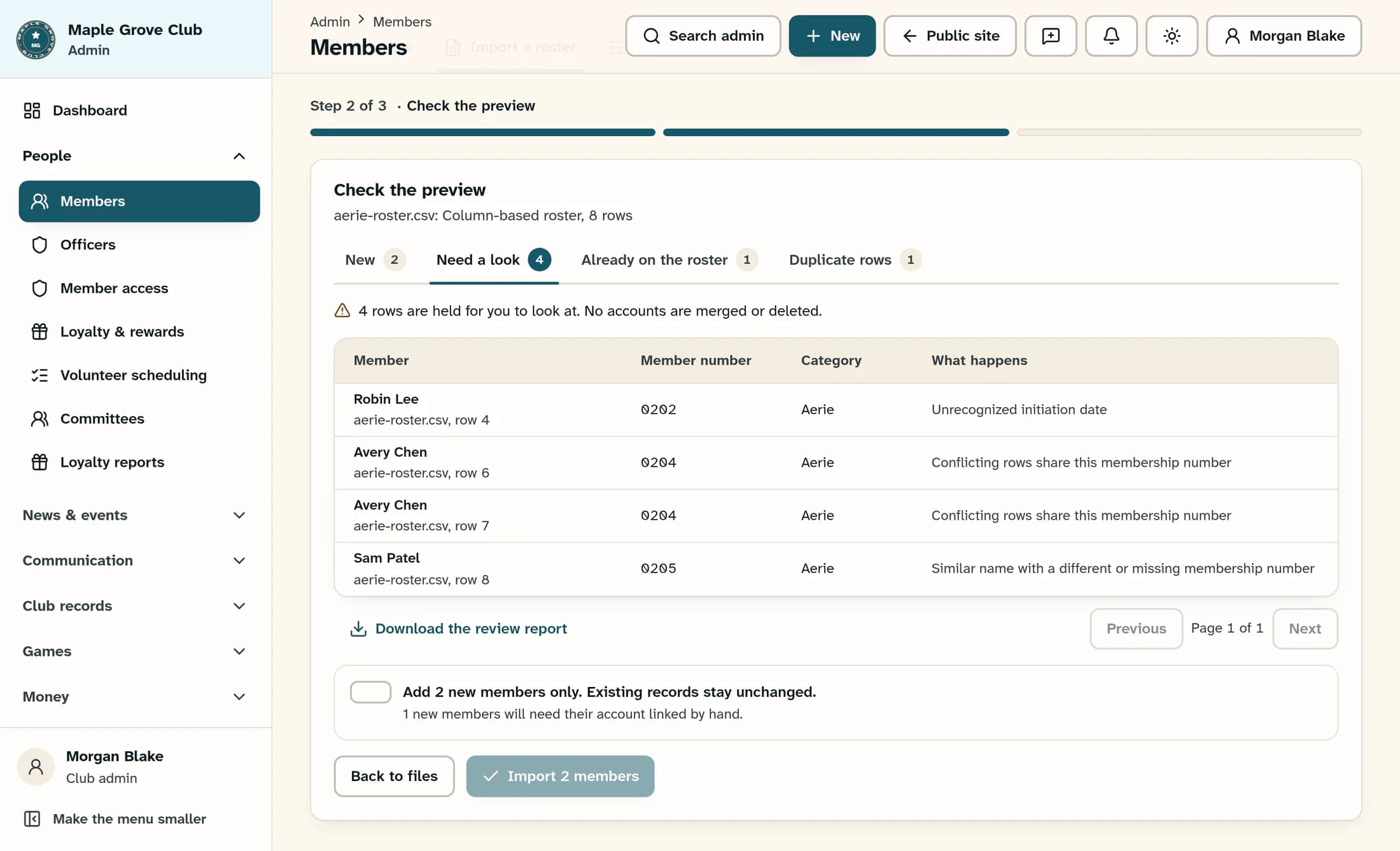
Open People > Members > Import a roster; if you do not have a preview yet, choose your files and categories, then select Preview the import. In Check the preview, select Need a look and read What happens beside each member. The filename and spreadsheet row number under the name tell you exactly where to look in your source copy.
What each group means
- New: ready to add, including some members who will need manual account linking.
- Need a look: held for a data or identity check and excluded from the import.
- Already on the roster: the name and number match an existing record with no category conflict; the import makes no changes, even if the file has a newer email or status.
- Duplicate rows: later exact repeats are skipped. The first occurrence still gets its own result.
Step 2 of 10
Keep the review report beside your spreadsheet
Select Download the review report to get every preview row, across all four groups, with File, Row, Member number, Name, Category, Result and Reason columns. This is a report of the selected import files, not a full roster backup. For larger groups, use Previous and Next below the table to review 25 rows at a time within the selected group.
Step 3 of 10
Correct invalid values in the source copy
Use the exact reason below to fix the relevant cell in your spreadsheet copy. If a row has several problems, another reason may appear after the first correction, so keep reviewing fresh previews.
Invalid values and their fixes
- “Missing or invalid membership number”: enter the actual correct number, using 1–40 letters, digits or hyphens for a column-based roster. Keep leading zeros; the supported original FOE export uses a narrower 4–12 digit format.
- “Missing or invalid member name”: supply both first and last names, with a combined full name of no more than 180 characters.
- “Unrecognized membership status”: use active, inactive, suspended, deceased or prospect. A blank status is treated as active.
- “Unrecognized initiation date”: use a real date in YYYY-MM-DD or month/day/year format. Clear it only if the date is genuinely unknown.
- “Unrecognized phone column”: check whether columns shifted during export or editing, and put the actual phone value in the right column. The phone value must be no longer than 40 characters.
Step 4 of 10
Separate exact repeats from conflicting rows
Select Duplicate rows to find rows marked “Exact repeated roster row.” Check the earlier occurrence before removing a repeated row from your source copy; later exact repeats of the same membership number and category are safely skipped. Rows marked “Conflicting rows share this membership number” instead stay in Need a look and need reconciliation.
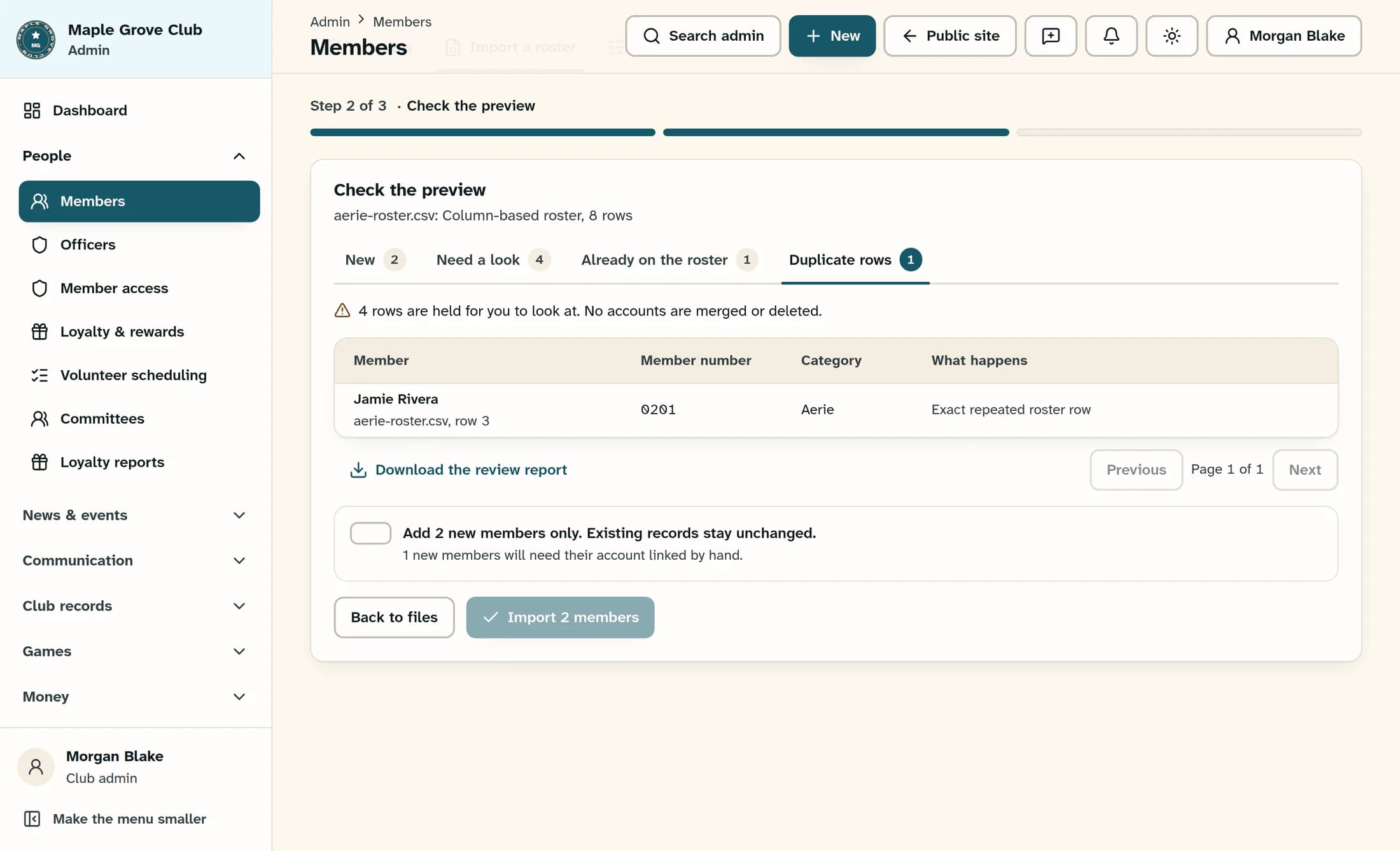
For a conflict, compare every occurrence of that membership number across the entire selected batch, ignoring letter case in the number. Different full source rows or categories are held: even a changed optional value or an otherwise unused extra column can cause a conflict. Reconcile the differences against the authoritative club record, then keep one accurate row in the correct category.
Step 5 of 10
Resolve identity and category concerns carefully
Compare held identities with the current roster and your authoritative club record. Never change a name or number just to make a row appear in New; there is no row override, force-import or merge control.
Identity reasons and the next step
- “Membership number belongs to a different name”: verify that the number belongs to this person. Multiple existing matches for a number can also produce this reason; have an authorized administrator review the existing records.
- “Existing membership has a different category”: if you selected the wrong category for the file, correct that selection to the actual intended category and preview again. If the existing member’s assignment really needs changing, use Edit a member profile; import will not reassign an existing member.
- “Similar name with a different or missing membership number”: compare the current roster before proceeding. Name matching simplifies names and can ignore middle names, suffixes and punctuation, so two genuinely different people can be flagged.
- If an authorized administrator confirms that a held person is truly distinct, the separate Add a member flow may be appropriate after that identity check. Otherwise leave the row held and get the data reviewed; do not invent or alter identity details to bypass the check.
Step 6 of 10
Recognize email issues that do not hold a row
A missing, invalid, shared or already-used email can still leave a row in New, with “New member; unique email needed for manual linking.” Correct a genuinely usable unique email in your source copy if one is available; otherwise plan separate account linking. Roster import creates no sign-in accounts or invitations and sends no email.
Step 7 of 10
Reselect the corrected files
After saving your corrections, select Back to files, then Choose roster files and reselect the full batch you want to preview. Reselecting replaces the entire selection, and files already selected in ClubWorks do not automatically reload edits made to your spreadsheet. Check the category beside every file and select Preview the import again.
Step 8 of 10
Check the fresh preview before proceeding
Select New and compare its members, categories and counts with the source corrections, then revisit Need a look for anything still held. In this example, fixing Robin’s date, reconciling Avery’s two rows and removing Jamie’s exact repeat changes eight rows to six: four new, one held, one existing and no duplicates. Sam remains held for an identity check; Riley remains new and needs manual account linking.
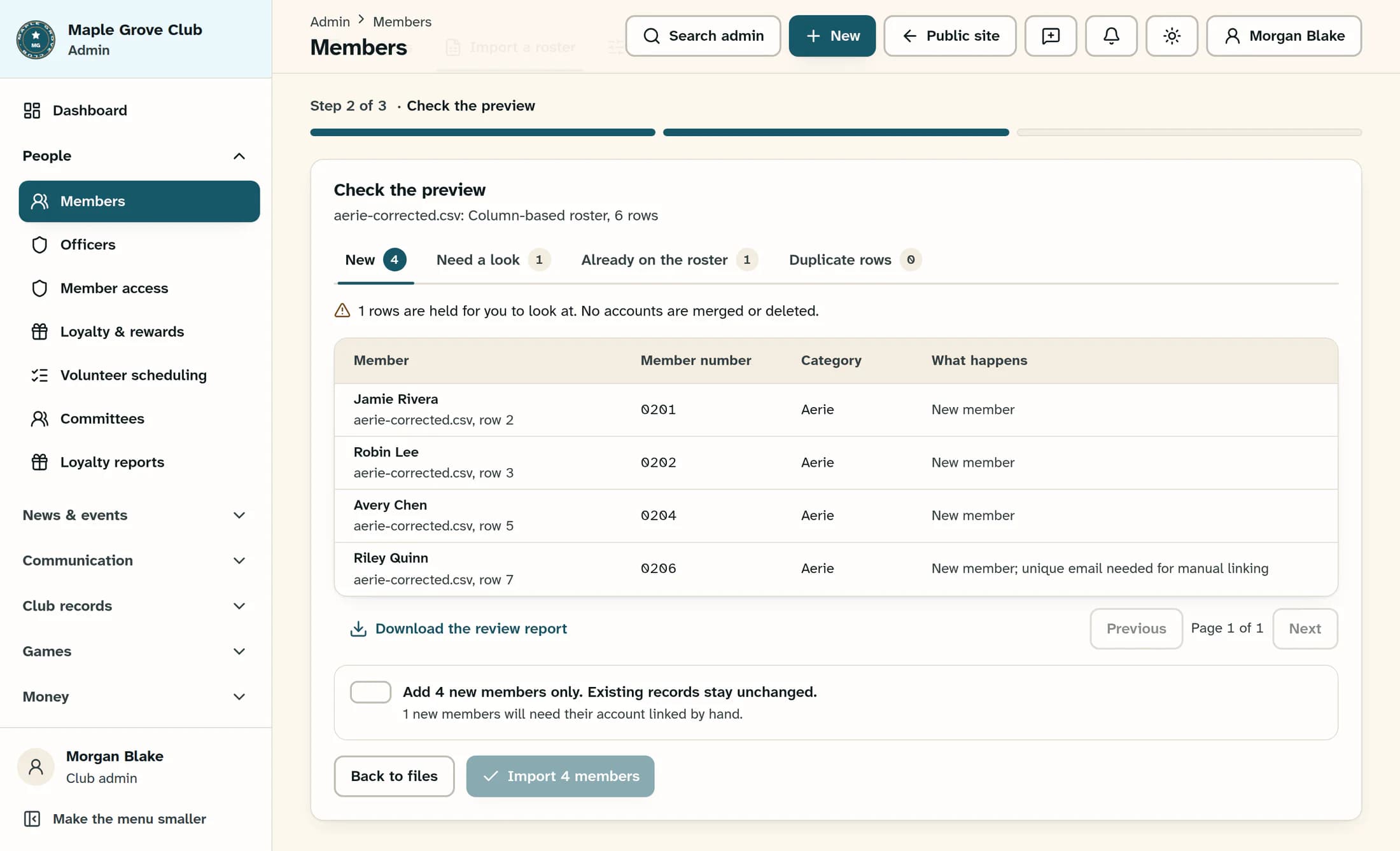
You can import only the New subset while held rows remain excluded. Each fresh preview resets the confirmation checkbox; when the preview is correct, follow Import a membership roster for the confirmation and final import.
Step 9 of 10
If the file cannot reach the preview
A file-level error is different from a row held in Need a look: check the file format, sheet layout, column headers and batch size first. Use up to four XLS, XLSX or CSV files, no more than 8 MB together and 10,000 roster rows in the batch, with one populated sheet per file and column names in its first row. See Prepare a membership roster for import for the supported layout.
Step 10 of 10
If an import attempt reports an error
If you see “The roster or files changed. Preview again before importing.”, return to Back to files and make a fresh preview, reselecting any edited files. If you see “Import was not applied. A record may have changed; preview again. If it persists, contact support.”, that attempt was not applied: preview again and contact support if it repeats. For another error, an interrupted response or no Import finished confirmation, check the current roster before repeating an import—the result may be uncertain.
What to expect
A clean preview reflects your corrected files and keeps unresolved identities held. Existing members stay unchanged, exact repeats are skipped, and only rows marked New are eligible to be added.
